
DataTale Window Tracker
Run several Claude Code sessions across VS Code windows without losing track of them.
If you work on three or four projects at once, each in its own VS Code window with Claude Code, you spend a lot of time clicking between windows to see which one is waiting on you. Window Tracker adds a panel to every window that shows all of them at a glance. Click one to jump straight to it.
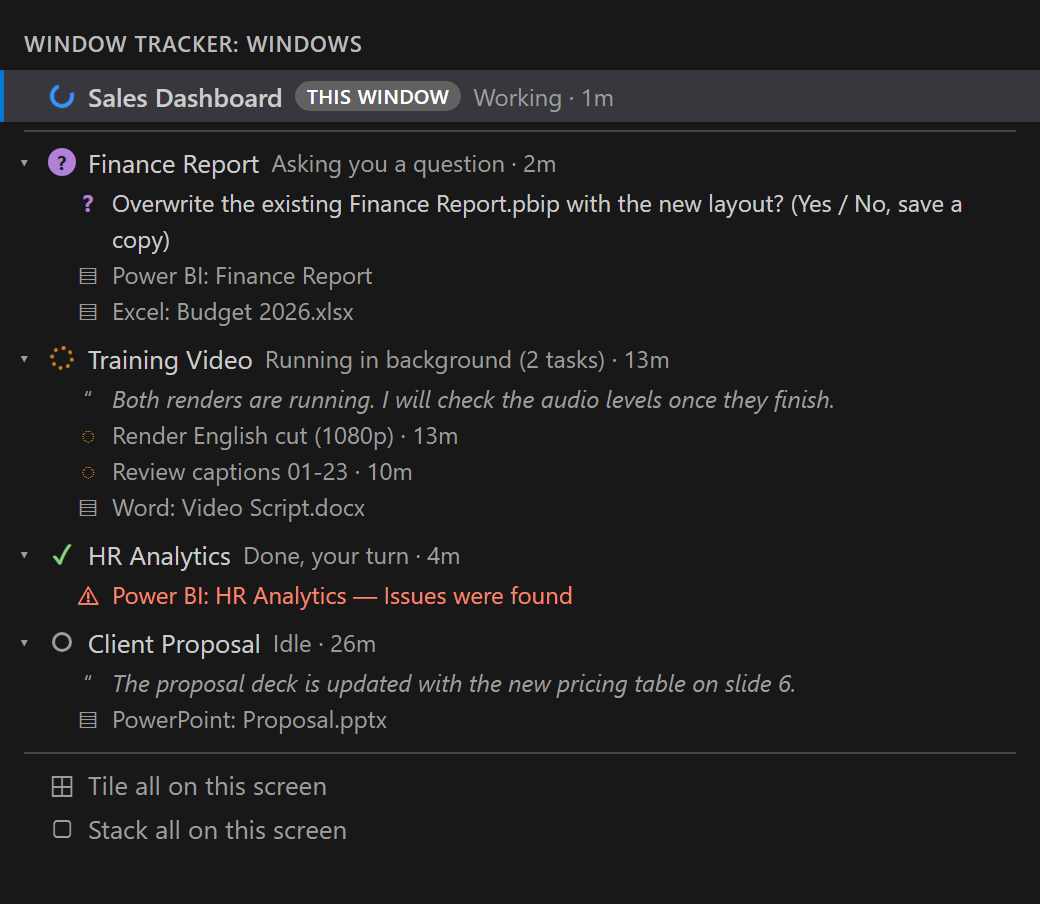
What it shows
| Icon | Meaning |
|---|---|
| purple ? | Claude is asking you a question |
| red ! | Claude needs your permission or input |
| green ✓ | Claude has finished, your turn |
| blue spinner | Claude is working |
| orange dotted spinner | Claude has finished its turn but left background jobs or agents running |
| grey circle | Idle, or no Claude session |
- This window is always on top, highlighted, so you know where you are.
- Windows that need you sort to the top. The activity bar badge and a 🔔 2 waiting status bar item count them. Click the status bar item to go to the next one.
- Pop-ups tell you when another window asks a question, needs permission, or its background work finishes.
Details under each window
Click ▸ to expand a window. Windows expand on their own when Claude is asking something.
- What Claude said: its question or permission request, or the start of its last reply. You can see what it wants without switching.
- Background jobs by name, for example "Render English cut (1080p) · 13m".
- Open documents from that project: Power BI Desktop reports, Word, PowerPoint and Excel files. Click one to bring its window forward. A ⚠ warning appears if one stops responding, or if Power BI shows an error dialog such as "Issues were found". (Windows only.)
Jump straight into the chat
Clicking a window brings it to the front and puts the cursor in its Claude Code chat box, ready to type. Turn this off with vsTracker.focusClaudeInput.
Layouts (Windows only)
- Tile all on this screen arranges every window in a grid on the current monitor.
- Stack all on this screen maximises them all on the current monitor; switch between them from the panel.
Ctrl+Alt+Ltoggles between the two.
Getting started
- Install the extension.
- When asked, click Install hooks, or run Window Tracker: Install Claude Hooks from the Command Palette.
- Restart any Claude Code sessions that were already running, so they pick up the hooks.
Requirements
- Claude Code, in the VS Code extension or the terminal
- Node.js on your PATH (Claude Code runs the status hook with
node) - Windows for the document list and layouts. Status tracking and window switching are written to work on macOS and Linux too, but have only been tested on Windows.
Privacy
Everything stays on your computer. Nothing is sent anywhere.
- Install Claude Hooks adds one small hook to
~/.claude/settings.json, alongside any hooks you already have. It saves a backup of the file first, and Remove Claude Hooks takes it out again. - The hook writes each session's status to
~/.vs-tracker/. To show Claude's last reply and background jobs, the extension reads your local Claude Code transcripts. - To list open documents, it asks Power BI Desktop and Office which files are open, on your machine only.
Settings
| Setting | Default | |
|---|---|---|
vsTracker.notify |
true |
Pop-up when another window starts waiting on you |
vsTracker.focusClaudeInput |
true |
Put the cursor in Claude's chat box when switching windows |
About
Built by DataTale, Power BI and data consulting, to manage a day of parallel Claude Code sessions. Not affiliated with Anthropic or Microsoft. MIT licensed.