Despacer
Copy long commands from Claude Code and Codex in your terminal, and paste them in one piece.
English · Deutsch · Español · Français · 日本語 · 한국어 · Português (Brasil) · 简体中文 · 繁體中文
AI coding agents that run in your terminal, like Claude Code and Codex, wrap long lines themselves. Instead of letting the terminal wrap a long command, they print real line breaks and indents into it. So when you copy a command from iTerm or Terminal and paste it, it arrives broken into pieces and doesn't run:
  curl --fail --location --retry 3 --connect-timeout 10 --max-time 120
  --output premail-demo.zip
  "https://example.com/downloads/premail/a-fictional-demo-with-a-deliberately
  -long-filename-for-testing-terminal-line-wrapping.zip"
Despacer is a tiny, free, open source menu bar app that fixes this. With it running, the same copy pastes as the one command it was meant to be:
curl --fail --location --retry 3 --connect-timeout 10 --max-time 120 --output premail-demo.zip "https://example.com/downloads/premail/a-fictional-demo-with-a-deliberately-long-filename-for-testing-terminal-line-wrapping.zip"
- Works with Terminal, iTerm2, Ghostty, Warp, kitty, Alacritty, WezTerm, Hyper, Tabby and Rio out of the box, and any other app you add
- Only touches text you copy while a terminal is in front
- No network access, no analytics, no data collected
- Requires macOS 14 Sonoma or later
Contents
- Install
- Using Despacer
- Settings
- The menu bar menu
- Keyboard shortcuts
- Troubleshooting
- How it works
- The command line tool
- Uninstall
- Building and contributing
- Support the project
- Other Projects
Install
Despacer is currently installed by building it from source. It takes about a minute.
- Install Apple's command line tools if you don't have them:
xcode-select --install - Clone this repo and build:
This buildsgit clone https://github.com/MattSenter/despacer.git cd despacer ./build.sh --installDespacer.app, copies it to your Applications folder, and opens it. - The Preferences window appears. Under System, turn on Open at login so Despacer is always ready.
That's it. Copy commands from Claude Code or Codex the way you normally do, and paste them.
Using Despacer
There's nothing new to learn. Select a command in your terminal, press Cmd+C, and paste it wherever it's going. By the time you paste, Despacer has already put it back together, usually within a few hundredths of a second.
- Copies from a terminal are checked and fixed if they need it.
- Copies from any other app are never looked at.
- Text that was never broken, like a short command or ordinary terminal output, is left exactly as it was.
If a fix ever isn't what you wanted, choose Undo Last Fix from the menu bar icon to put your copy back exactly as you copied it. The Recent fixes list under Fixing shows the last ten fixes, each with Copy Original and Copy Fixed buttons.
Settings
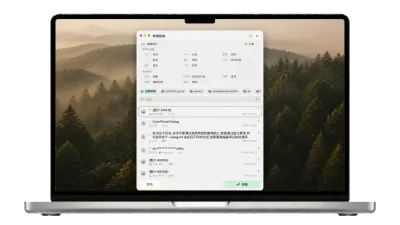
Open the Preferences window by opening Despacer from your Applications folder (or Spotlight, or Launchpad), or by choosing Preferences… from the menu bar icon. The sidebar has seven panes: Fixing, Terminals, System, Permissions, Privacy, Other Projects (more apps from the same developer), and About (version info and links).
| Setting | Pane | What it does |
|---|---|---|
| Fix terminal copies | Fixing | Turns Despacer on or off without quitting it. |
| Match session history | Fixing | Looks up the exact original in Claude Code and Codex session files on your computer. On by default. Below the switch, Despacer shows whether it found each app's history. |
| Repair other wrapped text | Fixing | When there's no exact match, rejoins lines that were clearly broken at the terminal's width. On by default. |
| Play a sound | Fixing | Plays a short sound when a fixed copy is ready to paste. Off by default. |
| Built in | Terminals | The terminals Despacer knows about, all on by default. Uncheck any you don't want Despacer to watch. |
| Added by you | Terminals | Any other app you copy commands from, such as a code editor with a built-in terminal. Click Add App… and choose it. |
| Open at login | System | Starts Despacer automatically when you log in. It starts quietly, without opening this window. |
| Show in menu bar | System | Shows or removes the menu bar icon. With it off, Despacer runs invisibly. Open Despacer from your Applications folder to get back to this window. |
| Quit Despacer | System | Actually quits the app. Closing the window (or pressing Cmd+Q) only closes the window and leaves Despacer running. |
The Permissions pane shows whether macOS lets Despacer read your copies (see Troubleshooting). Settings are saved automatically and apply right away.
The menu bar menu
Click the Despacer icon in your menu bar for quick access:
- Fix Terminal Copies: turn Despacer on or off.
- Play Sound When Fixed: the same switch as in Fixing.
- Undo Last Fix: put the last fixed copy back on the clipboard exactly as you copied it.
- Show in Menu Bar: uncheck to remove the icon. You can also hold Cmd and drag the icon out of the menu bar.
- Open at Login: start Despacer when you log in.
- Preferences…: open the Preferences window.
- Quit Despacer: quit the app.
Keyboard shortcuts
While the Despacer Preferences window is in front:
| Shortcut | What it does |
|---|---|
| Cmd+W | Closes the Preferences window. Despacer keeps running. |
| Cmd+Q | Also closes the window and keeps Despacer running, so a stray Cmd+Q never turns it off. Use Quit Despacer to quit for real. |
| Cmd+H | Hides Despacer like any other app. |
| Cmd+, | Opens Preferences. |
Troubleshooting
My copy still pastes broken. Make sure Despacer is running (open it from your Applications folder) and that Fix terminal copies is on. Check that your terminal is checked under Terminals, or add it with Add App…. Then look at the Permissions pane.
macOS asked whether Despacer can paste from other apps. Newer versions of macOS let you decide which apps may read what you copy. Choose Allow. If you chose Don't Allow, open System Settings > Privacy & Security > Paste from Other Apps and set Despacer to Allow. The Permissions pane shows the current setting and has a button that takes you there.
A copy came out joined when it shouldn't have been. Choose Undo Last Fix from the menu bar icon. The exact match from session history is never wrong about line breaks, but the wrap rules have to guess when there's no match. If it keeps happening, turn off Repair other wrapped text and let Despacer fix only what it finds in session history. Please open an issue with the text you copied, so the rules can get better.
Despacer changed something I copied from ordinary terminal output. Despacer only repairs text with the 2-space indent that Claude Code and Codex print, or text it finds word for word in their session history. If you copied something else and it changed, please open an issue.
I turned off the menu bar icon and can't find Despacer. Open Despacer from your Applications folder. The Preferences window appears, and you can turn the icon back on under System.
Open at login doesn't stay on.
macOS only allows apps in a stable location to open at login. Make sure Despacer is in your Applications folder (./build.sh --install puts it there), then turn the setting on again.
How it works
Claude Code and Codex both draw their output themselves, and both wrap long lines to fit the terminal before printing them: a real newline, then 2 spaces of indent. The terminal only ever sees separate lines, so that's what it copies. There's no setting in the terminal that can undo it, because the original line endings never reach the terminal at all.
Despacer checks the clipboard 20 times a second (macOS has no clipboard notification, and the check costs next to nothing). When the copy came from a terminal app, it fixes it in two steps:
- Wrap rules, instantly. It removes the 2-space indent and the padding at the ends of lines, then rejoins every line break that wrapping caused. A break counts as wrapping when the next word wouldn't have fit on the line above it. A line that fills the whole width was split in the middle of a word, but only when the word is too long for a line, so it's joined without a space. Every other line break, and any line ending in
\, stays. This version goes on the clipboard at once, so it's ready before you can switch windows. - Exact match, a moment later. In the background, it looks for the copied text, ignoring all spaces and line breaks, in the session files Claude Code (
~/.claude/projects) and Codex (~/.codex/sessions) keep on your computer. It checks the sessions active in the last day, newest first. On a match, it puts the original text, exactly as the agent wrote it, on the clipboard, unless you've copied something else since.
The wrap rules alone get most commands right, but some breaks are impossible to tell apart, for example a selection that starts in the middle of a line. The exact match settles those. It works no matter where your selection starts or ends.
The app is under 1,400 lines of Swift in App/, and the fixing engine is about 250 lines in Sources/DespacerCore/, with tests.
The command line tool
The same fixing engine is also a command line filter, for scripts or for fixing text you've already pasted somewhere:
swift build -c release
pbpaste | .build/release/despacer | pbcopy
Pass --explain to see which method it used, or --no-transcripts to use only the wrap rules.
Uninstall
- Choose Quit Despacer from the menu bar icon or the System pane of the Preferences window.
- If Open at login was on, turn it off first, or remove Despacer in System Settings > General > Login Items.
- Drag
/Applications/Despacer.appto the Trash. - Optionally remove its settings:
defaults delete com.mattsenter.Despacer
Building and contributing
./build.sh            # builds build/Despacer.app (ad-hoc signed)
./build.sh --install  # also copies it to /Applications and opens it
swift test            # runs the fixing engine's tests
swift Tools/make-icon.swift   # regenerates the app icon in Resources/
python3 scripts/check-localization.py   # checks every language is complete
Despacer ships in English, German, Spanish, French, Japanese, Korean, Brazilian Portuguese, and Simplified and Traditional Chinese. A new string the app shows goes in Localization/en.lproj/Localizable.strings and every other .lproj, and a change to this README or PRIVACY.md goes in each translation too.
| Path | What's there |
|---|---|
Sources/DespacerCore/ |
The fixing engine: the wrap rules (Despacer.swift) and the session history lookup (TranscriptMatcher.swift) |
Tests/DespacerCoreTests/ |
Tests, built from real broken copies |
Sources/despacer/ |
The command line tool |
App/main.swift |
App delegate and menus |
App/ClipboardWatcher.swift |
Watches the clipboard and applies fixes |
App/TerminalApps.swift |
The built-in terminals and the ones you add |
App/SettingsView.swift |
The SwiftUI Preferences window: sidebar and panes |
App/OtherProjectsView.swift, Resources/other-projects/ |
The Other Projects pane and its screenshots |
App/BuiltByCredit.swift, App/OutboundLink.swift |
The sidebar credit and copyright, and the tagged outbound links |
App/MenuBarIcon.swift |
The menu bar icon, drawn in code |
Localization/<lang>.lproj/ |
The app's strings in each language (English is the source) |
README.<lang>.md, PRIVACY.<lang>.md |
Translated docs |
scripts/check-localization.py |
Fails if any language is missing a string or doc |
Tools/make-icon.swift |
Renders the app icon |
Issues and pull requests are welcome, especially broken copies the wrap rules get wrong.
Support the project
Despacer is free and always will be. If it saves you a little daily annoyance, you can tip me on Venmo.

Scan with your phone
A tip is a thank you. It doesn't unlock anything, because there's nothing to unlock.
Other Projects
Despacer is one of several products Matt Senter of Senternet designs, builds, and ships end to end. Here’s the rest of the lineup.
- CommandH: Cmd+H that works on the last app, so you can finally see your desktop.
- Weatherling: Rain, snow, and autumn leaves on your Mac desktop. Weather effects, not a weather app.
- Burly: Every link, in the right browser profile.
- Comoji: Slack-style :emoji: autocomplete, everywhere on your Mac.
- Orgabot: Orchestrate the work, not just the agents.
- Premail: Your inbox, defended.
- Highwire: See beyond the headlines.
- StockCar: A podcast of your portfolio, not the market.
- Fix Siri: Hey Siri, do better. A sourced record of Siri failures and Apple’s promises.
- BeeReady: Lifesaving skills, one game at a time.
- SeedMatrix: Every variety, every trial, one clear comparison.
License
MIT. Built by Matt Senter.