
Files and Folders (FnF)
A fast, keyboard-first two-panel file manager for macOS, Windows and Linux –
in the spirit of Norton Commander and Total Commander.
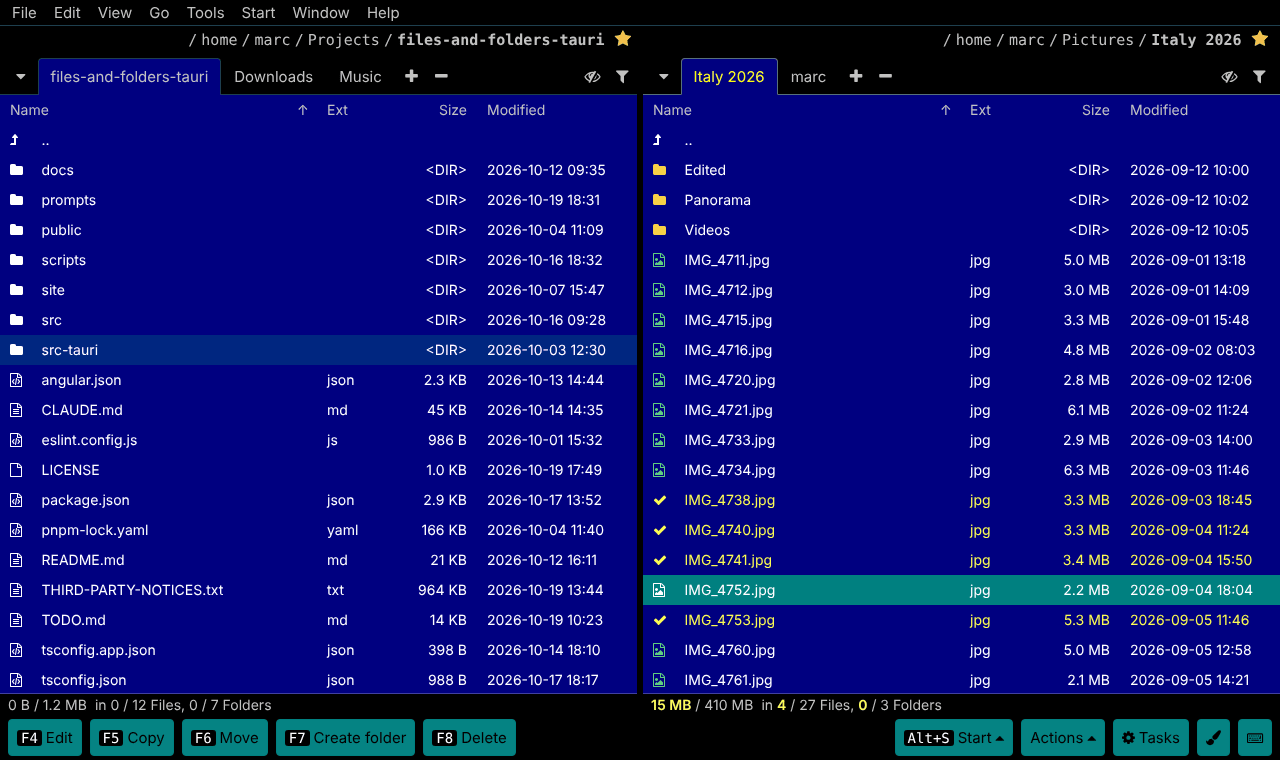
Become a master of file management. I have been building file managers for myself since 2016 – first one that ran in the browser, now a real desktop app. FnF puts two folders side by side, lets you do everything with the keyboard and runs the slow work in the background while you go on. Copy, move, rename hundreds of files at once, find duplicates, look into archives and servers – without reaching for the mouse.
Note
Version 1.0.0 is available – packages for macOS, Windows and Linux on the GitHub releases page (see Installation). The automated tests run on Linux, macOS and Windows, but some platform specifics (the trash per drive on Windows, attributes, links) still need testing on real macOS and Windows machines. Back up what you care about – and tell me what breaks.
Main features
- Two panels, tabs everywhere
- Keyboard first – every function is one keystroke away
- Find anything from the Command Palette
- Jobs in the background
- Safe by default
- Multi rename with preview and undo
- Search into a tab
- Flat view
- Duplicates and similar images
- Disk usage
- Archives as folders
- FTP, FTPS and SFTP servers
- Viewer and quick view
- Compare files
- Compare and synchronise folders
- Group files and clean folders
- Shell line
- Starter menu
- Colour schemes
- And more
Shortcuts are written Windows/Linux · macOS. All of them can be changed.
Two panels, tabs everywhere
Source on the left, target on the right – the fastest way to move files around. Each side has a clickable path, favourites, a status line and as many tabs as you like. Drag tabs to reorder them or onto the other side, swap the panels, or make the target show the same folder as the source. Tabs, cursor, marks, sort order and column widths survive a restart; every tab even remembers its last 50 folders.
Tab switch side · Ctrl+T / Ctrl+W new / close tab · Ctrl+U swap panels · Ctrl+Alt+O target = source ·
macOS: Tab · ⌘⌥T / ⌘⌥W · ⌘U · ⌘⌥O
Keyboard first
Every function is an action with a name and a shortcut – type a few letters, press Enter.
The Command Palette finds any action by name and shows its shortcut, so you learn the keys on the way. The
Actions menu lists all of them in groups. The classic keys are where you expect them: F3 view, F5 copy,
F6 move, F7 new folder, F8 delete. The button bar at the bottom changes with Shift, Alt and Ctrl.
Ctrl+Shift+P palette · Ctrl+F12 actions menu · Ctrl+Shift+K shortcuts ·
macOS: ⌘⇧P · ⌃K ⌃M · ⌘⇧K
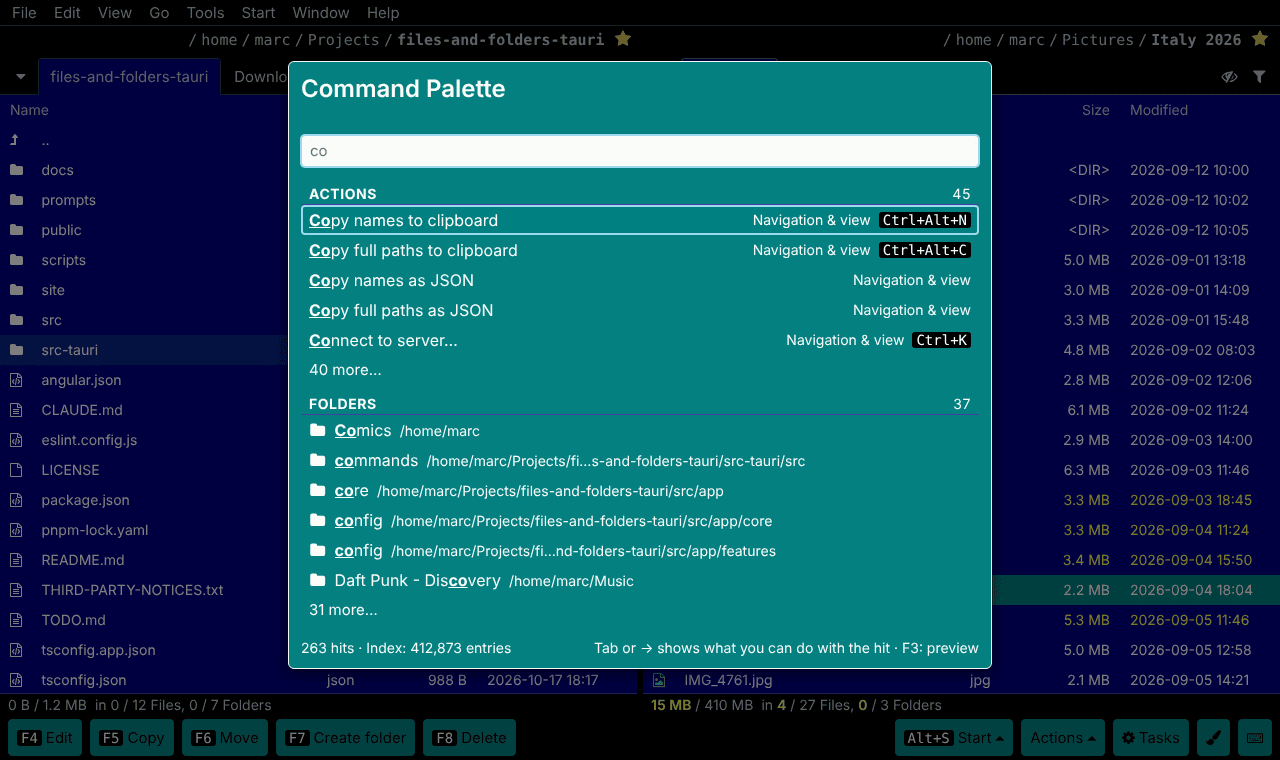
The Actions menu – every action in four columns
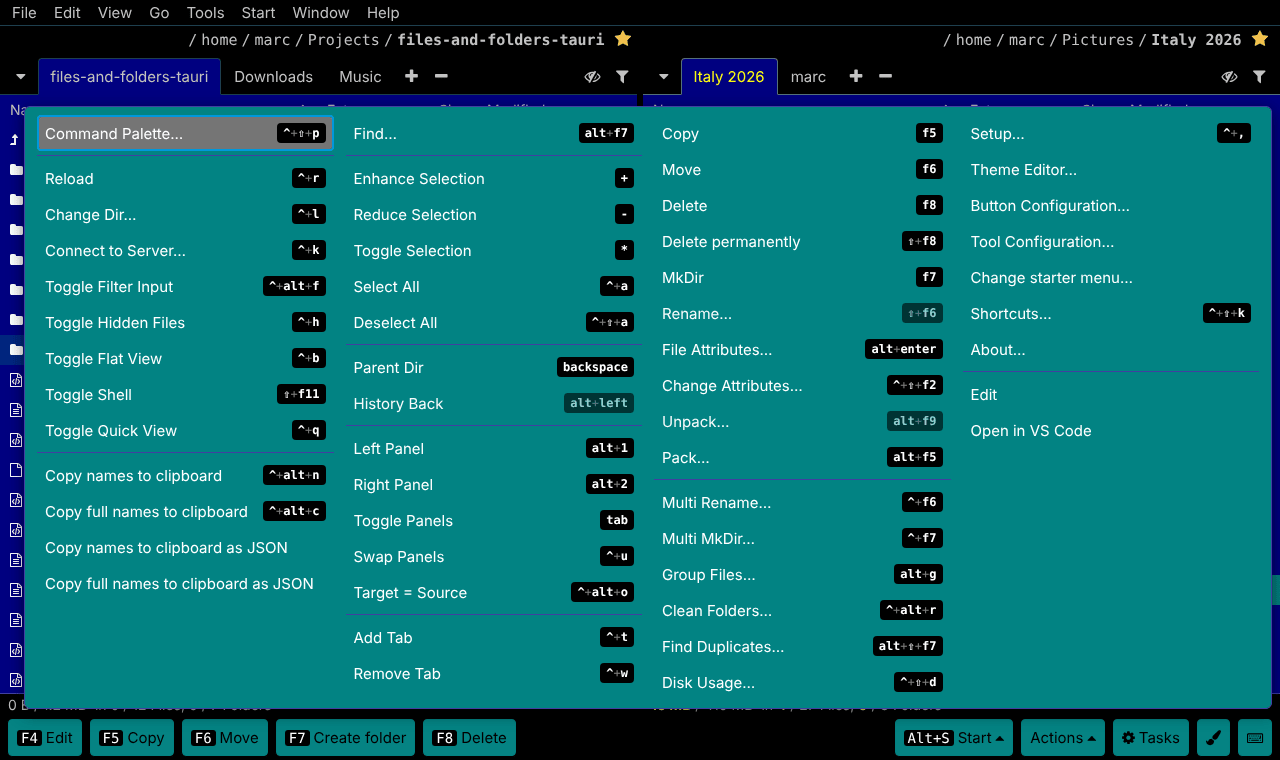
Find anything from the Command Palette
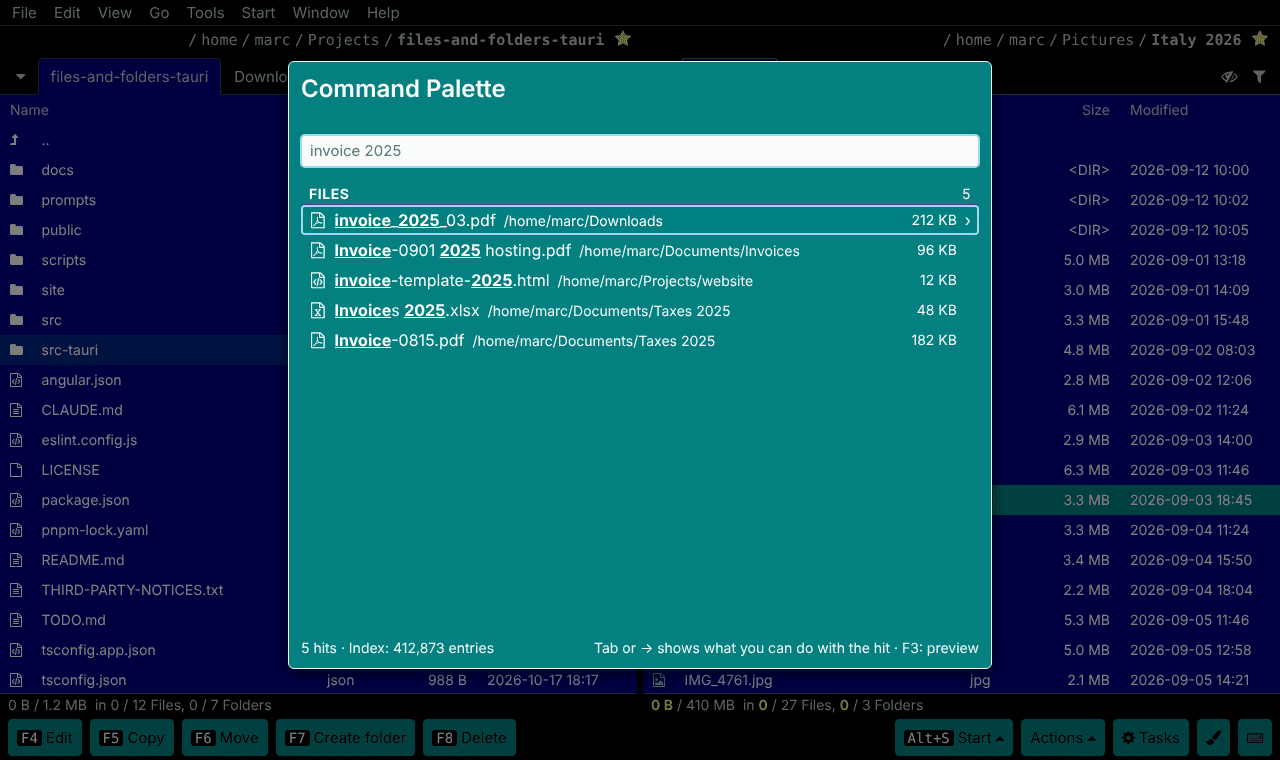
Type invoice 2025 – files from all your folders, actions and folders in one list, and act on a hit at once.
The palette searches a name index that is built in the background and kept up to date (only names, sizes and dates, only
in memory – about 50 MB per million files), plus your tabs, favourites and recent folders directly. Every word must
appear in the name or a folder above it; case and accents don't matter. Narrow it down with ext:pdf, in:Projects,
size>10m, modified:2025 or is:dir; > lists only actions, ~/ completes a path. On a hit, the keys you know
work: Enter opens, F3 shows a preview beside the list, F5/F6 open the copy/move dialog with the other side as
target, Shift+F6 renames; Tab shows everything else – go to its location, find similar files, analyse the parent
folder, show all hits in a result tab.
Ctrl+Shift+P palette · Tab actions on the hit · Insert mark several ·
macOS: ⌘⇧P · Tab · Insert
Jobs in the background
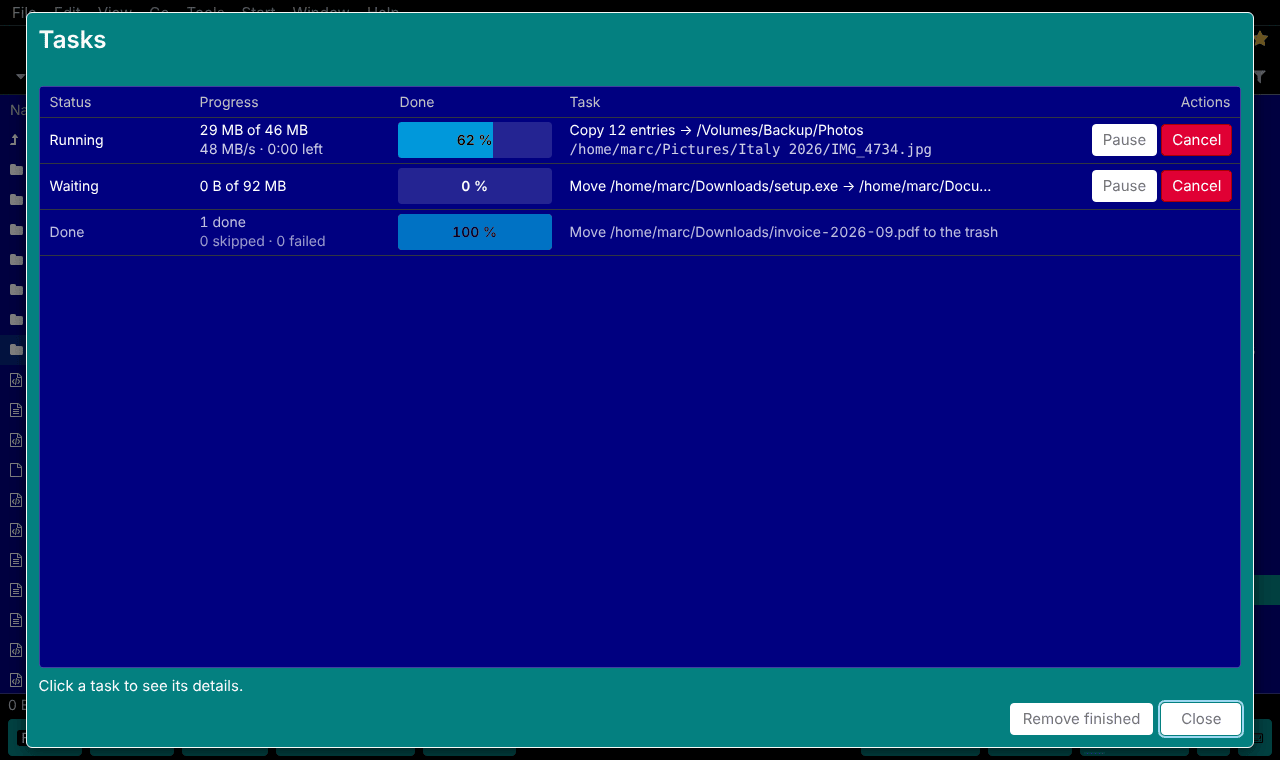
Start a big copy and keep working – the app never freezes. Copy, move, delete, pack and search run as jobs with progress, rate and remaining time. Pause them, resume them, cancel them; several jobs line up in a queue. Slow network drives and servers are handled the same way – the panels stay usable.
F5 copy · F6 move · Ctrl+F11 tasks · macOS: F5 · F6 · ⌃K F6
Safe by default
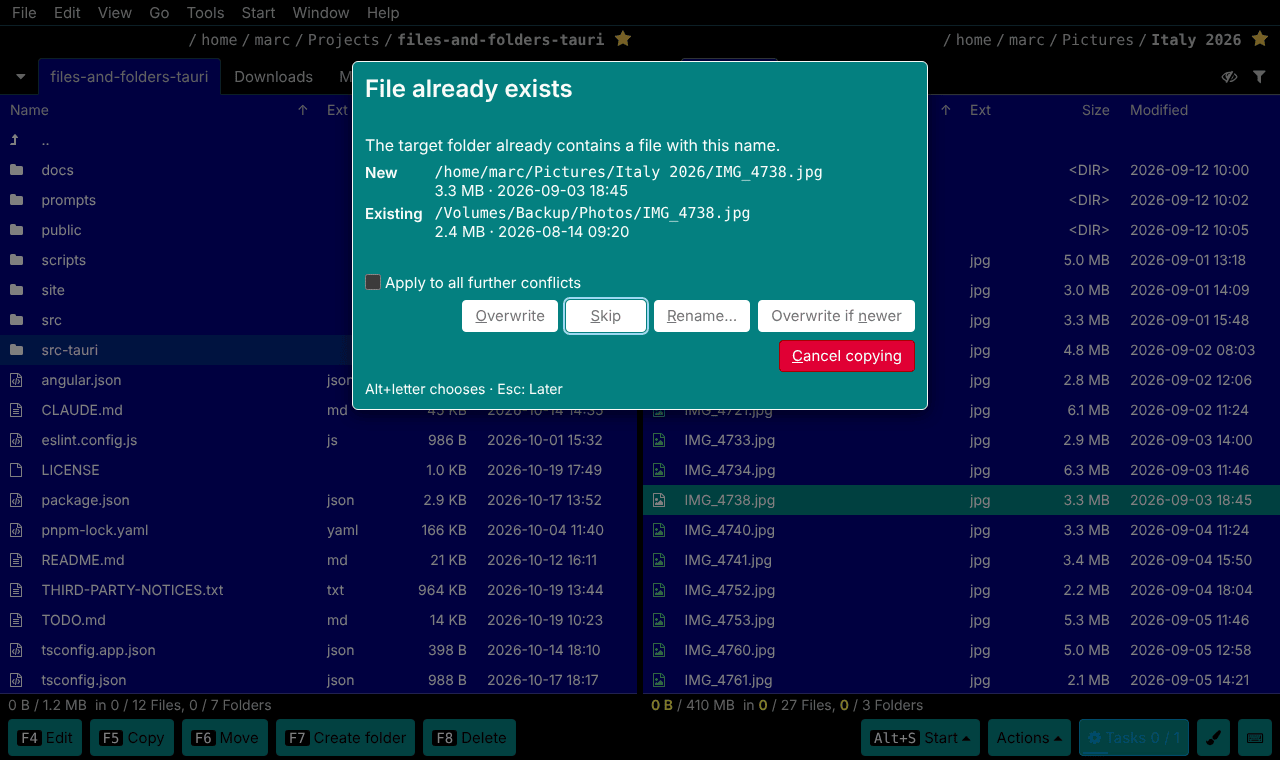
Delete goes to the trash, nothing is overwritten without asking. When a file already exists you see both versions with size and date and decide once – or for all further conflicts: overwrite, skip, overwrite if newer, or rename. Copies are written under a temporary name first, so there is never a half-written file under the real name. Renaming never overwrites, and dangerous targets (root, home, system folders) need a second confirmation.
F8 trash · Shift+F8 delete permanently · macOS: F8, ⌘⌫ · ⇧F8, ⌘⌥⌫
Multi rename with preview and undo
Rename hundreds of files in one go – and see every new name before you press the button.
Build names from macros like [N] name, [E] extension, [C] counter, [D] date, use upper/lower case rules,
search and replace with regular expressions, replace umlauts and risky characters. Errors (duplicate names,
invalid characters) are shown in the preview. Save your patterns as presets – and if it was a mistake: undo.
Ctrl+M · macOS: ⌘F6

Search into a tab
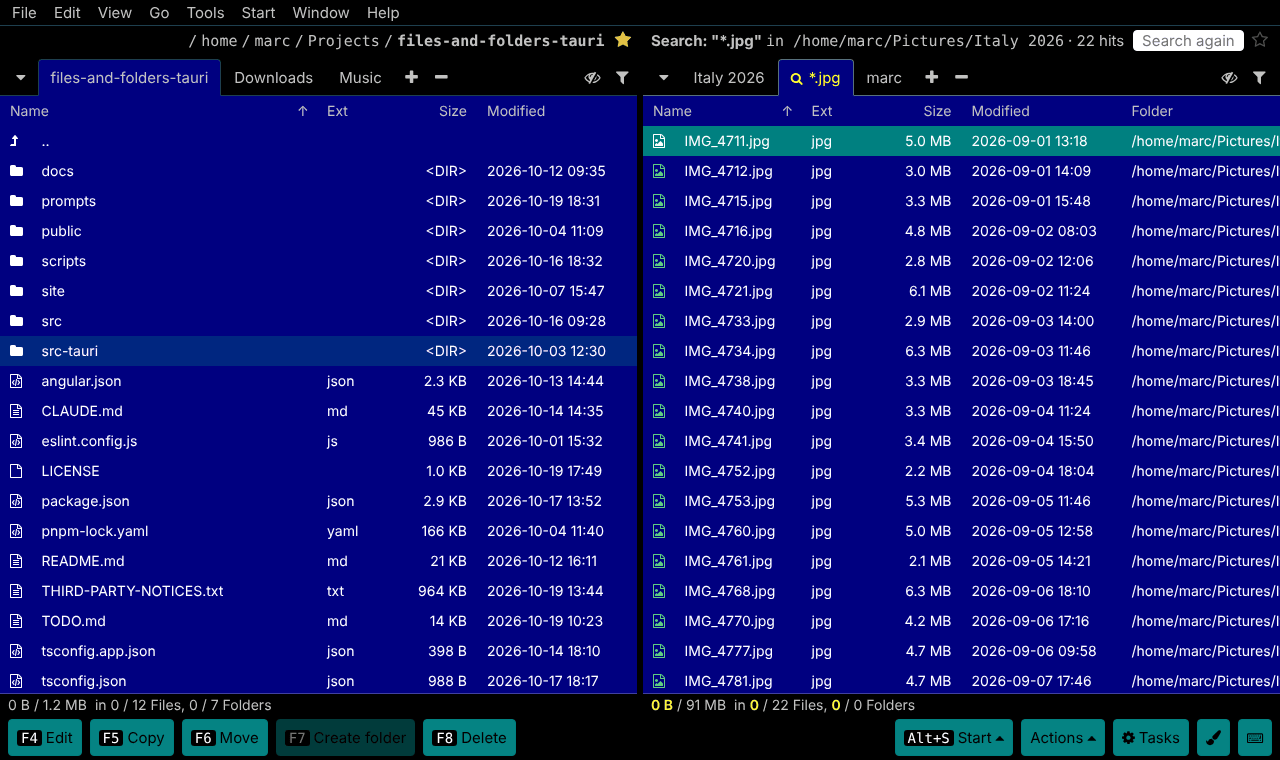
Search results land in a tab you work with like a folder. Search by name (glob or regex), content, size, date and depth; results stream in while the search runs. Copy, move, delete, rename or view the hits directly, jump to the folder of a hit, run the search again. Keep your favourite searches as templates.
Alt+F7 find · Ctrl+Shift+F7 search again · Alt+F10 find folder · macOS: ⌥F7 · ⌘⇧F7 · ⌥F10
Flat view
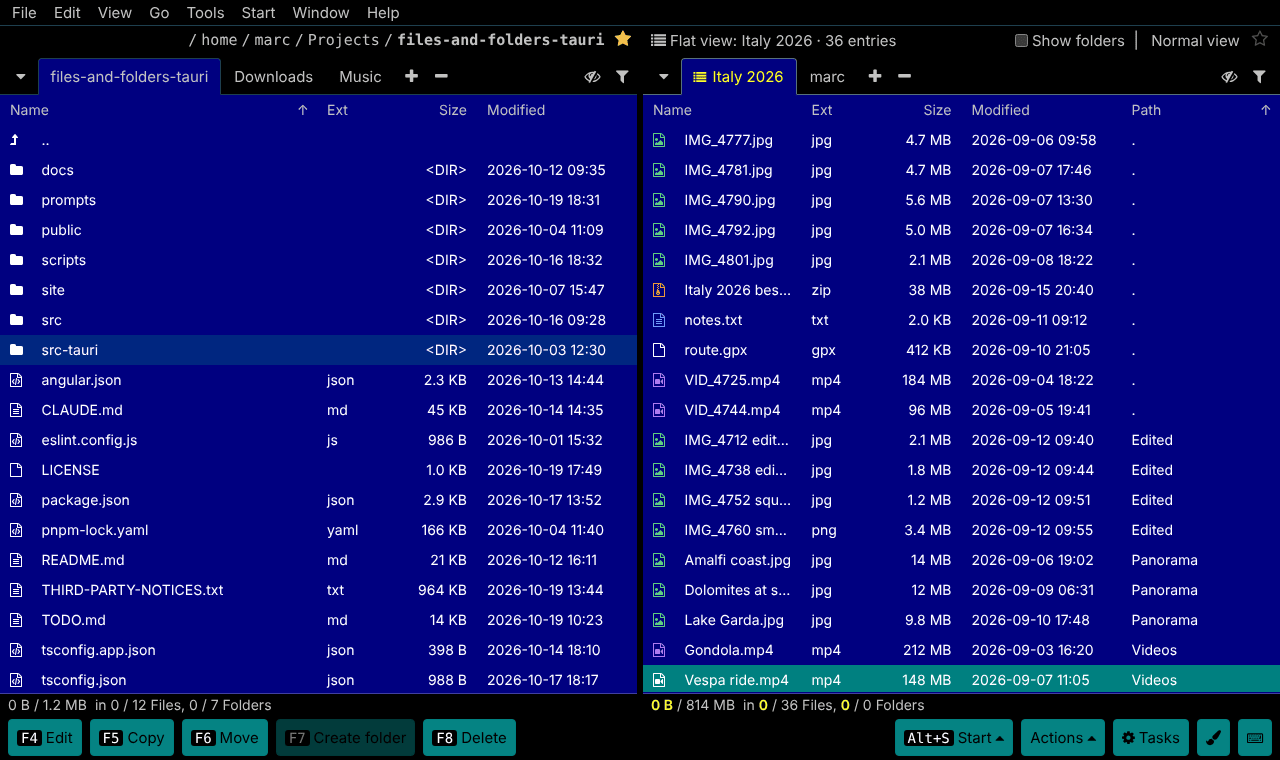
Every file below a folder in one list. Like Total Commander's flat view: all files of all subfolders in the same tab, with a Path column. Sort them, mark them, copy or delete them, rename them – across all subfolders at once. The same key brings the normal view back.
Ctrl+B · macOS: ⌘B
Duplicates and similar images
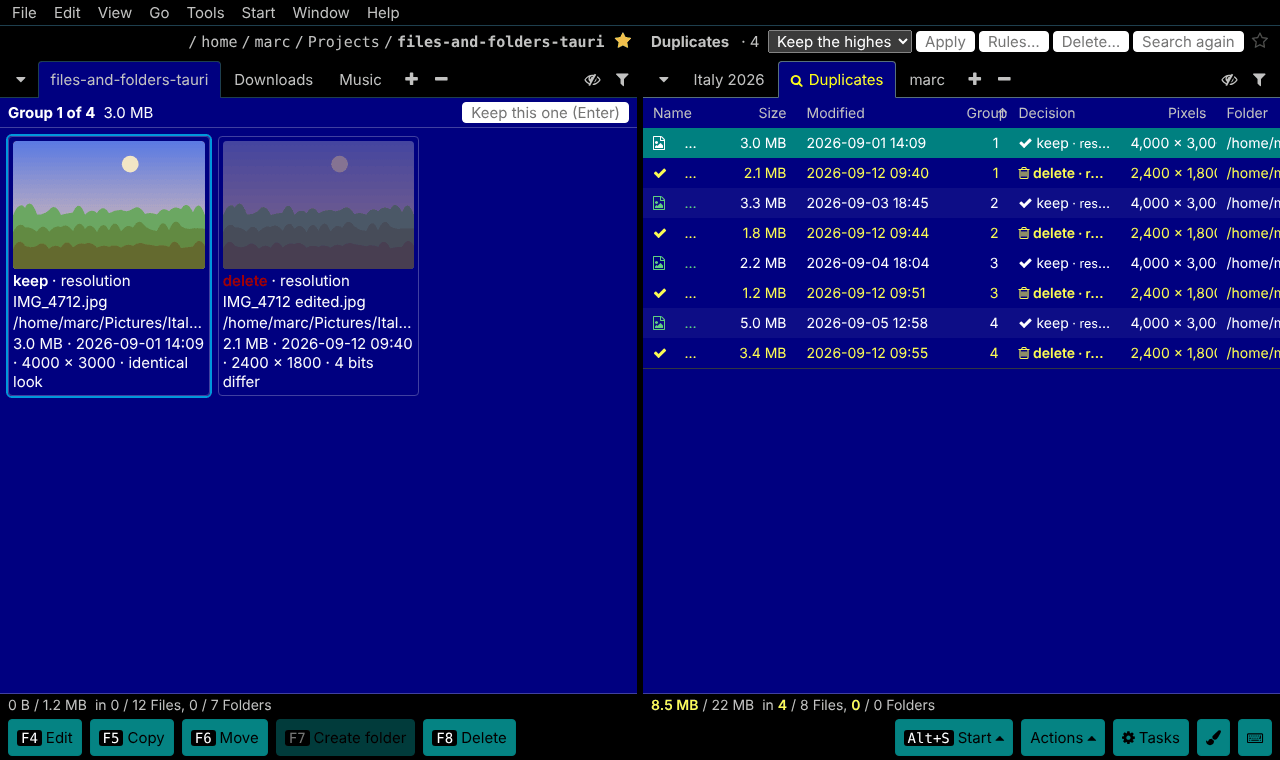
Free space without fear: rules decide which copy stays. Find files with the same content (SHA-256, optionally byte by byte), similar images (another size, quality or format) or similar comics. Rules like keep the oldest, the shortest path, the higher resolution or not the one named "copy" mark the rest; hard links are recognised as the same file. Check each group with thumbnails, then delete to the trash, permanently or into a folder – every copy is compared again right before.
Alt+Shift+F7 · Alt+↓ / Alt+↑ next / previous group · macOS: ⌥⇧F7 · ⌥↓ / ⌥↑
Disk usage
See at a glance what eats your disk.
Scan the marked folders, the folder under the cursor or the whole drive. The list shows sizes with share bars,
the other panel draws rings or tiles. Go into folders with Enter, list the largest files, collect what can go
across all folders and remove it with F8.
Ctrl+Shift+D · macOS: ⌘⇧D

Archives as folders
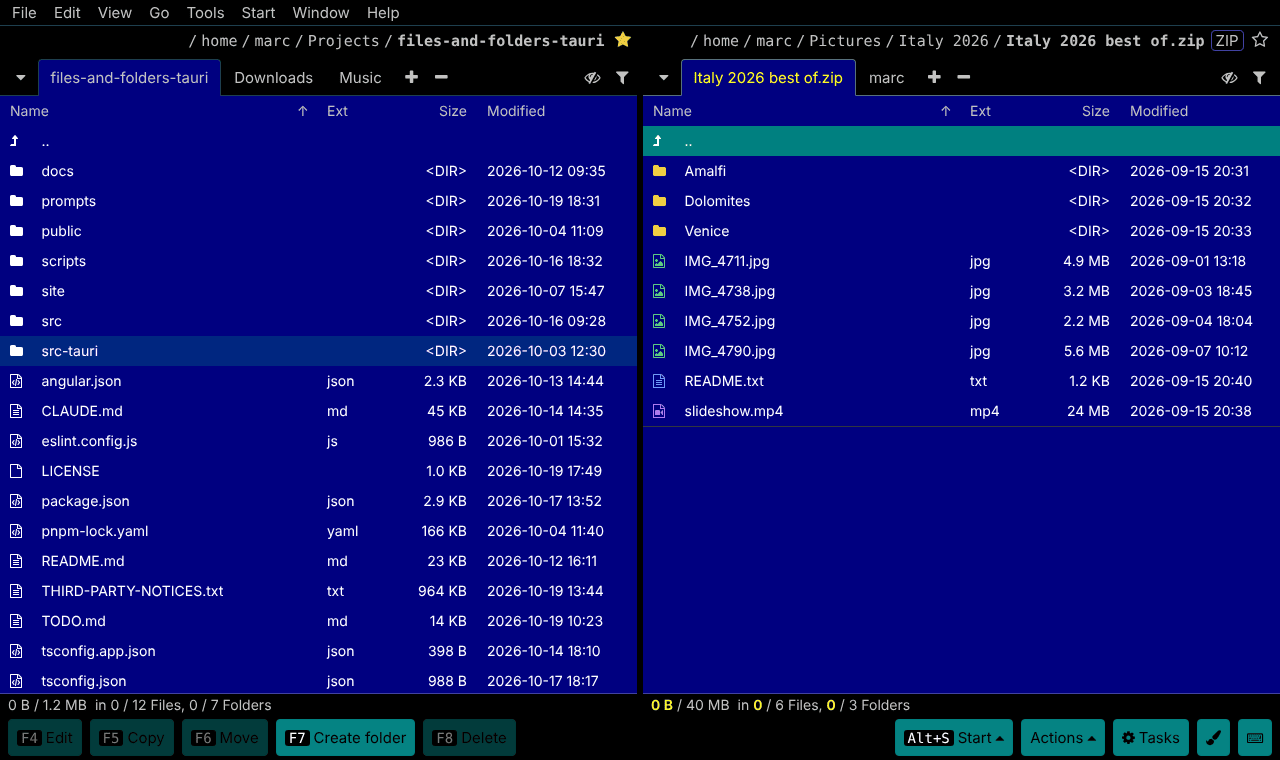
Open ZIP, TAR, 7z and RAR like any other folder.
Press Enter on an archive and browse it; view (F3) and open files inside, copy them out. Pack to ZIP, 7z, TAR
or TAR.GZ and unpack, with passwords (ZIP AES/ZipCrypto, 7z, RAR) that are only kept in memory. Archives from
elsewhere are treated as hostile: no zip-slip, no zip-bombs.
ZIP, TAR and TAR.GZ can be changed: copy or move files into them (F5/F6, drag and drop), delete entries (F8)
and create folders (F7). The archive is rewritten into a temporary file and replaced only when that is complete –
untouched entries stay bit for bit the same, a cancel leaves the original as it was. 7z and RAR stay read-only.
Enter open · Alt+F5 pack · Alt+F9 unpack · F5/F6/F8/F7 into or inside a ZIP/TAR · macOS: Enter · ⌥F5 · ⌥F9
FTP, FTPS and SFTP servers
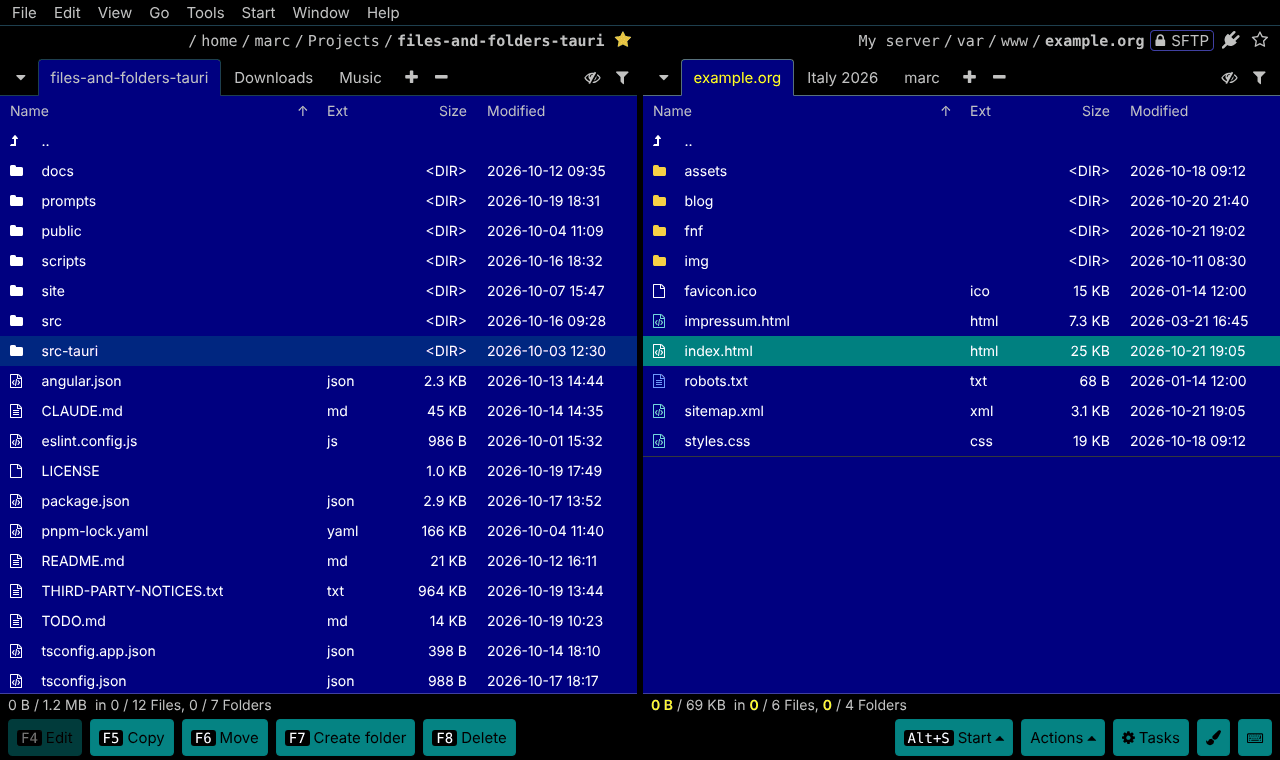
Your web space as a folder in the panel. Connect to FTP, FTPS and SFTP servers and work with them like with a local folder: tabs, history, copy and move in both directions as jobs, delete, rename, view. Passwords and key passphrases are kept only in your system keychain (macOS Keychain, Windows Credential Manager, Secret Service). SSH host keys and FTPS certificates are checked; plain FTP is marked as unencrypted.
Ctrl+K · macOS: ⌘K
Viewer and quick view
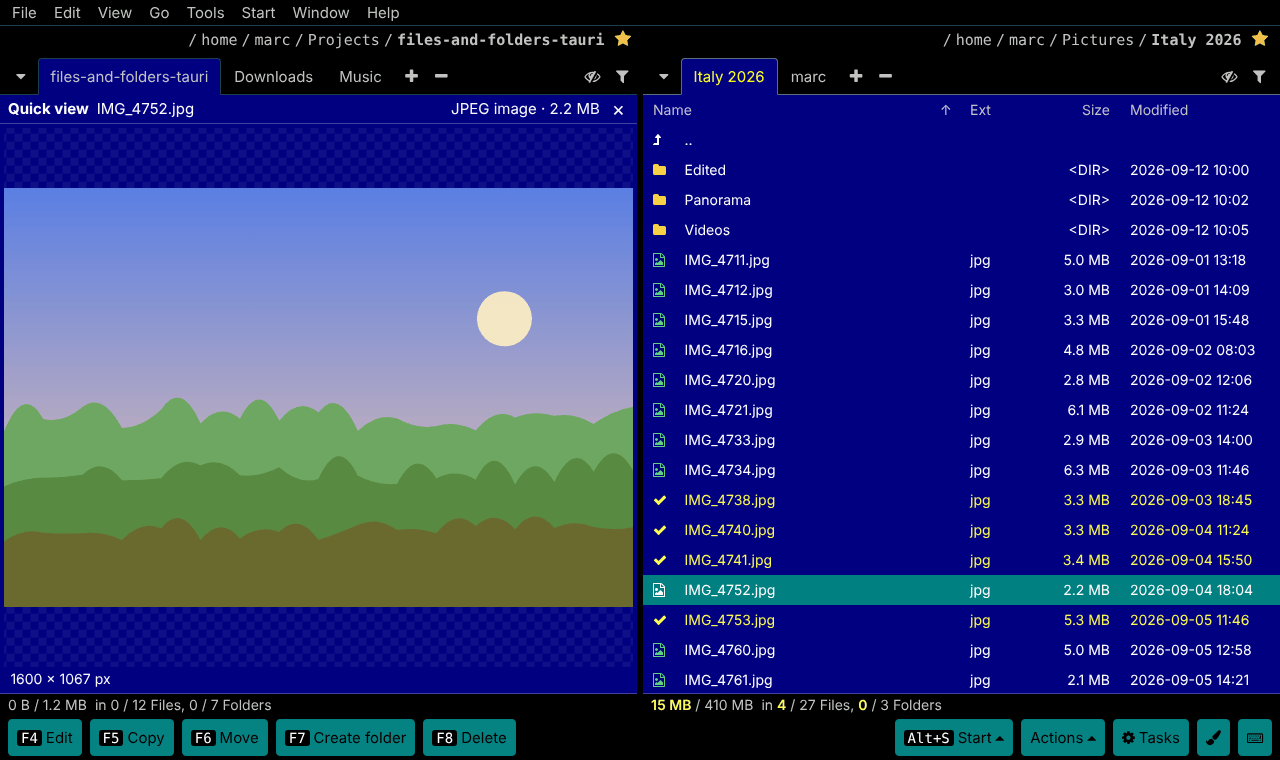
Look into files without opening another program.
F3 shows text (with search and encoding detection), hex and images. The quick view shows the file under the
cursor in the other panel while you move through the list. Properties show times, permissions and owner.
F3 view · Ctrl+Q quick view · Alt+Enter properties · macOS: F3 · ⌃Q · ⌘I
Compare files
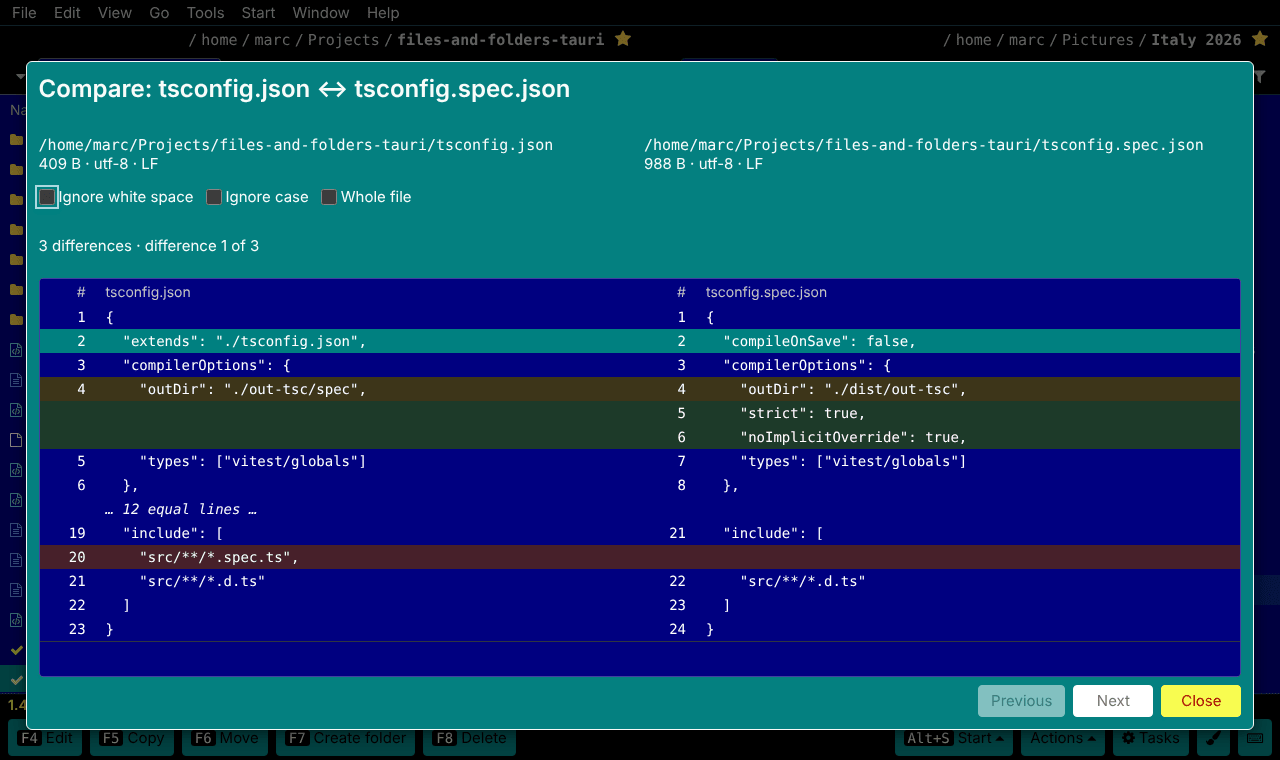
Two files side by side, differences in colour.
Line numbers, changed, added and removed lines; ignore white space or case; whole file or only the changes,
F7 jumps to the next one. Binary files are compared byte by byte – or hand both files to FileMerge, WinMerge or
Meld.
Mark two files – in one panel, or one on each side – then File ▸ Compare files…
Compare and synchronise folders
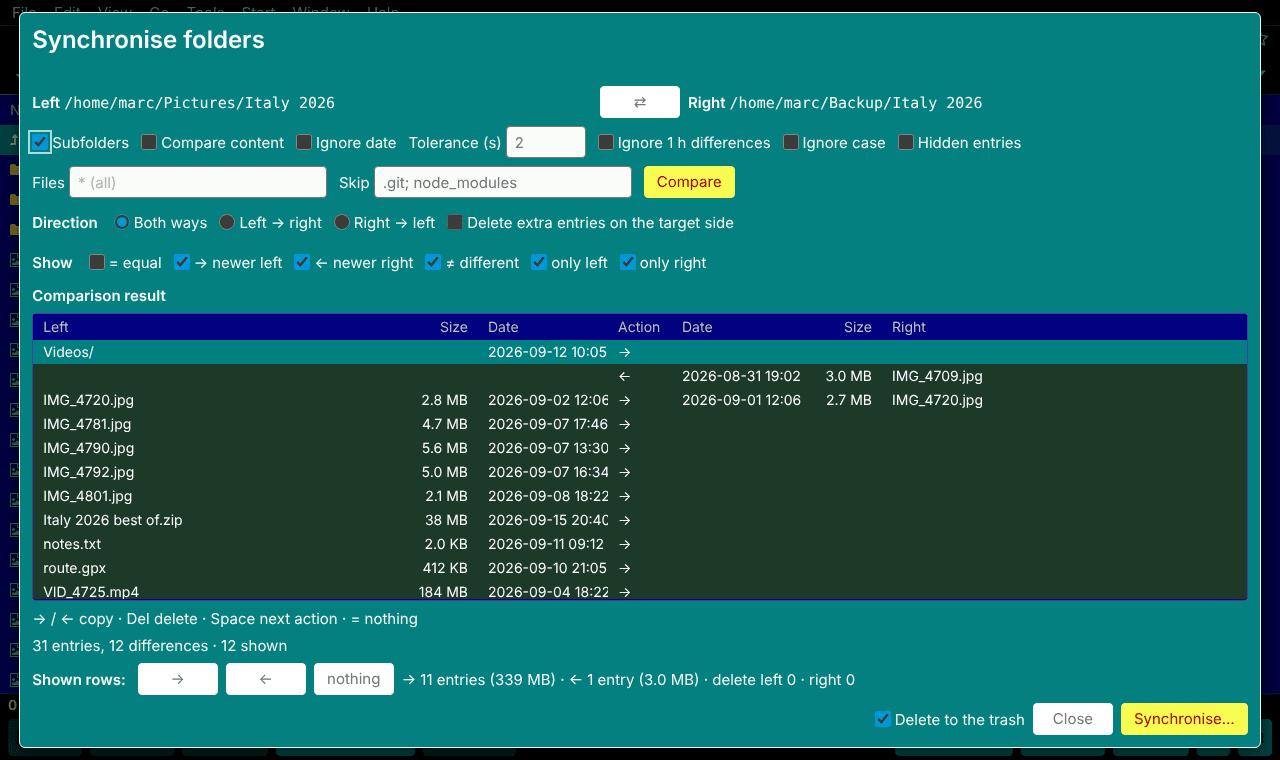
Which files differ – and make both sides equal.
Shift+F2 marks what is missing or newer on the other side (top level, like Total Commander). File ▸ Synchronise
folders… (Ctrl+Shift+S / ⌘⇧S) compares both folders with all subfolders – size and date with a tolerance (FAT/SMB:
2 s, optionally ignoring 1-hour offsets), optionally byte by byte – and suggests an action per row: copy →, copy ←,
delete, nothing. Change them with the arrow keys, Del and Space, check the summary, start. Copies use temporary
files, deletes go to the trash, and nothing that changed since the comparison is overwritten. Names in NFC and NFD
(macOS) and – where the system ignores case – A.txt and a.txt are recognised as the same file.
Group files and clean folders
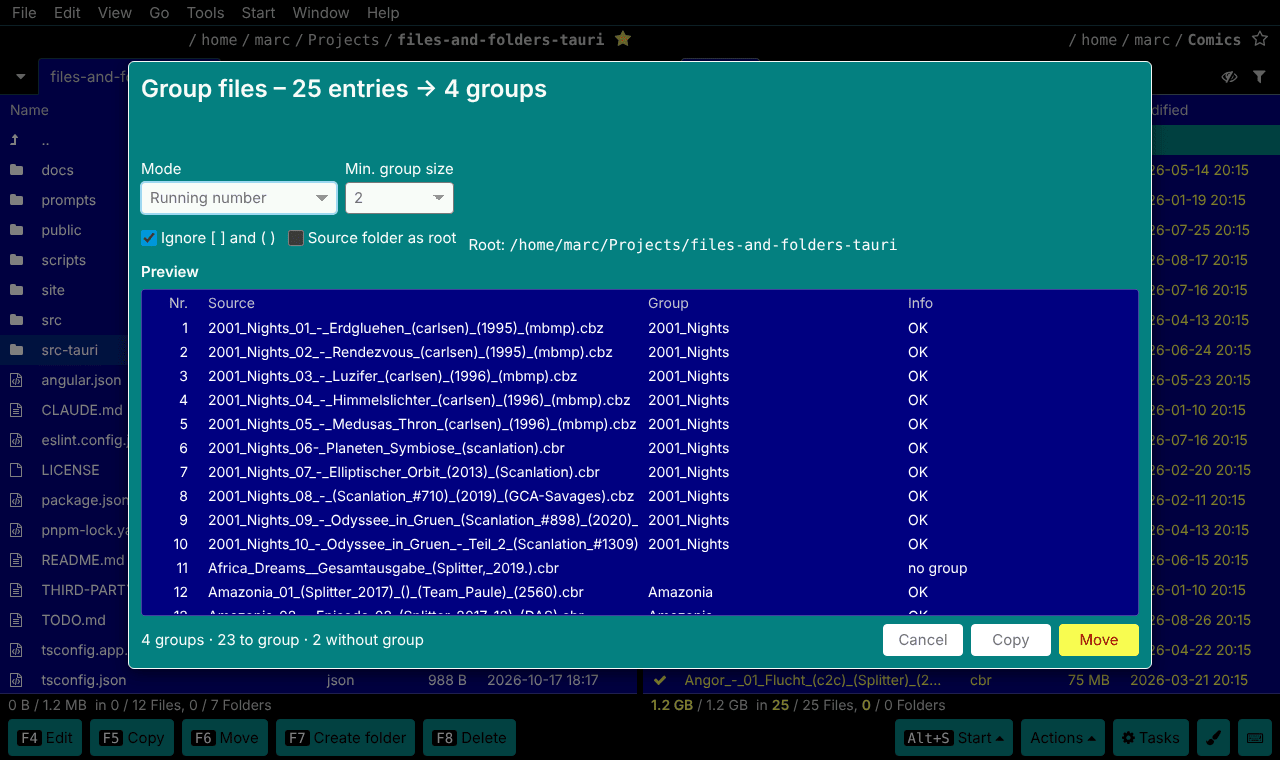
Bring order into a messy folder in one step.
Group files moves or copies files into folders built from their names (the name before a running number, the
first word, the text before a dash, the first letters) – with a preview. Clean folders removes empty folders and leftovers like .DS_Store, Thumbs.db or
*.bak (to the trash by default). Create folders makes many folders from a template.
Group series by season collects the episodes of one or more marked series folders – also from release
sub-folders – and copies (or moves) them into S01, S02 … on the other side, in the series folder itself or in a
folder named like the series, recognising S01E01, 1x01 and the like; samples and .nfo files are left out, and
after a move the emptied release folders can go to the trash.
Alt+G group · Alt+Shift+G series by season · Ctrl+Alt+R clean · Ctrl+F7 many folders · macOS: ⌥G · ⌥⇧G · ⌘⌥R · ⌘F7
Shell line
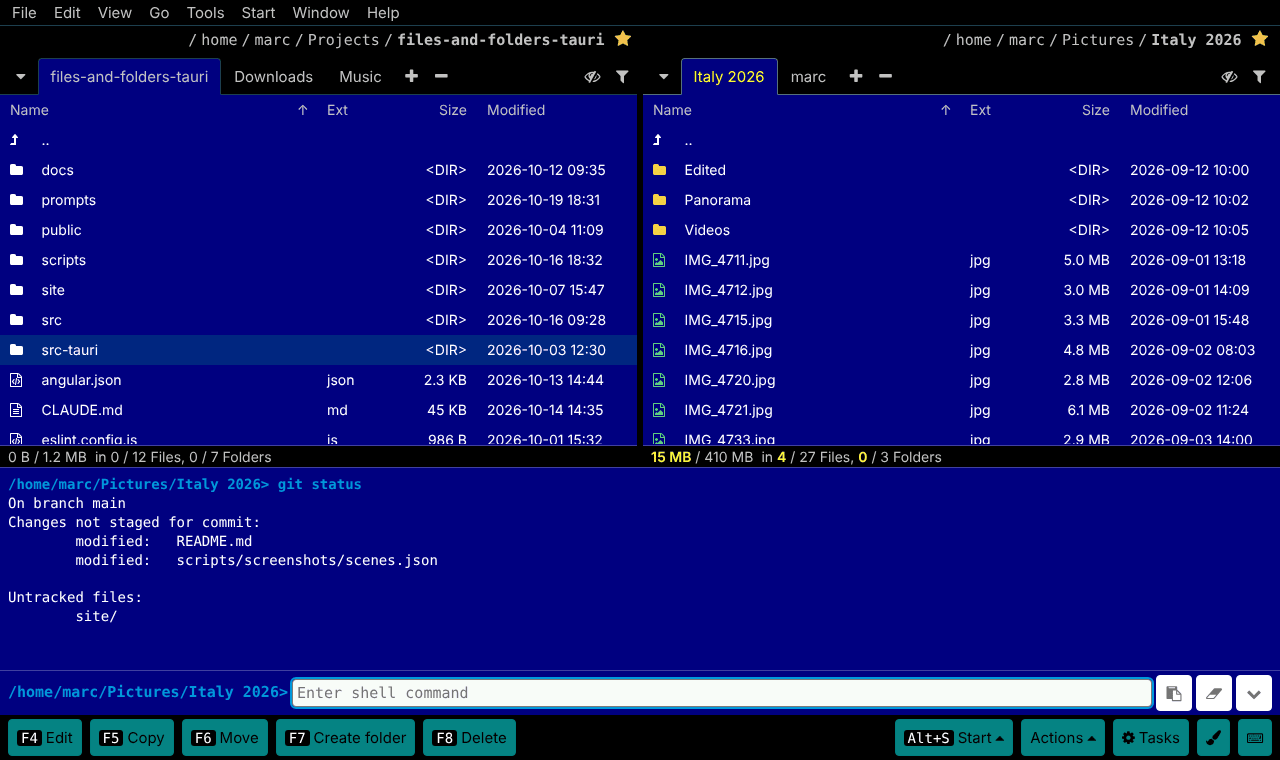
A command line below the panels – in the folder you are looking at.
Type a command, press Enter; the output streams in below, the history remembers your commands. Ctrl+Shift+Enter
inserts the marked names, quoted for your shell. For interactive programs, Open terminal here starts your real
terminal.
Shift+F11 · macOS: ⇧F11
Starter menu
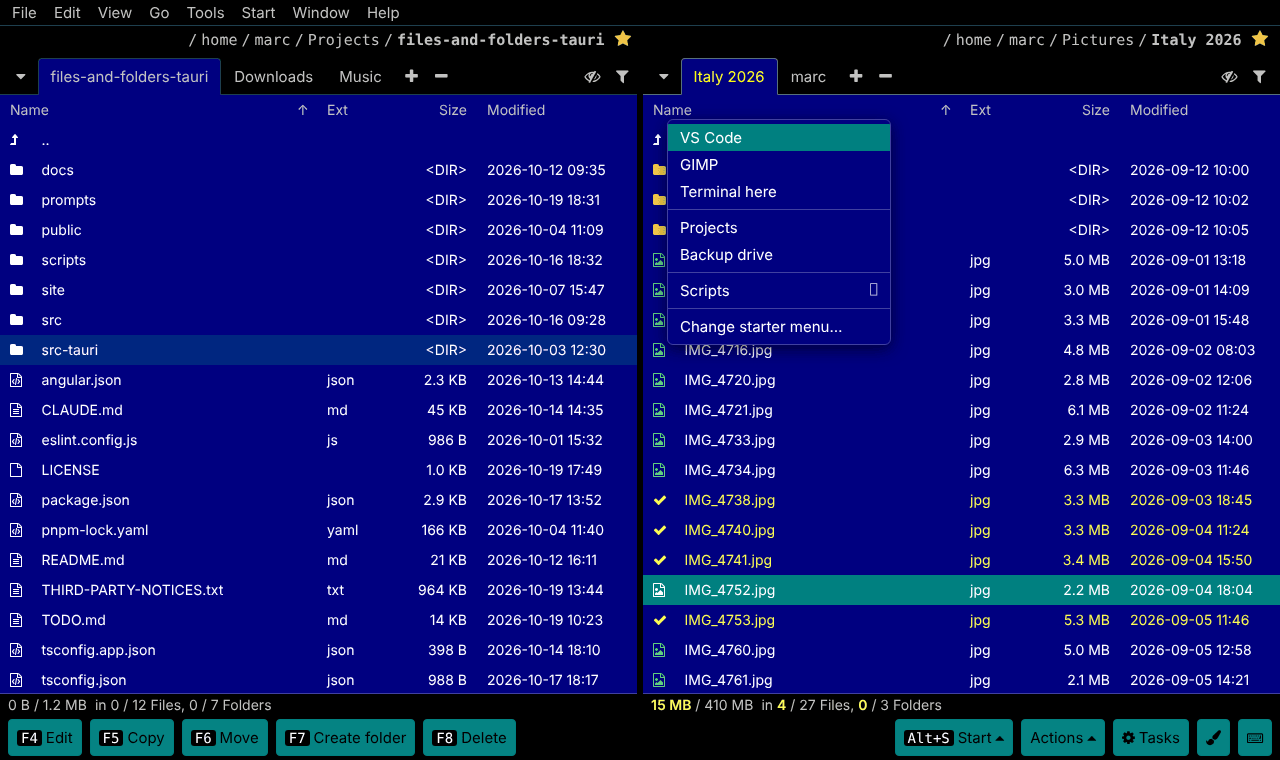
Your own launcher for programs, scripts and folders.
Build a menu with submenus and give entries their own shortcuts. Parameters work like in Total Commander:
%P%N the file under the cursor, %S all marked files, %T the folder of the other side. Programs are started
directly – never through a shell.
Alt+S · macOS: ⌥S
Colour schemes
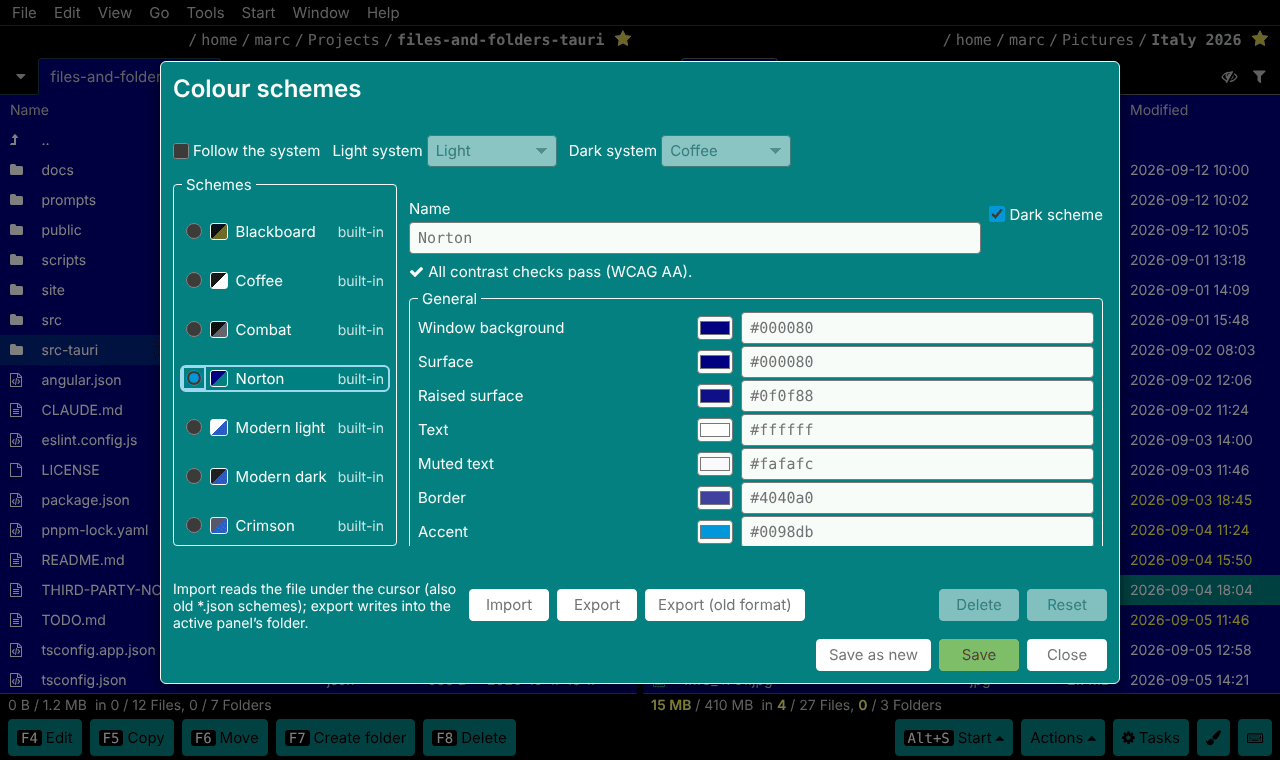
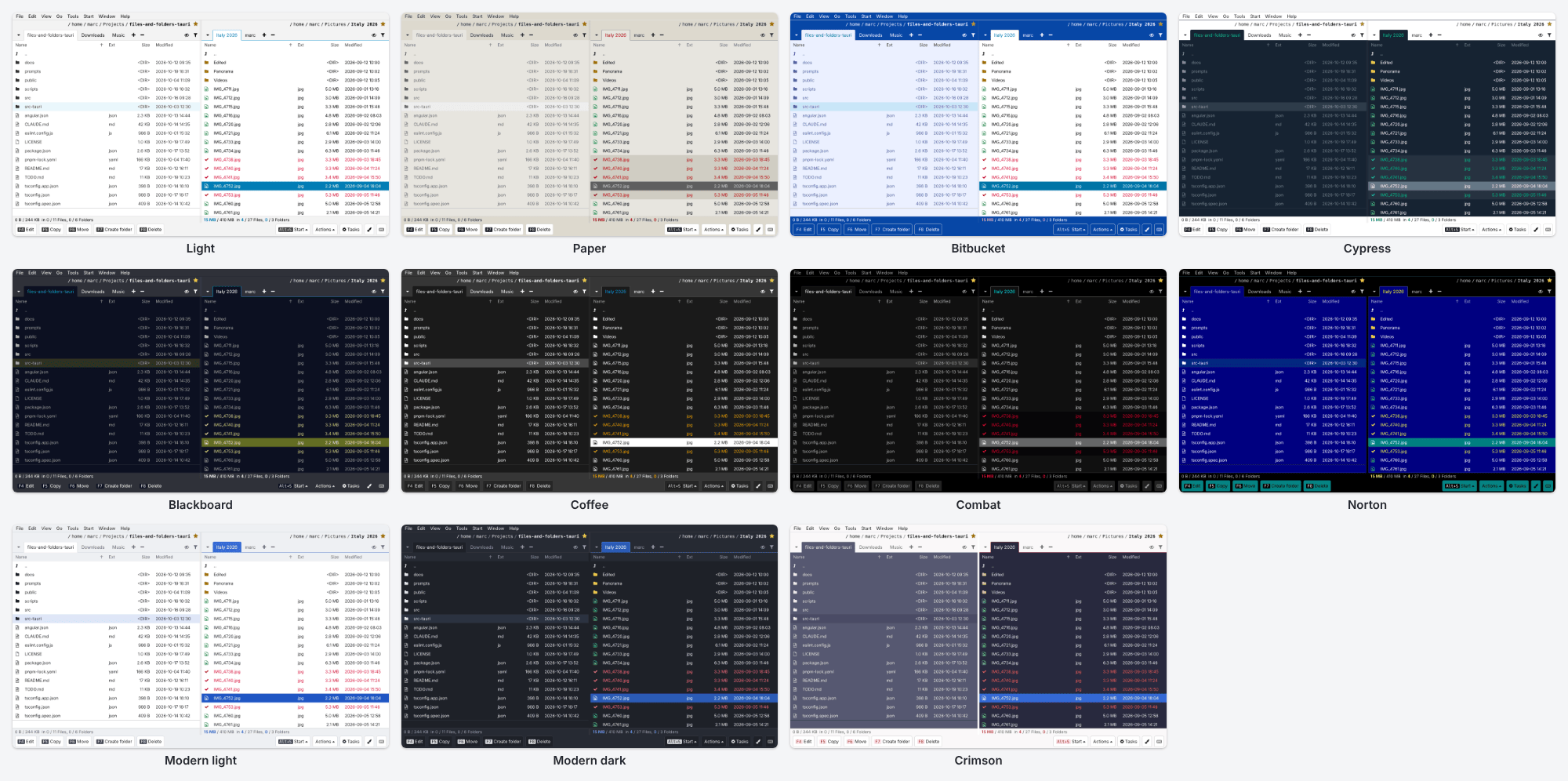
Norton blue? Paper white? Dark? Your choice – or your own. Eleven built-in schemes: the eight classic designs of the earlier versions (Light, Paper, Bitbucket, Cypress, Blackboard, Coffee, Combat, Norton) plus modern light, dark and Crimson. Follow the system switches between a light and a dark one. The live editor checks every colour pair for WCAG contrast; schemes can be exported and imported.
Tools ▸ Colour schemes… · Ctrl+Alt+Shift+T next scheme · macOS: ⌘⌃⌥T
All eleven schemes:
And more
Small things that save time every day:
- Quick filter per tab – type
*.jpg -thumband the list shows only what matches (Ctrl+Alt+F·⌘⌥F); hidden files on and off (Ctrl+H·⌘⇧.) - Folder sizes –
Spaceon a folder marks it and calculates its size,Alt+Shift+Enterdoes it for all marked folders (cancellable, symbolic links are not followed) - Folder menu ▾ – drives with file system and free space, servers, favourites (
Ctrl+D·⌘D) and recently visited folders in one menu (Alt+F1/Alt+F2) - History per tab – back and forward with cursor and scroll position (
Alt+←/Alt+→·⌘[/⌘], also mouse buttons 4/5) - Mark by pattern – Enhance / Reduce Selection with wildcards or regex and one-click presets per file type
(images, movies, documents …;
Num+/Num−) - Clipboard – names or full paths of the marked entries, also as JSON (
Ctrl+Alt+N/Ctrl+Alt+C·⌘⌥N/⌘⌥C) - Context menu that fits the selection (
Shift+F10), a menu bar with every action – native on macOS - New files and nested folders –
Shift+F4creates a file,F7takesa/b/c, and afterS01,S02it suggestsS03 - Private – no account, no telemetry, nothing phones home; server passwords live in your system keychain, archive passwords only in memory
- Built with accessibility in mind – every dialog, menu and list works with the keyboard alone; ARIA roles and announcements are in place, but the app has not been tested with a screen reader yet
And the bigger helpers:
- Change attributes – permissions (octal or per bit), Windows attributes, macOS hidden, times; for many
entries at once and optionally for folder contents (
Ctrl+Shift+F2·⌘⇧F2) - Checksums – create and verify SHA-256/SHA-512/SHA-1/MD5 lists (
sha256sum-compatible) - Drag & drop between panels, from and to Finder/Explorer/your file manager; with
Ctrl+Shift(⌘⌥) symbolic links - Auto refresh – changes by other programs appear in under a second
- External tools and Open terminal here / Show in Finder/Explorer – started without a shell
- Configurable button bar, file types, shortcuts per OS; settings dialog with search, export and import
- Import from the previous version (files-and-folders-mr): shortcuts, buttons, colour schemes, tools …
- English and German, switchable at runtime
- Responsive with slow and network drives (listing cache, nothing blocks the window)
The complete list with all details (in German) is in docs/features.md.
Installation
Version 1.0.0 is available on the [GitHub releases page](https://github.com/krocon/files-and-folders-