English · 简体中文 · 繁體中文 · Español · Português · Deutsch · Français · Русский · 日本語 · 한국어 · العربية

A Telegram desktop client with superpowers, in Rust and Slint. Open source under the GPL-3.0. macOS on Apple silicon today; Windows and Linux later.
FinchGram talks to Telegram through TDLib, Telegram's own library, and keeps to the Telegram API terms. It is an unofficial client, not made by Telegram.
What it does
- Chats. Log in with your phone number, the code and your two-step password, or by scanning a QR code; sign up for a new account. The chat list with Telegram's folders, pinned chats, unread counts and mentions; a search over everything (⌘K): your chats and contacts, public users, groups and channels by username, people by phone number, and messages; a search within a chat (⌘F); a view of your channels and one of your bots. The pencil makes a new group, channel or chat, or adds a contact. Several accounts, up to ten, each with a TDLib of its own: switch from the account menu or with ⌘1 … ⌘0. Manage your groups and channels: photo, name and description, public username or invite links, members and administrators with their rights, member permissions, slow mode, join approval and topics; a channel's signatures and discussion group.
- Messages. Text with its formatting (bold, italic, code, links), replies and forwards, photos, videos, GIFs, stickers, files, and a card for a link's preview. A right click on a message gives its menu: reply, edit, copy, copy its link, forward, report, delete, or choose several. Photos and videos sent to self-destruct are shown blurred and opened once, as in Telegram's own apps. Bots' buttons under their messages, their keyboards, commands and menu button; the chat's pinned message under the header. A chat that protects its content is left out of screenshots and screen recordings while it is in front. Reactions, with a picker and a double click for the default one; round video messages played in place; contact cards with Message, Add contact and Share; sharing a post or a card to several chats at once; drafts kept per chat and across devices; groups with topics open on their topics; slow mode counted down in the composer, and a group's rules or, for its administrators, its permissions and options in the chat settings panel.
- Media. Photos and videos open in a viewer over the window, with the rest of their album; video plays through mpv, built from source. Saving to Downloads where the chat allows it.
- Downloads. A download client in the media center, over WebDAV, FTP, FTPS or SFTP: your NAS, a seedbox,
PikPak, Alist/OpenList or a folder shared with
vget serve, browsed in the app. Files come over several connections at once and go on after a stop; photos and videos open in the viewer when they arrive; passwords stay sealed in FinchGram's database. See docs/downloads.md. - Music. A music player for your own servers: add a Navidrome, gonic, LMS, Ampache, Nextcloud Music or Koel server (anything that speaks the Subsonic API) and play its library in the built-in player, gapless, with a queue and a player bar at the foot of every page; songs are cached as they play.
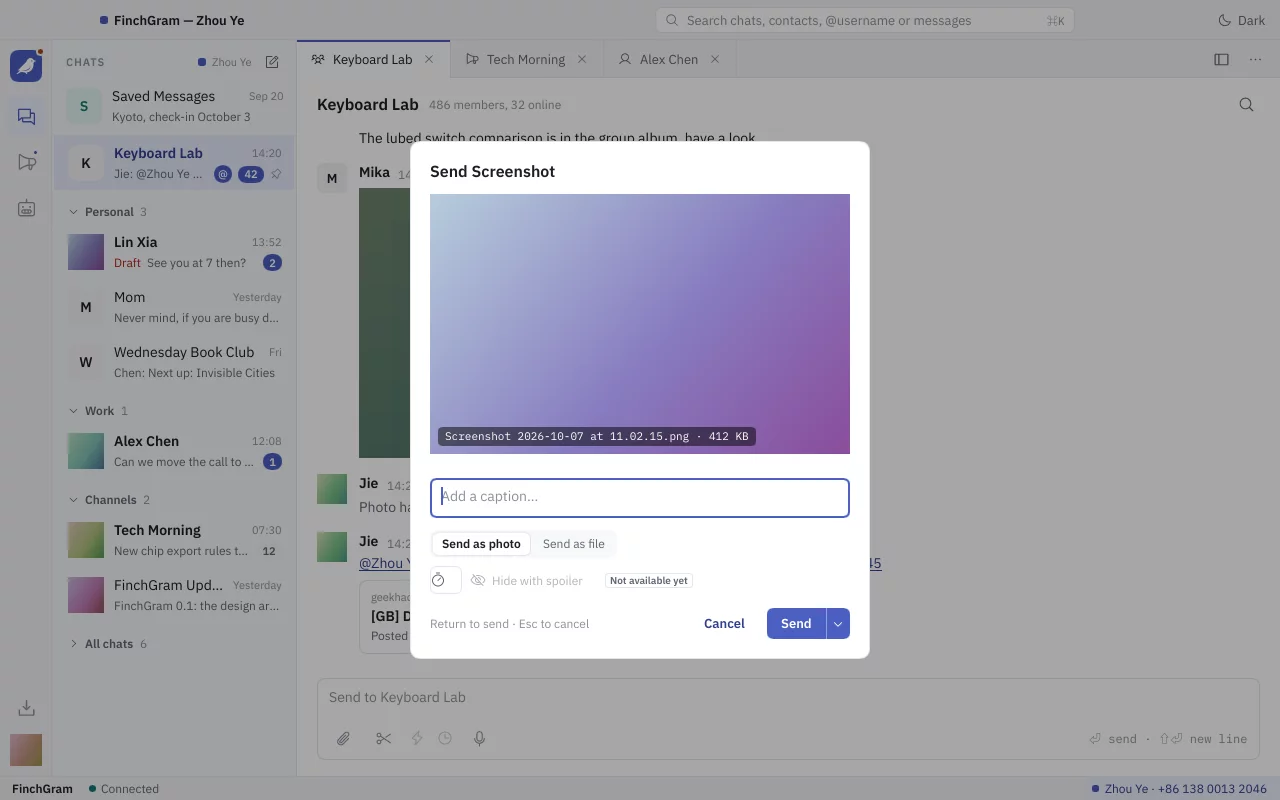
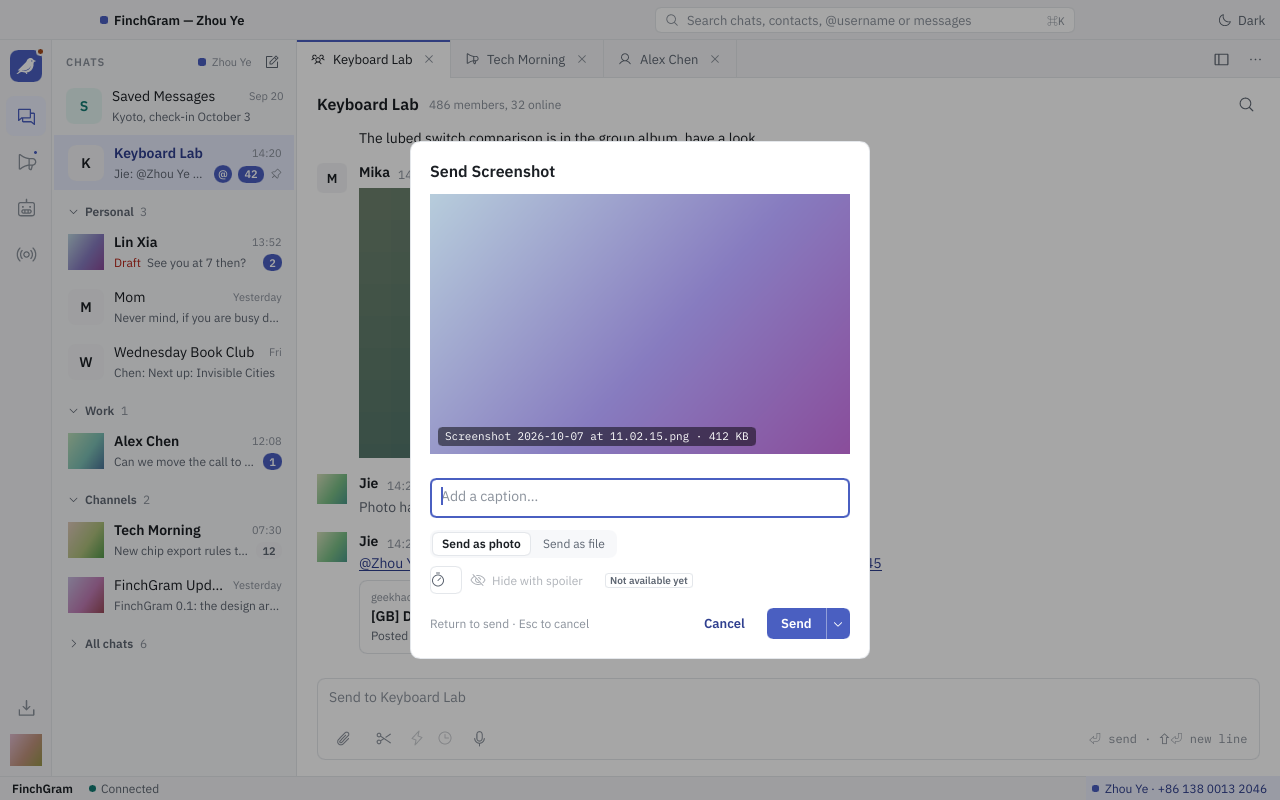
- Sending. Photos, videos and files from the paperclip, by dragging them onto the window, or by pasting them. A card shows them before they go: with a caption, as a photo or as a file, together as an album of up to ten, with a self-destruct timer in a private chat, without sound.
- Screenshots. The scissors in the composer, or ⌘⇧A, freeze the screen: take a window or drag a selection, draw rectangles, ellipses, arrows, pen strokes, text and mosaic on it, then send it, copy it or save it. As in WeChat, from every chat.
- A chat's menu. Mute, pin, copy its ID, put it into a folder; block or unblock a person, report, leave a group or channel, delete a chat. A right click on a folder marks all of its chats as read, or sorts the chats: by the latest message, by name, or by unread messages, the pinned ones staying on top.
- Notifications. New messages come as macOS notifications and their number sits on the Dock icon; FinchGram stays in the Dock when its window closes, and can live in the menu bar.
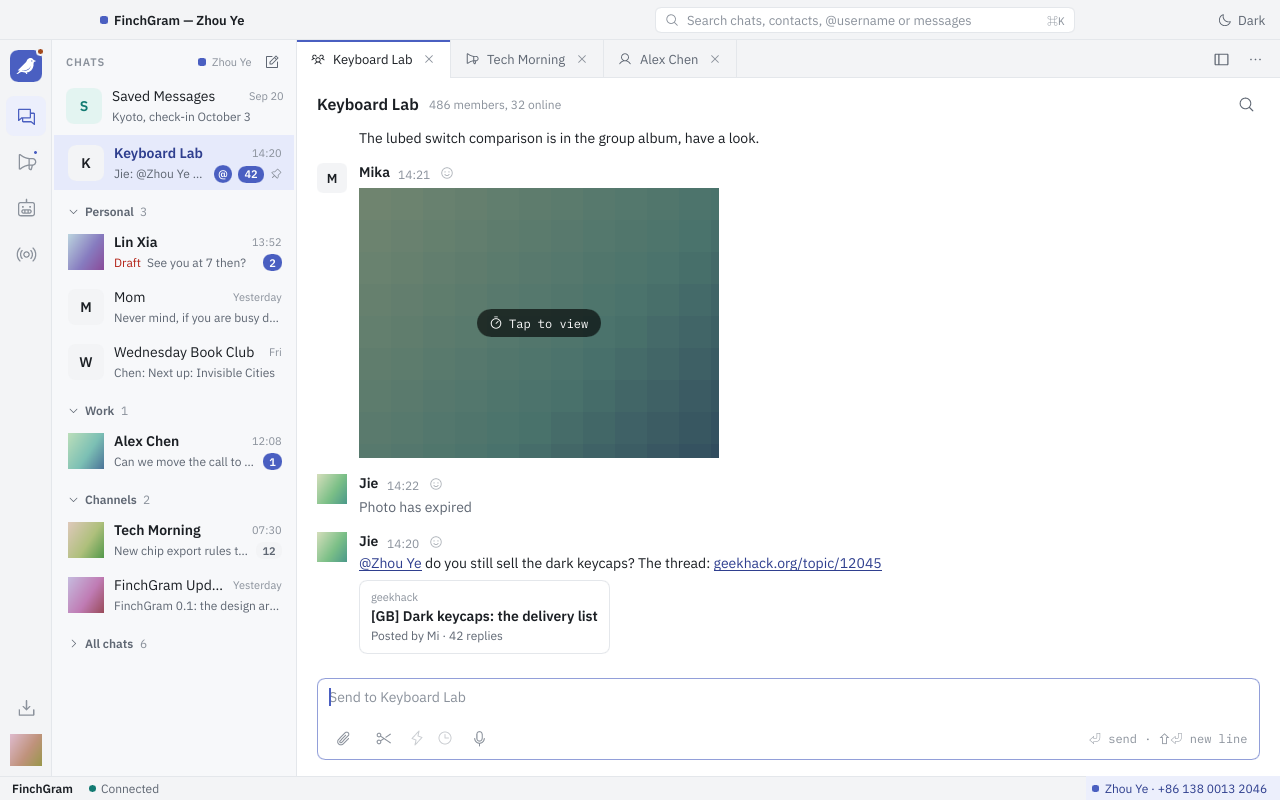
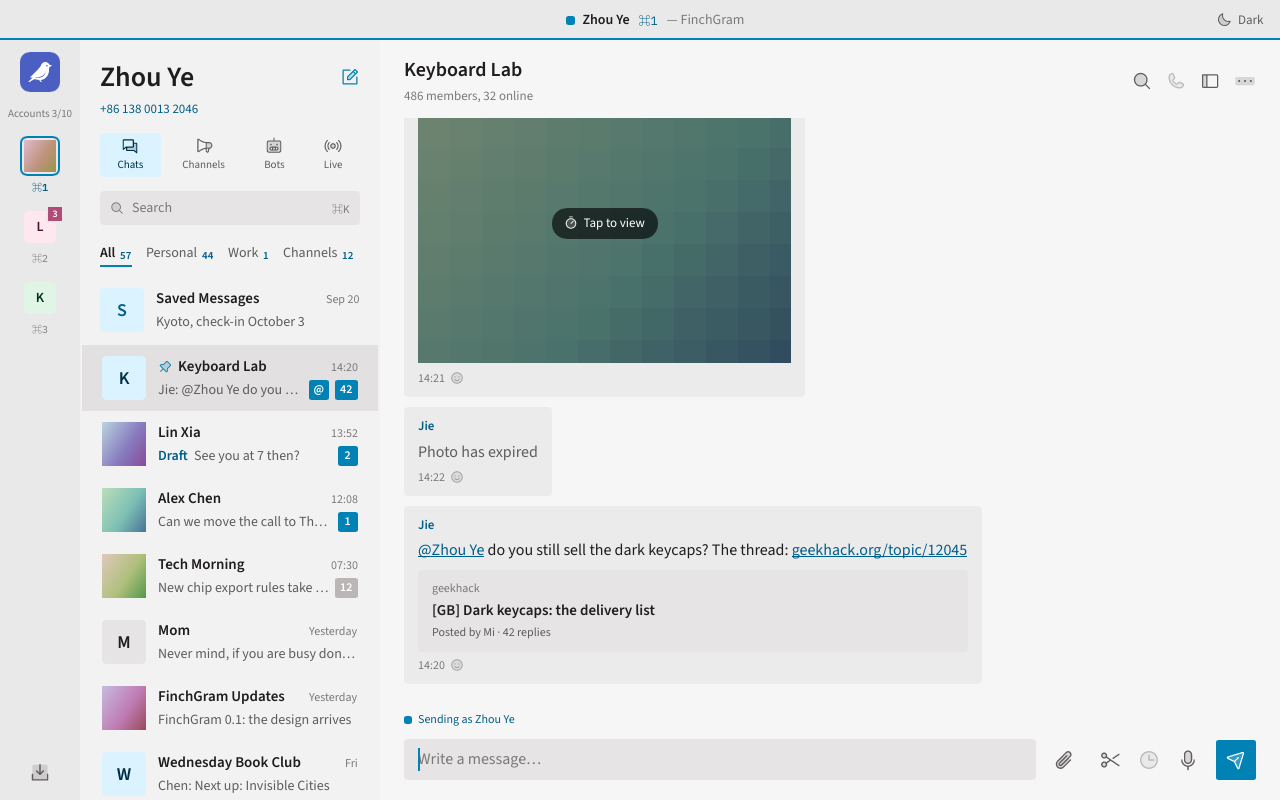
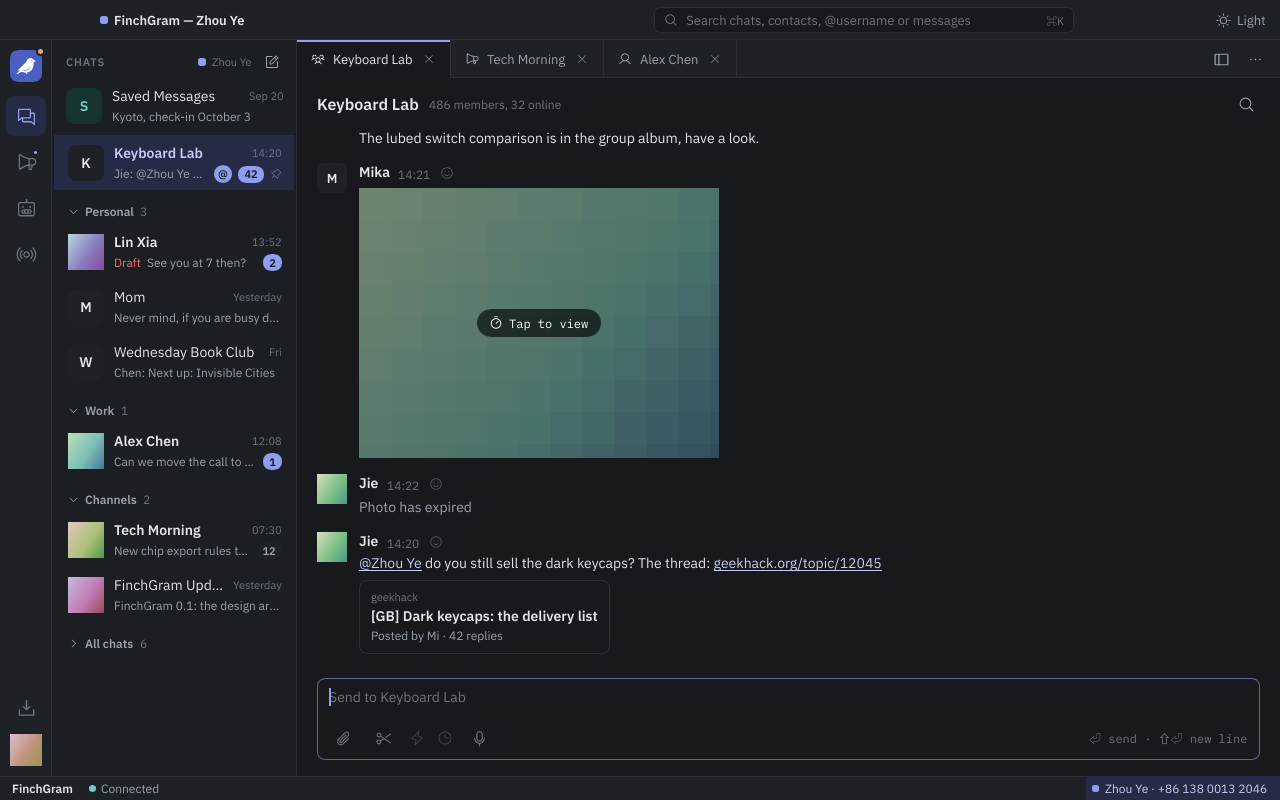
- Three themes. Workbench, Broadsheet and Terminal, each light and dark, switched without a restart.
- Settings. Launch at login, Send with Enter, the screenshot shortcut, notification sounds and previews, two-step verification, the interface language, and updates: the app updates itself from GitHub Releases and installs nothing it cannot verify.
- Voice messages. Play them in the chat, with their waveform, the time and 1×, 1.5× or 2×; listening tells the sender, as in Telegram's own apps. Hold the microphone to record one: let go to send it, drag left to cancel, drag up to lock it, then stop it to listen before it goes.
- Voice input. Press the sparkle in the composer and speak: the words go into the box for you to send. You add your AI vendors, each a name, an API format, your own key and, if you like, your own address (a relay, or a server on your network). Voice input, tidying its words of um and uh, and transcribing voice messages are three features, each with its own switch, and you choose each one's AI vendor and model from lists; nothing is chosen for you. For speech: OpenAI's realtime transcription, Qwen and Doubao (both strong in Chinese), or any service that speaks OpenAI's transcription API; for tidying: OpenAI's, Anthropic's or Gemini's format. Words of other languages mixed in are kept as you say them. Toolbox → AI → Voice input, off until you turn it on. Transcribe under a voice message uses Telegram's own transcription, or, once you turn that on, your own AI vendor. See docs/voice-input.md.
- AI assistants. Claude Desktop, Claude Code and other apps that speak the Model Context Protocol can read your chats and act in them through FinchGram, once you let them: Toolbox → AI access, off until you turn it on, with the chats you choose and whether an assistant may send, and a question the first time an app connects. See docs/mcp.md.
- Languages. The interface and this README in eleven languages.
Not there yet: secret chats and calls, polls and scheduled messages, keyword filters, Windows and Linux. See what comes next.
Download
Get FinchGram-<version>-macos-arm64.zip from the latest
release, unzip it and move FinchGram into
Applications. It needs macOS 12 or newer on Apple silicon. The app is signed with North Brookville LLC's
Developer ID and notarized by Apple, so it opens like any other app. From then on it updates
itself.
Every release comes with SHA256SUMS and its Ed25519 signature. The app checks both before it
installs an update; so can you, with the public key in release-signing.pub.
Three themes
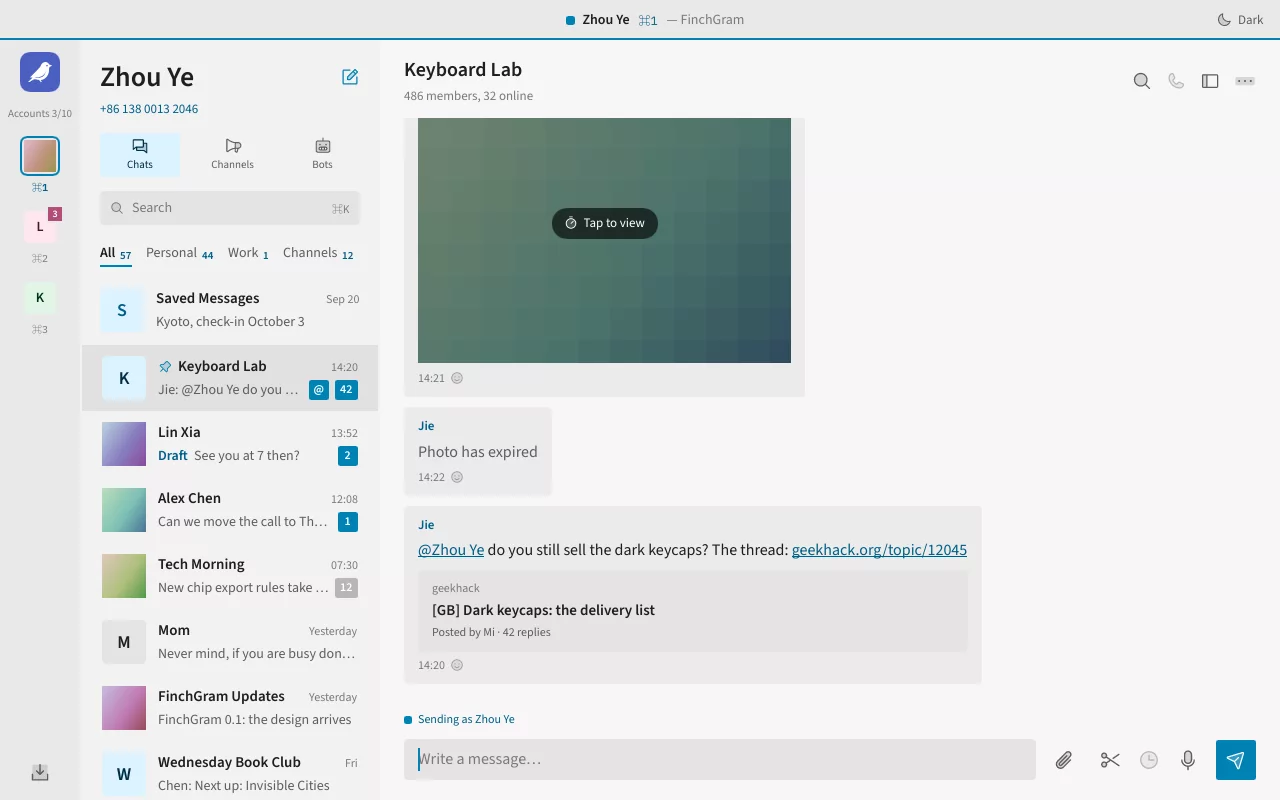
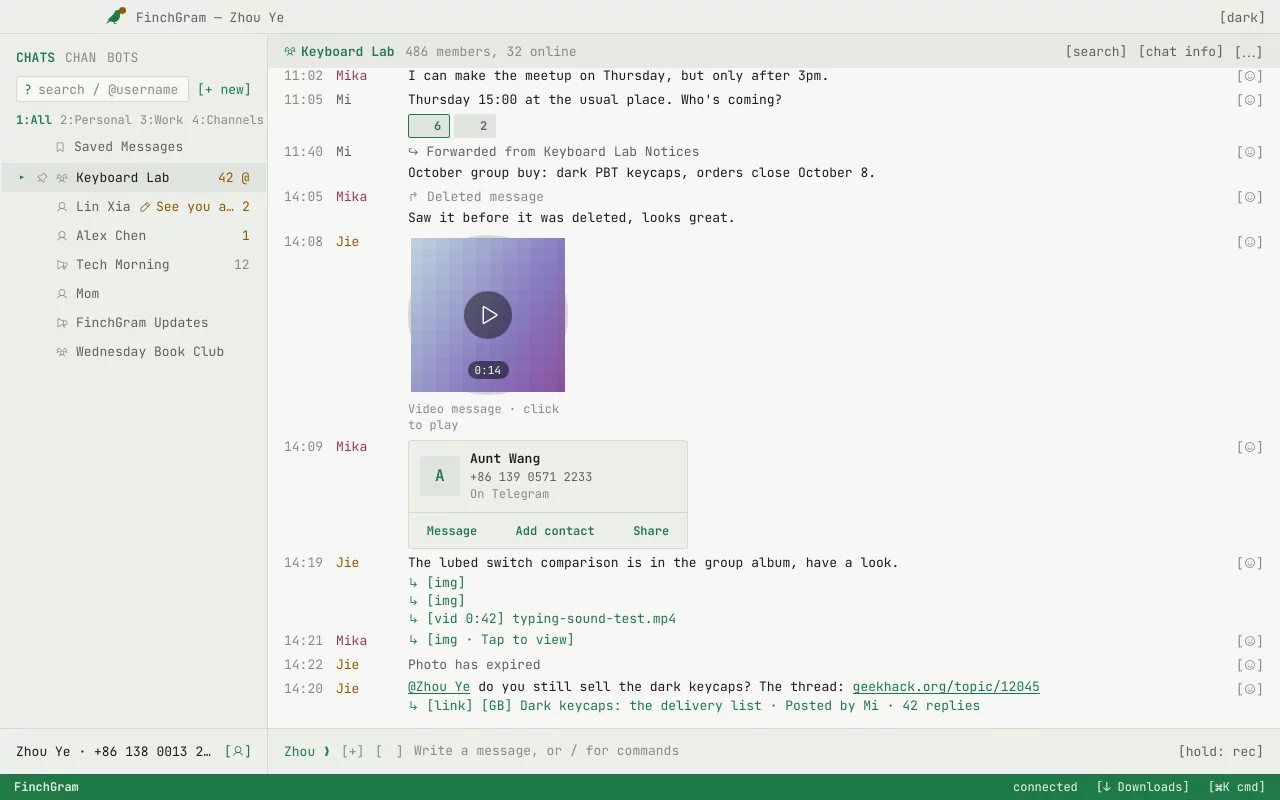
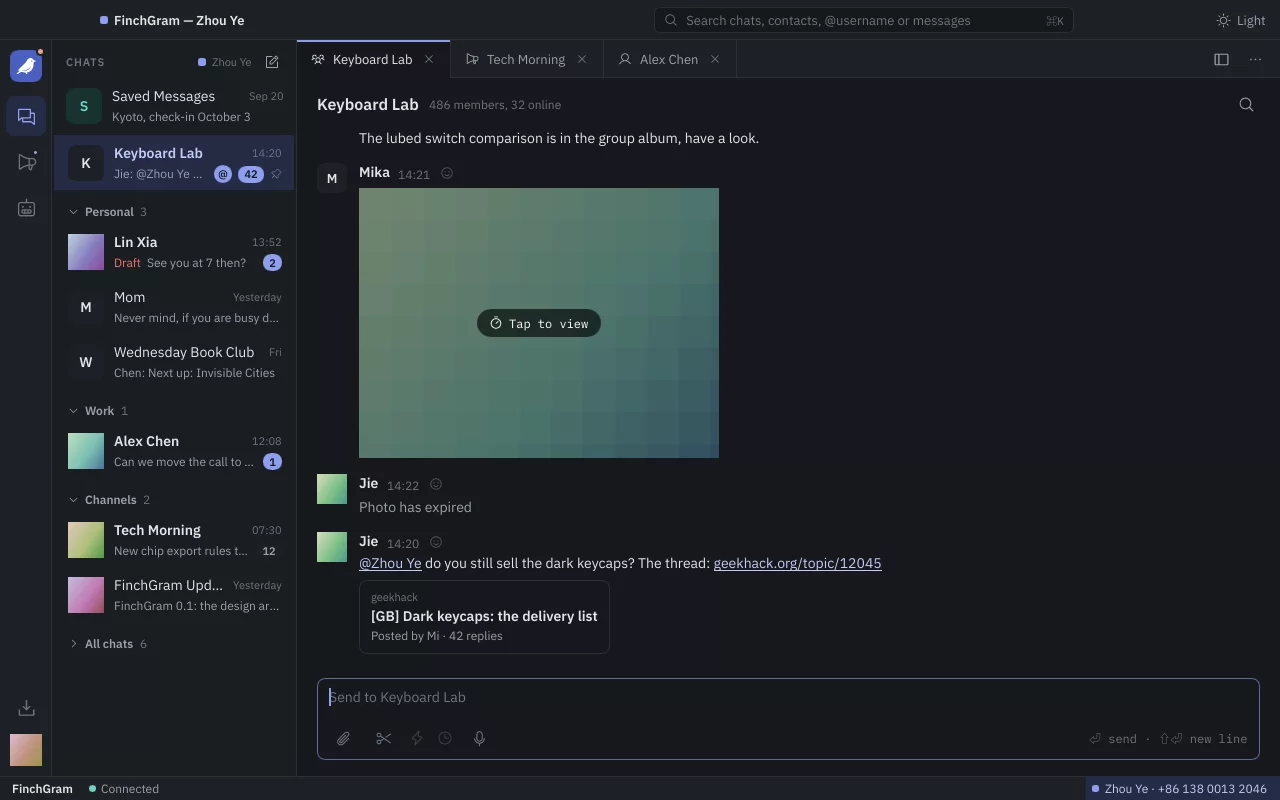
| Workbench | Broadsheet | Terminal |
|---|---|---|
|
 |
 |
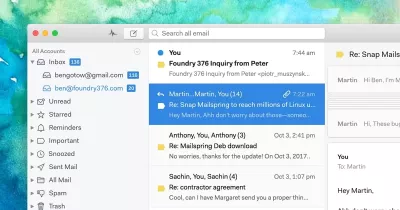
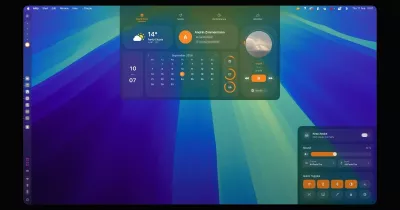
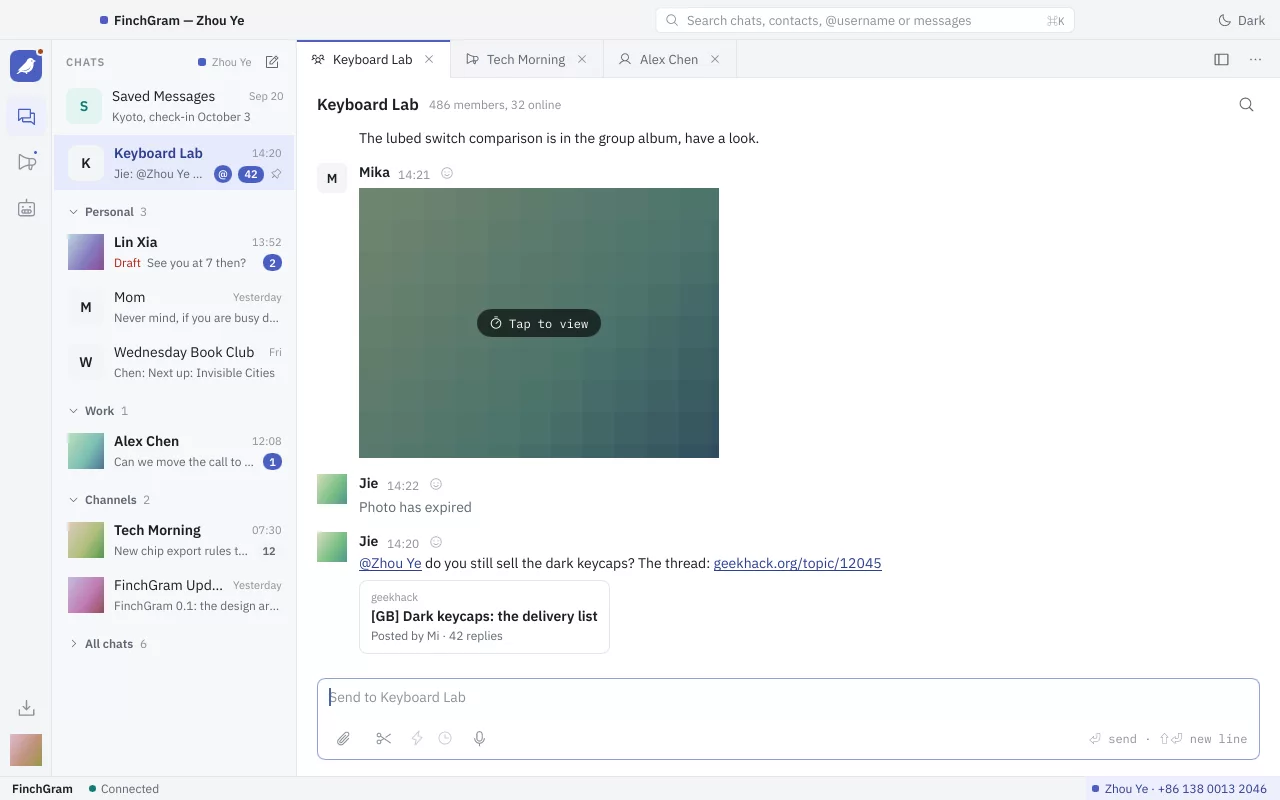
Workbench, the default, is a working window with tabs. Broadsheet reads like a newspaper, with an accent colour per account. Terminal is a monospace screen with commands. Each has a light and a dark side, following the system or your choice, in Settings → Appearance.
The screenshot tool
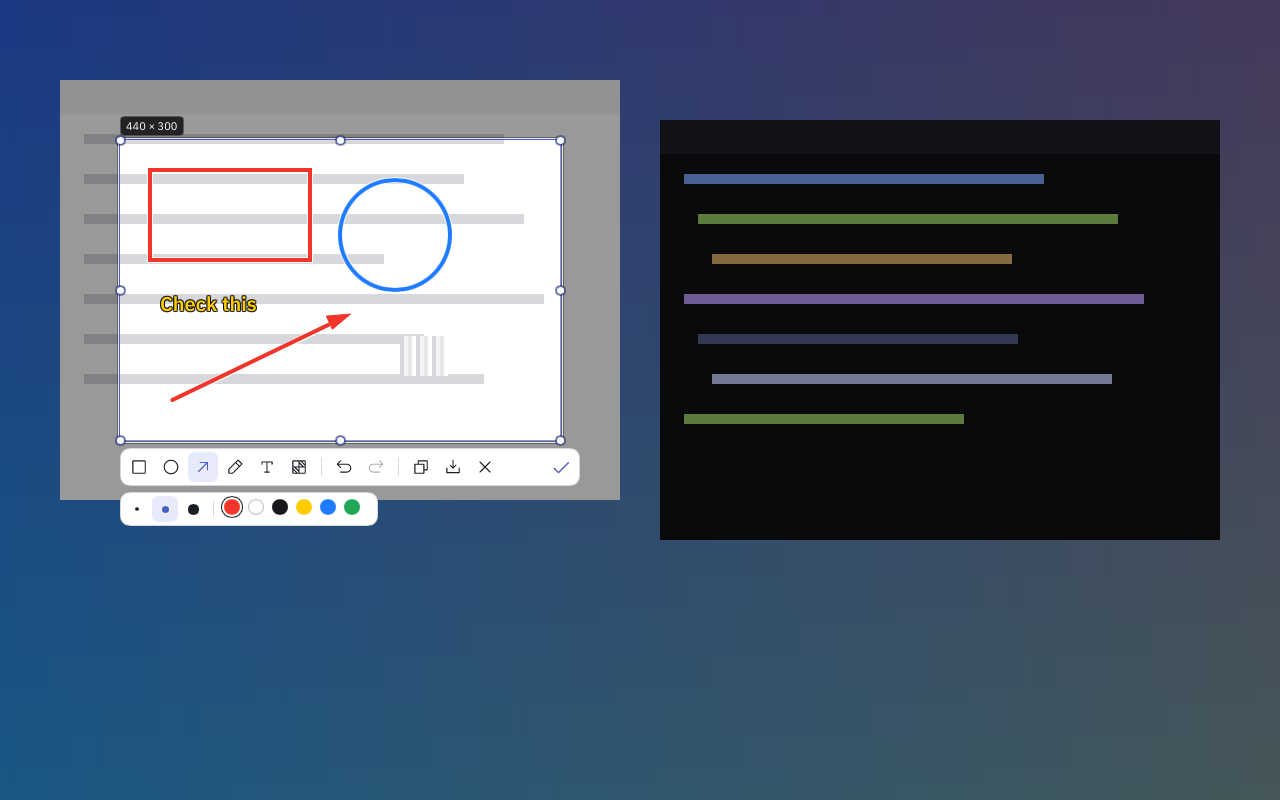
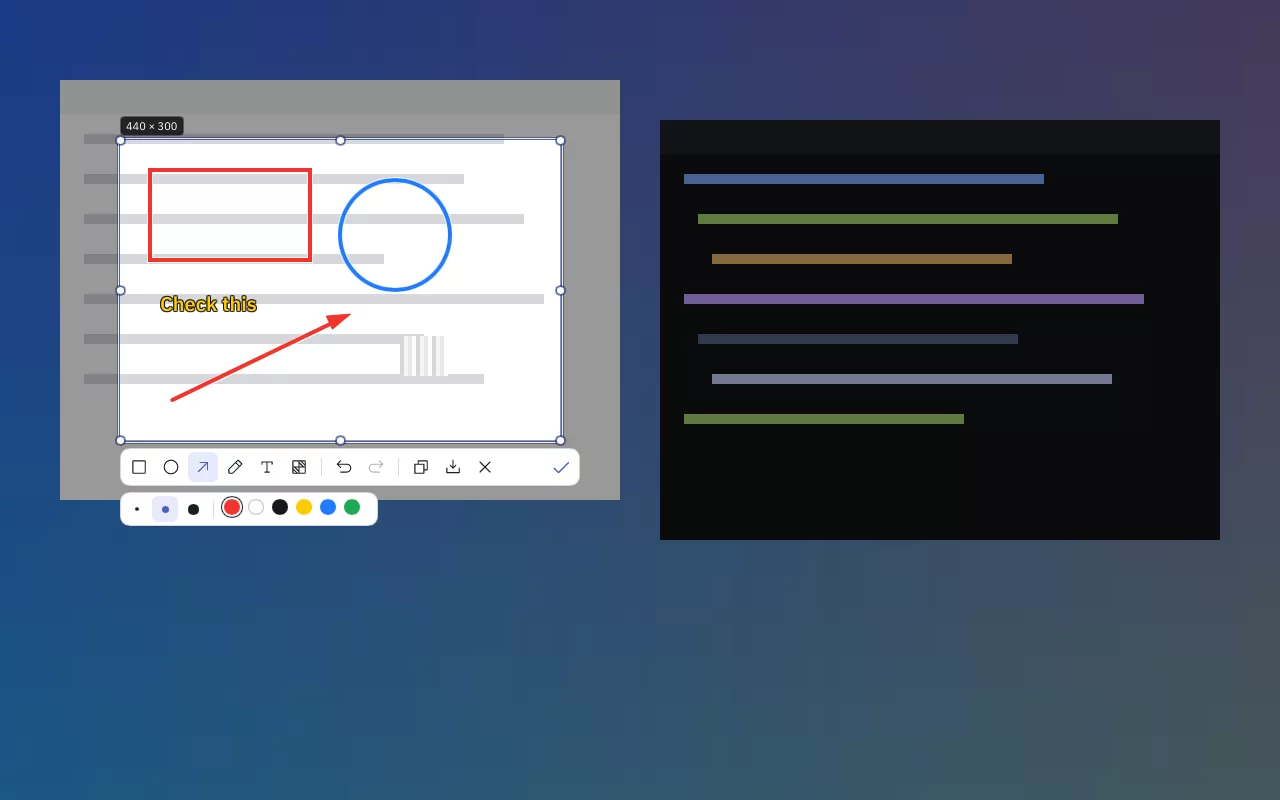
Press ⌘⇧A, or the scissors next to the paperclip. The screen freezes, dimmed, under an overlay: you drag a selection, with a magnifier and the size in pixels, or click a window to take it whole. The toolbar draws rectangles, ellipses, arrows, pen strokes, text and mosaic, in three sizes and six colours, with undo. Done puts the picture into the send card, where a caption can go with it; ⌘C copies it; ⌘S saves it to Downloads. Settings → General → Screenshots holds the shortcut and whether the FinchGram window hides meanwhile.
AI assistants
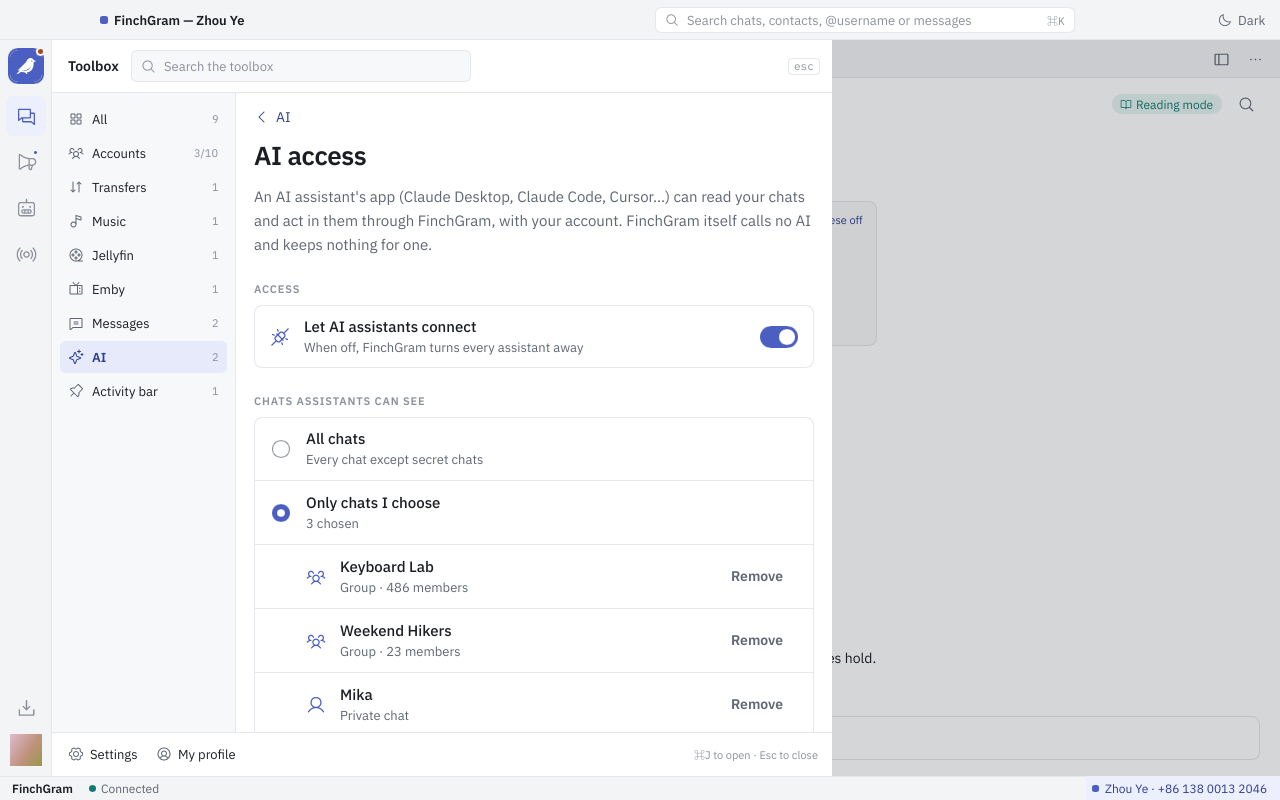
FinchGram is an MCP server: an AI assistant's app on your Mac (Claude Desktop, Claude Code, Cursor…) can read your Telegram and act in it through the running app, with your own account. Toolbox → AI access is the switch, off by default. There you choose which chats an assistant may see (all but secret chats, or only chosen ones) and what it may write (messages under your name, drafts only for you to send, or nothing), and you see which apps have connected, with their names as macOS reports them, and what they asked for. The first time an app connects, FinchGram asks whether to allow it. Reading marks nothing as read, secret chats are never shown, and nothing is kept for an AI. The page gives the line to paste into Claude Code or Claude Desktop; docs/mcp.md has the details.
The Downloads page
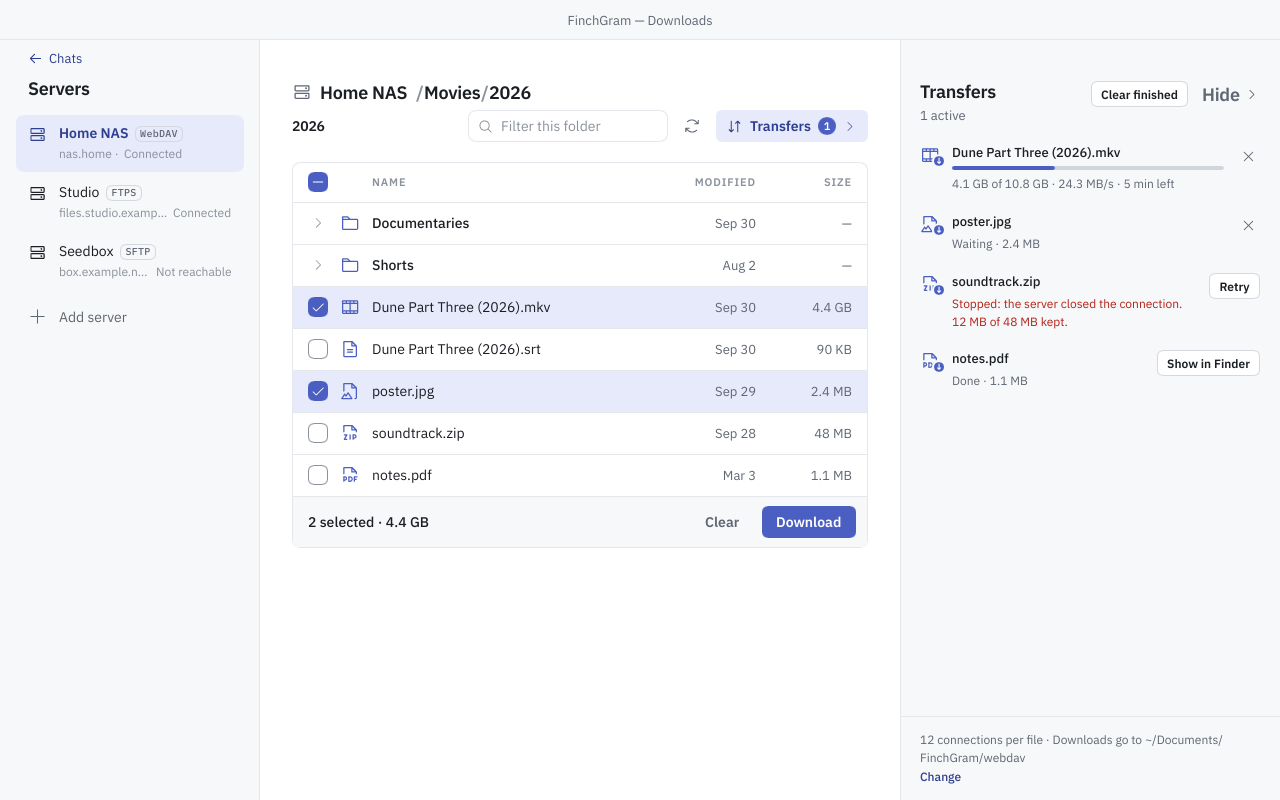
View → Downloads, or the download icon above the gear. Add a server over WebDAV, FTP, FTPS or SFTP (a
NAS, a seedbox, PikPak, Alist/OpenList, Nextcloud, rclone serve webdav, or a folder shared with vget serve),
browse its folders, tick files or take a whole folder, and they arrive in ~/Documents/FinchGram/webdav:
each file in 8 MB chunks over up to twelve connections, going on from where it stopped after a
Retry, as the maintainer's command-line tool vget does. The queue on the right shows the speed and
what is left; Open fetches a photo or video and shows it in the viewer. FinchGram changes nothing
on a server unless you allow it for that server (then it can delete, move, rename and upload
there), and the password goes sealed into FinchGram's database, never into a plain file.
docs/downloads.md has the details and what is not there yet (a self-signed
certificate is refused: use http on the LAN, or a real certificate).
The Music page
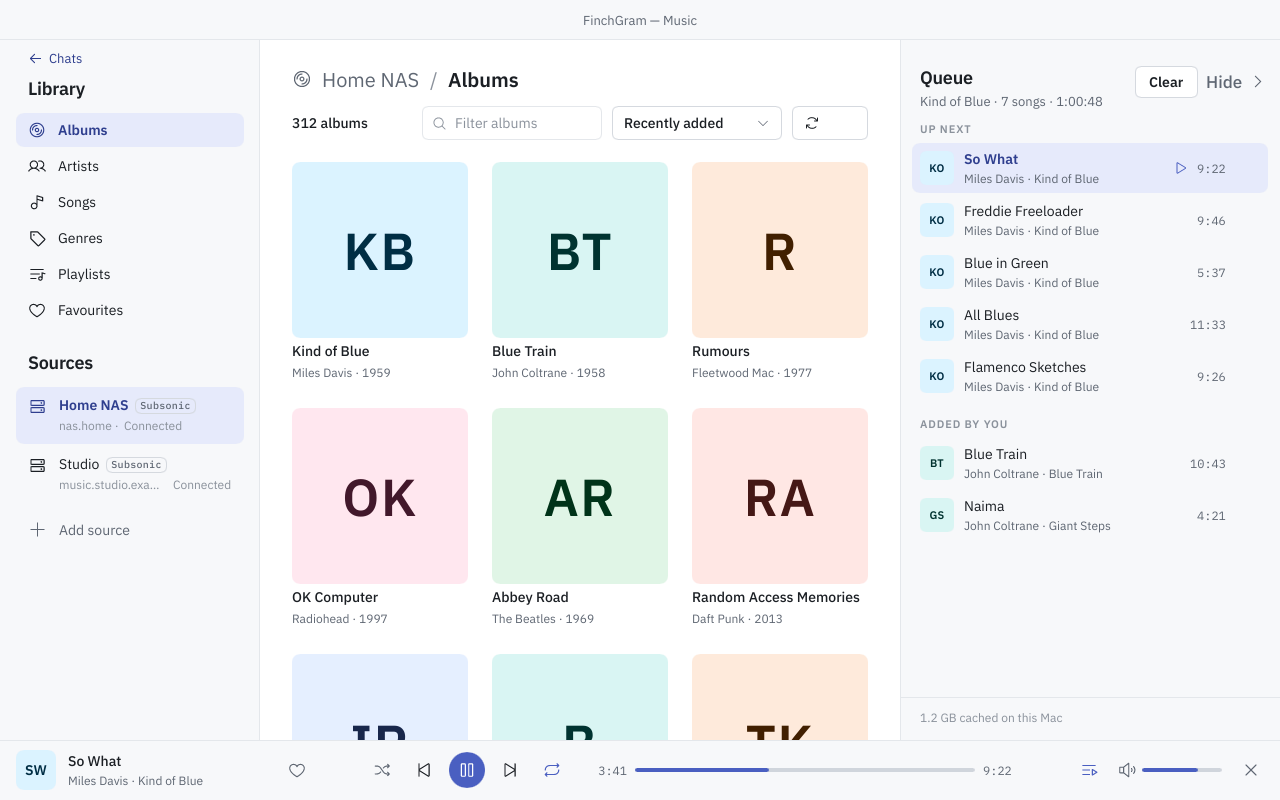
View → Music, or the toolbox's Music. Add a source: a server of your own that speaks the Subsonic API (Navidrome, gonic, LMS, Ampache, Nextcloud Music, Koel…), its address and your account; the password is kept sealed in FinchGram's database. Browse its albums, artists, songs, genres, playlists and favourites, play or shuffle an album, add songs to the queue; stars go back to the server. Songs come through FinchGram's own HTTP client into ~/Documents/FinchGram/music_cache and play as they arrive, one after another without a gap; the player bar stays at the foot of every page. docs/music.md has the details.
How it is built
The app is a shell. Telegram itself is done by TDLib, running as a separate program next to the
executable, finchgram-tdlib, which this repository builds from pinned sources; the shell talks to
it only through src/telegram/, in TDLib's own JSON. Video plays through libmpv, built the same
way. Nothing is taken from the user's machine, and a build downloads nothing but these pinned,
checksummed builds. Everything is public: the source, the vendor builds (vendor/) and the
releases. See docs/architecture.md and
docs/conventions.md.
Telegram's rules
FinchGram does what Telegram's own apps do, and nothing they forbid. A message is marked read when you see it, the other side sees you typing and online as in any Telegram app, sponsored messages in channels are shown, self-destructing media opens once, and nothing from Telegram goes to any AI unless you let an assistant in (Toolbox → AI access) or turn on transcribing voice messages with your own AI vendor. Nothing leaves your machine except to Telegram, to GitHub for updates, and, while you use voice input, your voice to the AI vendor you chose, under your own key.
Development
Development needs macOS on Apple silicon for now: finchgram-tdlib is only built for it. Linux and Windows will follow.
finchgram-tdlib, libmpv and the UI fonts are not in git: vendor/tdlib/ and vendor/mpv/ only hold
the scripts that build them, and the fonts come from Google Fonts. After cloning, get them once:
scripts/fetch-tdlib.sh    # downloads the pinned finchgram-tdlib release into vendor/tdlib/bin/ and verifies the SHA-256
scripts/fetch-mpv.sh      # downloads the pinned libmpv release into vendor/mpv/bin/ and verifies the SHA-256
scripts/fetch-fonts.sh    # downloads the pinned UI fonts into vendor/fonts/ and verifies their SHA-256
FINCHGRAM_API_ID=… FINCHGRAM_API_HASH=… cargo run
-
To change finchgram-tdlib itself, build it here (a few minutes; needs Xcode or the Command Line Tools, and
brew install cmake ninja gperf, build tools only):vendor/tdlib/build.sh && vendor/tdlib/build.sh install -
FINCHGRAM_API_IDandFINCHGRAM_API_HASH: your own, from my.telegram.org → API development tools. They are read when compiling and never belong in the repository. Without them the app starts and says it has no API ID. -
FINCHGRAM_TEST_DC=1 cargo runuses Telegram's test servers, which have their own accounts; the app keeps a separate database for them. -
cargo test screenshots -- --ignoreddraws every page in every theme, light and dark, with made-up chats, intotarget/screenshots/: a way to look at the UI without an account.
build.rs copies vendor/tdlib/bin/finchgram-tdlib next to the compiled executable, so cargo run
uses exactly the same program as the packaged app; it links libmpv from vendor/mpv/bin/ and copies it
there too, and the fonts in vendor/fonts/ are compiled into the executable. Without any of them the
build fails with a message saying so. Rust 1.92 or newer.
TDLib's database and downloaded files are in ~/Library/Application Support/FinchGram/tdlib/, the
settings in ~/Library/Application Support/FinchGram/settings.toml.
Layout
.github/workflows/
  mpv.yml                # builds libmpv on a clean runner; publishes mpv-* tags as releases
  check.yml              # clippy and the tests on every push to main
  release.yml            # builds and publishes the app for the Release v* commits
  tdlib.yml              # builds finchgram-tdlib on a clean runner; publishes tdlib-* tags as releases
Cargo.toml
build.rs                 # compiles ui/app.slint, bundles lang/, copies vendor/tdlib/bin/ next to the executable
crates/
  finchgram-release-sign/ # the Ed25519 signing tool behind releases, a package of its own
docs/                    # architecture.md, conventions.md, downloads.md, drag-and-drop.md, media-files.md, skia.md (+ zh-Hans)
  screenshots/           #   the pictures the READMEs show, from the picture test (scripts/readme-pictures.sh)
lang/                    # translations: lang/<code>/LC_MESSAGES/finchgram.po, compiled into the binary
readme/                  # this README in other languages
release-signing.pub      # the public keys allowed to sign releases; compiled into the app
scripts/
  bundle.sh              # builds dist/FinchGram.app (what the release workflow runs)
  fetch-fonts.sh         # the pinned UI fonts into vendor/fonts/
  fetch-mpv.sh           # the pinned libmpv release into vendor/mpv/bin/
  fetch-tdlib.sh         # the pinned finchgram-tdlib release into vendor/tdlib/bin/
  readme-pictures.sh     # copies the READMEs' pictures from target/screenshots/ into docs/screenshots/
  release.sh             # starts a release: version, tag, push; GitHub Actions does the rest
  sign.sh                # signs the app: ad hoc, or with the Developer ID in the release workflow
src/
  main.rs                # the window, the settings, the language and theme, updates; starts Telegram
  fonts.rs               # the UI fonts, compiled into the executable
  images.rs              # pictures in messages, decoded off the UI thread
  telegram/              # the only code that talks to finchgram-tdlib
    process.rs           #   runs the program: TDLib's JSON over standard input and output
    api.rs               #   the TDLib types FinchGram uses (td_api.tl of the pinned version)
    mod.rs               #   requests and answers, starting again; updates go to the store
    store.rs             #   what TDLib said about chats, users and messages; the pages' models
    login.rs             #   logging in, signing up
    chats.rs             #   the chat list
    conversation.rs      #   the open chat: messages, writing
    actions.rs           #   what can be done with a message: its menu, replies, forwarding, …
    account.rs           #   the profile, logging out
    password.rs          #   two-step verification in Settings
    files.rs             #   downloading files
    avatars.rs           #   the photos of chats and people, shown instead of their letters
    viewer.rs            #   the media viewer: photos, videos, saving to Downloads
    rich_text.rs         #   formatted text: bold, italic, links, …
    notifications.rs     #   notifications of new messages, the unread count on the Dock icon
    online.rs            #   the account is online while the window is in front and in us