
GuardBee for VS Code
guardbee.ai — AI Security Copilot for websites.
Review GuardBee findings in the editor, run dashboard jobs from the sidebar, and let Cursor or VS Code agents check code before saving.
Features
- Local findings — analyze the current file or workspace on save (or on demand). Results appear as editor diagnostics and in the Local Findings view.
- Cursor / MCP — dedicated scan for
mcp.json,.cursor/rules, agent skills, and hooks. Workspace directory walks skip hidden folders like.cursor, so this surface has its own command, sidebar view, and agent tool. - Agent tools — Cursor/VS Code agents can scan a file, scan the workspace, check unsaved code, or scan Cursor/MCP files (
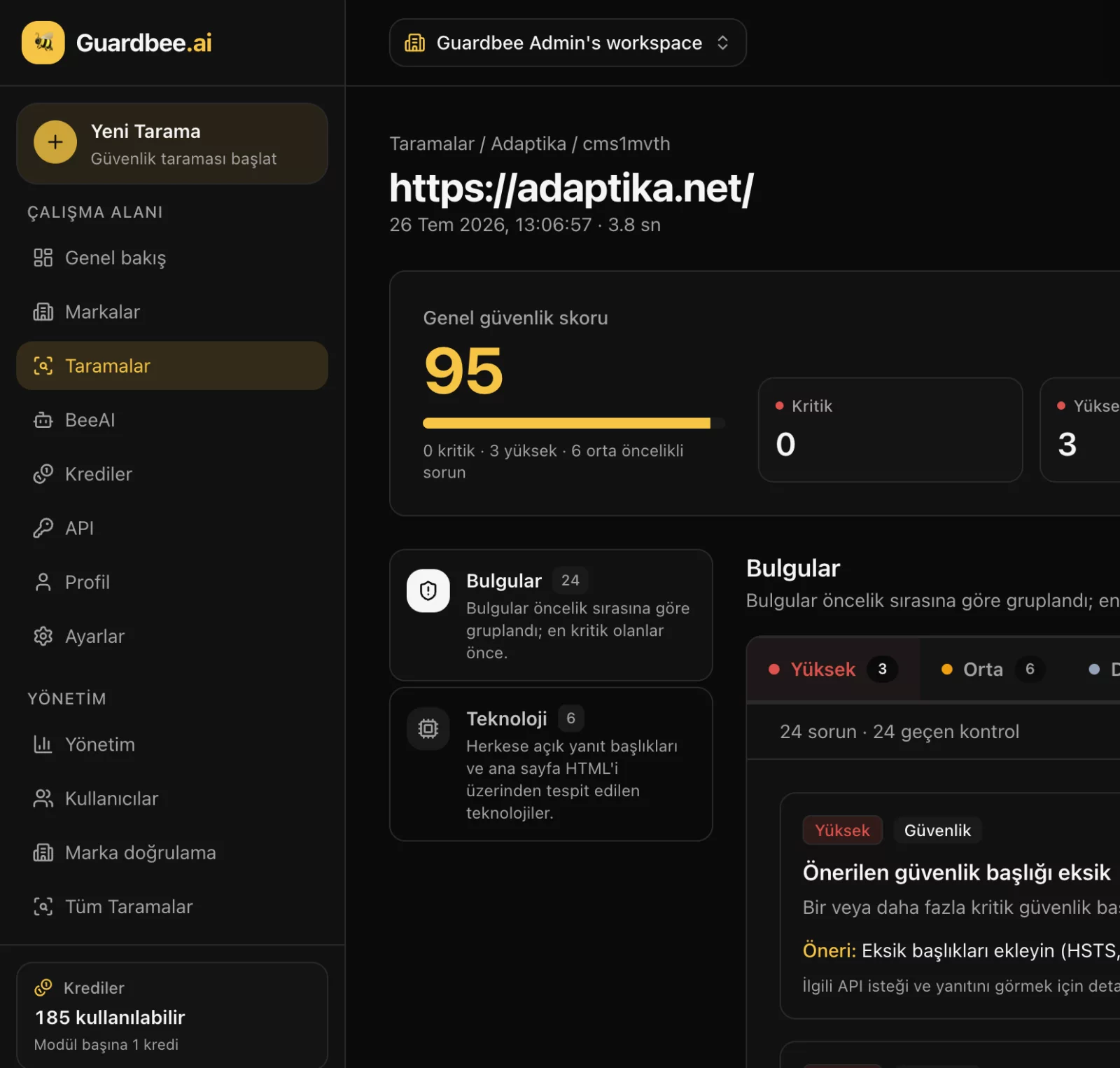
#guardbeeScanFile,#guardbeeScanWorkspace,#guardbeeCheckCode,#guardbeeScanCursorMcp, or@guardbeein chat). - Dashboard scans — connect from the editor, run dashboard jobs from the sidebar, click a remote finding to open it on the dashboard, and send local findings up (redacted).
Setup
npm installnpm run compile- Press
F5to launch an Extension Development Host.
Local findings
Runs automatically on save (configurable via guardbee.scanOnSave), or from the GuardBee sidebar / GuardBee: Scan Current File / GuardBee: Scan Workspace.
Findings appear as editor diagnostics. Hover for the recommendation, then use a Quick Fix (lightbulb) to:
- insert
// guardbee-disable-next-line(or#/<!-- -->depending on language) - add the match to the workspace
guardbee.ymlallowlist
You can also suppress inline:
// guardbee-disable-next-line
const demo = "example";

const demo2 = "example"; // guardbee-disable-line
Optional guardbee.yml in the workspace root can exclude paths and allowlist known test values.
Settings: guardbee.enabledScanners, guardbee.scanOnSave, guardbee.severityThreshold.
The status bar shows the current finding count; click it to focus Local Findings.
Cursor / MCP files
Hidden folders such as .cursor are skipped by a normal workspace directory walk, so prompt-injection and MCP auditor findings in agent config never showed up there.
GuardBee: Scan Cursor and MCP Files (sidebar Cursor / MCP, or on window open via guardbee.scanAgentSurfaceOnStartup) uses findFiles and routes by file kind:
| Kind | Typical paths | Analyzers |
|---|---|---|
| MCP config | .cursor/mcp.json, .vscode/mcp.json, mcp.json |
credentials, MCP auditor, prompt injection |
| Rules | .cursorrules, .cursor/rules/** |
credentials, prompt injection |
| Skills | .cursor/skills/**, .agents/skills/** |
credentials, prompt injection |
| Hooks | .cursor/hooks.json, .cursor/hooks/** |
credentials, MCP auditor, prompt injection |
Local ./ / ../ MCP entrypoints listed in those configs are scanned with the MCP auditor as well.
Demo fixtures: examples/cursor-surface/.
Agent tools
In Cursor/VS Code agent chat, GuardBee registers three tools (also referenceable with #):
| Tool | When to use |
|---|---|
#guardbeeScanFile |
Scan the current file or a path |
#guardbeeScanWorkspace |
Scan the open folder (optional credential filter) |
#guardbeeCheckCode |
Check generated/unsaved code before saving |
#guardbeeScanCursorMcp |
Scan MCP configs, Cursor rules, skills, and hooks |
Or chat with @guardbee / @guardbee /file / @guardbee /workspace / @guardbee /surface.
Tools return locations and recommendations only — they do not send matched credential values to the model. Blocking (critical/high) findings set canProceed to false.
Dashboard scans
- Run GuardBee: Connect Account. A Developers page tab opens; copy a key and paste it. GuardBee checks
GET /workspacesbefore storing the key. - Run GuardBee: Trigger Remote Scan to pick a Brand (or enter a URL). When it finishes, Open in Dashboard jumps to that scan.
- Click a scan or finding in Remote Scans to open it on app.guardbee.ai.
- Run GuardBee: Send Local Findings to Dashboard (or the Local Findings cloud icon) to POST a redacted summary. Matched secret values are never sent. If the dashboard does not yet accept IDE ingest (
POST /api/v1/ide/findings), the same summary is copied so you can paste it.
You can also finish connect from a vscode://guardbee-ai.guardbee-vscode/connect?token=… link.
Ad-hoc URL scans that are not tied to a verified Brand must use a hostname that matches your account email domain.
Known limitation
Remote URL scans still have no source file/line (they target live sites). The editor opens the dashboard scan page instead.
Development
npm run watch— incremental esbuild rebuildnpm test— extension test suite via@vscode/test-electronnpm run package— produce a.vsixnpm run publish:marketplace— CLI publish (needs a Marketplace PAT; optional)
Release
- Bump
versioninpackage.jsonand commit. - Tag and push:
git tag v0.5.1
git push origin v0.5.1
GitHub Actions builds the .vsix, attaches it to the GitHub Release, then publishes to Open VSX and the Visual Studio Marketplace when the matching secrets exist.
Add these once under Settings → Secrets and variables → Actions:
| Secret | Where to create it |
|---|---|
OVSX_PAT |
Open VSX tokens |
VSCE_PAT |
Azure DevOps PAT: Organization All accessible organizations, scope Marketplace → Manage |
If a secret is missing, that store is skipped and the GitHub Release still publishes. --skip-duplicate ignores a version that is already on the store.
Without VSCE_PAT, upload the Release VSIX at publisher management → GuardBee → Update. Many personal Microsoft accounts never see the Azure DevOps token page until an organization exists.