
See what is eating your Mac's disk. Give it some headroom.
A fast, native macOS disk space analyzer, storage visualizer, and cleanup utility.
Completely free. No subscription, ads, tracking, accounts, or in-app purchases.
Formerly DiskTree. Same app, same bundle id, new name since 1.0.








Download the latest release · Install with Homebrew · Build from source · Safety & privacy
Free forever, no ads, no tracking. If Headroom saved you some space, a ⭐ on this repo is the best way to help other Mac users find it.
brew install ryware/tap/headroom
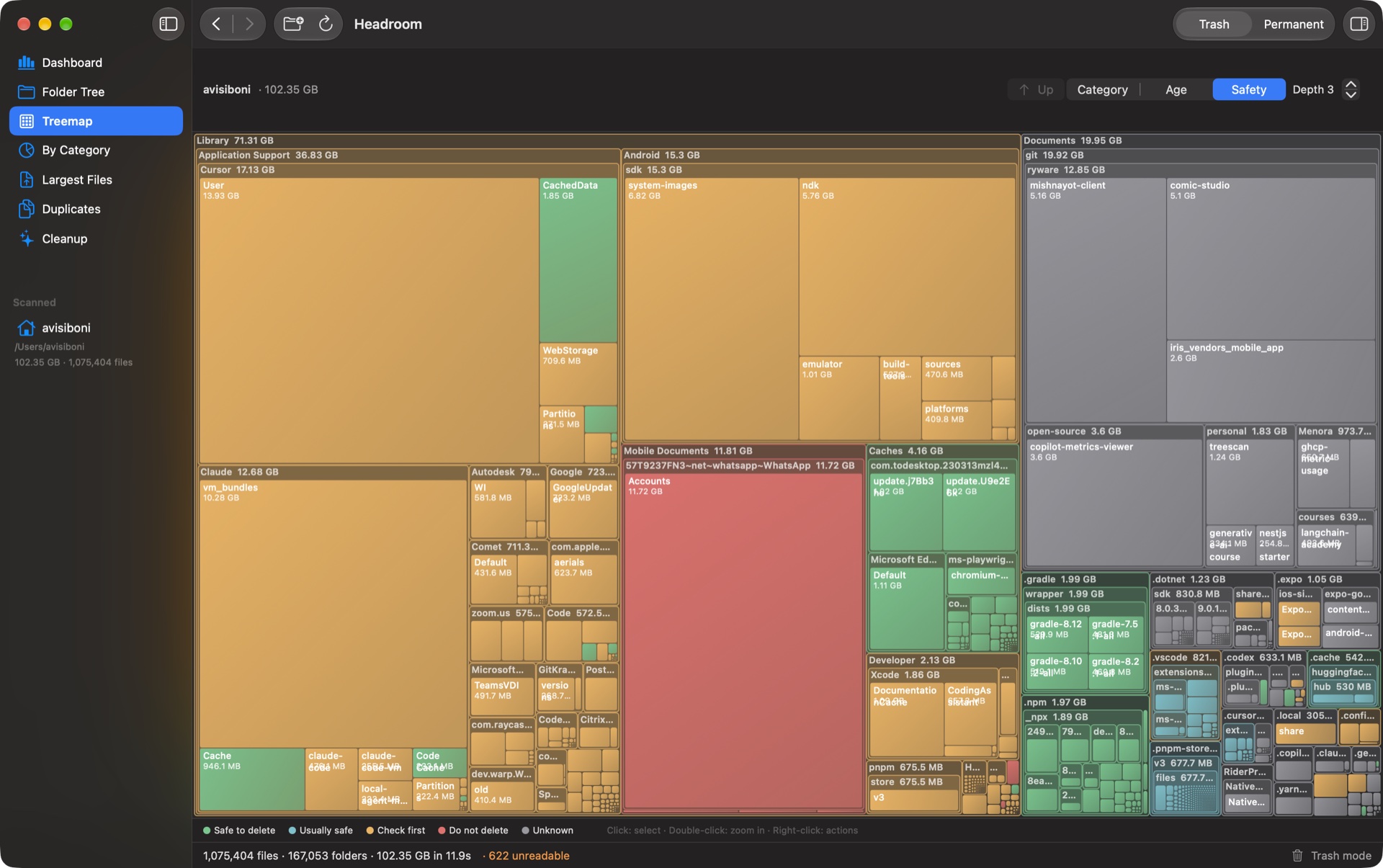
Headroom turns a crowded drive into an understandable map. Scan a folder or disk, identify the largest files and developer caches, inspect what is safe to remove, and clean up without leaving the app.
Why Headroom
- Find space fast — a native scanner uses macOS
getattrlistbulk(2)and parallel directory traversal. - Understand it visually — explore a detailed folder tree, a squarified treemap, file categories, and the largest individual files and bundles.
- Delete with context — safety badges explain what an item is, whether it is usually safe to remove, and what deletion may affect.
- Clean developer clutter — discover caches, DerivedData,
node_modules, package stores, build output, logs, virtual machines, and other regenerable data. - Find duplicates — byte-for-byte identical files (size → header hash → samples → full SHA-256), grouped and ranked by reclaimable space, with one-click "keep newest" selection and a keep-one-copy guard.
- Watch it from the menu bar — a live free-space ring, 7-day trend, low-space and sudden-drop alerts, and one-click cleanup of safe caches.
- Works with AI agents — a command line tool and an MCP server give Claude Code, Claude Desktop, Cursor, Codex and any MCP client the same scanner, cleanup finder, duplicate finder and safety verdicts. The app carries its own
AGENTS.md, so an agent needs no setup. See Use with AI agents. - Stay in control — choose recoverable Trash mode or an explicit permanent-delete mode.
- Keep data private — analysis happens locally on your Mac; Headroom does not require an account or send scan data anywhere.
Screenshots
Explore every folder without losing context
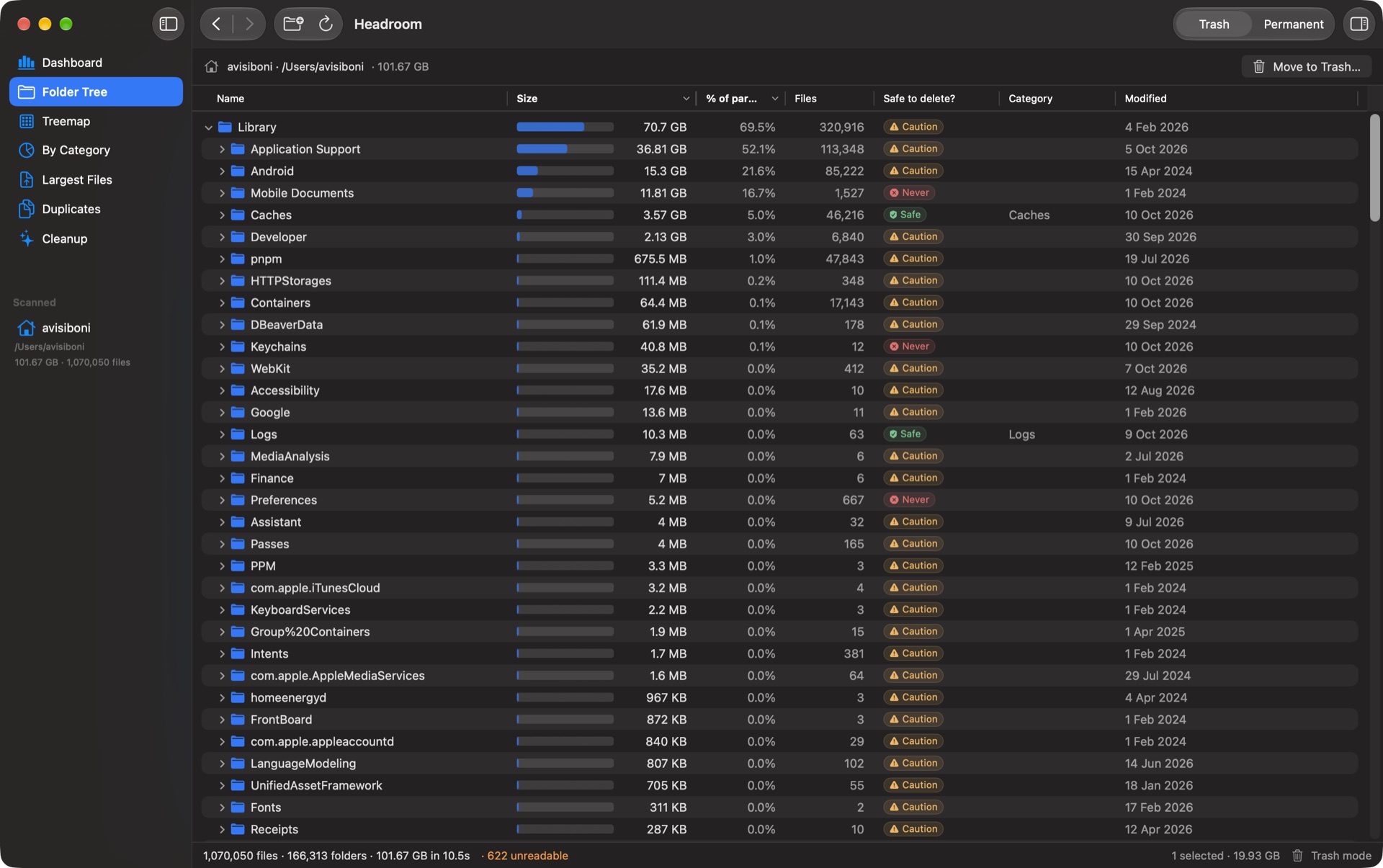
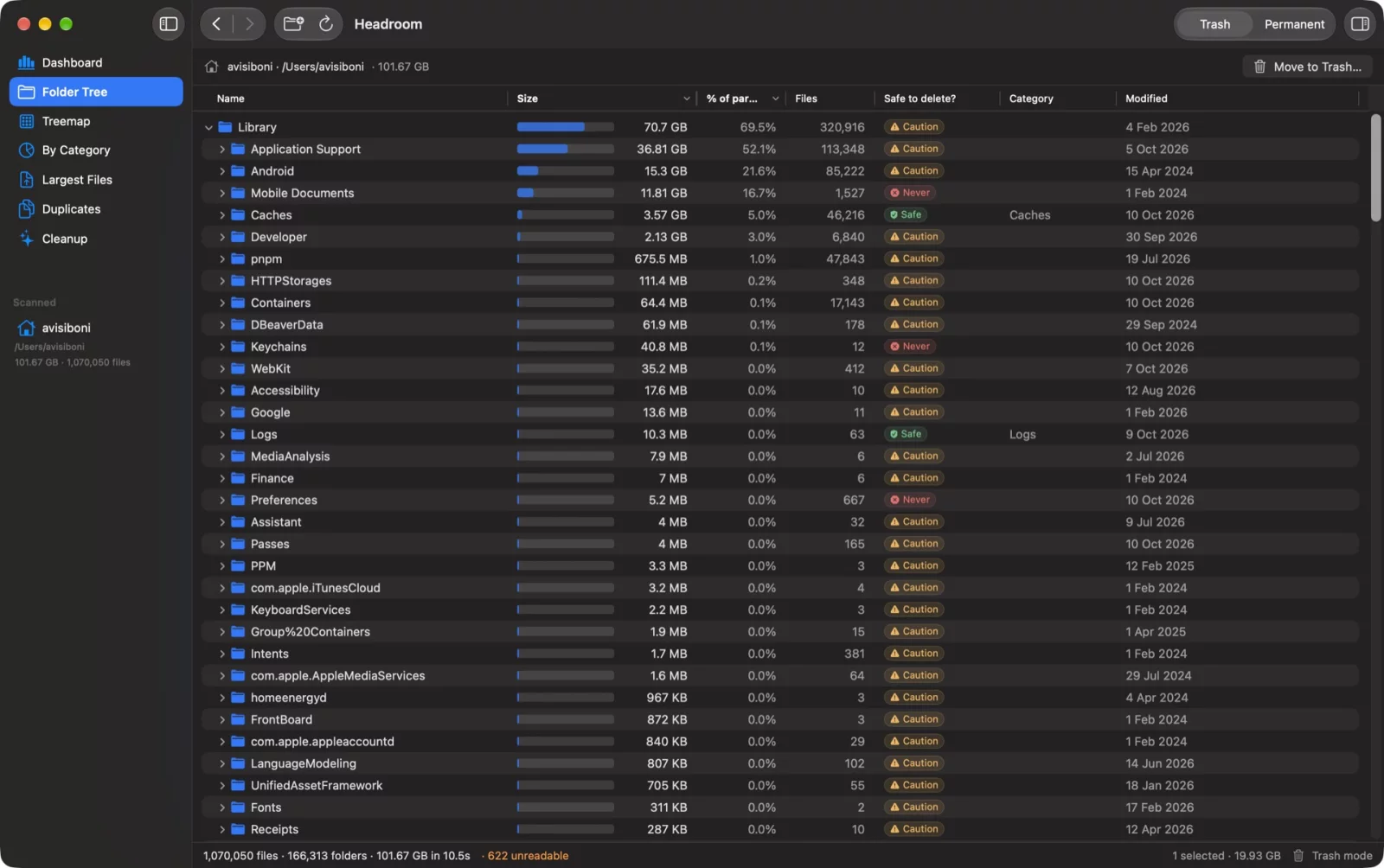
The virtualized folder tree stays responsive with very large directories. Sort by size, share of parent, file count, safety, category, or modification date.
See the whole drive at a glance
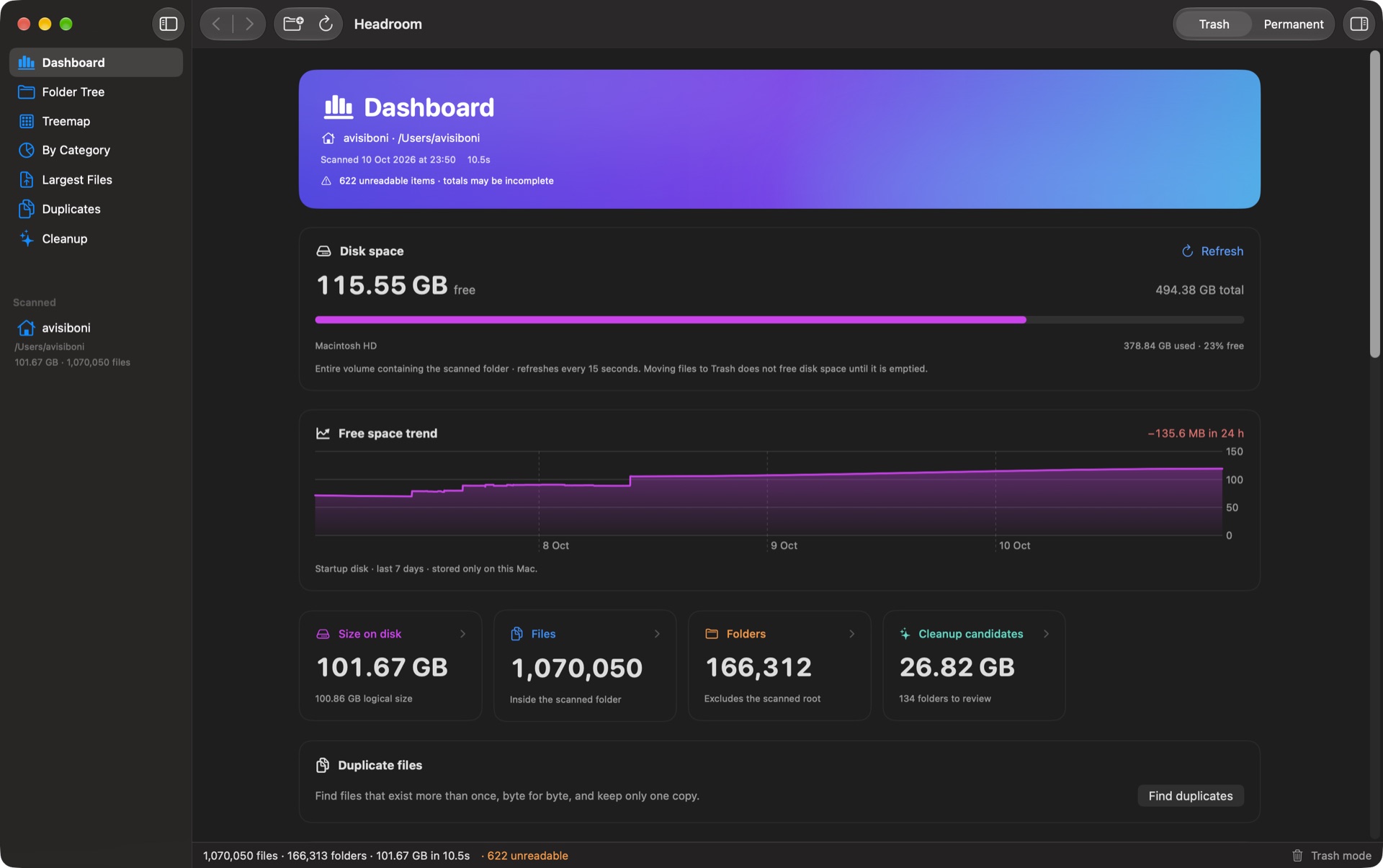
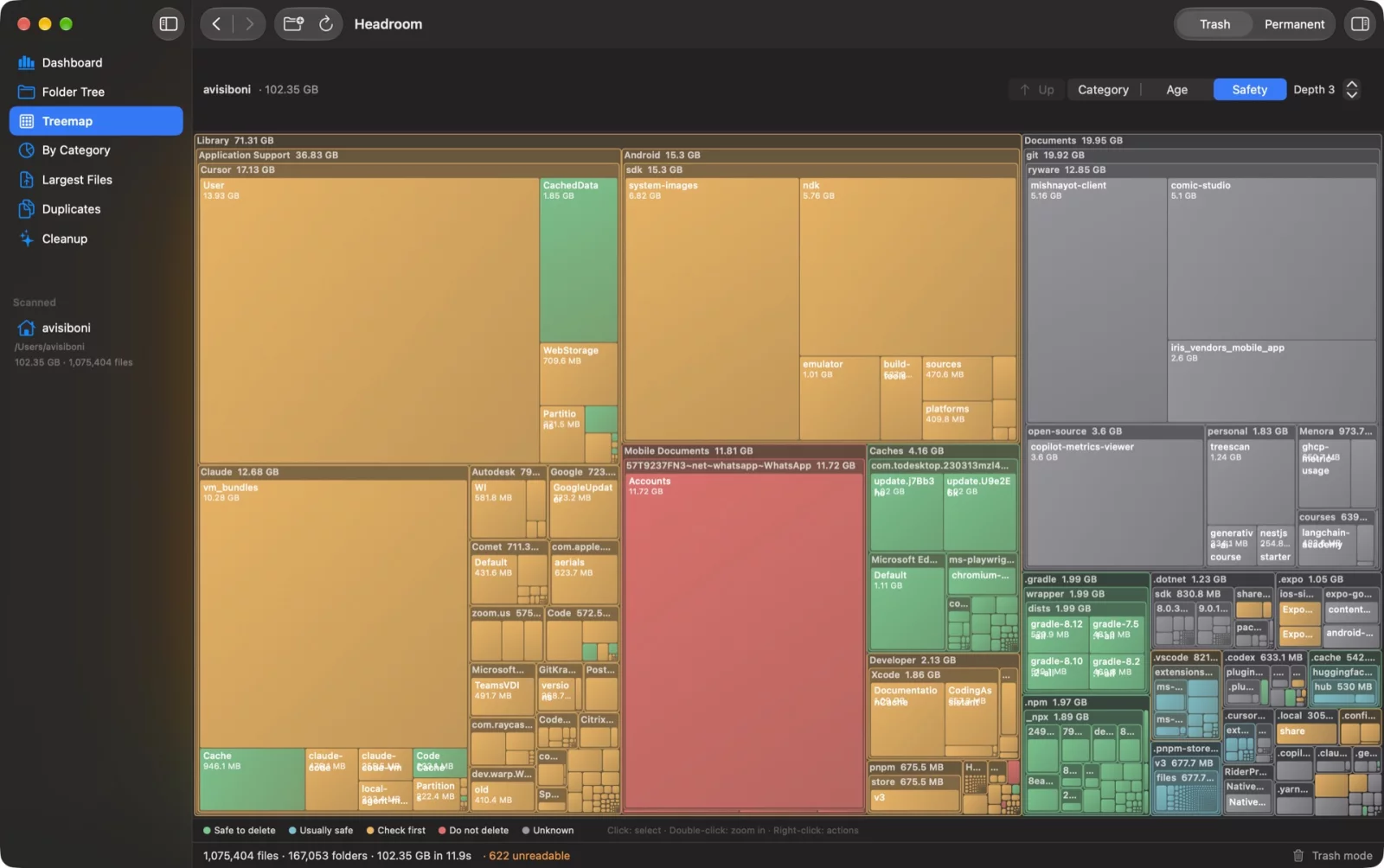
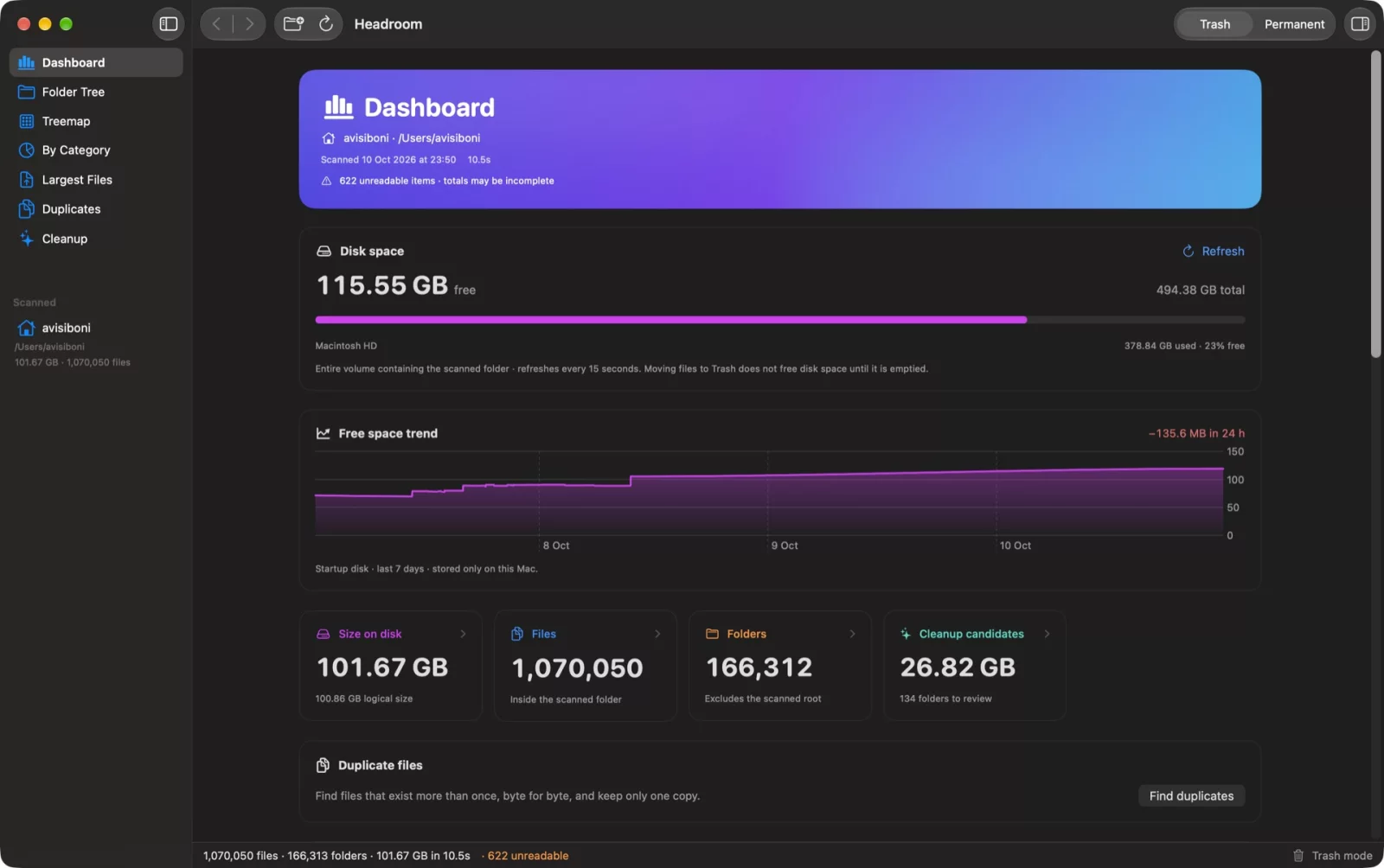
The dashboard sums up the scan: free space, a 7-day trend, cleanup candidates, and a shortcut to the duplicate finder. The interactive treemap (top of this page) can be colored by category, age, or deletion safety. Double-click to zoom and right-click an item for actions.
Know what is safe to delete
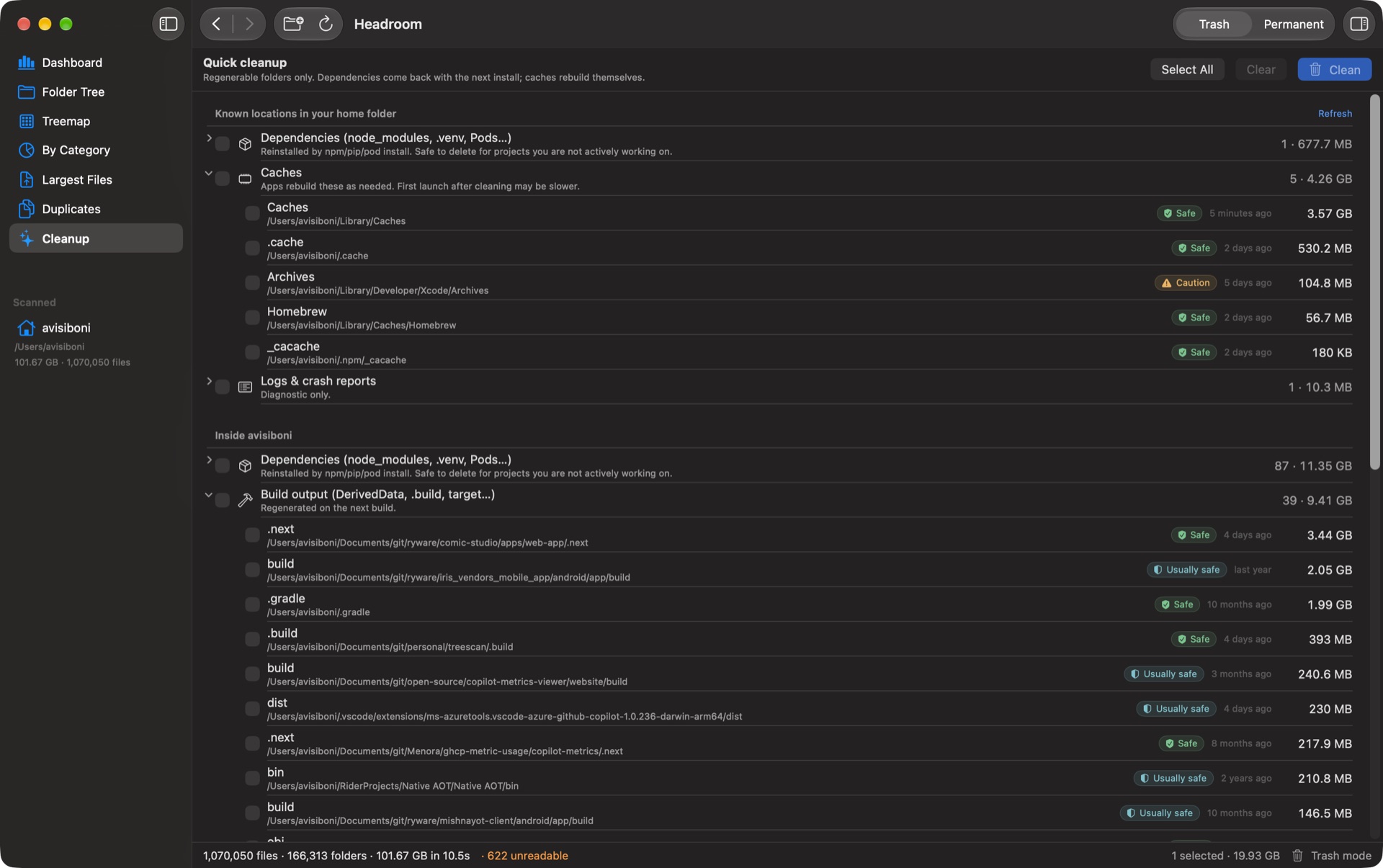
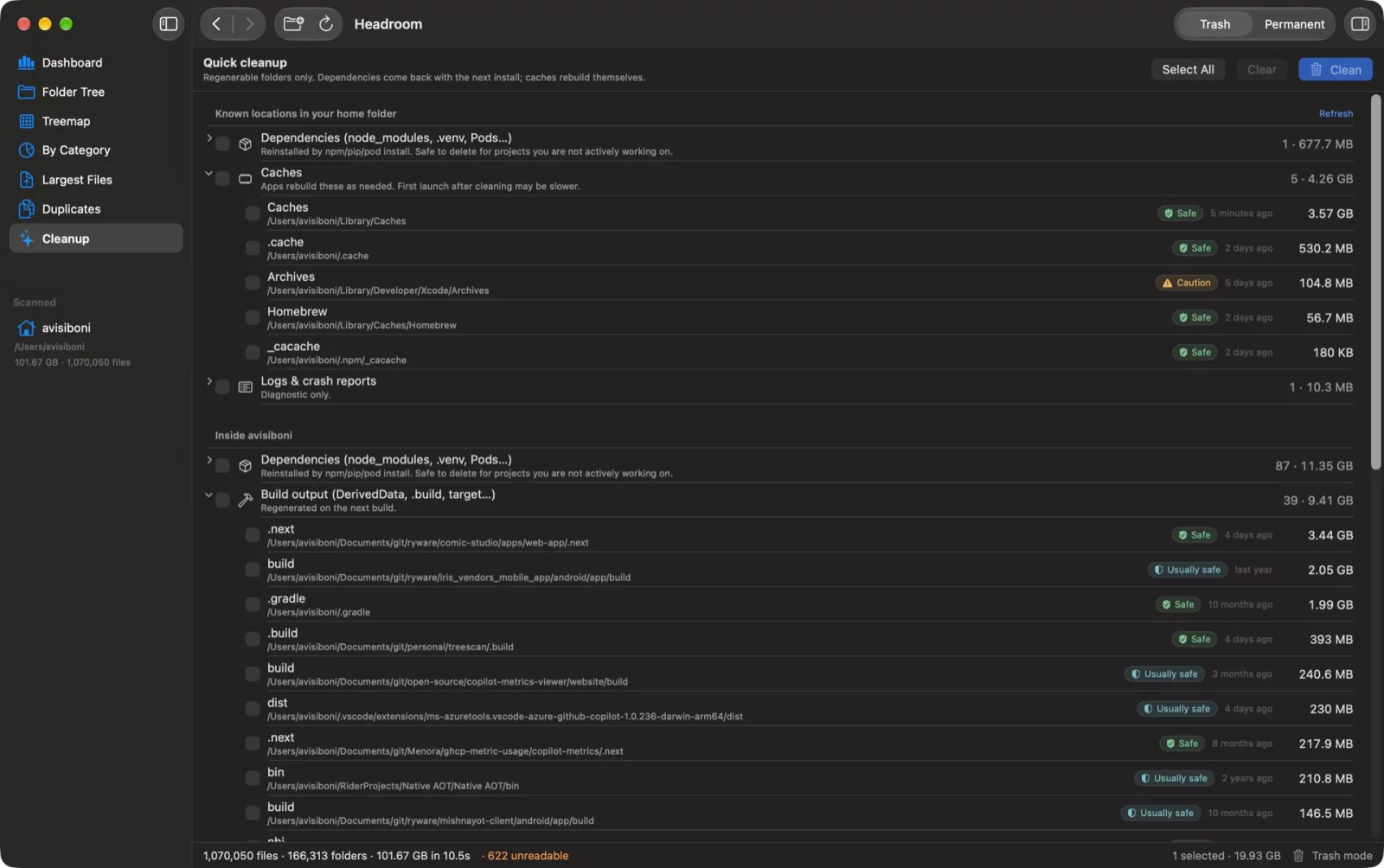
Cleanup gathers regenerable folders, such as caches, DerivedData, node_modules, and build output, biggest first, and labels each one Safe, Usually safe, Caution, or Never.
Remove duplicate files
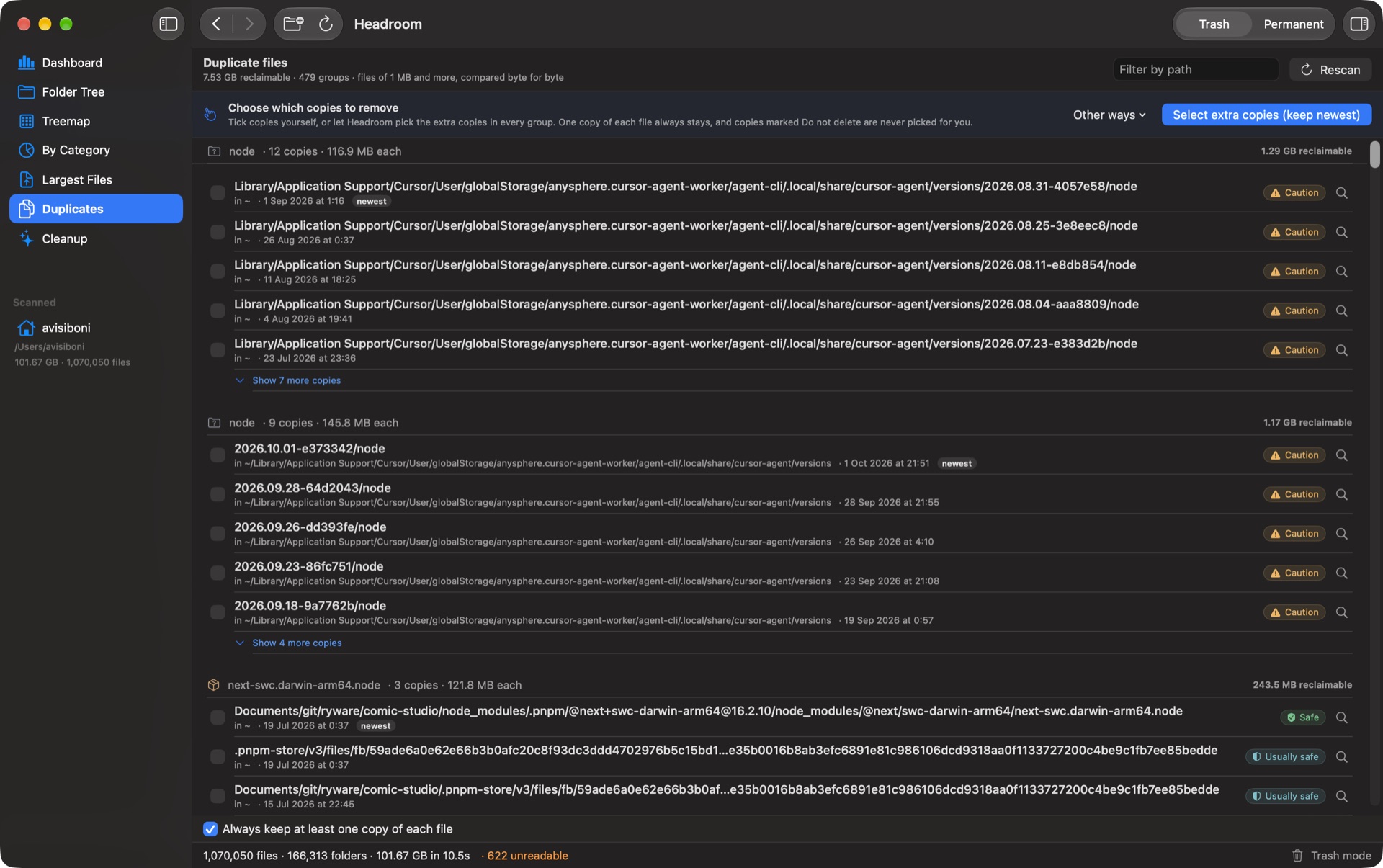
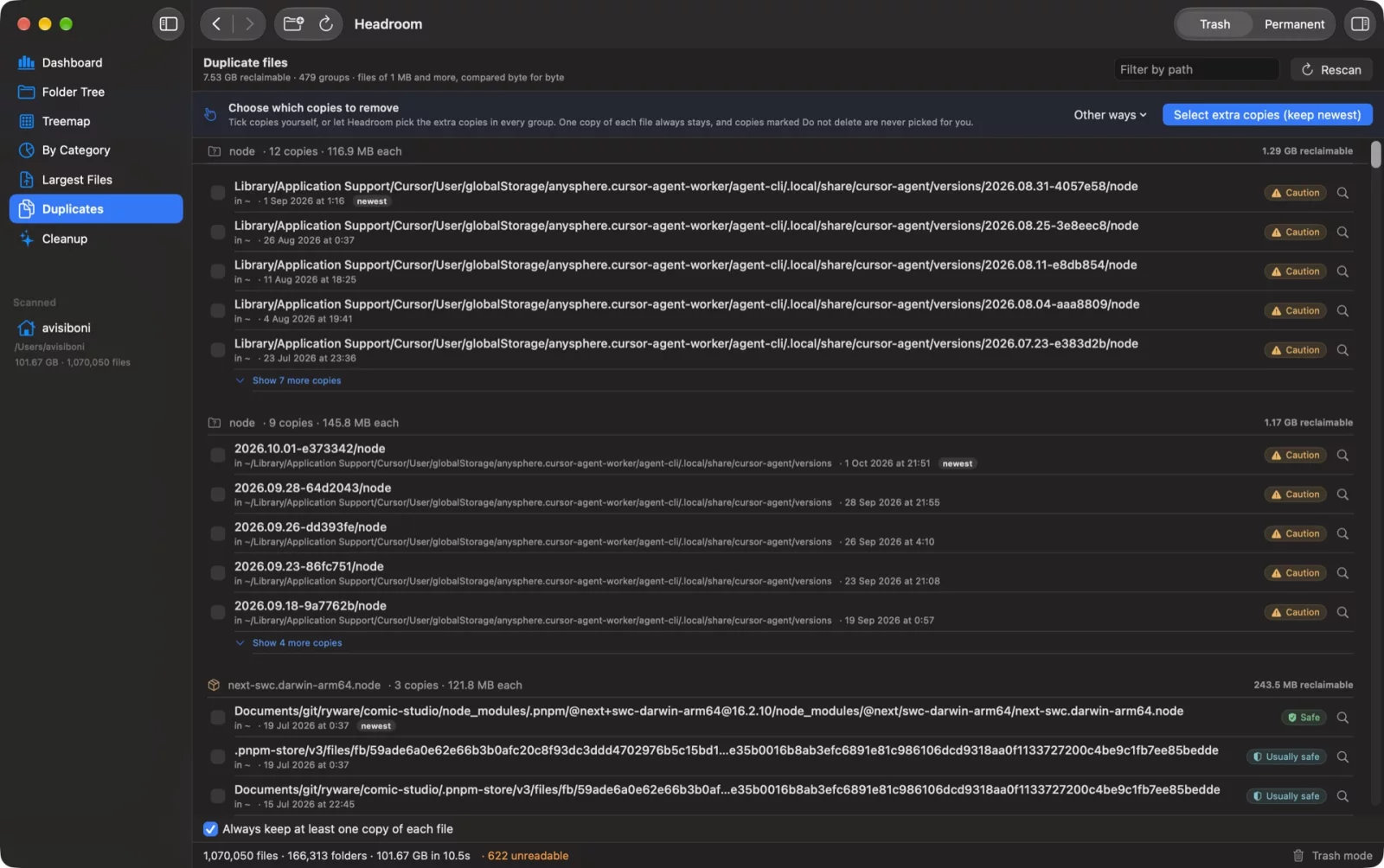
Byte-for-byte identical files are grouped and ranked by reclaimable space. One click selects the extra copies and keeps the newest.
Understand what consumes the space
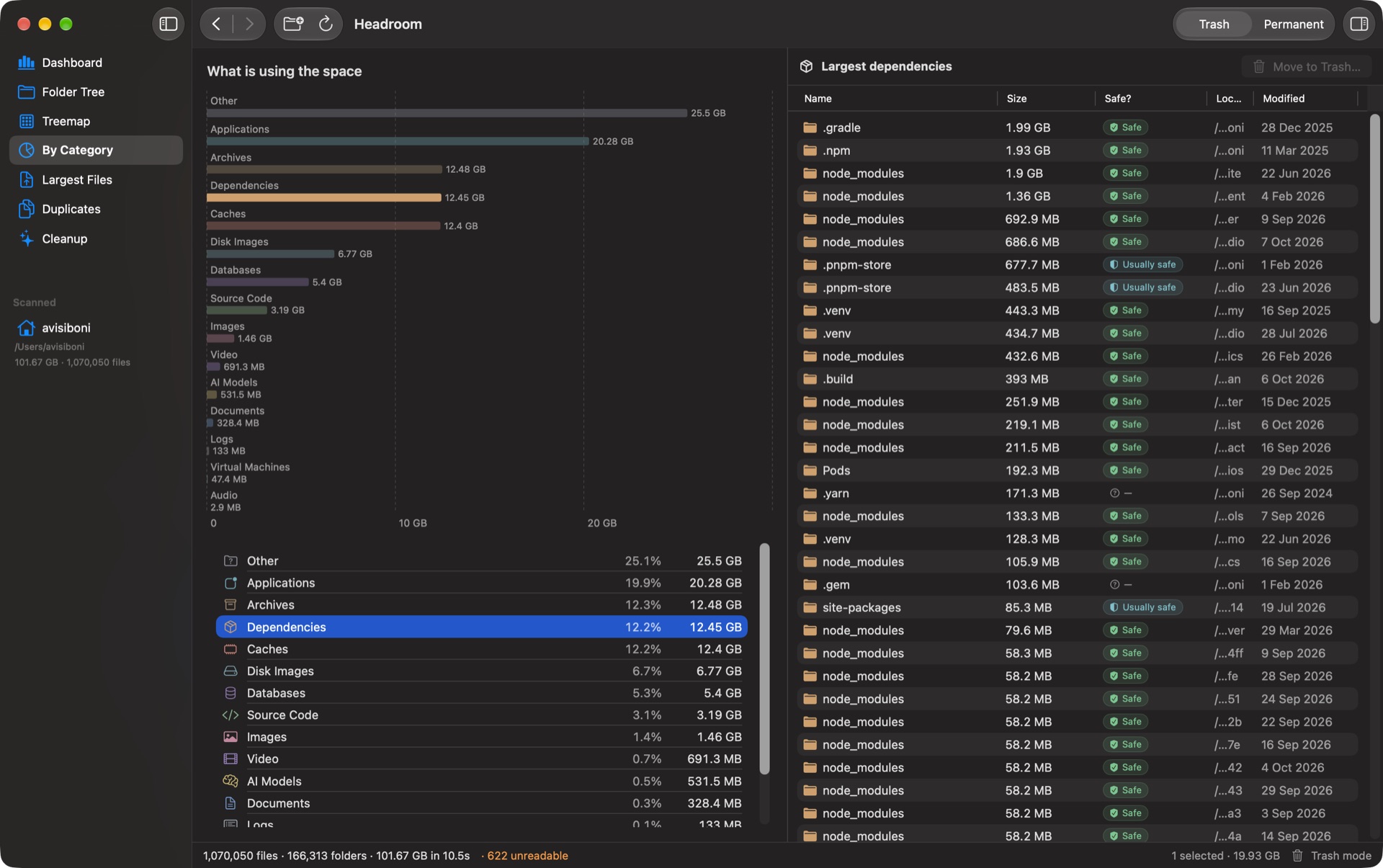
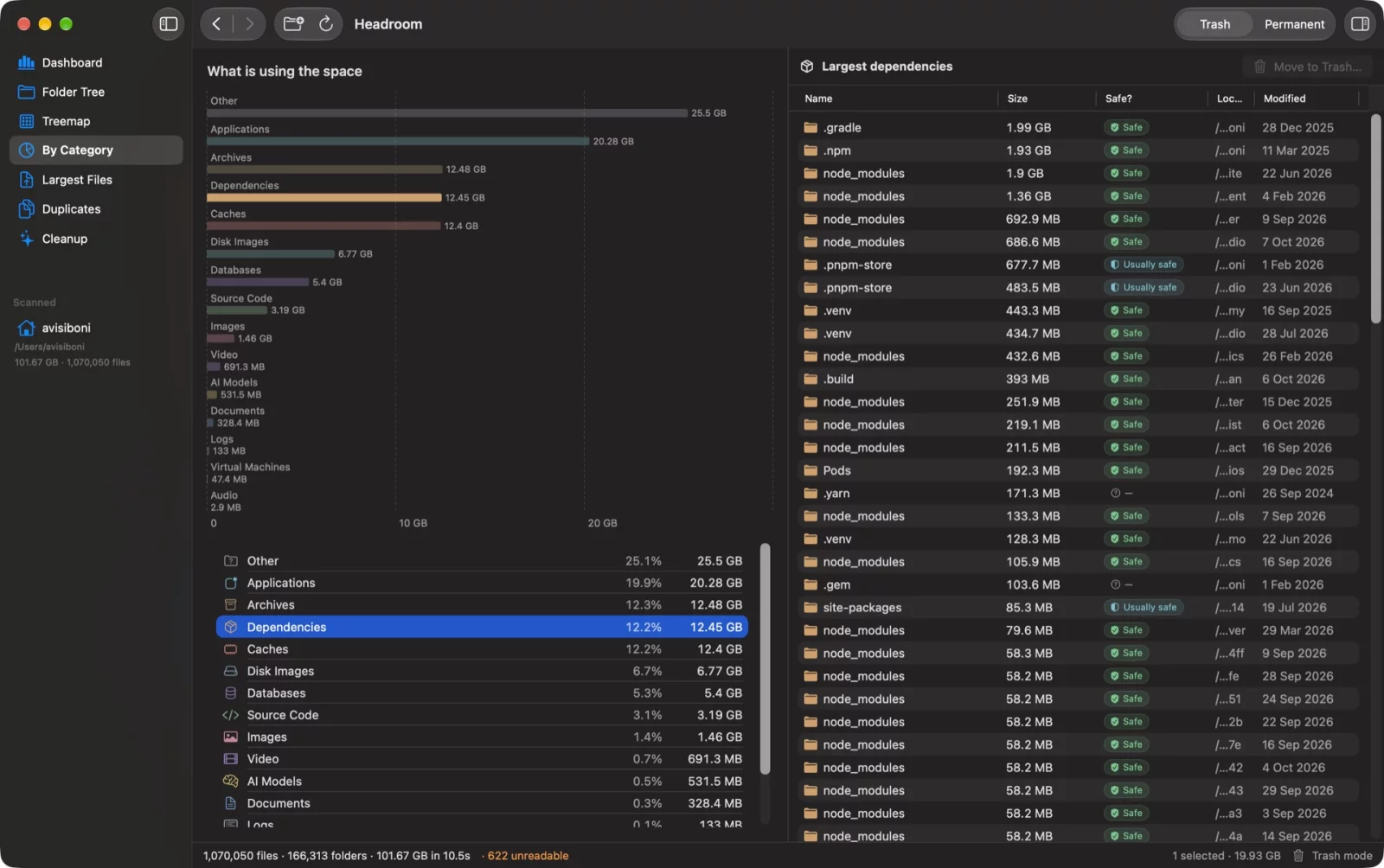
Categories separate applications, dependencies, caches, disk images, virtual machines, media, archives, source code, documents, and more.
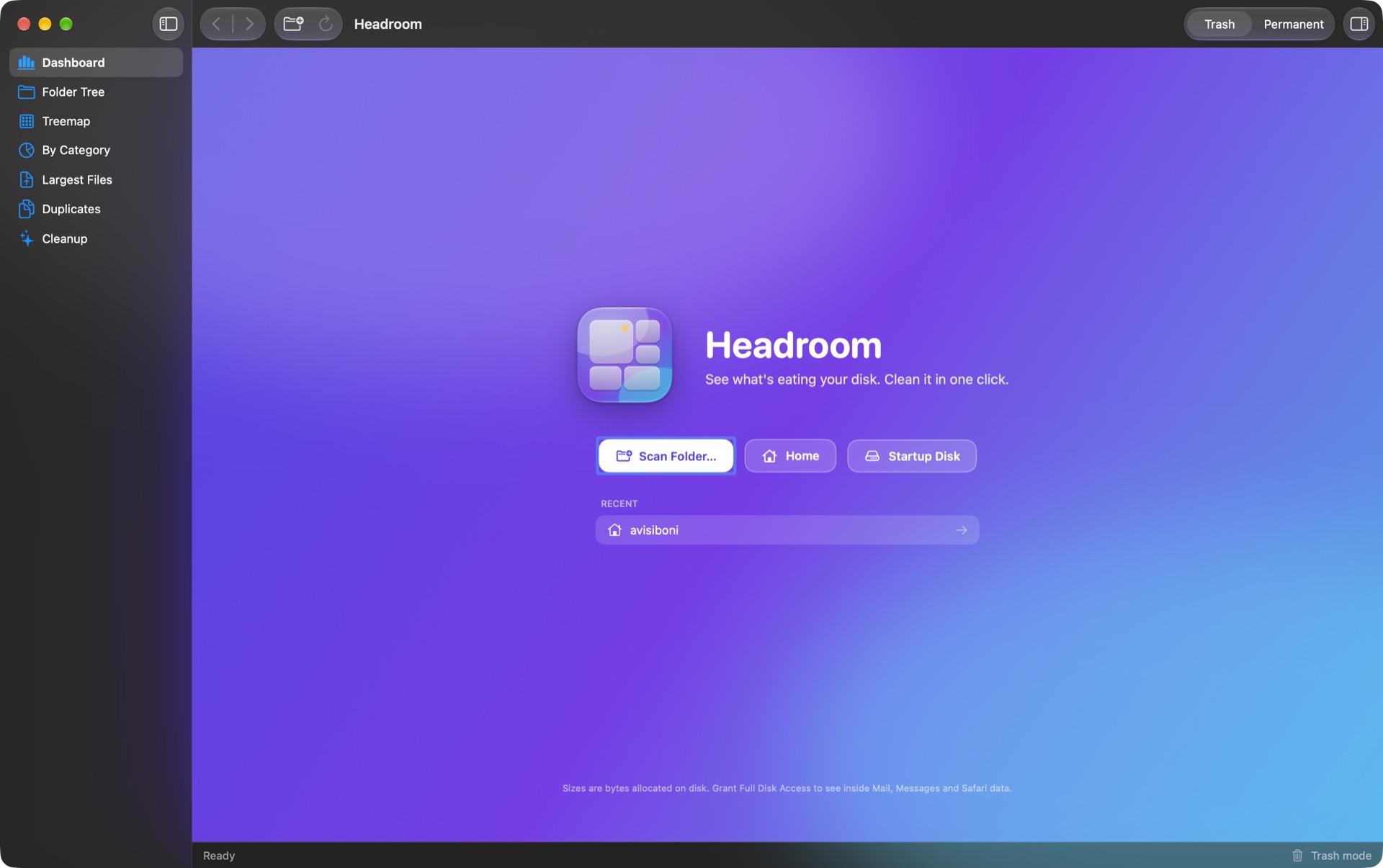
Welcome screen
Features
Dashboard
A clear overview of the scanned location with:
- live volume free, used, and total space;
- allocated and logical size;
- file and folder counts;
- cleanup candidate totals;
- category usage; and
- links to the five largest files and apps.
Every tile is a link: Size on disk opens the Treemap, Files opens Largest Files, Folders opens the Folder Tree, Cleanup candidates opens Cleanup, and a category bar opens By Category with that category selected.
Folder Tree
A virtualized NSOutlineView creates only the visible rows and recycles cells, so even enormous dependency folders remain practical to explore. Sizes show bytes allocated on disk, with inline share-of-parent bars and sortable columns.
Treemap
A nested, squarified storage map inspired by tools such as WizTree and SpaceSniffer. Choose the nesting depth and color by category, file age, or safety verdict. Hover for details, double-click to zoom, and right-click to act.
Categories and Largest Files
Review storage by file type or browse the 100 largest files and bundles. A size threshold makes it easy to focus on items that can meaningfully free space.
Duplicates
Finds files that exist more than once with identical content and shows how much space you get back by keeping one copy of each.
How it works. Three passes, each cheaper than the next:
- Size. Every file from the scan is bucketed by exact byte size. Sizes that occur once are discarded without reading anything.
- Header hash. Files that share a size get the first 64 KB hashed (SHA-256). Different headers mean different files.
- Samples. Files larger than 192 KB that still match get 64 KB from the middle and the last 64 KB hashed. This is what keeps huge videos, disk images and VM files from being read end to end just to prove they differ.
- Full hash. Only files that survive all of that are read end to end. Two files are listed as duplicates only when their full hashes are identical, so there are no false positives.
Hashing runs on a bounded number of parallel lanes (disk-bound work thrashes with too many concurrent reads), shows which pass it is in, and can be cancelled. Files under 1 MB are skipped (they add noise and free nothing), as are files inside app bundles and other packages, which legitimately share resources. Symlinks are never content.
Choosing what to delete. A bar above the results says what to do next. Select extra copies (keep newest) ticks every copy except the newest in each group; Other ways keeps the oldest copy or the one highest in the folder tree instead. Copies marked Do not delete (for example inside .git) are never ticked for you, though you can still tick them by hand. Once copies are ticked, the bar shows how many and how much space, with Clear and Move N copies to Trash (or Delete N copies permanently in permanent mode), and says whether they can be put back.
Each copy leads with the part of its path that differs from the other copies (Downloads/megapack.abr vs Design/Brushes/megapack.abr), with the folder they all share underneath, its modification date and the safety verdict. Hover for the full path; click a copy to see it in the inspector. Groups with more than six copies show five and a Show N more copies link. The keep at least one copy guard is on by default, so a group can never be emptied by accident. Deletion uses the same Trash or permanent mode as everywhere else; removed copies disappear from the groups without a rescan.
Where it shows up. The Dashboard has a Duplicate files card with a one-click scan and the reclaimable total, and the sidebar has a Duplicates pane with the full list, a path filter, and the selection tools. The App Store build has the same feature.
Cleanup
Headroom finds regenerable junk inside the selected folder and in known home-folder locations, including:
- Xcode DerivedData and build output;
- npm, pnpm, pip, Gradle, NuGet, and Cargo caches;
node_modules,.build,.venv,target,dist, and__pycache__;- application caches and logs; and
- Trash contents.
Nothing is removed merely because it was found. You review and select cleanup candidates first.
Menu bar monitor
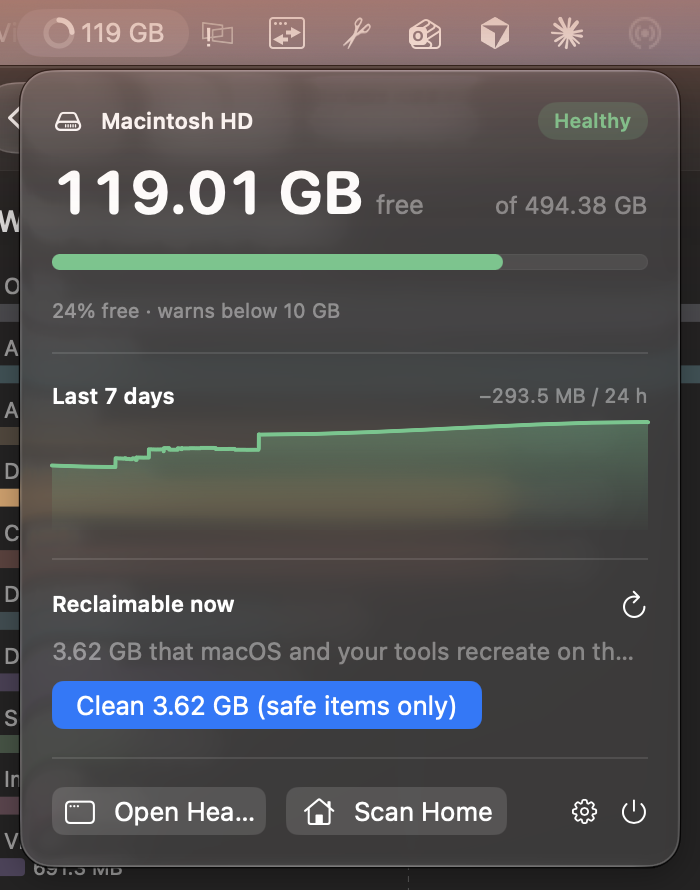
Headroom can live in the menu bar and keep an eye on your startup disk while you work.
- Free-space ring in the menu bar: the arc is the share of the disk that is free, turning amber and then red as space runs low. Optionally show the free space as text.
- Popover on click: free / used / total, a Healthy / Getting low / Low status, and a 7-day free-space chart.
- Reclaimable now: totals the safe caches, logs and build output Headroom found, and cleans only those Safe items to the Trash with one click.
- Alerts as local notifications when free space drops below a threshold (default 10 GB) or falls quickly (default 5 GB within an hour). Tap an alert to open Headroom.
- Shortcuts: Open Headroom, Scan Home, Settings, Quit.
Settings (Headroom → Settings…, ⌘,):
| Setting | Default | What it does |
|---|---|---|
| Show Headroom in the menu bar | On | Adds or removes the ring. |
| Show free space next to the icon | Off | Adds text such as "42 GB" beside the ring. |
| Keep running when the window is closed | On | Closing the window leaves the monitor running. Quit from the popover. |
| Show in the Dock | On | Turn off for a menu-bar-only app. |
| Open at login | Off | Starts Headroom quietly in the menu bar. |
| Warn when free space is low | On, below 10 GB | Local notification, at most once every 6 hours. |
| Warn when space drops quickly | On, 5 GB in an hour | Local notification, at most once every 3 hours. |
| Deleting | Trash | Trash (recoverable) or permanent (instant, no undo). |
History is stored only on your Mac in ~/Library/Application Support/Headroom/, and nothing is uploaded. The Mac App Store build omits the known-locations cleanup because of the sandbox.
Safety Inspector
A rule base covering roughly 150 macOS and developer-tool locations gives each recognized item a consistent safety verdict and plain-language explanation. Unknown or sensitive items remain clearly marked for manual review.
Keyboard shortcuts
| Shortcut | Action |
|---|---|
| ⌘O | Scan a folder or volume |
| ⌘R | Rescan |
| ⌘[ or ⌘← | Back |
| ⌘] or ⌘→ | Forward |
| ⌘1 | Dashboard |
| ⌘2 | Folder Tree |
| ⌘3 | Treemap |
| ⌘4 | By Category |
| ⌘5 | Largest Files |
| ⌘6 | Duplicates |
| ⌘7 | Cleanup |
Back and Forward are also in the Go menu and as ‹ › buttons in the toolbar. ⌘← and ⌘→ go back and forward everywhere except in a text field, where they move the cursor as usual.
Safety and privacy
Headroom works locally and has no account system, analytics SDK, or cloud service.
Deletion is always user-initiated:
- Trash uses
FileManager.trashItemand is recoverable until Trash is emptied. - Permanent uses a fast parallel removal engine and cannot be undone. The progress sheet shows every file as it goes and has a Cancel button; files already removed stay removed, the rest are untouched.
For the safest workflow, leave Headroom in Trash mode and review safety details before deleting anything. Important files should always have a backup.
Full Disk Access
macOS protects locations such as Mail, Messages, and Safari data. If you want Headroom to inspect those folders, grant Full Disk Access in System Settings → Privacy & Security → Full Disk Access. Headroom reports unreadable folders in the status bar when access is unavailable.
Performance
APFS does not expose an equivalent to Windows' NTFS Master File Table. Headroom therefore uses getattrlistbulk(2), which returns batches of directory entries with names, types, modification dates, and allocated sizes in one system call. The scanner decodes those batches directly and distributes directory work across Swift's cooperative task pool.
Permanent deletion follows a parallel POSIX strategy:
- selected roots are atomically renamed to hidden siblings so they disappear from the interface immediately;
- directories use their own
dirfdand remove entries withunlinkat, avoiding repeated full-path walks; and - empty directories are removed deepest-first, with each level processed in parallel.
If a security product (an antivirus or ransomware shield with an Endpoint Security extension) holds every removal for seconds and then refuses it, Headroom notices (one file is tried alone before the parallel pass, and a held refusal there stops the delete within seconds), renames any hidden folder back, names the product it finds installed and says where to allow Headroom. Before a delete inside a guarded folder the confirmation already warns about it.
Trash mode uses the standard macOS Trash API instead.
The duplicate finder hashes with pread(2) into one reusable buffer per worker, so memory stays flat no matter how many gigabytes it compares.
Benchmark: Headroom, Mole and DiskTree
All three apps scanned the same home folder (~102 GB, ~1.07 million files) on a MacBook Pro with an M3 Pro and 36 GB of RAM, macOS 27.2, in October 2026.
| Headroom 1.0.5 | Mole 1.59.1 (mo analyze) |
DiskTree 1.1.3 (free tier) | |
|---|---|---|---|
| Full scan, median | 15.6 s (11.9 – 15.9 s, 3 runs) | 23.7 s (20.9 – 26.8 s, 4 runs) | 57.7 s (56.3 – 59.1 s, 2 runs) |
| Repeat scan | same as a full scan (no cache) | 4.3 s (reuses its cache in ~/.cache/mole) |
115.2 s (rescan without quitting the app, 1 run) |
| Files listed one by one | 1,075,404 | 261,780 (other folders sized with du) |
not shown (~940,000 counted while scanning) |
| Total size found | 102.35 GB | 101.4 GB | ~94.8 GB |
| Peak memory | ~1.2 GB | ~21 MB | ~1.35 GB |
| Interface | Native app: tree, treemap, categories | Terminal UI, or -json |
Native app: tree and treemap |
| Says what is safe to delete | Safe / Usually safe / Caution / Never, with a reason | Marks some folders cleanable |
Diagnosis view; cleanup needs Pro |
| Price and source | Free, MIT | Free, MIT | Free tier; Pro from $2.99/month; closed source |
How it was measured:
- Headroom: the time it reports after a scan.
- Mole: the wall-clock time of
analyze-go -json ~, run with an empty cache folder each time so every run is a full scan. - DiskTree: it has no timer, so its CPU use was sampled every 0.2 s and a scan was timed from clicking Scan until the app went idle, accurate to about half a second. Each full scan was started right after launching the app. One more scan, started without quitting, took twice as long, so it is listed as the repeat scan.
All three ran within the same hour, so each saw similar disk-cache conditions.
What this shows: Headroom does a full scan about 1.5× faster than Mole and 3.7× faster than DiskTree, and keeps every file, which the tree, treemap and duplicate finder need. Like DiskTree, it uses over a gigabyte of memory for that. Mole is far lighter and answers repeat scans from its cache in seconds, and it is also a broader CLI cleaner (uninstaller, system optimizer), which Headroom is not.
Headroom was called DiskTree before version 1.0. It is not related to the DiskTree app at disktree.org.
Requirements
- macOS 14 Sonoma or newer
- Apple silicon or Intel Mac
- Full Disk Access only when scanning protected system or user-data locations
Install
Headroom needs macOS 14 Sonoma or newer and runs natively on Apple silicon and Intel Macs. It is free, and both ways of installing get the same signed, notarized app.
Option 1: Homebrew (recommended)
If you don't have Homebrew yet, install it first by pasting this into Terminal (Applications › Utilities):
/bin/bash -c "$(curl -fsSL https://raw.githubusercontent.com/Homebrew/install/HEAD/install.sh)"
Then install Headroom:
brew install ryware/tap/headroom
That's it. Headroom is now in your Applications folder. To manage it later:
| To | Run |
|---|---|
| Update to the latest version | brew upgrade headroom |
| Uninstall | brew uninstall headroom |
| Uninstall an |