

CS2 Stats Overlay
A free OBS / StreamElements overlay that shows your CS2 Premier rating or FACEIT ELO,
stats, and recent match history live on stream — powered by Leetify and FACEIT.

Overview
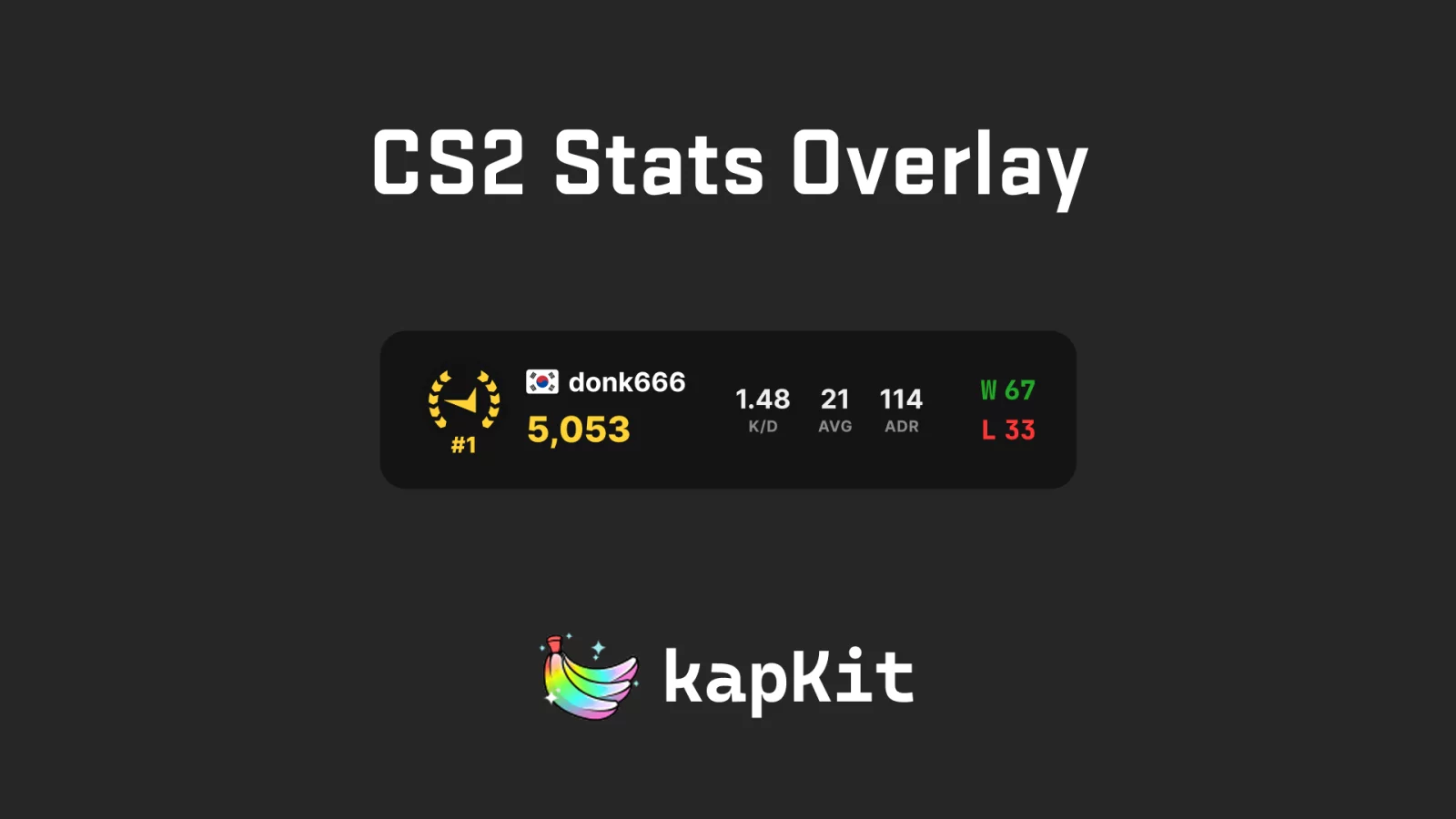
A clean stats card that stays up to date on its own. Point it at your Steam profile (or FACEIT profile), pick what to show, and drag it into OBS, or add it to Streamlabs or StreamElements. Stats come live from Leetify or FACEIT and refresh automatically — no software to run, no account to make here.
Tip
✨ New features
- Drag into OBS — drop the overlay onto your scene and it arrives already sized to fit
- Animated stats — numbers roll to their new values, the card plays an intro, and match history slides in
- FACEIT level-ups — the skill-level dial sweeps up (or drains down) when your level changes
- Auto-updates — open overlays pick up new versions on their own, no source refresh needed
What viewers see:
- Premier rating with an in-game styled rank badge, or a plain rank-coloured number
- FACEIT ELO with its skill-level dial (and leaderboard position for Challenger players)
- Rating / ELO gain or loss from your last match (e.g.
+250), with an up/down arrow - Win / loss pills and up to three stats: K/D, average kills, aim rating, win %, ADR, HS%
- Recent match history (W / L / T, or ELO per match on FACEIT)
- Live session W/L (optional, Twitch / YouTube / Kick)
- Your avatar or country flag, name, and your choice of font, background colour, opacity, and corner radius
Everything's toggleable, and changes animate in rather than snapping.
How-To Guide
Nothing to install — the hosted customizer builds your URL.
Before you start
Pick a source — Premier (via Leetify) or FACEIT. Use either, or both.
Everyone: your Steam profile link, Steam64 ID, or FACEIT profile link. Both sources are looked up from the same account, so one link covers either.
For Premier: a Leetify account linked to Steam, plus a matchmaking share code so it syncs matches:
- Get your Authentication Code from Steam
- Enter it on Leetify's Data Sources page under the Matchmaking tab
For FACEIT: a FACEIT account linked to the same Steam account — no Leetify needed. Flip the FACEIT toggle in the customizer.
Create your overlay
- Open the customizer
- Paste your Steam profile link, Steam64 ID (can be found on SteamID I/O), or FACEIT profile link into the FACEIT or STEAM Link field
- Pick your source with the PREMIER / FACEIT toggle — same account either way,
and both are loaded up front so switching is instant:
- Premier — CS Rating, rank badge, K/D, average kills, AIM, win %, HS%
- FACEIT — FACEIT ELO, skill-level dial, K/D, average kills, ADR, win %, HS%, and (for Challenger players) your leaderboard position
- Under DATA, tick what to show — Avatar (Premier) or Flag (FACEIT), Name, Styled Rank (Premier), W/L, Stats, Gain, and Match History
- (Optional) SHOW ADVANCED to pick up to three stats, switch Win/Loss between STREAM and TOTAL, and (FACEIT) show W/L or ELO in the match history
- Style it under BACKGROUND (colour, opacity, corner radius) and TEXT (any Google Font, plus weight)
- (Optional) For a per-stream win/loss, paste your channel into Stream Link (Twitch, YouTube, or Kick) and set Win/Loss to STREAM
- Drag the overlay into OBS or copy its link (or download the StreamElements bundle — see below)
Add it to OBS/Streamlabs OBS
Quickest: grab the DRAG INTO OBS field at the top of the customizer and
drop it onto your OBS scene. OBS creates a Browser Source already sized exactly
to your overlay — the field shows that size (e.g. 609 x 128) — based on the
stats, match history, font and name you've set up. The size is set when you
drop it, so drag it in again (or resize the source) after changing what's shown.
Or by hand:
- Click the copy icon at the end of the field (it reads COPY LINK on hover)
- Add a new Browser Source in OBS or Streamlabs and paste the link
- Set the width and height to the size shown in the field
That's it — the overlay refreshes on its own.
Add it to StreamElements
Use the DOWNLOAD ZIP button under StreamElements, next to the OBS field. It
builds a Custom Widget bundle (widget.html, widget.css, widget.js,
fields.json, data.json, plus widget-url.txt and README.txt). Paste each
file into its matching tab in the Custom Widget editor (HTML / CSS / JS / FIELDS
/ DATA). Fields come pre-filled and stay editable inside StreamElements —
Steam ID, toggles, stats, font, background — so you can tweak it there without
returning to the customizer.
Live session win/loss (optional)
By default the W/L pills tally every match in Leetify's recent window. Paste a Twitch, YouTube, or Kick link and they become a per-stream record:
- Resets to
W0 L0when your channel goes live - Counts only matches finished during that stream
- Freezes the last stream's record when you go offline
The platform is detected from the link. Your session is saved in the browser, so refreshing the OBS source mid-stream doesn't lose it. It only reads the public "is this channel live?" status — you never log in.
Relies on a small per-platform proxy the project owner hosts. If yours isn't available, the pills fall back to the rolling-window behaviour.
Staying up to date
- Stats refresh every 60 seconds by default (set
refresh=in the URL to change it — see below). Live status is checked every 15 seconds. - When OBS shows the source again after it was hidden or in another scene, the overlay refetches straight away, since OBS can pause hidden sources.
- When a new version of the overlay ships, open overlays reload themselves onto it and replay the intro. You never need to refresh the source by hand.
Query Parameters
To hand-craft the URL, the widget accepts:
| Parameter | Default | Description |
|---|---|---|
steamId |
— | Steam64 ID (required) |
provider |
Premier | faceit to show FACEIT instead of Premier |
live |
— | <platform>:<channel> → session-scoped W/L (e.g. twitch:kapowhi, youtube:@handle, kick:slug) |
twitch |
— | Legacy Twitch login (still accepted; equivalent to live=twitch:<login>) |
avatar |
1 |
Show avatar, Premier only (0 to hide) |
flag |
1 |
Show country flag, FACEIT only (0 to hide) |
name |
1 |
Show player name (0 to hide) |
badge |
0 |
Show in-game styled rank badge (1) instead of the plain number, Premier only |
change |
1 |
Show rating / ELO gain (0 to hide) |
wl |
1 |
Show W/L pills (0 to hide) |
stats |
per source | off to hide, or up to three of kd, avg, aim, winpct, adr, hs (e.g. kd,adr,hs). Defaults to kd,avg,aim (Premier) or kd,avg,adr (FACEIT); aim is Premier only, adr FACEIT only |
history |
0 |
Show match history (1) |
hist |
wl |
FACEIT only: elo shows ELO per match in the history |
matchCount |
10 |
Number of recent matches in the match-history strip (at most 5 when stats are hidden or in FACEIT ELO mode). The stats cells always cover the last 30 matches |
refresh |
60 |
Stats refresh interval in seconds |
font |
Inter |
Any Google Font name |
fw |
700 |
Font weight, 100–900 |
bg |
141414 |
Background colour (hex, no #) |
bgo |
100 |
Background opacity, 0–100 |
radius |
20 |
Corner radius: 0, 20, 32, or 100 (100 becomes 32 with match history on) |
For Developers
Local dev, self-hosting, the optional Cloudflare Workers, analytics, and env vars are in docs/DEVELOPMENT.md; how the site, PR previews, proxy Workers and Discord build notifications deploy is in docs/DEPLOYMENT.md; the analytics event reference is in docs/ANALYTICS.md.
Note
Built with Claude Code from a Figma design, with security in mind. No login, no accounts, nothing personal to hand over — a static site that only reads your public CS2 stats. PRs are very welcome!
License
MIT © Sid