
Download build 41.4 · lesspull.com · Install · App and website exceptions · All docs

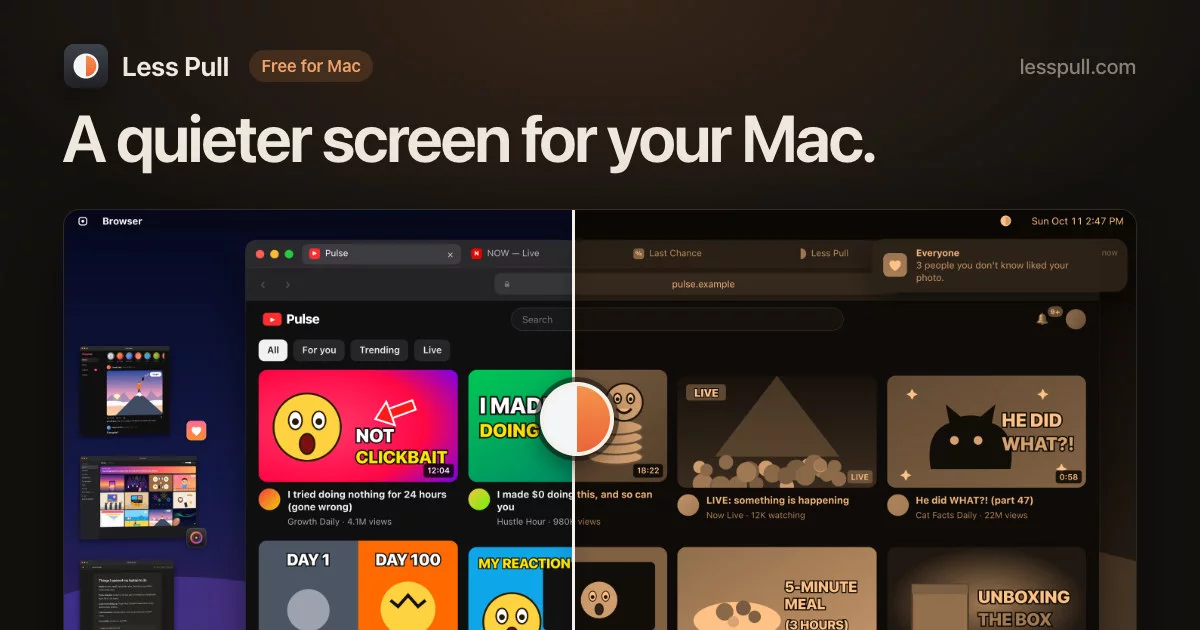
A quieter screen. Less Pull is a small menu-bar app for macOS by Jiri Arion Rose. It takes the color out of your screen, so it pulls at you less — a little like stepping out of a loud room into a still one. What matters is still there; it just stops shouting.
Warmth is the second step: from a touch of amber all the way to red, it takes the blue out of the light and puts you back in charge of how your screen speaks to you. And because a few things truly need color, every app and every website can have its own settings.
Try it before you install: lesspull.com has a drawn Mac where everything works, shown around by the same guide that later visits your own screen.
The picture above is an illustration, not a screen recording. Its three looks are calculated with the same color matrix the app uses. The apps and the site are examples, not presets.
At a glance
- A tour on your own screen: a guide visits your Mac and shows you around while you try each step yourself.
- Grayscale, on or off, from the menu bar or a shortcut; either mouse button on the icon can do it too.
- Extra Warmth, a slider from a touch of amber to red, with or without grayscale.
- Peek in color: hold a shortcut and the screen is in color for exactly as long as you hold it. Press it twice to keep it.
- Sessions: a stretch of focused work with a gentle end: a glow, a gong, a count past the end. Or a break, with one call back when you step away.
- Exceptions for any app, any website or one exact page, set right in the menu.
- Time off: Grayscale off for an hour, four hours, or until Night Shift changes; Night Shift off for an hour, four hours, or until morning; Pause Less Pull for a while.
- Warmer at night: a few points more warmth when your night begins, with Night Shift on the same schedule.
- A menu-bar icon that shows the state: its left half fills while grayscale is on, its right half warms with the warmth.
- Every display on its own: an exception applies on the display where its window is; the others keep your defaults. Any number of displays.
- Screenshots keep their colors: the display changes, the picture does not.
- Private by design: no account, no analytics, nothing leaves your Mac except an optional daily update check.
- In your language: 13 languages, switched in Settings without a restart.
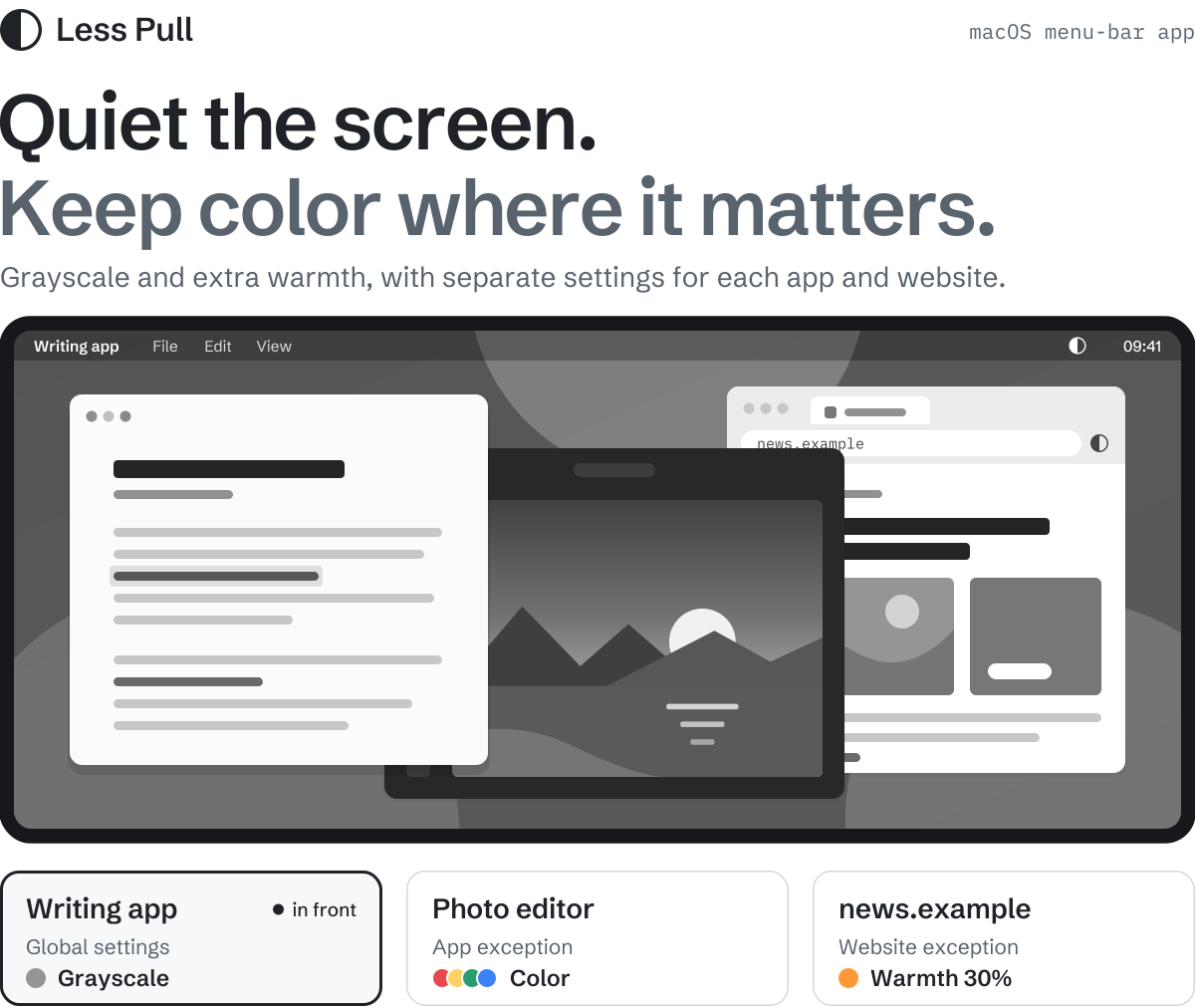
Every app and website can have its own settings
Set your defaults once. Then make exceptions for the places that need something else. Whatever is in front decides how the screen looks, and the change fades in over half a second.
Drawn, not a photograph: the quiet side is computed with the app's own color matrix at an everyday setting.
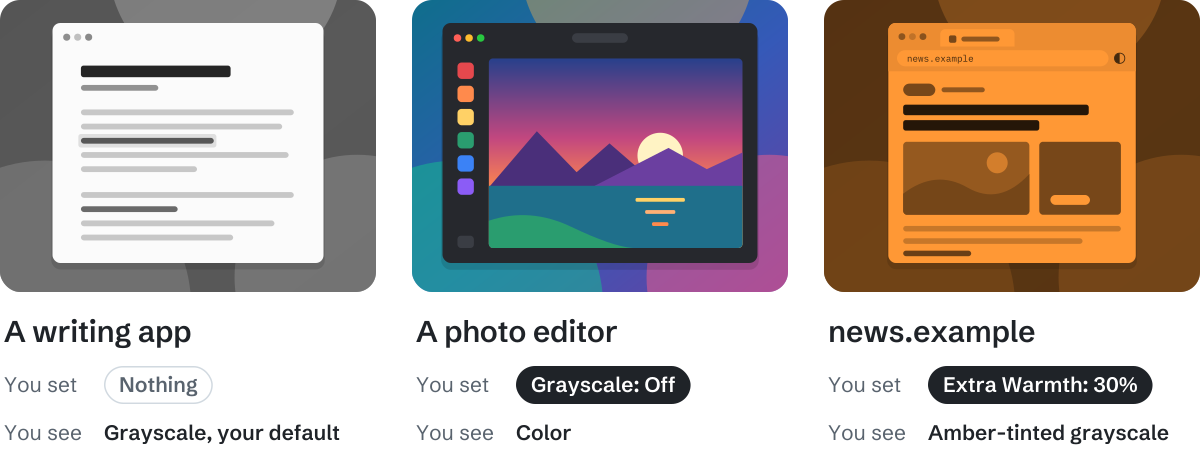
Illustrated examples. Less Pull ships with no presets, so the rules are always yours.
An exception can be as broad or as narrow as you like:
- An app. Open Exception for [current app] in the menu and set it right there, or add any app under Settings… → Apps.
- A whole website. A domain rule also covers its subdomains.
- One exact URL. For a single page, with its path and query string.
Website rules are set from the same menu once the optional extension connects your browser, and listed under Settings… → Websites.
Change one thing, keep the rest
An exception does not have to replace everything. Grayscale, Extra Warmth and Night Shift are separate settings. Set the one you want to change, and the others carry over from the broader level.
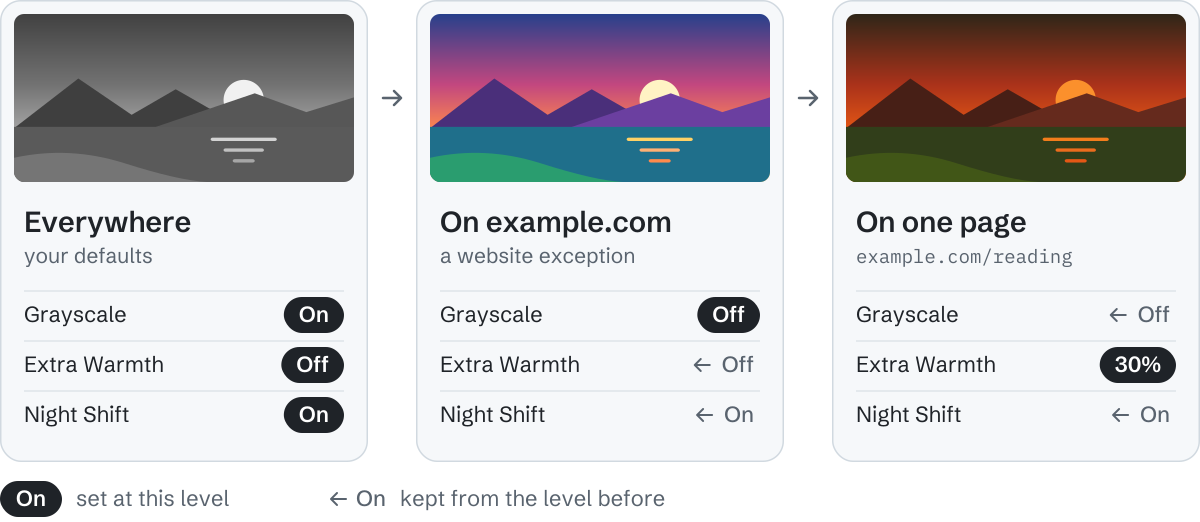
Example values. App exceptions work the same way: an app keeps whatever its rule does not change.
A few things to know before you rely on it:
- A rule changes the display its window is on while its app or tab is in front. It does not tint a single window, and it never touches the web page itself. See every display on its own.
- An app rule applies while that app is frontmost with a visible window that is not minimized.
- Private browser tabs are never read, so website rules do not apply there.
The exceptions guide has the details.
Grayscale, and warmth from amber to red
Grayscale is a checkbox. Extra Warmth is a slider that runs from Off to Red, and you can use it with or without grayscale. Higher settings take out more blue and green until only red is left. Color and grayscale arrive at the same red endpoint.
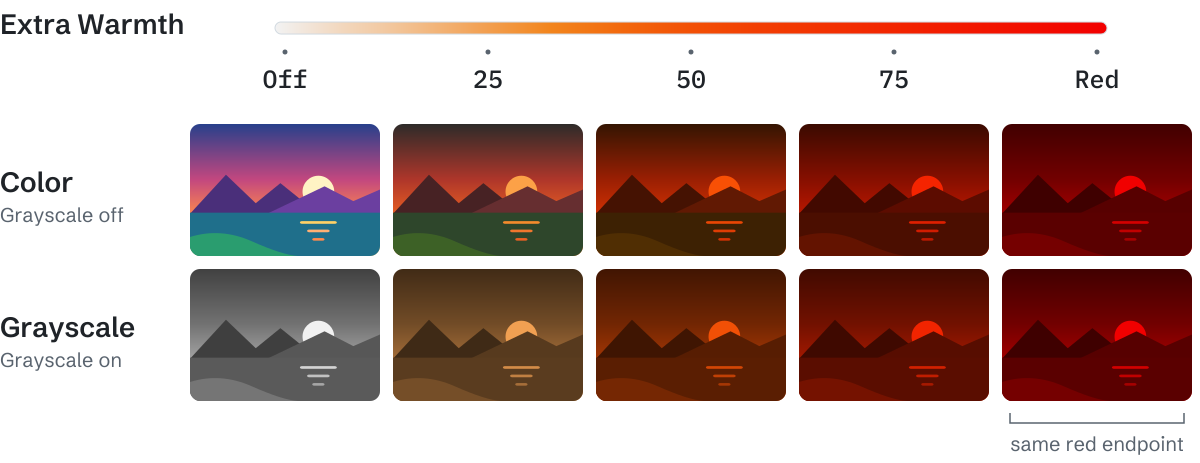
Illustration calculated from the app's warmth curve. It is not a photograph of a display, and your screen will look somewhat different.
The percentage is a relative control. It is not a Kelvin value and not a measured reduction in blue light. Less Pull is about what feels calmer to you, and it makes no promises about sleep, eyes or health.
Peek in color
Sometimes you need color for a moment: to tell two lines in a chart apart, to check a photo, to find the red button. You do not have to change anything for that. Hold the Peek shortcut, Option-A unless you have chosen another. The screen is in color for exactly as long as you hold the keys, and quiet again the moment you let go.
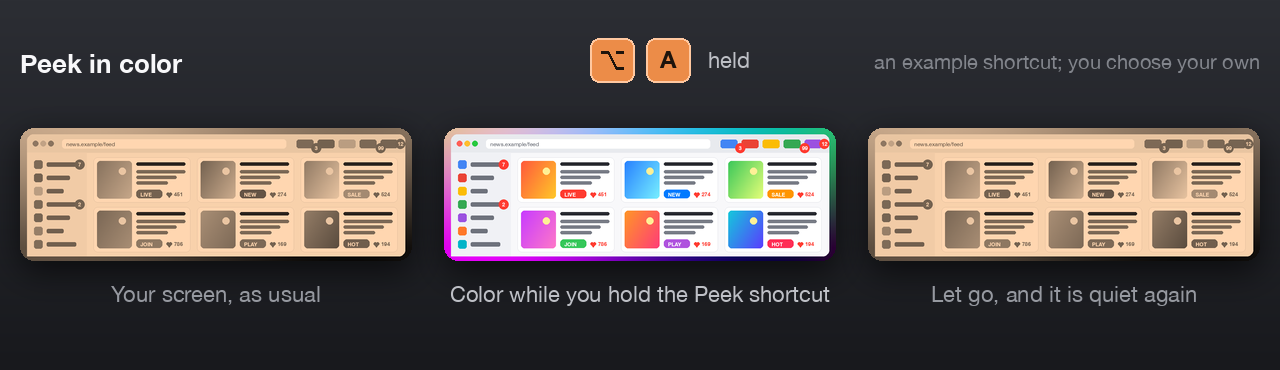
Drawn with the app's own color matrix. A new install starts with Option-A, if it is free on your Mac; change it, or let Suggest pick another, under Settings → Shortcuts.
- Press it twice quickly to keep the peek. The plain display then stays until you press the shortcut once more. Nothing is saved and no exception is made.
- With more than one display, Peek works on the display under the mouse pointer, no click needed. A double press keeps that display plain; move the pointer to another display and do the same there, and each one is let go on its own with a press. "All displays" under Shortcuts peeks everywhere at once.
- Choose what peeking turns off. Grayscale and Extra Warmth by default; Night Shift too, if you like.
- Toggle Grayscale is the second shortcut (Option-Command-G to begin with, if it is free), for switching your default on and off without opening the menu. Either mouse button on the menu-bar icon can do the same, under Settings → Shortcuts; by default the left opens the menu and the right opens the session panel.
- For longer than a moment, there is Grayscale off for an hour, four hours, or until Night Shift next changes, and Pause Less Pull for 15 minutes, an hour, or until you resume. Both are in the menu.
Every display on its own
With more than one display, each one gets its own matrix and its own fade, on its own refresh clock. The app you are working in decides how its display looks, website rule included. Every other display follows the app whose window is on top there: its exception, if it has one, or your defaults. An empty display shows your defaults. Any number of displays works the same way.
Tip
Arrow pointer still in color on one display? Some displays draw the small arrow pointer in hardware, on top of the finished picture, so no color filter reaches it; the hand and the other pointers are drawn into the picture and turn quiet. Make the pointer one notch larger under System Settings → Accessibility → Display → Pointer size and the arrow is drawn into the picture too. The Displays section in Settings has a button that takes you there.
These options appear only while two or more displays are connected (or always, with the advanced option "Show display options with one display"), and every choice stays saved while hidden. An app or website whose picture also shows on another display, such as a 3D player or a presenter, can be marked On every display in its exception, in the menu or under Apps and Websites: while it is in front, its settings cover all displays. Peek toggles, next to it, chooses which displays Peek toggles while that app is in front: the display under the pointer, all displays, or any set of connected displays you tick; an app's own choice wins over the Peek scope on the Shortcuts tab. Both work whether or not the exception itself is used.
Each connected display is listed under Settings… → General → Displays with a choice of its own: Follows what is on it (the rule above), Always your defaults (exceptions never apply there), or Always plain, in color (never grayscale or warmth there, for a TV or a pair of glasses). A display keeps its choice when it is plugged in again. Night Shift, Pause, Grayscale off for a while and the Toggle shortcut stay global, since Night Shift is system wide anyway. Peek works on the display under the mouse pointer, with its own double-press lock per display; "All displays" is the other choice under Settings… → Shortcuts.
Screenshots keep their colors
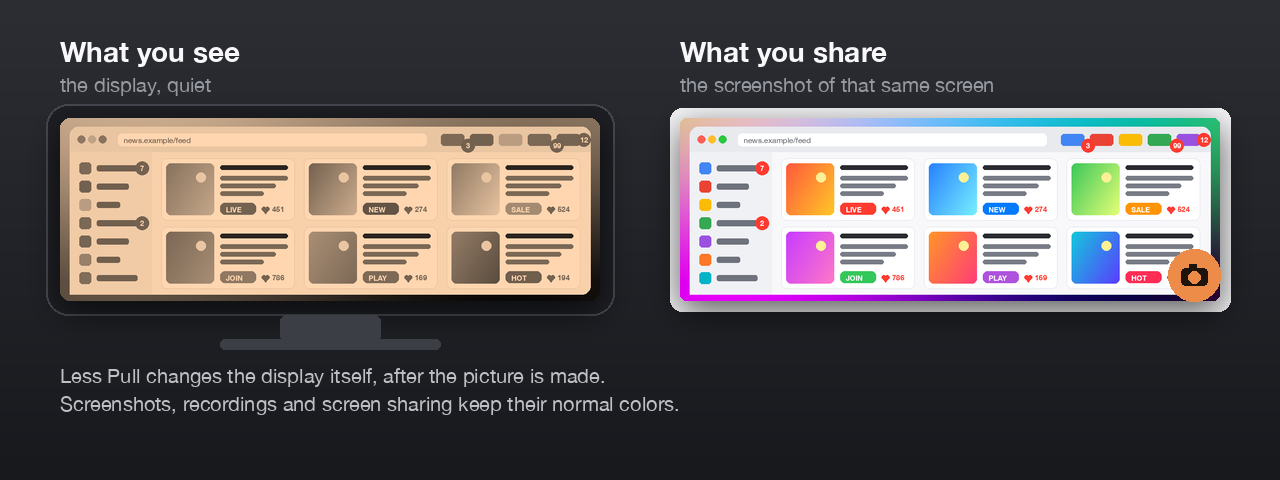
Less Pull changes the display at the very end of the pipeline, after the picture is made. Screenshots, screen recordings and screen sharing read the picture before that step, so they show the normal colors. What is quiet for you is unchanged for everyone else.
Sessions
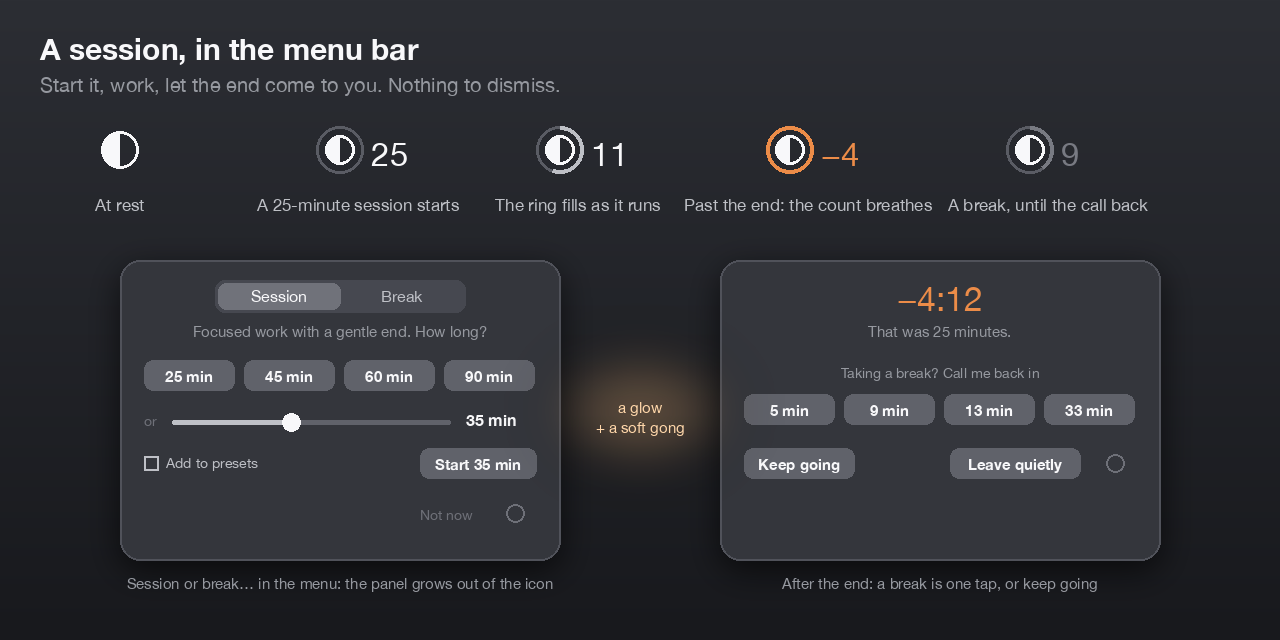
Drawn in the style of the app; the panels are what the icon opens.
A session is a stretch of focused work with a gentle end. Choose Session or break…, the first item in the menu: a small panel grows out of the icon, with Session | Break at the top. A session offers your lengths (25, 45, 60 and 90 minutes to begin with; change them under Settings… → Sessions), and folds back into the icon once you choose. Any other length: scrub the slider below the chips, the number follows, and one button starts it; tick Add to presets to keep it. A right-click on a chip removes it from the presets. The icon gains a thin ring that fills as the session runs, with the minutes left next to it.
At the end, a warm glow blooms across every display for three seconds with one line of text, and a soft gong sounds, built from pure tones on the 432 Hz reference and the solfeggio pitches, low and short. Two sound styles are tuned by ear, "Strokes" and "Chords", or none; they live with the glow switch, a preview of each sound and a volume slider under the advanced options on the Sessions tab. Nothing to dismiss: the count simply goes on past the end, −0, −1, −2 in the warm color, breathing gently to say it can be clicked, so you can see how far you have stretched. A quieter reminder can come every few minutes if you ask for one; by default it never does. Or choose "Stop quietly" under Sessions, and the session simply ends with the glow and the sound.
While a session runs, a click on the icon opens a small panel under it instead of the menu; the other mouse button still opens the menu. Once the session is over, the panel says how long it was and asks Taking a break? Call me back in, with your break lengths (5, 9, 13 and 33 minutes to begin with), next to Keep going, Leave quietly, and a gear that opens the Sessions tab. If you would rather not be offered a break, untick Offer a break when a session ends under Sessions, and the panel keeps only those two buttons. After the call back, a warm sound of its own, and the session is over for good. You are called back once.
Stepping away without a session? Choose Break at the top of the panel, pick a length or any time from the slider, and Less Pull calls you back once. Meanwhile the menu reads Break · back in 9 min.
The glow never takes focus and never blocks a click. Under Reduce Motion it appears and disappears without animation.
Warmer at night
Extra Warmth is your warmth for the whole day. Warmer at night adds a few points on top when your night begins and takes them away again in the morning, each time over half an hour. Night Shift, on Automatic, keeps the same night.
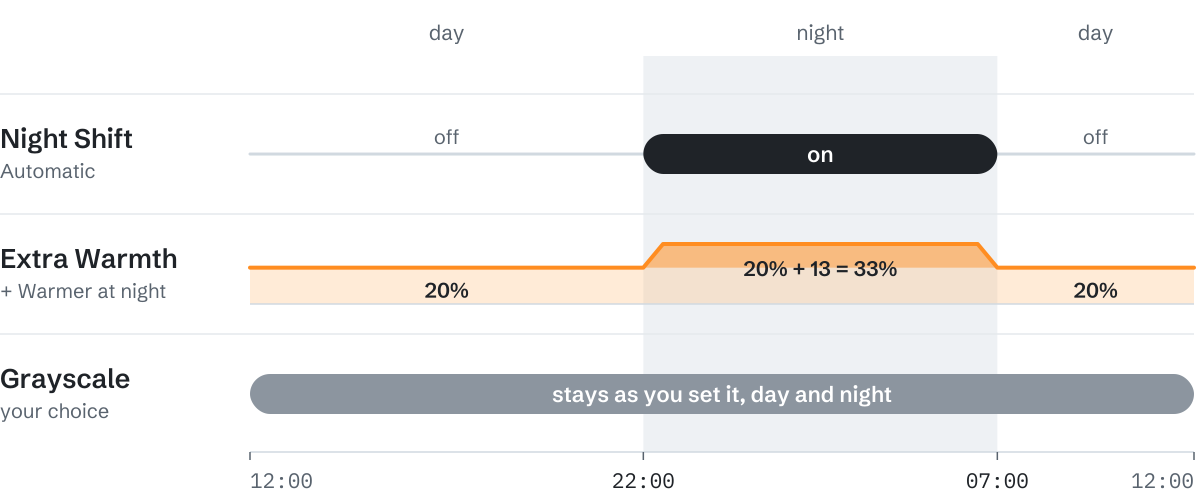
An example: the night from 22:00 to 07:00, Extra Warmth at 20%, Warmer at night at +13.
- You set the night once. Under Settings… → General → Night schedule: Sunset to sunrise, or Custom hours (22:00 to 07:00 to begin with). It is the same schedule macOS keeps for Night Shift, so a change in System Settings shows up here too.
- Sunset to sunrise needs your location in macOS. macOS keeps it only with Location Services on and Set time zone automatically under General → Date & Time. Until then, Less Pull works out sunset from your time zone and switches Night Shift itself; the note under Night schedule has a button for each setting.
- How much warmer is up to you. Off (where new installs start), a few points (+13 is a good start), or Red for a red night whatever the warmth by day. Try it shows the night look for a minute.
- Night Shift is Automatic, On or Off. Automatic is on at night and off by day; On and Off hold until you change them. The menu has the same three beside Night Shift, and Night Shift off for an hour, four hours, or until morning.
- Grayscale stays as you set it, day and night.
- Apps and websites with their own warmth keep it, at night too.
More in Night Shift and warmth.
A tour on your own screen
The first time you open Less Pull, the welcome offers a tour, and a guide comes to visit: the cursor from lesspull.com knocks, comes in through the circle in your menu bar, and shows you around your own Mac. You do each step yourself, with your real apps and settings. The guide waits, notices what you did, and never clicks for you.