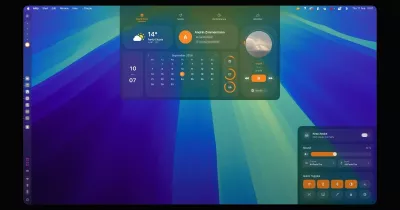

You write the day by hand, in your own words, and it stays yours. Longhand is a daily page on Omarchy: a blank sheet inside the shell where you drive and own your threads (the courses, projects and questions you carry from day to day). An agent is there when you call it, to lend help and power: it reads only what you send it and answers in the margin, never in your text. Deadlines, tasks and focus sessions live in the same notes, so a course's work is found by the course and not by the day it was written.
Keyboard-first, plain markdown underneath (your Obsidian vault reads the same files), and private by construction: the agent sees only what local code assembled for it, every payload is logged before it is sent, and it only runs when you ask.
What is in it
| Part | What it does |
|---|---|
The page (plugin-page/) |
Today's note as a full-screen overlay or a tiling window, drawn in the Omarchy theme: headings, checkboxes, emphasis, private callouts. Month calendar and your projects in a sidebar. |
The agent (agent/longhand-agent) |
Ctrl+Enter sends the block you are in; the reply and the conversation appear beside it. Tool-less, sandboxed opencode, with a cost ledger. |
| Deadlines in the notes | Write - [ ] essay draft #course due fri 17:00 and the line becomes a deadline, still readable in Obsidian. |
The dashboard (Ctrl+T) |
Every open task and deadline across all your notes, grouped by what it asks of you and then by course. |
Bar widgets (plugin/, plugin-deadline/) |
A Pomodoro countdown and the next deadline, with popups. |
pomo (cli/pomo) |
The timer and deadline store behind it all, scriptable from a terminal or Hyprland bindings. |
Status: in daily use by its author through the semester; installable by
others, though setup is still manual. Design notes in docs/diary.md, the
build log in docs/plan.md.
Logo placement, exports, and theme integration: read the logo source of truth. It identifies the active A2 seal, canonical assets, and historical studies.
Install
Needs Omarchy (for omarchy-shell) and opencode with
one model key.
mkdir -p ~/.config/longhand
cp config.example.json ~/.config/longhand/config.json   # then point "vault" at your notes
cp -r plugin-page     ~/.config/omarchy/plugins/longhand.page
cp -r plugin          ~/.config/omarchy/plugins/longhand.pomo
cp -r plugin-deadline ~/.config/omarchy/plugins/longhand.deadline
# add {"id":"longhand.page"}, {"id":"longhand.pomo"}, {"id":"longhand.deadline"} to plugins[] in ~/.config/omarchy/shell.json
ln -s "$PWD/cli/pomo"             ~/.local/bin/pomo
ln -s "$PWD/agent/longhand-agent" ~/.local/bin/longhand-agent
ln -s "$PWD/cli/longhand-check"   ~/.local/bin/longhand-check    # keeps the notes, the store and the popup one thing
longhand-agent install
mkdir -p ~/.local/share/icons/hicolor/scalable/apps         # "Longhand" in the app launcher (Super+Space)
ln -s "$PWD/launcher/longhand.desktop" ~/.local/share/applications/longhand.desktop
ln -s "$PWD/launcher/longhand.svg"     ~/.local/share/icons/hicolor/scalable/apps/longhand.svg
Upgrading from omarchy-student (Longhand's name until 2026-10-16): run
tools/migrate-to-longhand to see what it would move, then
tools/migrate-to-longhand --apply and omarchy restart shell. It moves
~/.config/omarchy-student and ~/.local/state/omarchy-student to
longhand (the old paths stay as symlinks), the vault's agents/student to
agents/longhand with the agent link in each daily note, the plugins and
their ids in shell.json, hypr/student.lua, and student-agent. A copy of
everything it moves or replaces goes to ~/Backups/longhand-rename-<date>
first, and a second run does nothing.
The page
plugin-page/ is a full-screen overlay for omarchy-shell: today's note as a
blank sheet in the current theme, saved on every keystroke. SUPER+ALT+= or
the bar glyph opens it, Esc closes. SUPER+ALT+\ opens the same
sheet as a normal window to tile beside something; F11 (or Ctrl+Alt+P)
flips between the two. The note is drawn, not shown as markdown: headings set large,
checkboxes as boxes (click or Ctrl+L), bullets, numbers, and private
callouts marked "never sent"; typing # , - [ ] or > turns the line
into that kind, Backspace at its start turns it back. Colours follow the
Omarchy theme: the four heading levels are four kinds of thing — H1 the
theme's own chroma, H2 that colour halfway to the text, H3 the prose, H4 the
quiet grey — with highlights, selection and checkboxes from the theme's
palette, greys only where they stay readable, and body text at the contrast
the theme chose.
Ctrl+B and Ctrl+I wrap the selection — or the word the cursor is in — in
** and *, Ctrl+` in backticks, Ctrl+Shift+S in ~~; the same keys
take them off again. Emphasis is drawn: the markers go to nothing and
the words carry the weight, nested ones too (***both***). They are still
in the file exactly as written, so Obsidian reads the same markdown. A *
with spaces around it is arithmetic and an underscore inside a word is part
of the word; neither is markup. A pair is one thing to the cursor: it never
stands inside one, arrows cross a whole pair in one press, and Backspace
takes the letter past it rather than the marker. Delete what an emphasis
holds and the pair goes with it, so you are never left looking at a ** you
did not type. The one pair you do see is the empty one the key writes when
there is nothing to wrap — it stands waiting for the first letter, which
takes it away. Arrows are drawn the same way: ->, <- and <-> show as
→, ← and ↔ (never in code or inside a link), stay as typed in the file, and
are one character to the cursor, so Backspace takes the whole arrow.
The page is set in iA Writer Quattro S, a proportional face made for
writing: prose reads as prose rather than as code, and 72 characters take
less width than they do in a monospace. Fenced code and frontmatter keep a
monospace, where columns mean something. font and codeFont in the config
name other faces; without them the page takes the first it finds of iA
Writer Quattro S, iA Writer Duo S, then the shell's own. The page asks for
the face's Regular cut by name: the iA Writer families declare the same
weight for every style, so asking by weight hands back the Bold file — the
whole page came out heavy and **bold** had nowhere heavier to go. A
family without a style of that name is unaffected. Size follows the
shell's scale (your Omarchy font size); Ctrl+= / Ctrl+- / Ctrl+0
zoom the whole page like a browser, remembered across restarts. Ctrl+F
finds in the note as you type: Enter next, Shift+Enter previous,
Ctrl+Enter lands on the match selected and closes the search, Esc closes
it with the cursor on the match (as browsers and editors do), Shift+Esc
goes back to where you were. Ctrl+[ shows a month calendar in a sidebar
(only when asked): days with a note are full, days without are faded;
arrows move by day and week, Ctrl+←/→ by month, Enter opens the day in
the same sheet, editable (a day without a note gets its file on the first
word). Alt+Left/Alt+Right move between the panes that are open; weekStart
in the config picks the first column. Under it, your projects (one file each
in the agent's knowledge/projects/) with their next session. Enter or a
click opens that project's notes in the sidebar itself: every section you
wrote under its tag, newest first, with the headings under each as its index,
so a class note is found by its course instead of by the date it happened on.
Enter opens a section in the sheet with the cursor on its heading, editable
like any other day, and the list stays where it is; ← or Esc goes back to
the projects. A tagged heading claims everything under it until the next
heading of the same or a higher level, so an ## H2 never ends a # Course.
Writing a project into the note is the shifted pair: Shift+Enter starts a
class (# Course #tag), Ctrl+Enter puts just the tag at the cursor.
A new project is made from the note — @ or # with a tag nothing goes by
yet offers "+ make #tag a project" and asks its name — or from "+ new
project" under the sidebar's list (Name #tag; without a tag, the name's
words). The agent may add to a project's file, never rename it, re-tag it
or make one; it proposes a new one as a card instead.
The file stays plain
markdown, changed only where you typed. What you wrote is always drawn at
full strength; a block with a reply carries a gutter mark and its reply shows
in the margin to the right when asked — that is the only mark on your words.
Typing @ calls a project: the list narrows as you type, Enter leaves its
#tag where the @ was, and Shift+Enter (on a line the @ opened) starts
the class with its # Course #tag heading. It is the same vocabulary as the
sidebar's projects list, wherever your hands are. An address — pedro@it-u —
is never a call, since @ only counts at the start of a word. Typing # and
a letter offers the tags that already exist (the projects', then the ones
in your notes), so a new tag is a choice rather than a typo.
private in the header (or Ctrl+Shift+P) marks the open note unseen: it
writes agent: false into the note, the word then reads "private · the agent
sees nothing here", and ask and the agent mark disappear — no pass runs
when you open it, nothing can be sent, and the runner refuses the note too.
Turning it off puts the day back. For part of a note rather than a whole day,
a > [!private] callout hides that block.
Nothing ever interrupts your writing to offer the agent. You reach for it:
Ctrl+Enter, or ask in the header, sends the block your cursor is in —
a run of list items counts as one submission. The word reads dim when that
block carries a sign for the agent (a checkbox, an @ line, a line ending
in ?, a ticked box) and faint when it does not; asking anyway says why in
one line. A block that already has an answer is never asked twice: the word
reads reply, and Ctrl+Enter opens the conversation on it with the
cursor in the box. (A block keeps its conversation whatever you change in
it — a tick, a date, its words: the page follows it through every edit, in
threads.json beside the deadline store, never as a mark in the note, and
the agent is told how it reads now. A new question is a new block. What
cannot happen is paying to ask the identical question again and overwriting
the first answer with the second.) What you send appears in the conversation at once, with thinking
under it until the answer arrives, counting the seconds once it has been a
few. From the moment you ask until the answer is back, the block's
gutter mark carries a light travelling down it and the header's agent
brightens — a mark that moves means still thinking, a mark that rests means
answered. A pass that fails says so in a line under the cursor; it never
looks like an agent with nothing to say. Ctrl+Up/Down
go to a block's start or end and, pressed again, on through the blocks
before or after, the way Word walks paragraphs (Ctrl+Shift+Up/Down select
the same way); Alt+Up/Down move the line, or every line selected, up or
down, as in VS Code;
Ctrl+Enter on an answered block opens its margin — proposals first (Enter
accepts one and runs it through pomo), then the chat — and Esc comes back
with the cursor where it was. Drop
course material into agents/longhand/curriculum/ and run
longhand-agent curriculum once for PDFs. Set inbox (e.g. ~/Downloads) and the PDFs there that belong to a course — its code, title or tag in the file name or on the first two pages, or downloaded during or just after one of its classes — are proposed in the dashboard for filing into <vault>/projects/<tag>/docs/; nothing else in the folder is ever listed. A course's documents are in its project in the sidebar, and the agent sees their titles on a run about the course. The day's conversation — Ctrl+] (or Ctrl+J) from anywhere, Ctrl+Shift+Enter from a block, or the seal at the header's centre — is the agent to talk to about the day rather than one line: one conversation a day in the right pane, seeing today's note and today's other conversations, and able to search your files — the folders you switch on in Settings → what the agent may search, never private notes, _Secrets or documents of identity, money, health or contracts — citing what it found as links; the date at the left opens the sidebar. Ask the agent how to do something in Longhand ("how do I reschedule a deadline?") and it answers from its manual
(agent/manual.md), naming your own keys. List your languages in the config; the agent answers in the one the
block is written in. Add your calendars in Settings → Calendar (Ctrl+,, or settings at the foot of the
sidebar): paste an .ics or webcal:// address and each calendar is fetched at once and says whether it works. Classes are
matched to your projects by course code, so the sidebar's next session follows them; and for each calendar you choose
what the agent sees — its classes only (the default), or everything in it (titles, times and places, never descriptions).
They are fetched when the page or sidebar opens, at most hourly; the addresses stay in settings.json on your machine. A tick
makes a short, soft sound — never an untick, never while notifications are silenced — which Settings can turn off. Needs ~/.config/longhand/config.json (copy
config.example.json) pointing at your vault; the note lives at
<vault>/<daily.dir>/<date>.md exactly where Obsidian's daily notes would.
Where the keys are
The page is three panes at most, and the bracket keys are the three, left to
right: Ctrl+[ the sidebar, Ctrl+\ the middle (the note, or the
dashboard in its place: there it flips the two), Ctrl+] the agent's pane.
A pane's key takes you to it, opening it; pressed in it, it closes it.
Alt+←/→ move between the panes that are open and never close one; in the
note with nothing to its right, Alt+→ opens the block's own conversation.
An accent frame, like Omarchy's active border, is drawn around a side pane
while it has the keys (none around the middle: there the cursor says so); Esc backs out one level, and a pane that closes gives the keys
back where they came from, at the very place you left (the note's cursor
where it was). The mouse pointer follows the keys into each pane and onto
the selected row, as Hyprland's follows windows (Settings → The pointer).
The whole model: docs/navigation.md.
Every key, and moving one
Days have keys of their own, ones a laptop reaches without Fn: Ctrl+H is
today's note from anywhere (the dashboard and the sidebar too), Alt+[ /
Alt+] the day before or after that has a note — as Obsidian steps its
daily notes — and forward from the last one is today. Alt+Home and Ctrl+PgUp/PgDn do the same on a keyboard
with those keys of their own. Where another app has taught a key, the page answers
to it as well: Ctrl+E for inline code beside Ctrl+` (Notion), Ctrl+T for the
dashboard and Ctrl+J for the agent's pane beside the brackets; in the dashboard j/k move, Space
or e ticks (Todoist), and the note's own Ctrl+L and Ctrl+D tick and ask
"when?" there too. Ctrl+L ticks a deadline wherever one is listed: the
sidebar's list for a day, and the bar's deadline popup beside its d; t in the calendar is today. On a keyboard with dead keys
(US-International, most European layouts) Ctrl+` is the backtick, as it
should be.
Every key, with where it works, is in docs/keys.md. It is
written from the keys themselves (python3 tools/keys_guide.py, which
tests/test_keys_guide.py holds to), so it never names a key the page no
longer has; --mine prints it with the keys you moved.
Ctrl+/, or keys at the foot of the sidebar, turns the sheet into the list of every
key the page answers to, grouped by where it works: the page, writing,
moving through the note, the agent, @, find, the dashboard, the calendar,
the sidebar's lists and the margin. Type to narrow it ("bold", "ctrl+t").
Enter on a row and press the new key to move it there; Shift+Enter adds a
second key beside the first; Del gives the row its own keys back. Every
hint in the page follows the move. A key that something else in the same
place already has is asked about first (press it again to take it), a
letter alone is refused wherever you write, since it would be typed, and the
text field's own keys (arrows, selecting, the clipboard, Enter, Tab) are
listed but never taken. What you move is kept in
~/.config/longhand/keys.json, only the keys that differ, by the
names in plugin-page/Shortcuts.js — {"bold": ["Ctrl+K"]} — and the page
reads it again when you edit it by hand. Delete it to have every key back.
The mouse teaches the keys. Hover over anything you can click: the header's
words, a checkbox, a dashboard row, a calendar day or arrow, a deadline,
project or section in the sidebar, an @ suggestion, a proposal in the
margin. A hint says what it does and which key does the same, and it names
a key you moved, or says there is none. The bar glyph's hint names the
Hyprland key that opens the page.
Hyprland's six keys for the page, the timer and the deadlines
(SUPER+ALT+=, \, D, O, P, N) are listed last, read from your
Hyprland config, wherever and on whatever keys you bound them. Above them, one row
offers to let the page keep them. Enter on it says what it will write, and
Enter again does it: the six go into ~/.config/hypr/longhand.lua, a file
the page owns, and one line at the end of ~/.config/hypr/bindings.lua
loads it (through Omarchy's require_optional, so a deleted file is never
an error). Your own lines for those six are commented out, saying where
they went, and bindings.lua is backed up first (bindings.lua.bak.<time>).
After that the page never writes into bindings.lua again, and the six move
like any other key. While the sheet waits for one, Hyprland is put in a
submap of its own, so a key Hyprland already uses reaches the sheet
instead of doing its job. Hyprland leaves that submap by itself after 30
seconds. A Hyprland key must hold Super, so it can never take a key an app
needs. A key that another bind has (Omarchy's SUPER+ALT+F, say) is asked
about first; taking it writes an hl.unbind for it in longhand.lua, and
moving off it gives the key back. Every change reloads Hyprland, and if
Hyprland reports a new config error, the old file is put back.
plugin-page/hyprkeys.py does the writing; you can edit the keys in
longhand.lua by hand, and the sheet reads them back.
Tests
python3 tests/run_all.py                    # every test file and the QML tests, offscreen (under a minute)
python3 tests/run_all.py --page             # and the page itself, live, in the window shape
python3 tests/run_all.py --page --overlay   # and the overlay, which takes the screen for a few seconds
Each file also runs alone (python3 tests/test_check.py). The offscreen ones
build a throwaway vault, state and config, and play Hyprland with
tests/fake_hyprctl.py, so they never read or write yours. Some need node
(the JS and Python halves of the block splitter and the checkbox grammar are
compared), PyQt6 (test_cursors) or quickshell (test_popup).
tests/page/run.py drives the real page over IPC in a window titled "Page
scratch" that never takes focus; it runs in the window shape, the one used
most, and the overlay only with --overlay, because the overlay covers the
screen and holds the keyboard w