
Motion Studio
Brief in. Motion out.
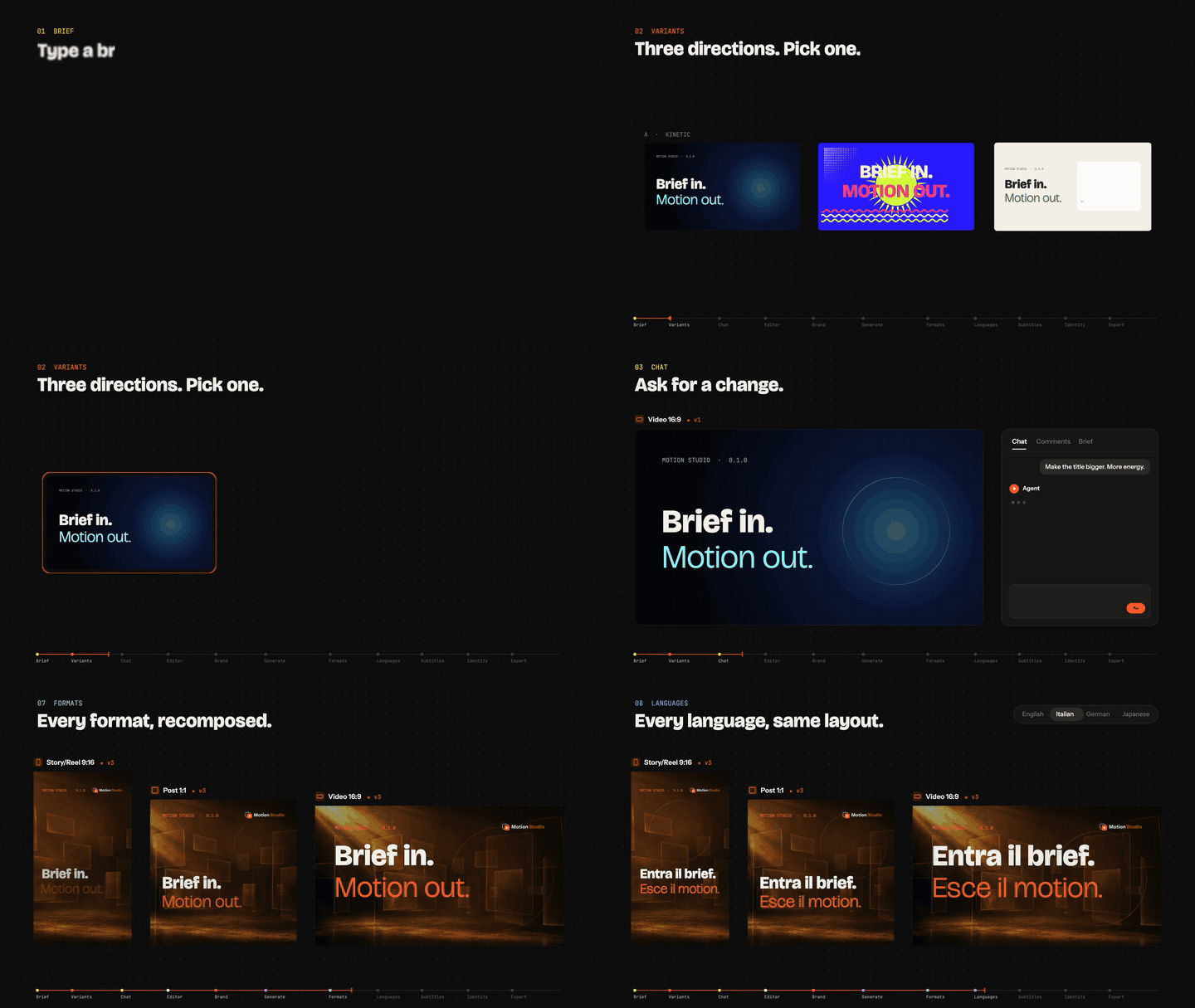
A local, open-source app on top of Claude Code that turns a brief into motion-graphics videos for every format.
🇮🇹 Italiano


Quick start
- Get the app. Download it for macOS, Windows or Linux from Releases, or run
npx @motion-studio/cli(Node 22 or newer). - Have Claude Code ready. Install Claude Code and sign in (
claude auth login). Motion Studio drives it, so you need a Claude plan that includes Claude Code (a paid plan); Motion Studio itself is free. - Describe what you want. Open Creatives → + New creative, write the brief, pick the formats and press Generate.
What it does
- Brief to variants: one brief, up to five creative directions side by side, each with every format.
- Change it by chat or by hand: ask the agent for changes, or edit the composition directly in the editor.
- Your brand: read from your website or your codebase (palette, fonts, logos, tone).
- Images, voice-over and music: generated on your own provider keys, always asking before a paid call.
- Every format recomposed: a dedicated layout for each channel, not a crop.
- Languages: translate into up to 10 languages besides the original; right-to-left languages are not supported yet.
- Subtitles: transcribed from the voice-over on your computer, drawn on the video in sync, and exported as .srt or .vtt.
- Export: an mp4 for videos and an image for stills, named and organised for each format.
Everything stays on your computer: projects are folders of JSON/Markdown files versioned with git.
User guide: every feature, step by step, with screenshots: https://aleloca.github.io/motion-studio/guide.html Developer guides: CONTRIBUTING.md, output contract, providers, agent backends. The full design is in
docs/superpowers/specs/.
Installation
Desktop app (Electron). Download the installer from the project's GitHub Releases page:
- macOS: the
.dmgfor Apple Silicon (arm64) or Intel (x64), signed and notarized; drag Motion Studio to Applications. Updates are checked at launch and installed on restart. - Windows: the
.exeinstaller. It is not signed yet: the first time, SmartScreen shows "Windows protected your PC": click More info, then Run anyway. - Linux: the
.AppImage: make it executable (chmod +x Motion*.AppImage) and run it.
From npm. npx @motion-studio/cli (Node 22 or newer; installed globally the command is called motion-studio): it starts Motion Studio and opens it in the browser.
From source.
pnpm install
pnpm motion-studio        # build + start on http://127.0.0.1:4317 and open the browser
Launcher options (after the script name, e.g. pnpm motion-studio --port 5000 --no-open):
--port <n>— port of the local server (1–65535, default 4317).--no-open— do not open the browser (if opening fails, the launcher prints the address to open by hand).--print-url— print the address of the Motion Studio that is already running, without starting another one (useful if you closed the tab).
The address printed at startup contains an access code (#t=…): open Motion Studio from that link. The browser remembers it; if the interface asks you to reopen it from the terminal link, use --print-url. The desktop app opens its own window.
Only one Motion Studio runs per configuration folder: if one is already running (from the terminal or as the desktop app), motion-studio prints Motion Studio is already running: <address>, opens it in the browser (unless --no-open) and exits, and the desktop app opens that address instead of starting another (if that Motion Studio quits, the app offers to restart).
Requirements
- Claude Code installed and signed in (
claude auth login), with a paid Claude plan (Pro, Max, Team or Enterprise) or a Claude Console account: the free plan does not include Claude Code, and the Claude desktop app alone is not enough. If Claude Code is missing, the first-run setup offers Install Claude Code (Anthropic's official installer from claude.ai, for your user only, no administrator rights, only after you confirm) and then Sign in to Claude; the manual command is shown too. - Git
- FFmpeg: needed to export videos; images work without it (older creatives without it are shown as "unverified"). The setup's Install FFmpeg downloads a pinned static build into Motion Studio's data folder, checked against its SHA-256, only after you confirm: on Windows the "release essentials" build of gyan.dev (GPLv3), on macOS and Linux the release build of ffmpeg.martin-riedl.de (GPL, it includes x264 and x265). Nothing else on the computer changes.
- For the CLI (
npx) only: Google Chrome or Chromium, which renders the compositions. Without it, Settings → System check offers to download Chrome for Testing into Motion Studio's data folder, only after showing its size and with your consent. The desktop app renders with its own Chromium. - Node.js 22+ for
npxand the sources (not needed for the desktop app)
Language
Motion Studio is available in English and Italian. On first launch it uses your system language: the first of your preferred languages that Motion Studio supports, English if none is. Change it in Settings → Language (System / English / Italiano): the interface, the desktop menus and the messages of the terminal launcher switch language, and the agent replies, and writes the texts meant for you, in the chosen language. When the desktop app attaches to a Motion Studio that is already running, its native menu keeps the language it started with; the interface follows the change live. To add another language, see CONTRIBUTING.md.
Texts saved in the past (validation problems in a version, conversation messages, brand guidelines) are not translated; only new texts use the current language.
How it works
- In a project, open Creatives → + New creative, describe what you want, pick channels and formats and press Generate.
- The agent works in
creatives/<date-title>/work/and delivers, inoutputs/vN/compositions/<format>/, one composition per format: acomposition.json(scenes, tracks, text, shapes, images, video, audio, animations, optional HTML layers) and theassets/it uses (full contract). The agent never renders final media and never installs a renderer. - Motion Studio checks each composition (schema, files, duration against the brief): if something is off it asks the agent to fix it, up to 3 attempts in total; then it saves the version, even if incomplete. It then makes a storyboard (one small frame per scene) for each format.
- The boards show the storyboards and play a live preview of the composition: no waiting for a render. A version starts as "Not rendered".
- Export renders what it needs on your computer, outside the agent's sandbox (there is no separate Render button; the agent can also render a version): an mp4 (H.264, BT.709) for videos, an image file for stills (a png when the format allows it, else a jpg or webp it lists). A version's own render is at the format's size and High quality (libx264, about 8 Mbps at 1080p30); it records its quality, size and the encoder that ran. A render made before the quality choice counts as Standard and is rendered again by a default export. A render never blocks the agent: renders wait in their own queue, one at a time. A later change makes a new version, and the render of another version is never touched; rendering the same version again replaces its file.
- Each version is a git commit of the project. From the creative's page you can open a format, add comments on a spot/moment, ask for changes, compare versions and restart from an earlier version. A creative made before compositions keeps its videos; at its next change the agent converts it to a composition (the chat says that this turn costs more tokens).
Brief with the agent
New creative opens on Fill it in yourself, the form as always. With the agent (top bar), or Let the agent fill it in in the goal box, opens a chat with a read-only agent at the left of the form; the goal's text, if any, moves into the message box (it is not sent). The + under the message links folders of code on your Mac (read-only, with the secrets scan of brand analysis), picks assets from Assets or uploads files from your Mac (they go into the library too); added items show as pins in the message box and, once sent, in the row under it ("2 folders · 3 assets"), where each can be removed. The agent reads them and fills the real form: goal, key message, video length, assets, linked code folders with a note, notes, formats (catalog ids only) and the variant count when you ask for variants. A field it wrote is marked Agent and lights up once; a field you change by hand is yours and the agent never overwrites it, unless you ask it in the chat to rewrite it. Nothing is created until you press Generate (or Save draft), which are off while the agent works; then the chat becomes the start of the new creative's chat, and the creative's first turn resumes the brief agent's memory. One brief session per project: leaving the page keeps it, and New creative then offers Resume the brief session or Start over.
Video analysis
A video that enters a brief (the brief form, the brief agent's chat, an asset added to a creative's brief) is analysed once: Motion Studio extracts frames at each cut (and one every 10 s in long static scenes) and the audio with ffmpeg, transcribes the speech if you allow it, and a read-only agent describes the frames. The result is a text file next to the video, assets/.analysis/<video>.md: a summary, one timeline with what is on screen, the on-screen text and what is said with its times, usable moments, the look (colours, typography, framing, audio), the transcript and tags. The creative agent and the brief agent read it before opening the video. The file carries the video's sha256: the same content is never analysed twice, a changed video is analysed again. Videos over 20 minutes ask first (Analyse everything or Analyse at reduced density, with frames and estimated tokens).
- Assets: a video's details have an Analysis section: its state (Not analysed, In progress, Ready, Out of date, Error), the summary, the scenes and the transcript (a click on a row moves the player to that time), on-screen text and tags, with Analyse / Analyse again and Edit (the text below the header; an edited analysis asks before it is overwritten). An analysed video shows a small mark on its tile; progress is also in the activity centre.
- Generate while an analysis runs: the creative's first turn waits for it, with "Analysing the video (clip.mp4)… · Skip" in the chat; Skip starts the turn without it. A failed analysis never stops a creative.
- Transcription is optional. When a video has speech and no method is set, a choice appears (a dialog in the form and Assets, a card in the brief agent's chat): Install Whisper (free, on your Mac, with the download size), Transcribe with OpenAI or with ElevenLabs (paid, estimated cost shown, the audio leaves the Mac; only with a saved key), Continue without transcription, and Remember the choice. Nothing is downloaded or paid without that click.
- Settings → Video transcription: the method (Ask every time, Whisper on the Mac, OpenAI, ElevenLabs, Never), the Whisper model (Small, about 490 MB, or Large v3 Turbo, about 1.6 GB) with Install and Remove, and Use a Whisper already installed: the Whispers found on the Mac (PATH and Homebrew folders; Search again), or a program (and for whisper.cpp a model file) chosen with Choose…, test-run on one second of audio before it is saved ("Whisper found: engine, version, model, Metal/GPU"). whisper.cpp, openai-whisper and faster-whisper work; the Python ones download their own models on first use.
- Whisper in the app: the macOS app ships whisper.cpp's
whisper-cli(with Metal) and only downloads the model. The development app, the npm package, Windows and Linux use an installed Whisper: on a Mac,brew install whisper-cpp, then Install a model in Settings (or pick an existingggml-*.bin); orpip install openai-whisper/faster-whisper.
Archiving and deleting a creative
From a creative's … menu (on its page or on its card in the project's creatives) you can Archive it: it leaves the lists and search and is kept in the project, under Archived on the creatives page, where Restore brings it back. Delete asks first and moves the creative's folder to the system Trash (recoverable until you empty it); its removal is committed to the project, so the git history keeps every version. Neither is possible while a request, a queued request or a render of the creative is in progress. From a group's page both act on all its variants; a variant B–E can be archived or deleted alone from its row menu, and it leaves the group. In the command-line version deleting uses ~/.Trash on macOS (only for projects on the same disk) and the freedesktop Trash on Linux; elsewhere it is refused. The agent never archives or deletes.
Talking to the agent while it works
The composer stays active while the agent works.
- Queue for after. A message sent during a turn is added to the request queue and runs as the next request. It starts by itself only after a turn that saved a version; after a failure, Stop, cancel or an app restart it waits for Run next (after a restart each queued request needs its own). The console has no queue: a message to a running console turn is sent live or not at all. You can edit, remove and reorder queued requests.
- Stop stops the turn at once and cancels any open approval, so nothing is spent after it. The next request resumes the stopped session as a fork, so the agent knows what was left half done.
- Stop and redirect stops the current step and continues the same job with your new text.
- Live messages and interrupt (sent into the running agent without a restart) are on by default for Claude Code 2.1.301 and newer, the version checked with a real Claude Code on 2026-10-16 (
docs/superpowers/notes/2026-10-16-stream-input-probe.md). Older or unknown versions keep the fallbacks: a message waits as the next request, and Stop and redirect stops the agent and resumes the session. A live message is read by the agent as soon as its current step ends; it shows "Sent" once written and "Delivered" only when Claude Code shows it took it. To switch either off, setagentLiveInputoragentInterrupttofalsein the workspace's.studio/settings.json(there is no switch in the interface). The Doctor andGET /api/agent/capabilitiessay which path is active.
The agent acts on the app
In a creative turn the agent can do in the app what you would do, without a confirmation card; the chat shows each action as a line marked Agent action (for example "Brief duration: 6 s → 60 s", "New variant C: …", "Render started: v2 · YouTube 16:9"). Ask in words ("make a 9:16 too", "add a more ironic variant") and it uses its tools instead of telling you where to click:
- Brief: duration, goal, key message, notes and services (
update_brief). The brief changes when the agent's turn ends (in a variant group: the group's brief, the idle variants at once); a new duration applies to that turn's output check at once. - Formats and languages: add a format of the catalog (made in a turn right after, like Save and regenerate), duplicate a format, add a language (translated after the turn).
- Variants: add one with its direction (it starts its own paid turn, as + Variant does), discard, restore, set the ★.
- Render and export: render a version, or render what the ★ export needs. The export itself (where the files go) stays yours.
- Never: archive, delete, anything outside its own creative, variant group and project, settings, keys or permissions. Paid services (images, voice, music, sound effects) keep their cost confirmations.
- Limits: 30 actions per turn; at most one follow-up turn for new formats (never from a follow-up turn) and one translation per turn; variants stop at the group's 5 (discarded ones count).
When a version's video duration is far from the brief's, the repair attempt may update the brief's duration (when the brief's text or your words clearly ask for it) or ask you, instead of trying three times. An incomplete version says in the chat what is wrong and what to do, and changing the brief's duration checks the latest incomplete version again at once, with no new turn. The New creative form warns when the brief's text states another duration than the field ("The text says 60 s, the duration is 6 s · Use 60 s").
Usage and tokens
Every agent job (creative turn, fix attempt, brand analysis, asset description) adds one line to <project>/.studio/usage.jsonl with the tokens Claude Code reported for that run and, when known, the cost at API list prices. The file is append-only and protected from the agent.
- Tokens first, cost second. The figure shown is input + output + cache-write tokens; cache reads are only in the details. On a Claude subscription the cost is shown as "at API prices it would be about …", since the usage counts toward your plan.
- Where you see it: a live counter on the run