pgquire: inquire into Postgres
A single-file Postgres workbench with a clean interface in two looks, Ledger and Prism. On its own it runs a real PostgreSQL (PGlite) entirely in your browser; with its small optional server it also works on your real Postgres servers, and lets local AI agents such as Claude Code and Codex use your databases over MCP.
https://github.com/user-attachments/assets/91cf1d1f-2c4c-497b-aee9-7b774eafbcab
A two-minute tour. No player? Download it.
Live demo: https://abiddotdev.github.io/pgquire/ · Open a sample database from a share link
Quick start
In the browser. Open the live page. Nothing to install.
On your Postgres servers. Download pgquire for your system from Releases and run it, or use Docker:
./pgquire                                   # opens the workbench in your browser
./pgquire -dsn postgres://me@db.example.com/shop
docker run --rm -p 127.0.0.1:8432:8432 ghcr.io/abiddotdev/pgquire
With an AI agent. With pgquire running, click Agents → Share “…” with agents on a database, then:
claude mcp add pgquire -- /path/to/pgquire mcp
What makes it different
- Real Postgres in a tab, from one HTML file. PGlite runs PostgreSQL in your browser: no install, no account, no server.
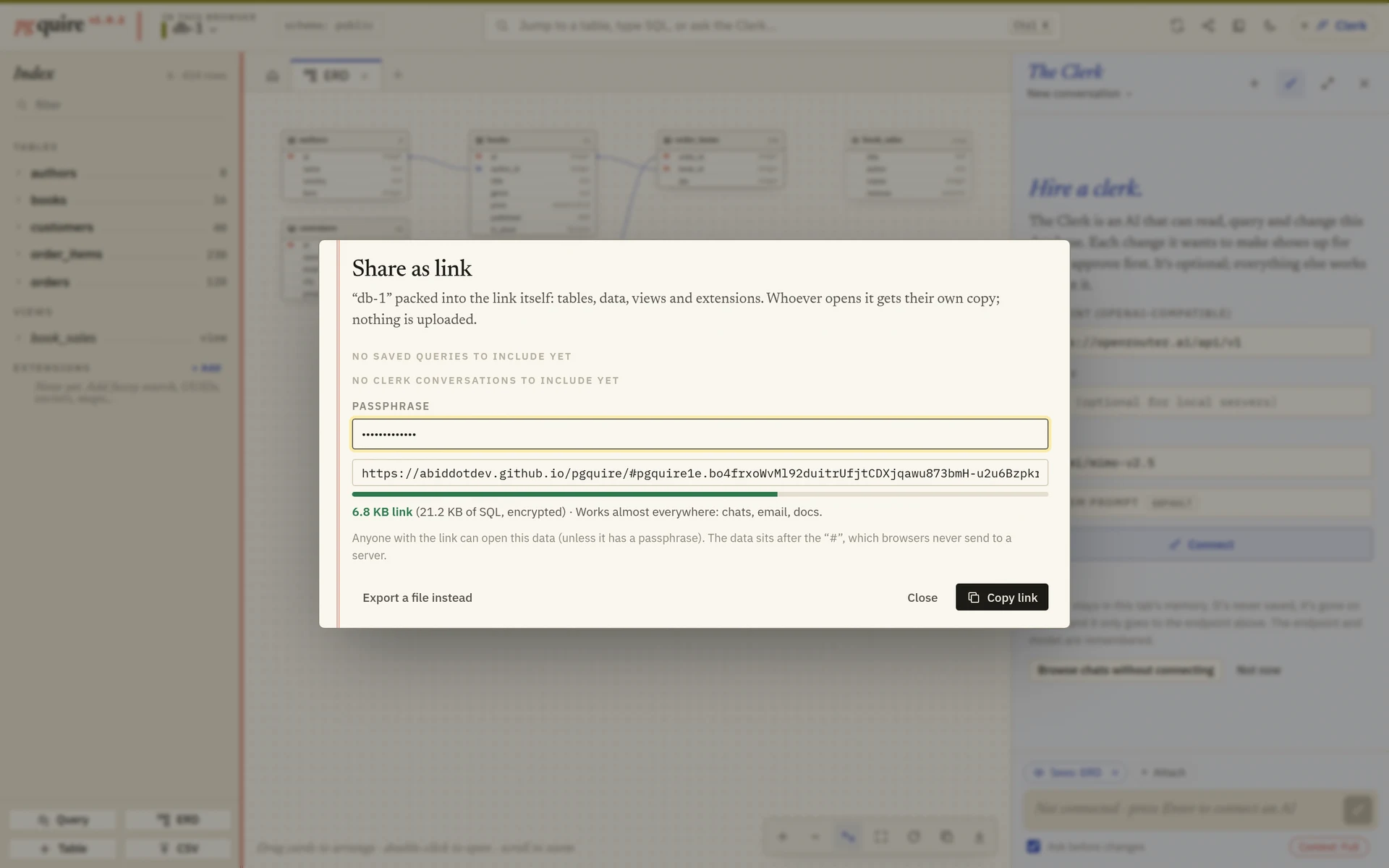
- Share a whole database as a link. The data rides after the
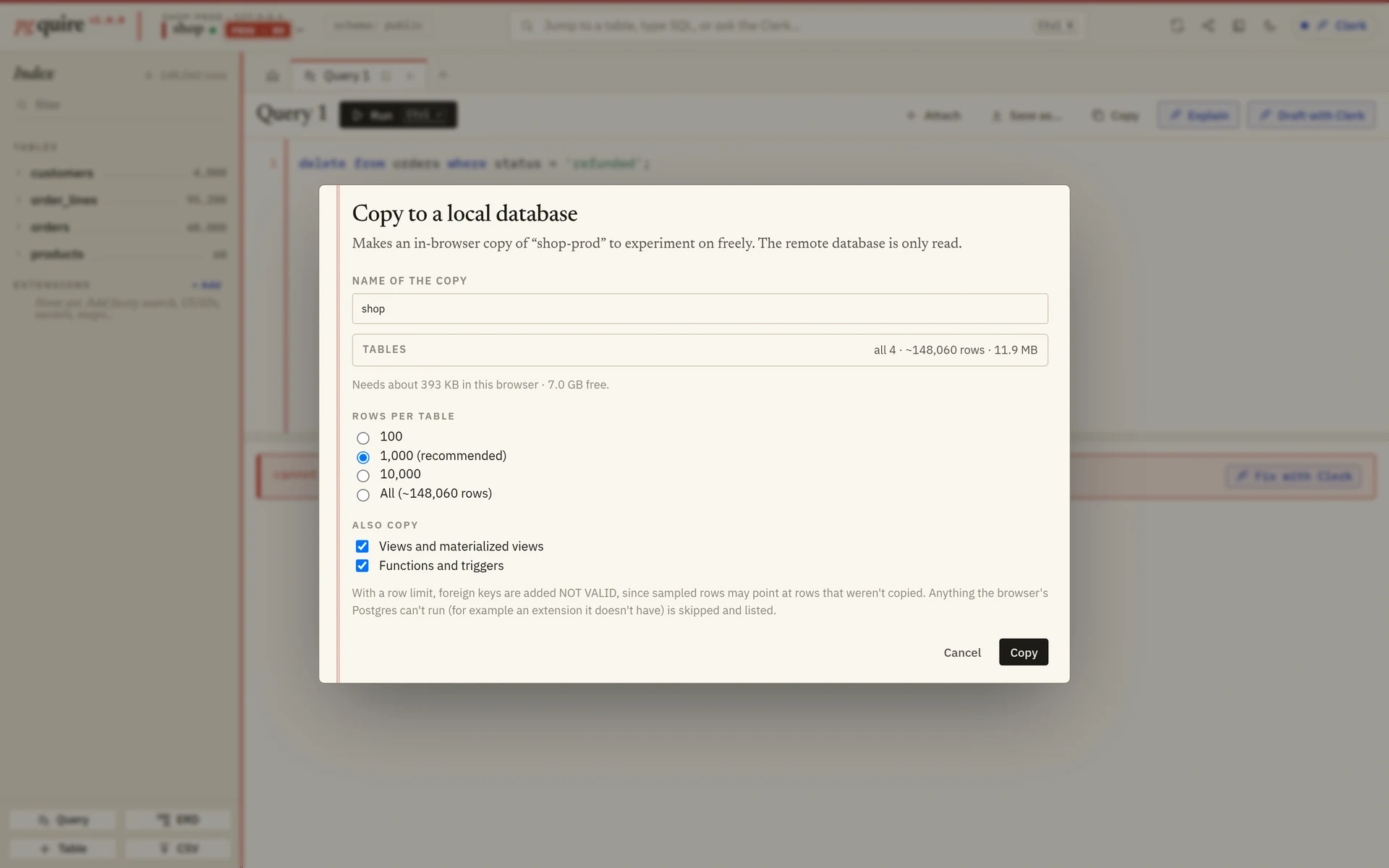
#, which browsers never send to a server; add a passphrase to encrypt it. Try one: bird sightings withpg_trgmfor typo-tolerant search (small enough for any chat), a sales CRM with atablefunccrosstab (opens in every browser), or 180,000 bike trips, 11 MB of SQL in a 1.7 MB link (Chrome or Edge). - Copy a slice of production into your browser. A sample of each table, with the rows they reference, to break freely. The server is only read.
- AI that asks before it writes. The built-in Clerk, and local agents such as Claude Code over MCP, read your schema and run queries; every change waits for your approval.
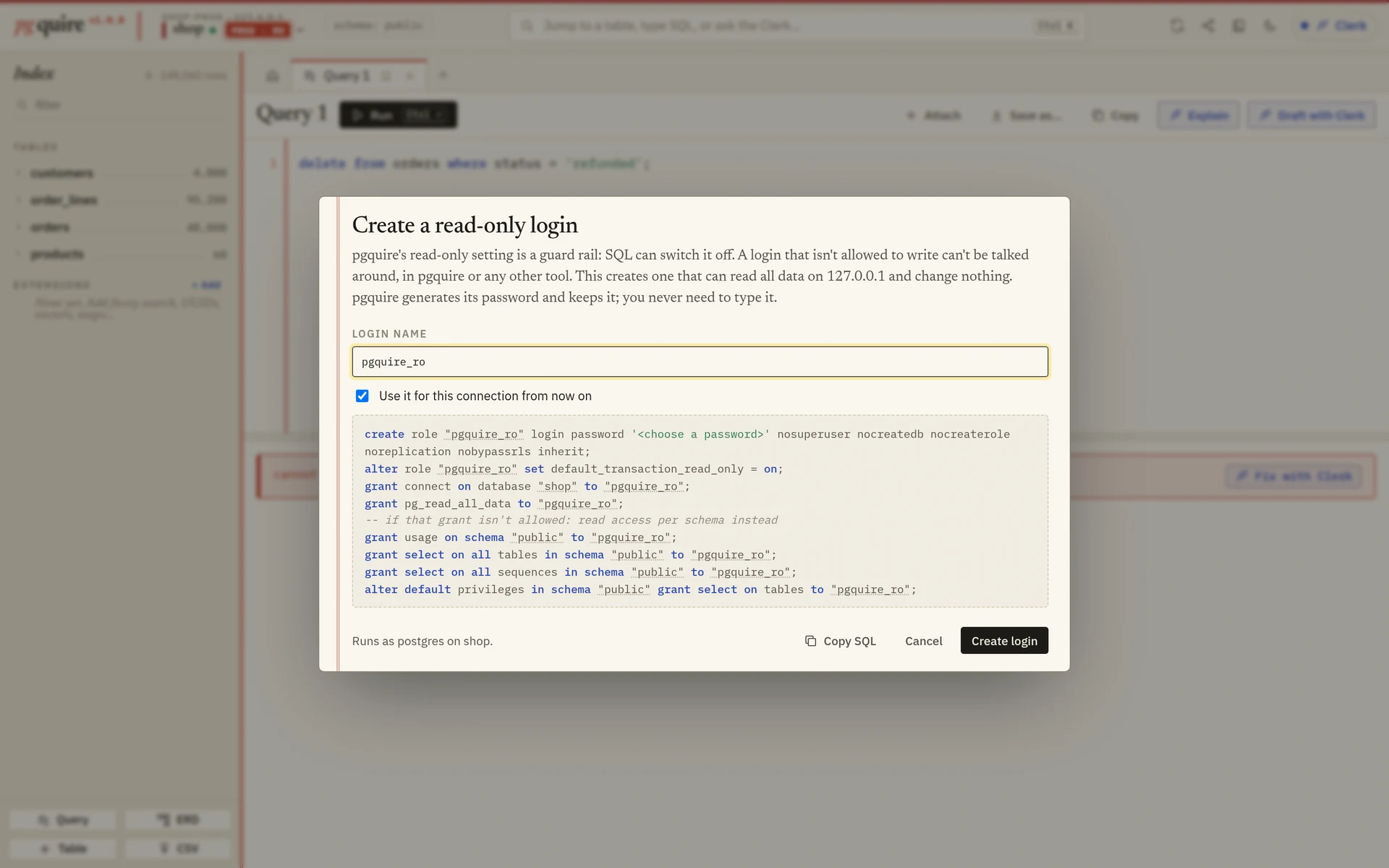
- Production guardrails. Production connections are red and start read-only, and pgquire can create a login that really can't write.
 |  |
Features
Browse and edit
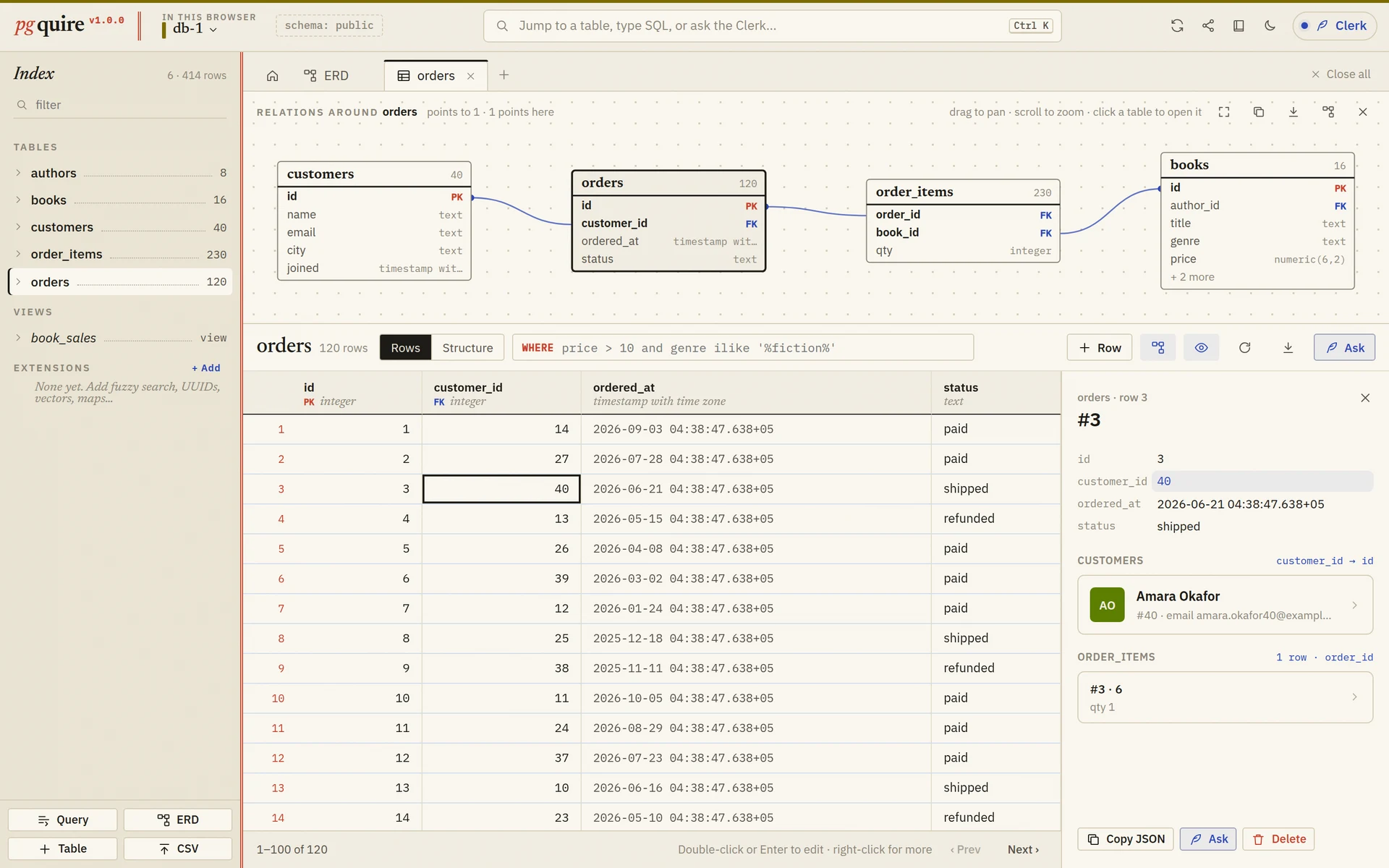
- The Index lists tables and views, grouped by schema; Ctrl K jumps to a table, database or command, runs SQL, or asks the Clerk
- A grid with paging, sorting and SQL filters; edit cells in place, add and delete rows, and Ctrl+Z undoes the last change
- Row details: the whole row, the rows it points to and the rows that point at it; right-click a cell to follow a key
- Structure view: columns, indexes, constraints and the table's
CREATEstatement
Query
- SQL editor with highlighting; every statement's result is kept, and results download as CSV or copy for a spreadsheet
- Open
.sqlfiles or save to them; big scripts andpg_dumpoutput run in chunks with progress and Stop - A
BEGINstays open across runs, with a banner to commit or roll back - Saved queries, and a journal of every statement run (yours, the grid's, the Clerk's and agents')
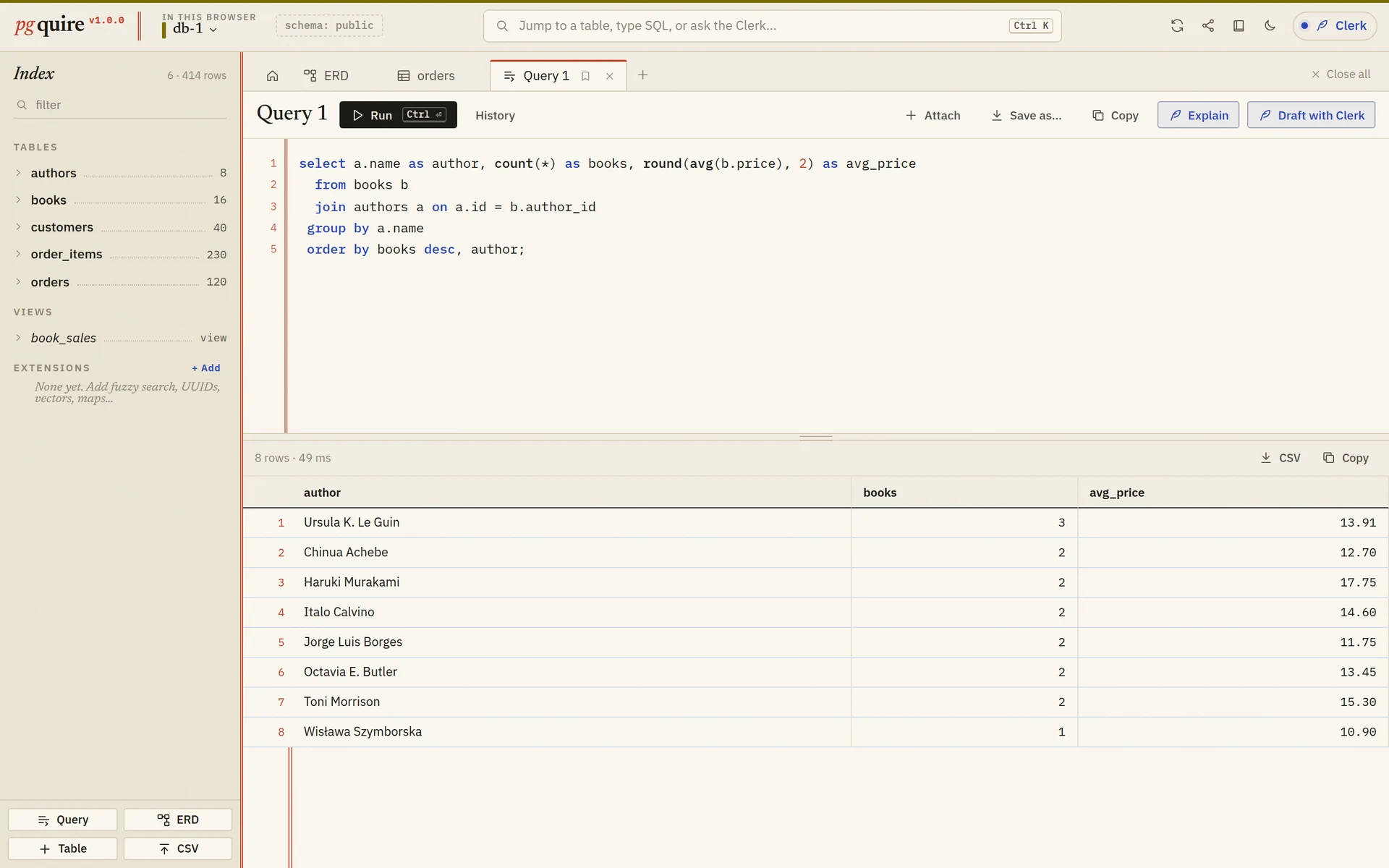 | 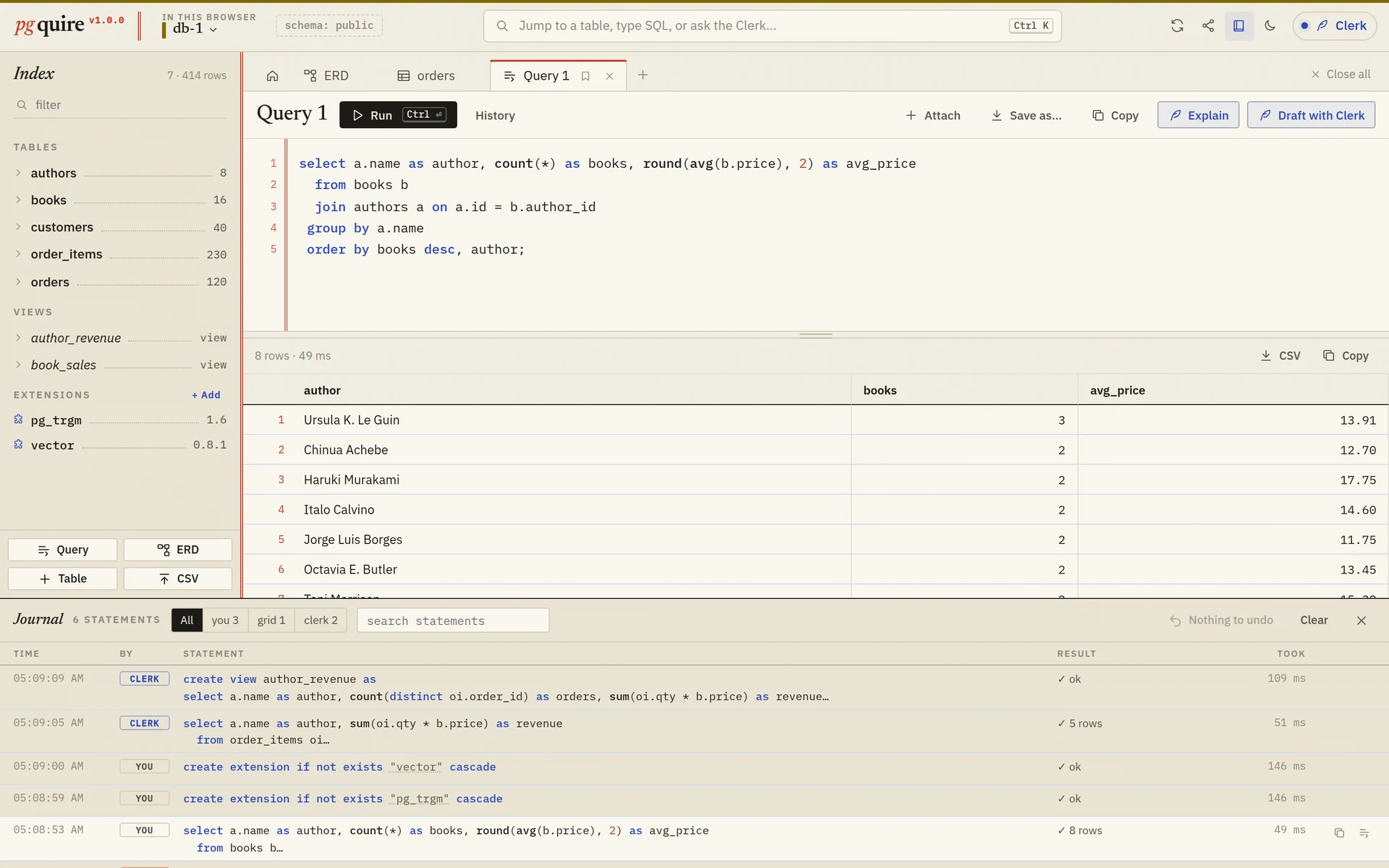 |
Design
- Create tables visually and import CSVs, with types inferred
- An ERD of the whole schema, filtered by schema, plus a relations diagram above each table; export as SVG or PNG, or copy as Mermaid, DBML or text
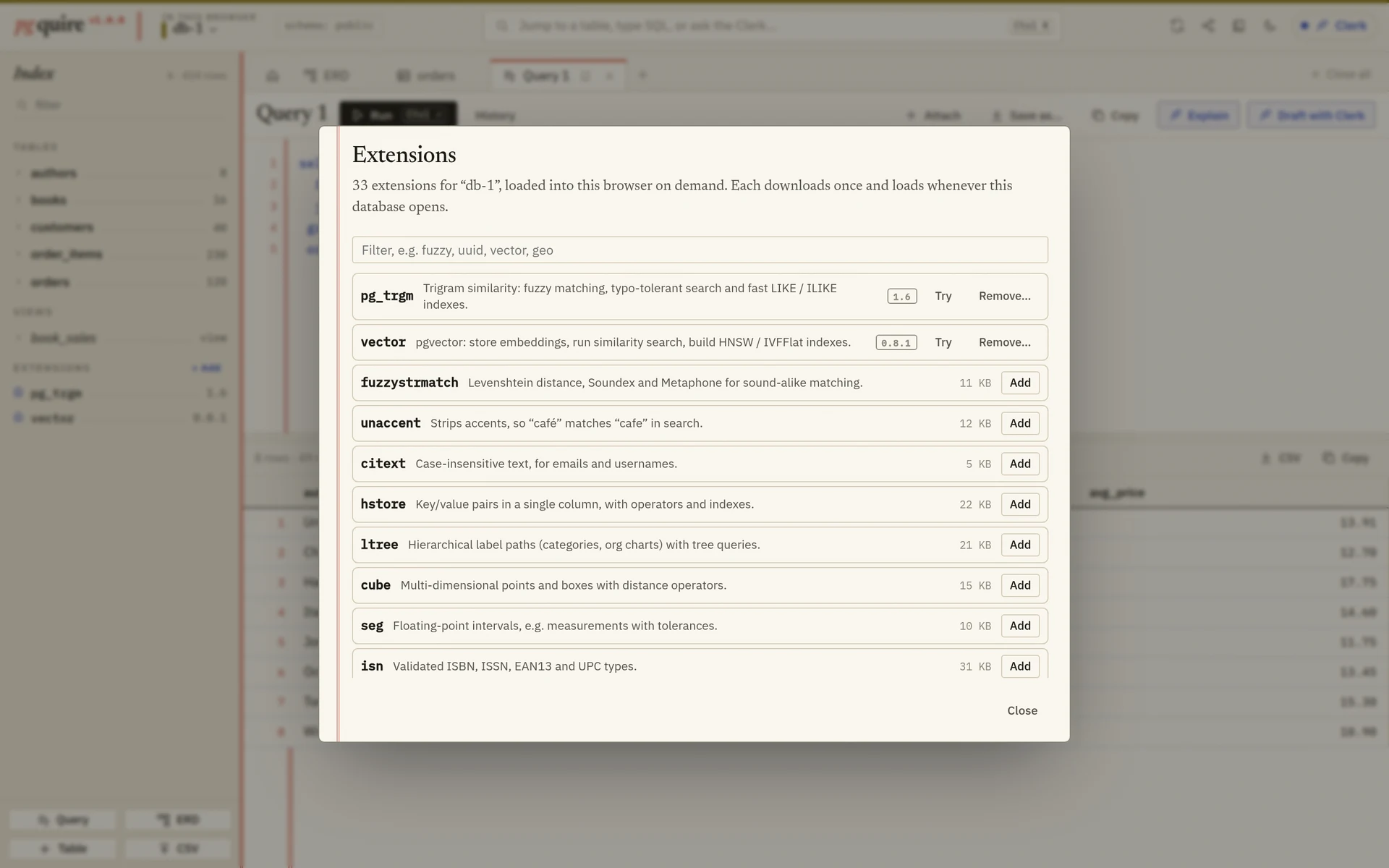
- 33 extensions load on demand in the browser: fuzzy search, UUIDs, crypto, vectors, PostGIS and more
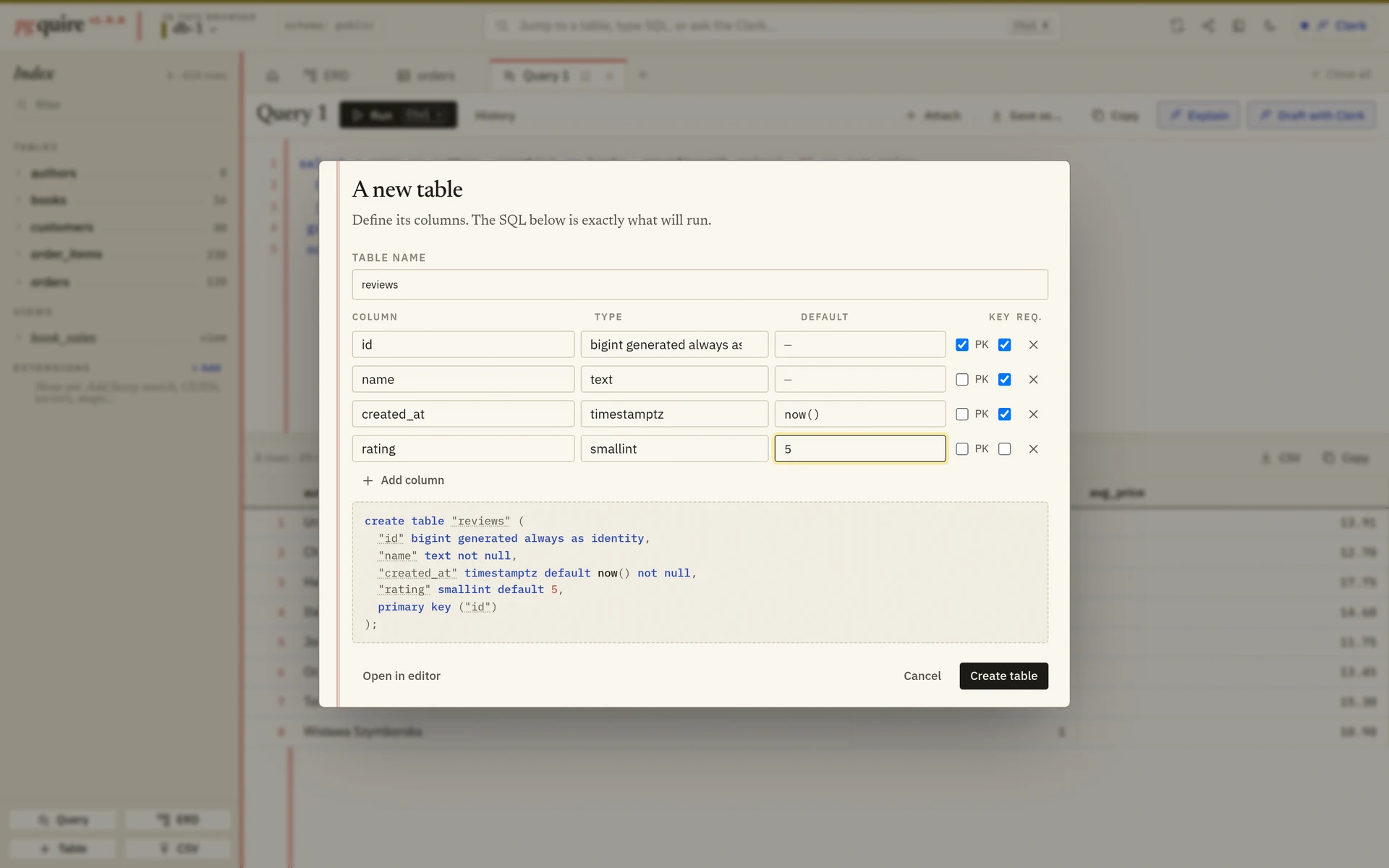 | 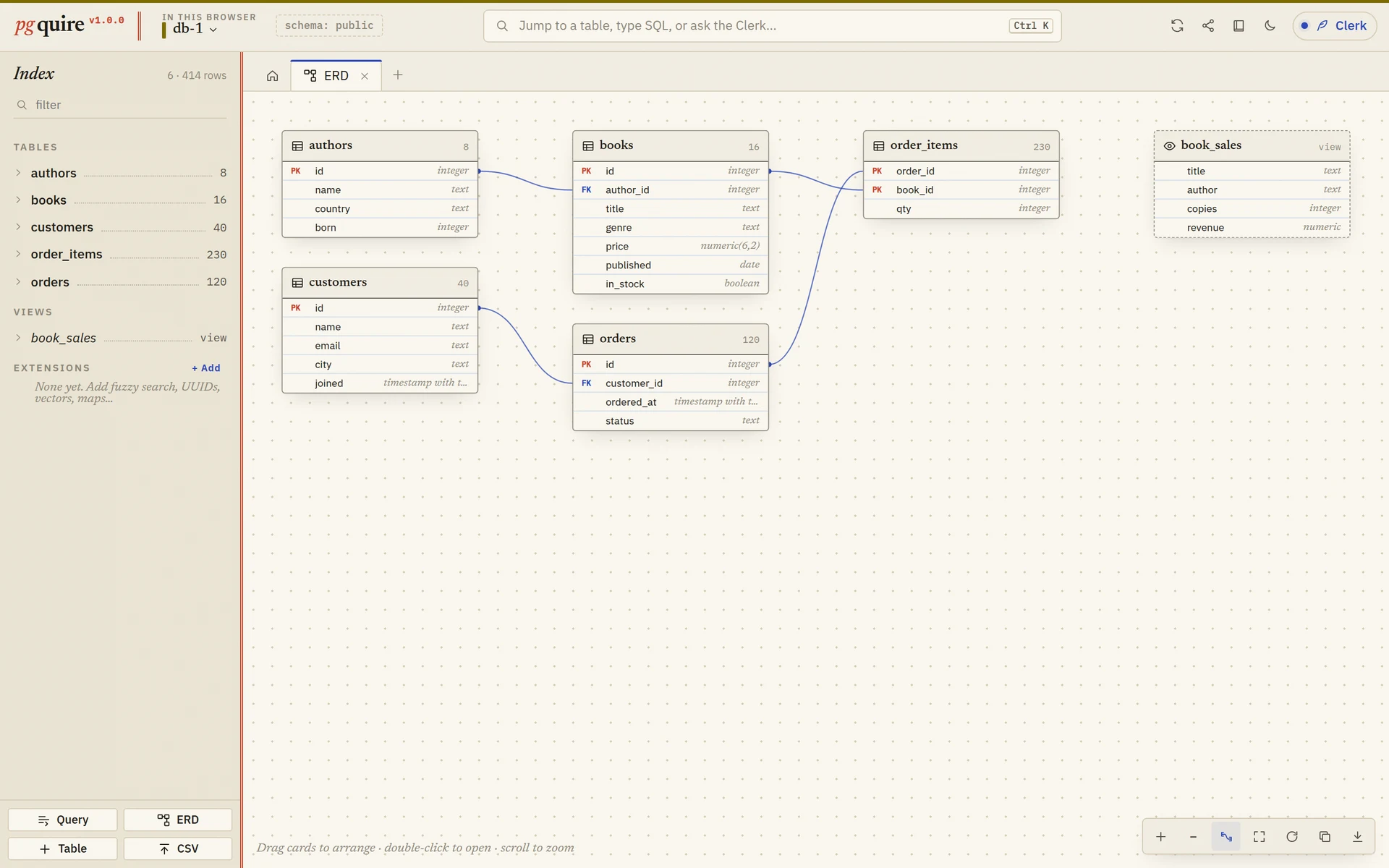 |
 | |
AI: the Clerk and local agents
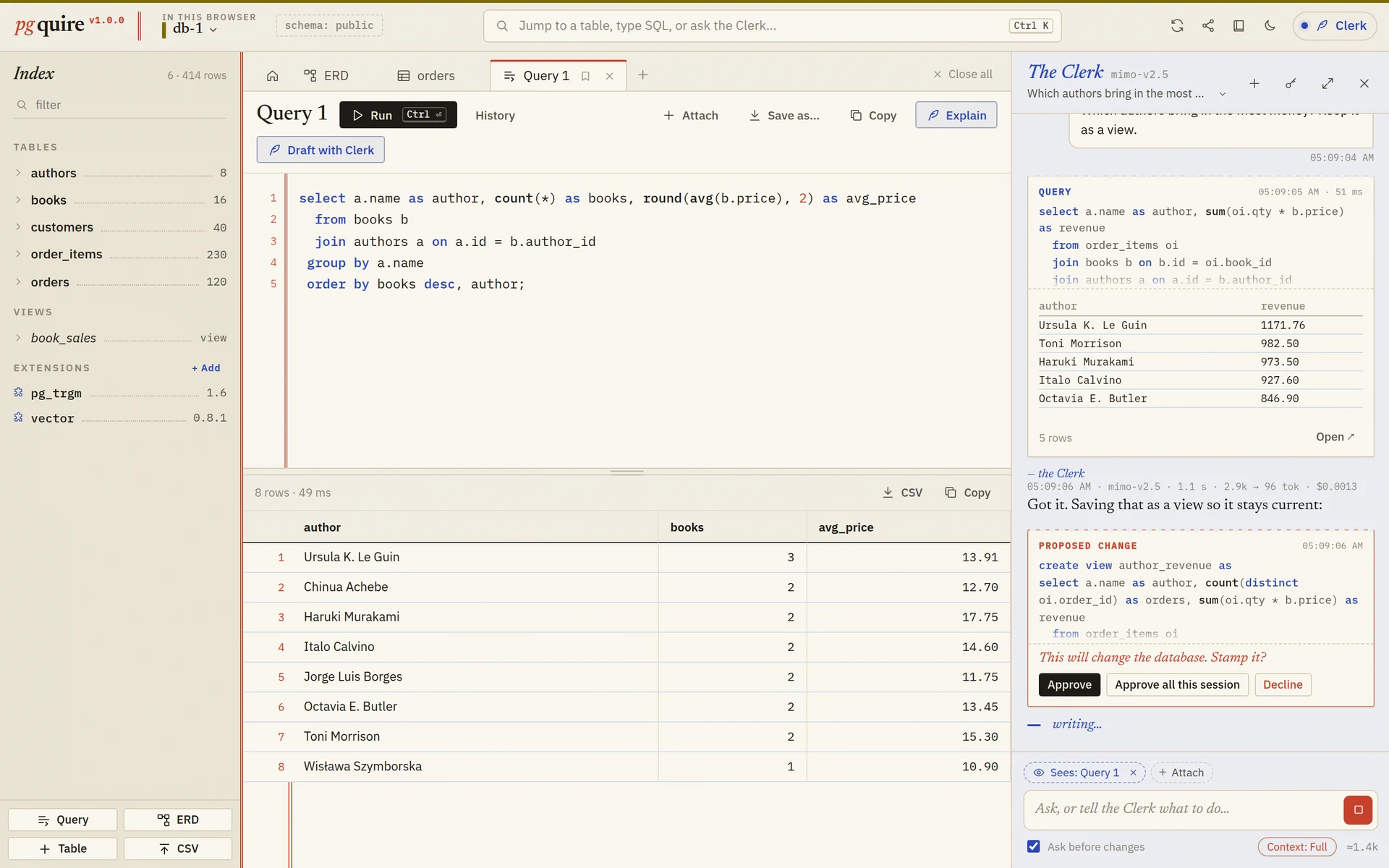
- The Clerk works with any OpenAI-compatible endpoint (OpenRouter, OpenAI, Groq, Ollama, LM Studio); your key stays in the tab's memory and is never saved
- It reads the schema, runs queries and writes SQL into the editor; changes wait for your approval
- Several conversations per database, with token and cost tracking; export them as JSON or Markdown
- With the server, local agents (Claude Code, Codex, Cursor…) use the databases you share with them, in-browser ones included, on the same terms
Move data
- Many databases, each with its own colour, tabs, saved queries and chats
- SQL dumps, exact clones, and
.pgquiresession files that carry databases with their tabs, queries and chats - Share as link: the data rides in the URL fragment (optionally encrypted with a passphrase), which browsers never send to a server
- A Storage view shows how much room pgquire takes against the browser's limit, and lets you export or delete databases to free it
Look
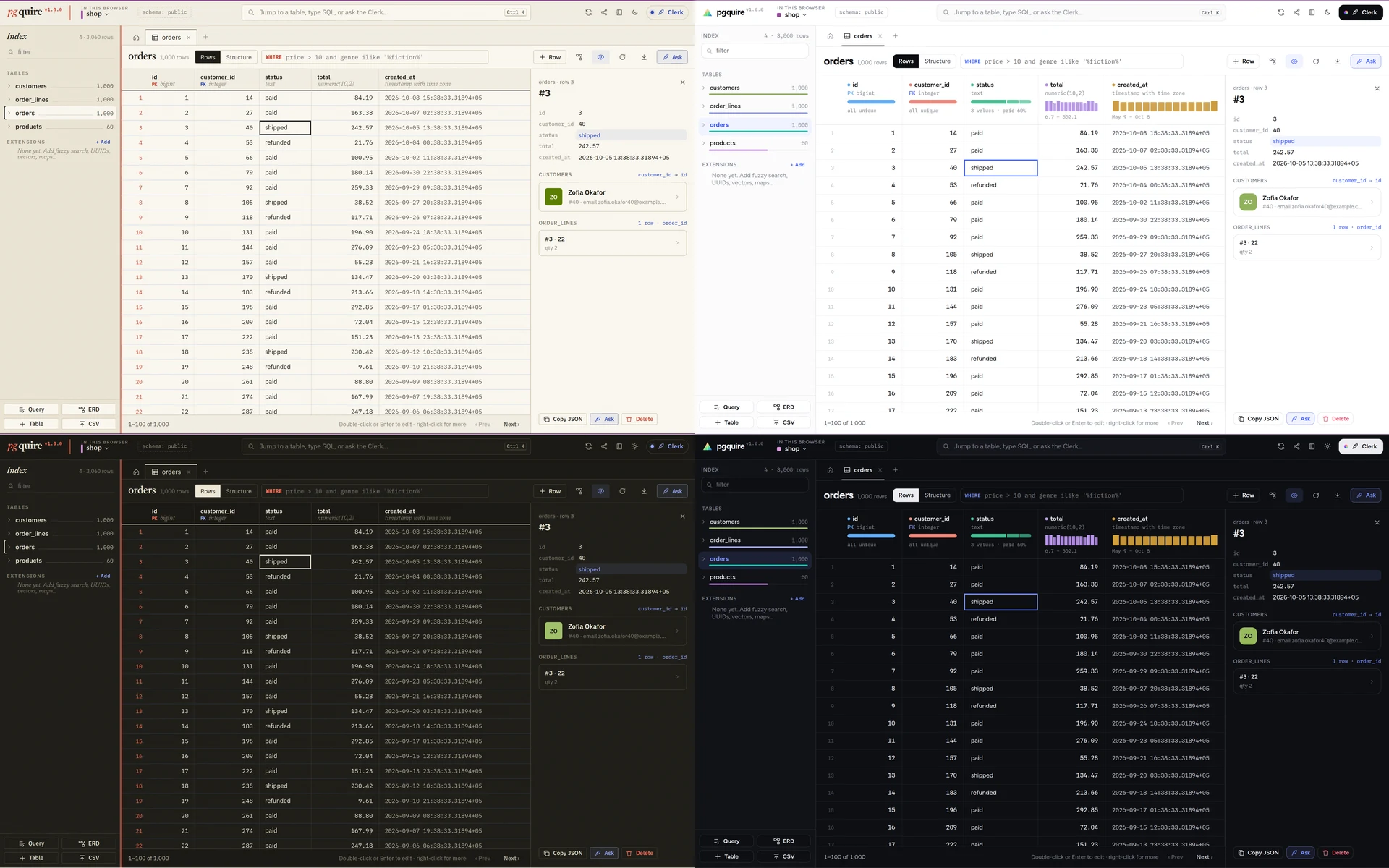
- "Ledger" (ink on paper) or "Prism" (crisp, with column profiles in the grid), each in day and night; switch from the top-right Appearance menu
- Right-click menus throughout; the in-app README tab lists every feature
Run it
In the browser
Open the live page or index.html directly. For a pinned version, download pgquire_<version>.html from Releases and open it from disk or host it anywhere. PGlite and the extensions load from a CDN the first time, then the browser caches them. Everything runs client-side; nothing leaves your machine unless you ask the Clerk, share a link or export a file.
With the server
The server is a single binary under 10 MB with the page built in. It serves the same workbench, lets it connect to remote Postgres databases (they show up in the database switcher next to your in-browser ones), and gives local AI agents access over MCP.
| System | File on Releases |
|---|---|
| macOS, Apple silicon (M1 and later) | pgquire_<version>_darwin_arm64.tar.gz |
| macOS, Intel | pgquire_<version>_darwin_amd64.tar.gz |
| Windows | pgquire_<version>_windows_amd64.zip (arm64 for ARM PCs) |
| Linux | pgquire_<version>_linux_amd64.tar.gz (arm64 for ARM, e.g. Raspberry Pi) |
Unpack it and run pgquire; it opens the workbench in your browser. The builds aren't signed, so macOS refuses them the first time: run xattr -d com.apple.quarantine pgquire once, or allow it under System Settings → Privacy & Security. Windows SmartScreen may ask too (More info → Run anyway). checksums.txt on the release lets you verify the download.
Or build it (Go 1.27+):
git clone https://github.com/abiddotdev/pgquire.git
cd pgquire/server && go build -o pgquire .
./pgquire               # opens http://127.0.0.1:8432/?t=<token>
With Docker
To try it (prints the link to open; Ctrl+C stops it and removes the container):
docker run --rm -p 127.0.0.1:8432:8432 ghcr.io/abiddotdev/pgquire
To keep it running, give it a volume for remembered connections and a fixed token, so the link stays the same across restarts (docker logs pgquire shows it):
docker run -d --name pgquire -p 127.0.0.1:8432:8432 -v pgquire-config:/config -e PGQUIRE_TOKEN=<secret> ghcr.io/abiddotdev/pgquire
Keep the 127.0.0.1: in -p: your saved connections are reachable through pgquire, so don't publish it to the network. In Docker, localhost is the container itself: use host.docker.internal for a database on your machine (on Linux, add --add-host=host.docker.internal:host-gateway).
Remote Postgres
Pick Connect remote Postgres… in the database switcher and paste a connection string (postgres://user:password@host:5432/db) or fill in separate fields. Test shows the server version and whether the connection is encrypted. If the server has several databases, you choose which ones to add; they're grouped under the server in the switcher.
To open straight into a database, start with -dsn (or PGQUIRE_DSN, which keeps the password out of your shell history). pgquire connects before it starts, so a wrong address or password stops it with the reason:
./pgquire -dsn postgres://me@db.example.com:5432/shop        # password from ~/.pgpass
./pgquire -dsn "postgres://me@db.example.com/shop?sslmode=require"
PGQUIRE_DSN=postgres://me:secret@db.example.com/shop ./pgquire
A -dsn connection lasts for this run only. Add it once with Remember on the server ticked, and from then on -dsn with the same string uses the remembered one (its name, production tag and read-only setting).
Credentials and access
- Passwords stay with the server and never reach the browser. Connections are kept in memory until it stops, unless you tick Remember on the server; remembered ones go in
pgquire/connections.jsonin your OS config folder (~/.configon Linux,~/Library/Application Supporton macOS,%AppData%on Windows; change it with-config), readable only by you. - The server listens on 127.0.0.1 only and needs the token from the link it prints. The token is new each start; set a fixed one with
-tokenorPGQUIRE_TOKEN. - Behind a reverse proxy, or listening beyond 127.0.0.1, set
-domainto the host name you reach it by; requests for any other name are refused. WithX-Forwarded-Proto: https, the sign-in cookie is marked Secure.
Safety
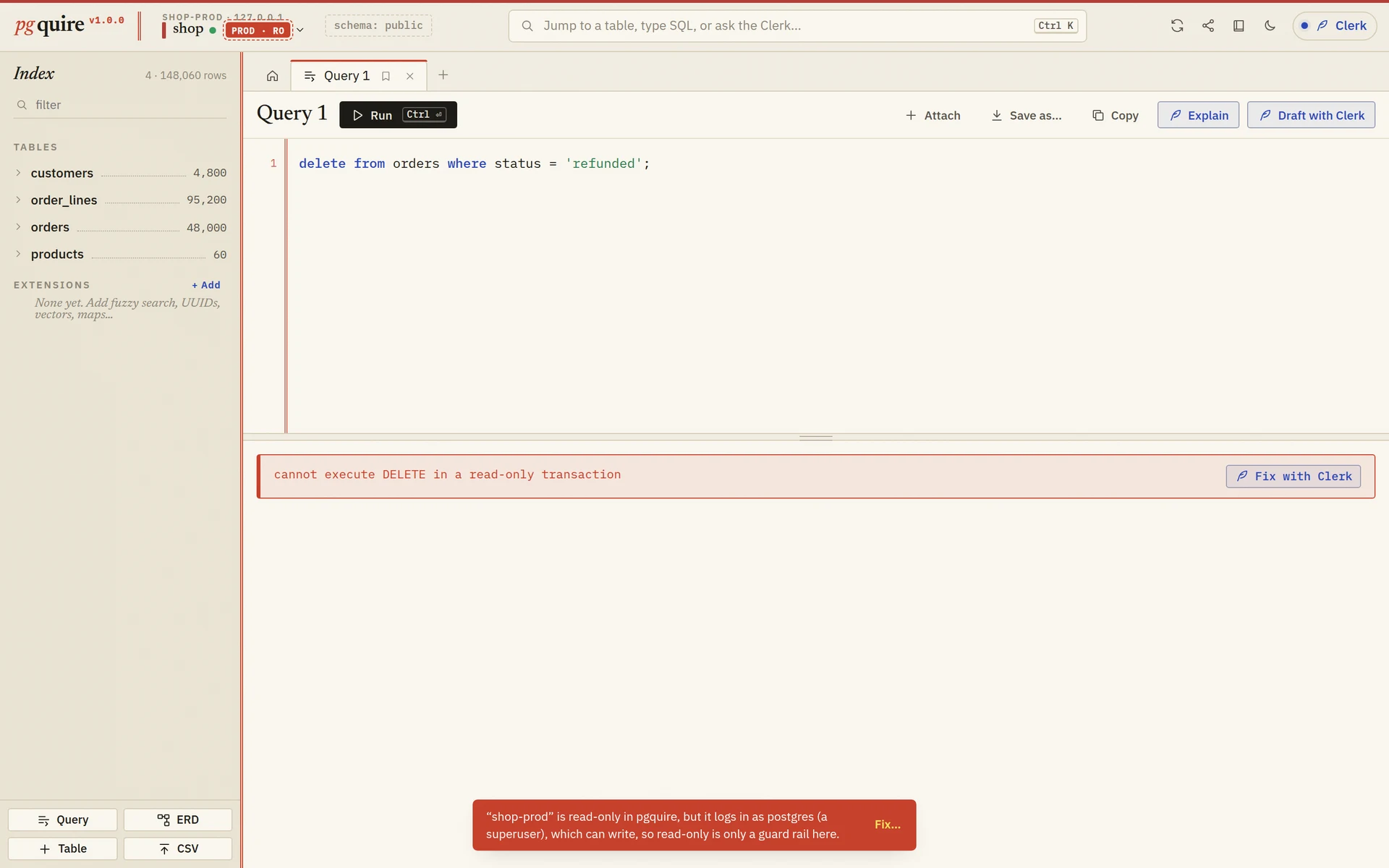
- Connections marked Production get a red marker, start read-only, and ask before any write once you make them writable.
- Read-only is a guard rail (SQL can switch it off), so pgquire checks what the login can really do. If it can write, Create a read-only login… makes one that can read everything and change nothing (
pg_read_all_data, or per-schema grants before PostgreSQL 14) and switches the connection to it. If you can't create logins, Copy SQL gives your admin the statements. - Statements stop after 5 minutes (
-statement-timeout), a transaction left idle for 2 minutes is rolled back, and sessions idle for 30 minutes are closed (-idle-timeout). Running queries can be stopped.
 |  |
Data
- Big tables show estimated row counts (
~). Results in the page are capped at 50,000 rows (-max-rows); CSV (all) and table Export CSV stream every row. - Move data… in the switcher gathers every way data goes in or out: Copy to a local database (a sample or all rows, with the tables they reference, checked against the room the browser allows), Download SQL dump (one consistent snapshot, no
pg_dumpneeded), session export and importing files. - The browser keeps in-browser databases per address, so ones made on the live page don't appear at
127.0.0.1:8432, and the other way round. Move them with Export session / Open session file.
Local AI agents (MCP)
An AI agent on your computer can work with the databases you share with it, in-browser PGlite ones included. This needs the server running.
-
In the page, open the database and click Agents → Share “…” with agents (or Share it read-only). Do it for each database the agent may use.
-
Add pgquire to your agent once (Agents → Set up an agent… fills in the path):
Claude Code
claude mcp add pgquire -- /path/to/pgquire mcpCodex (
~/.codex/config.toml)[mcp_servers.pgquire] command = "/path/to/pgquire" args = ["mcp"]Other MCP clients (Claude Desktop, Cursor…)
{ "mcpServers": { "pgquire": { "command": "/path/to/pgquire", "args": ["mcp"] } } }Over HTTP (pgquire in Docker, say), once pgquire starts with
-mcp-http:claude mcp add --transport http pgquire http://127.0.0.1:8432/mcp --header "Authorization: Bearer <agent token>"The agent token is in
agent-tokenbesideconnections.json. It isn't the page's token, opens nothing but the agent's tools, and New token… replaces it if it leaks.
Tools: list_databases, get_schema, get_user_view (what you have open: a table with its filter and selected rows, or your editor's query and result), run_sql, open_table and open_in_editor. run_sql takes a one-line purpose, shown above the change so you know what it's for before you approve it.
Safety
- Nothing is shared until you share it, per database. Calls go only to the tab that has that database open; if none does, nothing runs.
- Reads run at once; changes wait for Approve in the tab, production databases always ask, and read-only shares refuse changes. Approve all lasts until the tab closes and is never offered on production.
- An agent can't leave a transaction open or write into one of yours, and its
SETs don't stick. If it gives up, the approval is withdrawn and its running statement stopped. - Each agent gets its own Clerk conversation and its own name in the journal; the tab title shows ● Approve? while one waits.
- If the tab goes away mid-call, the agent is told the outcome is unknown rather than that it failed, so it checks before retrying.
Options
Options are -name value, in any order; each can also be an environment variable (handy for Docker), and the command line wins. ./pgquire -h lists them.
| Option | Variable | Default |
|---|---|---|
-listen |
PGQUIRE_LISTEN |
127.0.0.1:8432; e.g. -listen 127.0.0.1:9000 for another port |
-token |
PGQUIRE_TOKEN |
new each start |
-domain |
PGQUIRE_DOMAIN |
none |
-dsn |
PGQUIRE_DSN |
none; a database to connect to and open at start |
-mcp-http |
PGQUIRE_MCP_HTTP |
off; lets AI agents connect over HTTP at /mcp (Docker, a server). Off, only pgquire mcp on the same machine can reach agent access. Behind a reverse proxy, make sure it sends X-Forwarded-For (nginx: proxy_set_header X-Forwarded-For $proxy_add_x_forwarded_for;), or requests through it look local |
-config |
PGQUIRE_CONFIG |
pgquire/connections.json in your OS config folder |
-no-open |
PGQUIRE_NO_OPEN |
opens a browser |
-max-rows |
PGQUIRE_MAX_ROWS |
50000 |
-statement-timeout |
PGQUIRE_STATEMENT_TIMEOUT |
5m |
-idle-timeout |
PGQUIRE_IDLE_TIMEOUT |
30m |
In Docker, change the port with both: -e PGQUIRE_LISTEN=0.0.0.0:9000 -p 127.0.0.1:9000:9000.
Contributing
See CONTRIBUTING.md for the layout, building, tests and releases. In short: edit server/index-remote.html, never index.html (it's generated by go generate in server/).