
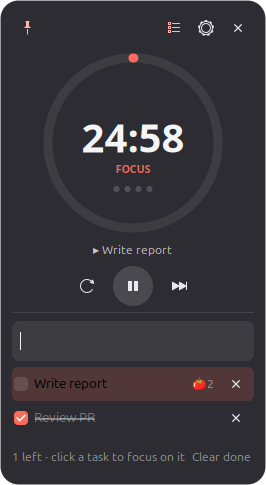
A small floating Pomodoro clock for the Linux desktop. It can float over all your windows, sit on the desktop behind them, or behave like a normal window. You can turn on an optional to-do list in Settings.
Built with Python and GTK3. It needs no extra packages on a standard Ubuntu install.
Features
- Pomodoro timer: Focus, Short break and Long break sessions. A ring fills as time passes, and dots count your focus sessions.
- Three window modes: Always on top, Normal window, or On desktop (below windows).
- Optional to-do list: add tasks, tick them off, and pick one as your current task. Each focus session you finish adds a 🍅 to that task.
- Alerts: a sound and a desktop notification when a session ends.
- Auto-start: breaks and focus sessions can each start on their own.
- Compact and draggable: no window border, a see-through background you can adjust, shows on all workspaces, and stays out of the dock by default.
- Remembers everything: window position, settings and tasks are kept between runs.
Requirements
-
Linux with an X11 or Wayland session. Tested on Ubuntu 26.04 with GNOME on Wayland.
-
Python 3.10 or newer
-
GTK3 Python bindings, already installed on Ubuntu. If they're missing:
sudo apt install python3-gi python3-gi-cairo gir1.2-gtk-3.0 -
Optional:
notify-sendfor notifications andpw-play,paplayorcanberra-gtk-playfor sound.
Installation
Run it straight from the source folder:
./promodor.py
Or install it for your user. This adds Promodor to the app grid:
./install.sh
To also start it when you log in:
./install.sh --autostart
To uninstall but keep your settings and tasks, so a reinstall picks up where you left off:
./install.sh --uninstall
To remove Promodor completely, including your settings, tasks and Python caches:
./install.sh --purge
Both options close Promodor first if it's running. Promodor has no other cache or log files and never writes outside your home folder, so --purge leaves nothing behind. The only thing left is the source folder you ran the script from; delete it yourself if you no longer need it.
The installer copies these files:
| What | Where |
|---|---|
| App | ~/.local/share/promodor/promodor.py |
| Launcher | ~/.local/bin/promodor |
| Desktop entry | ~/.local/share/applications/promodor.desktop |
| Icon | ~/.local/share/icons/hicolor/scalable/apps/promodor.svg |
Autostart (with --autostart) |
~/.config/autostart/promodor.desktop |
Usage
| Action | How |
|---|---|
| Move the widget | Drag anywhere on it |
| Start / pause | ▶ button |
| Reset the current session | ⟳ button |
| Skip to the next session | ⏭ button |
| Always on top on/off | 📌 pin button (top left) |
| Show / hide the to-do list | List button |
| Open Settings | ⚙ button |
| All actions, switch phase, window mode | Right-click the widget |
Promodor never takes keyboard focus on its own, so switching windows or workspaces never sends your keypresses to it. It only takes focus while you're typing in the task box. Press Esc or click another window to give focus back.
Window modes
| Mode | Behaviour |
|---|---|
| Always on top | Floats over every window. Good for keeping an eye on the timer. |
| Normal window | Stacks like any other window. |
| On desktop (below windows) | Stays behind all windows, like a desktop widget. |
To-do list
- Open Settings and turn on Enable to-do list.
- Type a task in the box and press Enter.
- Click a task to make it your current task. It's highlighted and shown under the timer.
- Each focus session you finish adds a 🍅 to the current task.
- Tick a task when it's done. If it was the current task, the next unfinished task becomes current. Clear done removes all ticked tasks.
What the 🍅 next to a task means
The 🍅 (a tomato; pomodoro is Italian for tomato) counts the focus sessions you've finished on that task. 🍅2 means two full focus sessions ended while that task was your current task.
- A task gets a 🍅 only when a focus session runs to the end while it's the current task.
- Skipping a focus session, or finishing a break, doesn't add one.
- A task with no finished sessions shows no 🍅.
- The count goes to whichever task was current when the session ended. If you switch tasks mid-session, the new task gets it.
- The count is kept with the task and is removed when you delete the task or clear it with Clear done.
Settings
Change settings in the Settings window; changes apply right away. They are saved to ~/.config/promodor/settings.json:
| Key | Default | Meaning |
|---|---|---|
focus_min |
25 |
Length of a focus session, in minutes |
short_min |
5 |
Length of a short break, in minutes |
long_min |
15 |
Length of a long break, in minutes |
long_every |
4 |
Number of focus sessions before a long break |
auto_start_breaks |
true |
Start the break automatically after a focus session |
auto_start_focus |
false |
Start the next focus session automatically after a break |
layer |
"above" |
Window mode: above, normal or below |
all_workspaces |
true |
Show on every workspace |
show_in_taskbar |
false |
Show in the dock / taskbar and Alt+Tab |
todo_enabled |
false |
Turn on the to-do list |
todo_visible |
true |
Whether the to-do list is expanded |
sound |
true |
Play a sound when a session ends |
notify |
true |
Show a desktop notification when a session ends |
opacity |
0.90 |
Background opacity, from 0.3 to 1.0 |
Tasks are saved in ~/.config/promodor/todos.json.
How it works on Wayland
GNOME on Wayland doesn't let apps keep their own window above or below other windows, or refuse keyboard focus. To get around this, Promodor forces GDK_BACKEND=x11 (even if your session sets it to wayland) and runs through XWayland, which comes with Ubuntu. That lets it use the standard X11 always-on-top and keep-below window states, which GNOME's window manager respects.
To run it as a native Wayland app anyway (window modes and focus handling won't work), run it like this:
PROMODOR_NATIVE_WAYLAND=1 ./promodor.py
Troubleshooting
- Square corners or a black background: your session isn't compositing. The widget still works but can't be see-through.
- No sound: make sure
pw-play(PipeWire) orpaplayis installed and that/usr/share/sounds/freedesktop/stereo/alarm-clock-elapsed.ogaexists. - No notification: install
libnotify-binto getnotify-send, and check that GNOME's Do Not Disturb is off. - The widget went off-screen: delete the
xandyentries from~/.config/promodor/settings.jsonand restart Promodor. - Only one copy runs: this is on purpose. Launching it again brings the existing widget to the front.
Project layout
promodor.py      # the whole app (timer, to-do list, settings dialog)
install.sh       # per-user installer / uninstaller
promodor.svg     # app icon
docs/            # screenshots
License
MIT © 2026 Prateek Yadu