
Tab Warehouse
A bookmark manager and new tab page for developers.
Folders, full URLs, an environment matrix and drag and drop — all on top of Chrome's own bookmarks.


Website · Live demo · Chrome Web Store · Install
Contents
- Why Tab Warehouse
- Features
- Live demo
- Install
- Quick start
- Keyboard shortcuts
- Privacy and permissions
- How it works
- Contributing
- Tests
- Changelog
- License
Why Tab Warehouse
Developers keep the same page open in many versions: live, test, staging and localhost. Chrome's bookmark bar hides URLs and treats every link the same. Tab Warehouse fixes that:
- Every URL in full. Nothing is truncated, so you always see which host you are about to open.
- Tags. Each link gets a PROD, TEST, STAGE or LOCAL tag, or one of your own (QA, UAT …), from rules you write.
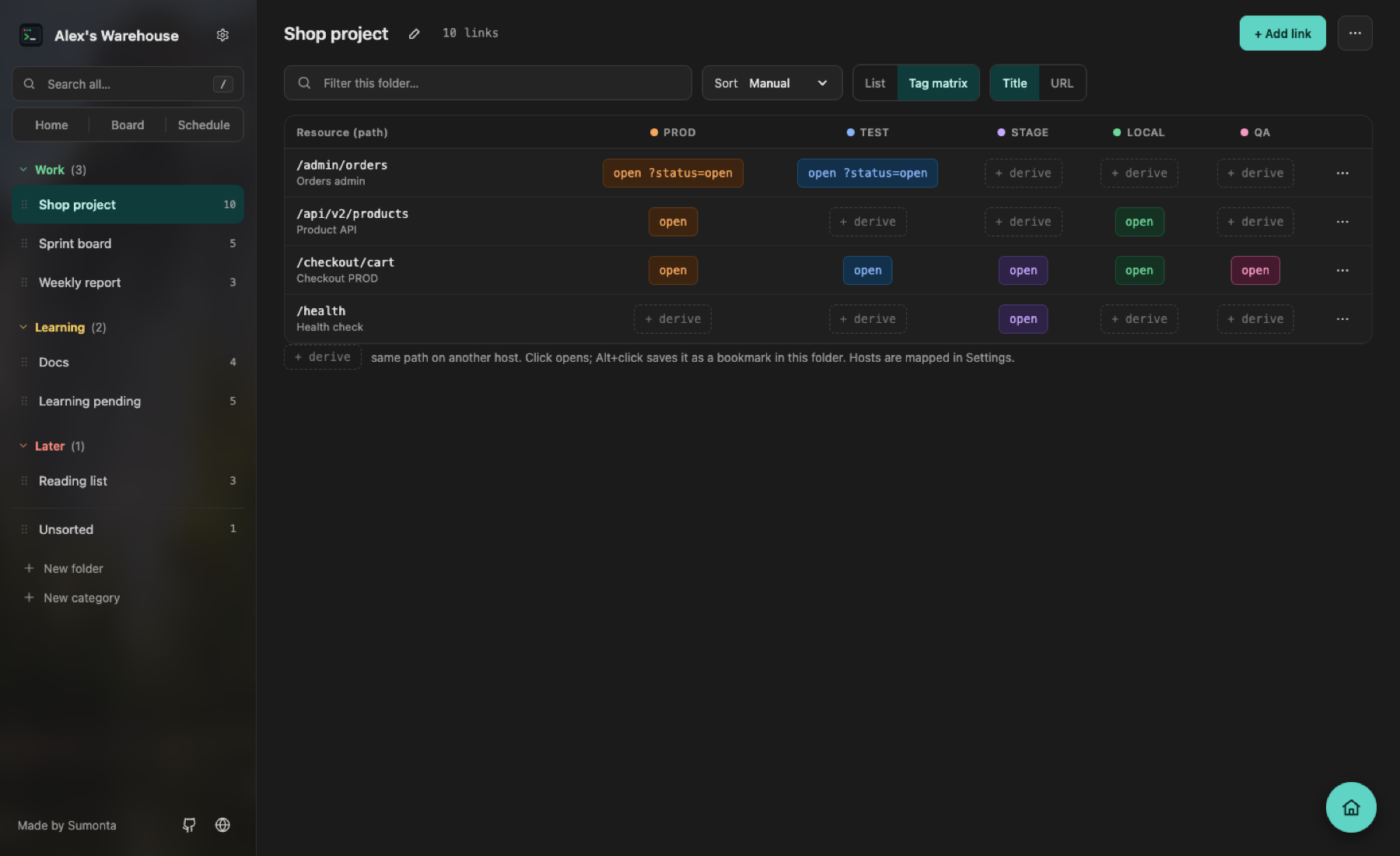
- Tag matrix. See the same page across all versions in one table, and jump from TEST to PROD in one click.
- No lock-in. Your links stay real Chrome bookmarks. They sync with your Google account and show in Chrome's bookmark manager. Uninstall the extension and nothing is lost.
Features
Home
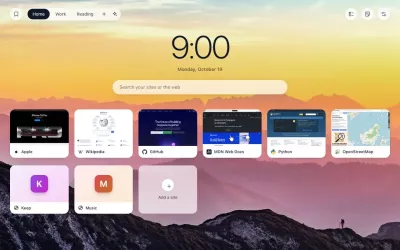
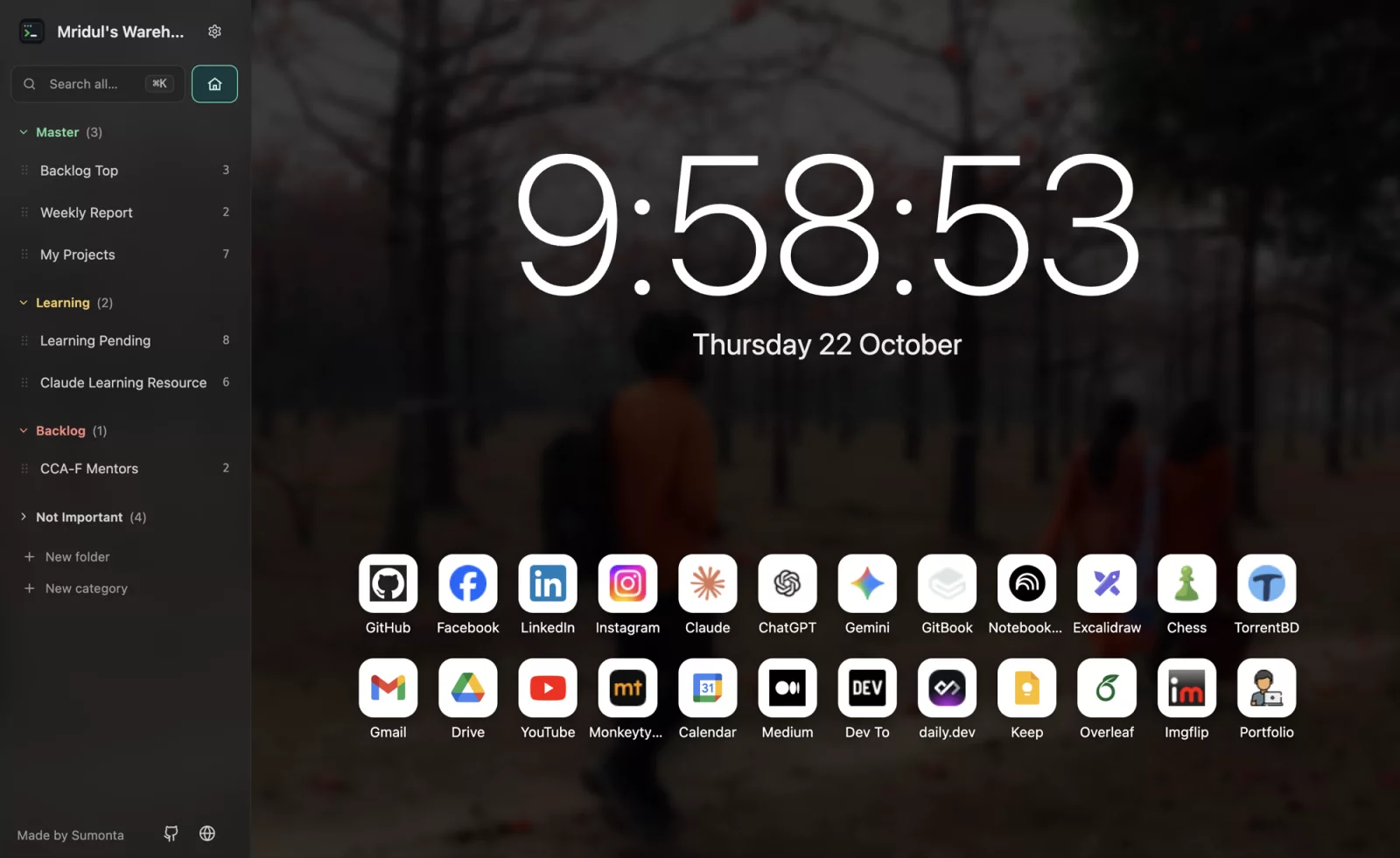
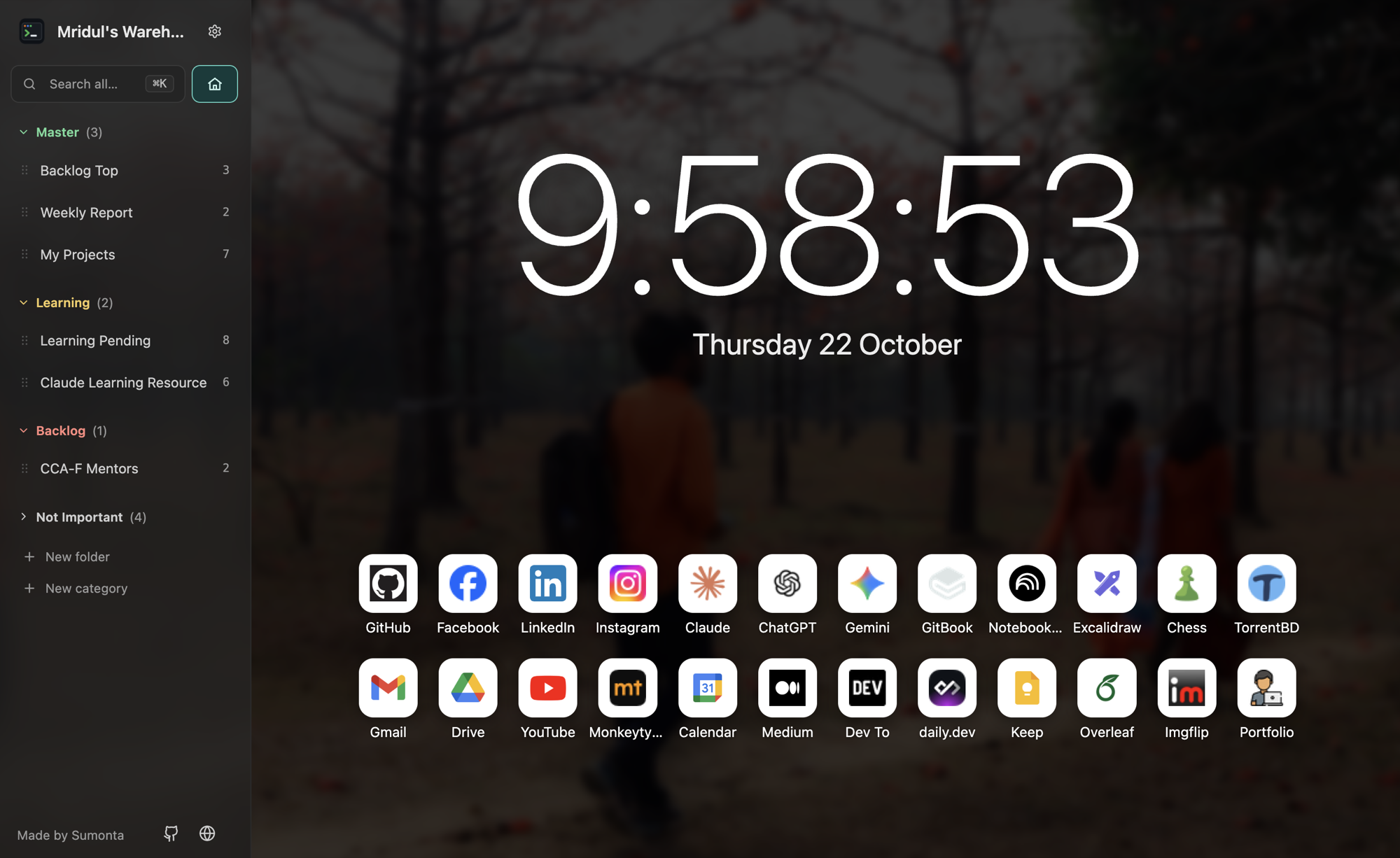
- Opens on every new tab: a large clock, the date and your link tiles.
- Tiles are a normal bookmark folder called Home in Other bookmarks, created empty on first start. Add your own links in Settings › Home page.
- Drag tiles to reorder. Right-click a tile to change its icon (upload or URL), edit it, open it in a new tab or remove it (with undo).
- Official icons for Google apps (Gmail, Drive, Calendar, Keep, Meet, Docs, Sheets, Slides, Forms); Chrome's favicon for everything else; on Home, Google's favicon service when Chrome has none, then a letter.
- Background image, darkness, blur, color, clock size, 12/24-hour, seconds, icon size and icons per row — all with a live preview.
Sidebar
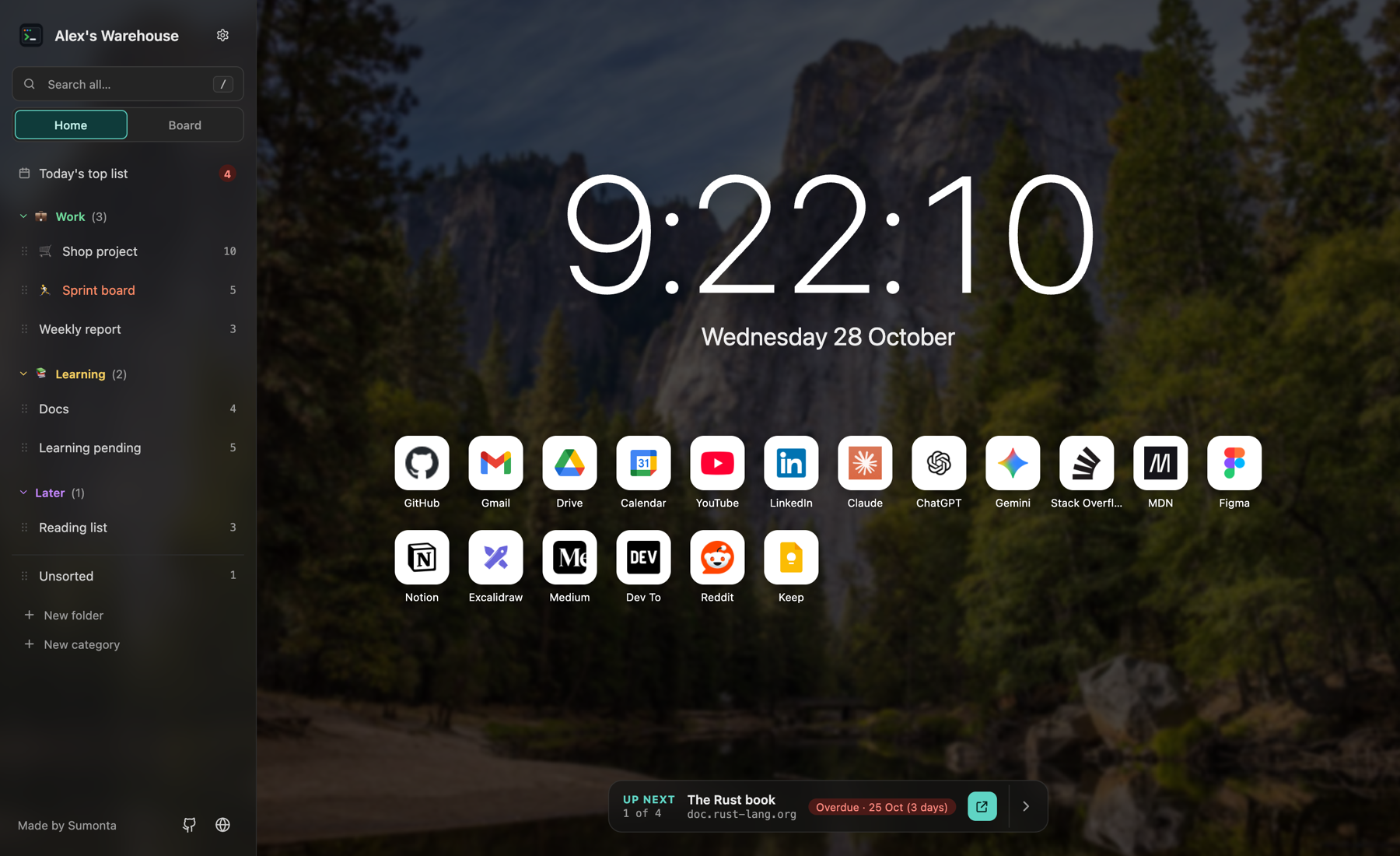
- A full-width search box with Home and Board tabs under it.
- One entry per folder under your root folder, with link counts.
- Drag folders into your own order. The order is saved in the extension; Chrome's tree is never reordered.
- Categories group folders (for example "Daily" and "Rarely used"), with collapse and drag reorder.
- Give a category, a folder or a section a color (6 presets or any custom color) and one emoji icon from its menu. Backup › Export JSON keeps them.
- Drop a link on a folder to move it there, or on the Home button to add it to Home.
- Resizable (180–440 px) and themeable: a solid color or a blurred copy of your Home background.
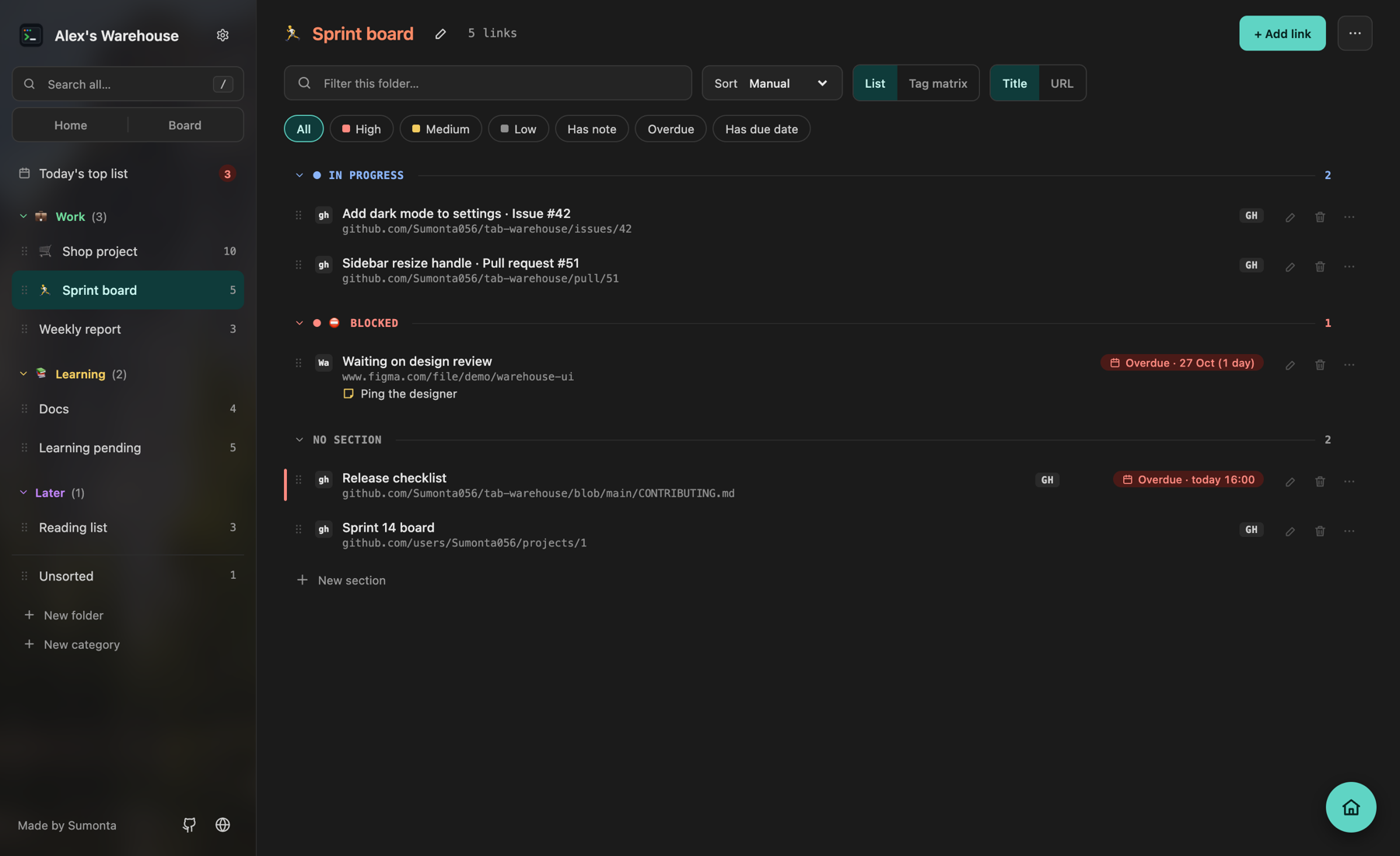
Board
- The Board tab next to Home shows every folder as a column of cards, side by side, grouped into lanes by category (or in one row).
- Each card has the favicon, title, full URL and env badge. Folders with sections show them as small headers inside the column.
- Drag cards between columns or onto a section header to move them, or within a column to reorder (Manual sort). Drag a column header to change the folder order.
- Add a link at the bottom of any column, delete one with undo, and filter every column at once.
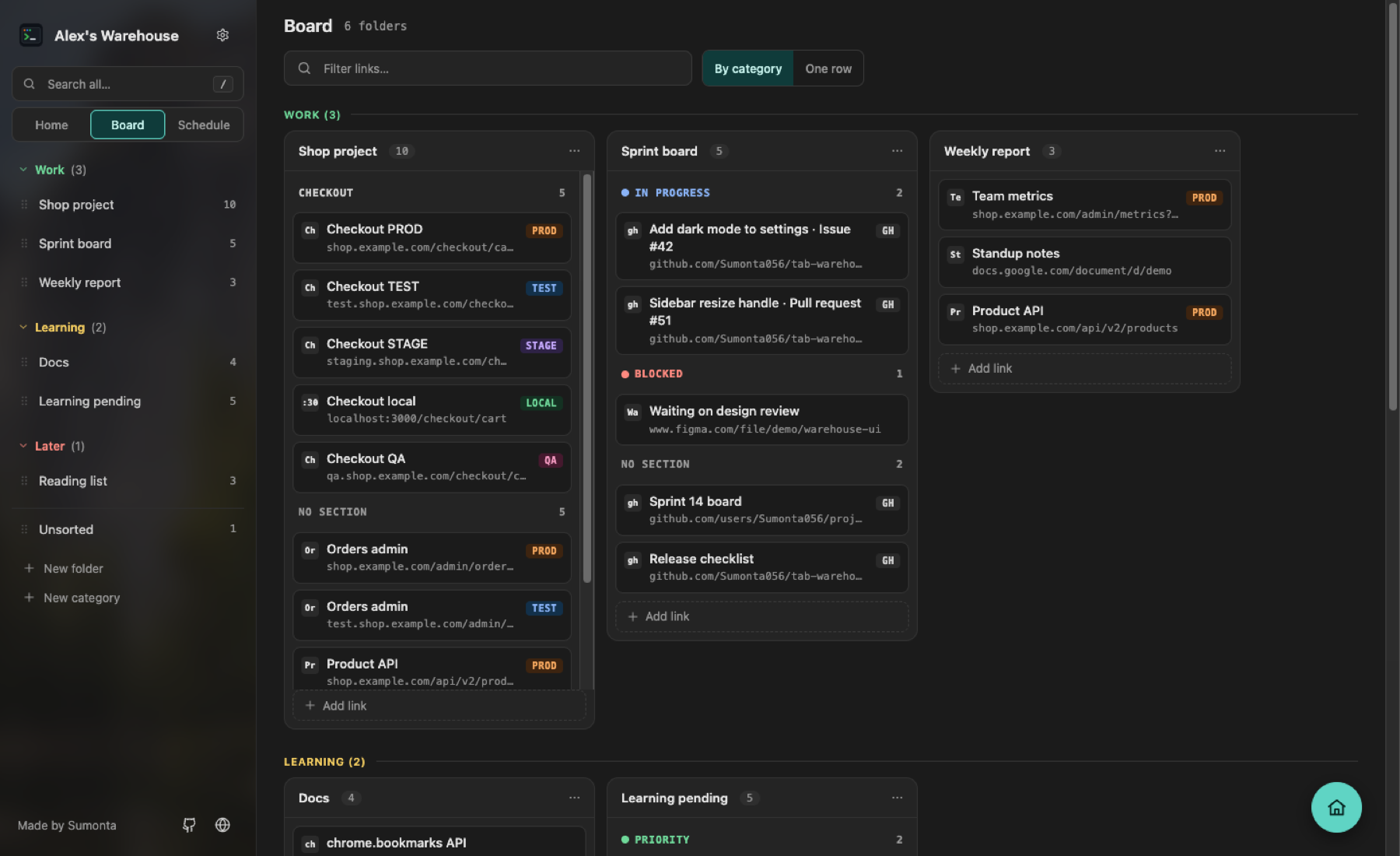
Folder page
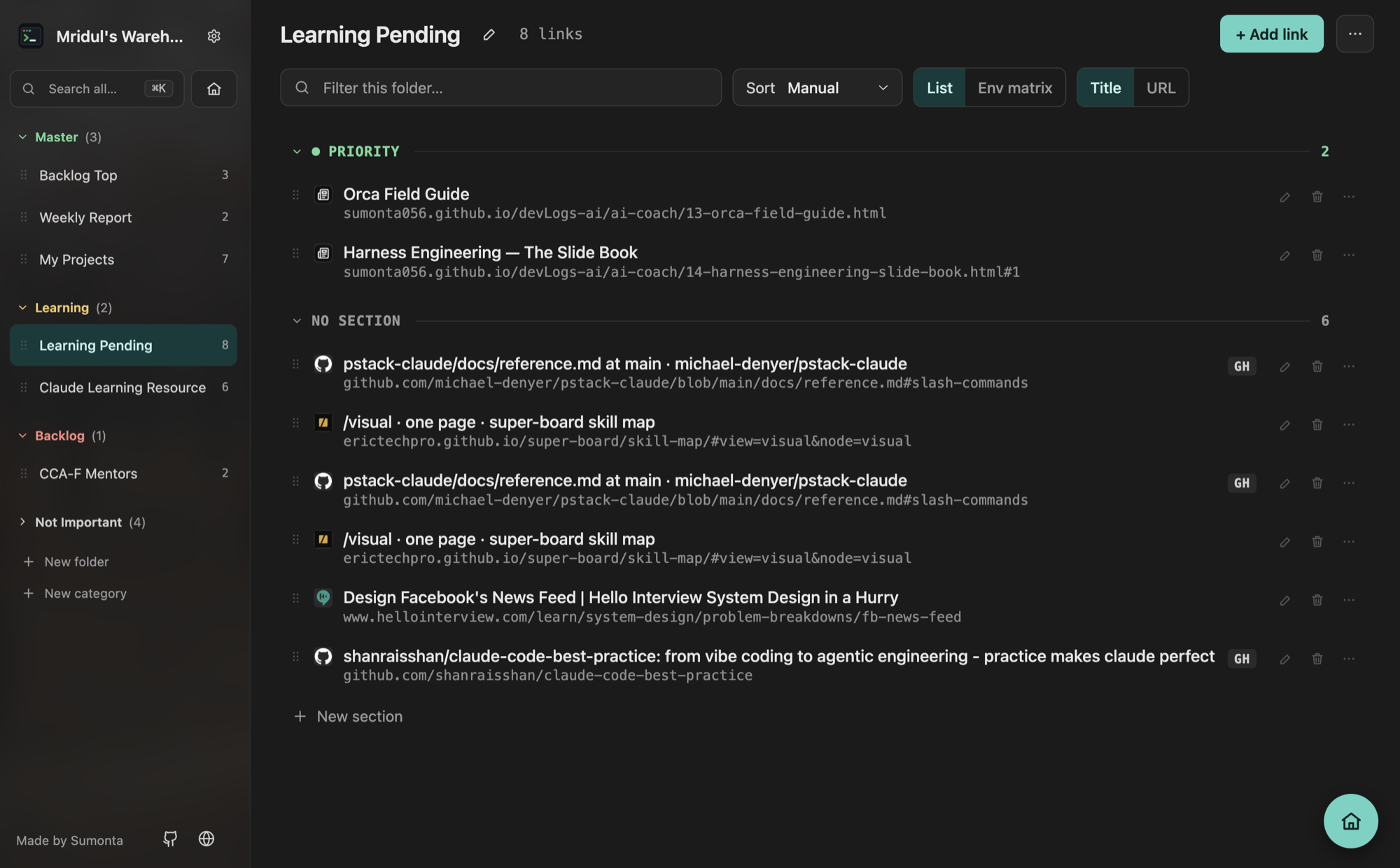
- Full URLs that wrap instead of truncating. Show the title first or the URL first.
- Sort per folder: manual, name, URL, tag, date added or host.
- Sections: split a folder into groups such as "In progress" or "Blocked". Each section is a real subfolder, so it syncs too.
- Inline edit, right-click menus, a folder filter, Open all and Copy all URLs.
- An Open pill marks a link that is open in a tab (also in search and in Today's top list).
- Delete a link and undo it within 8 seconds.
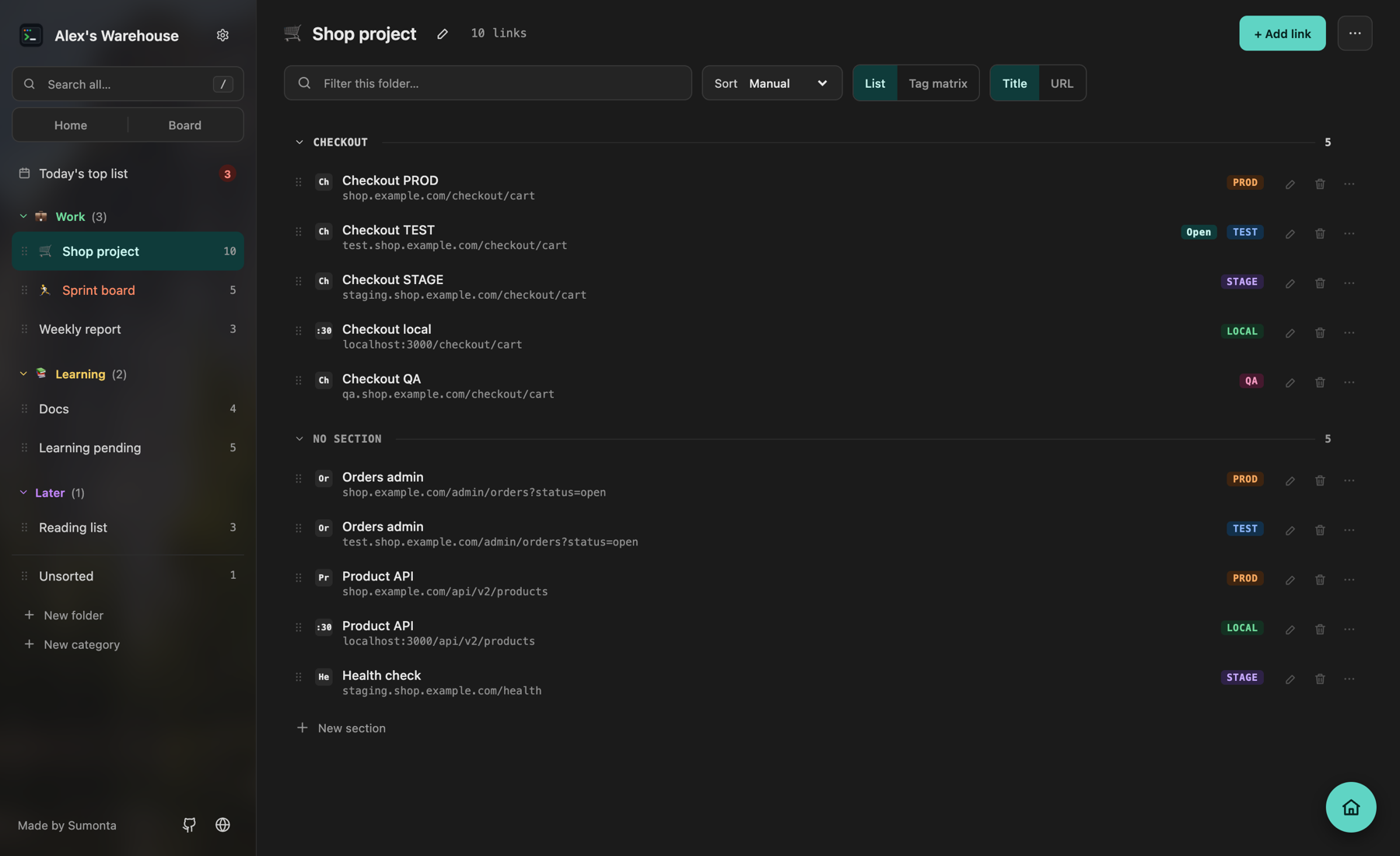
Notes and priority
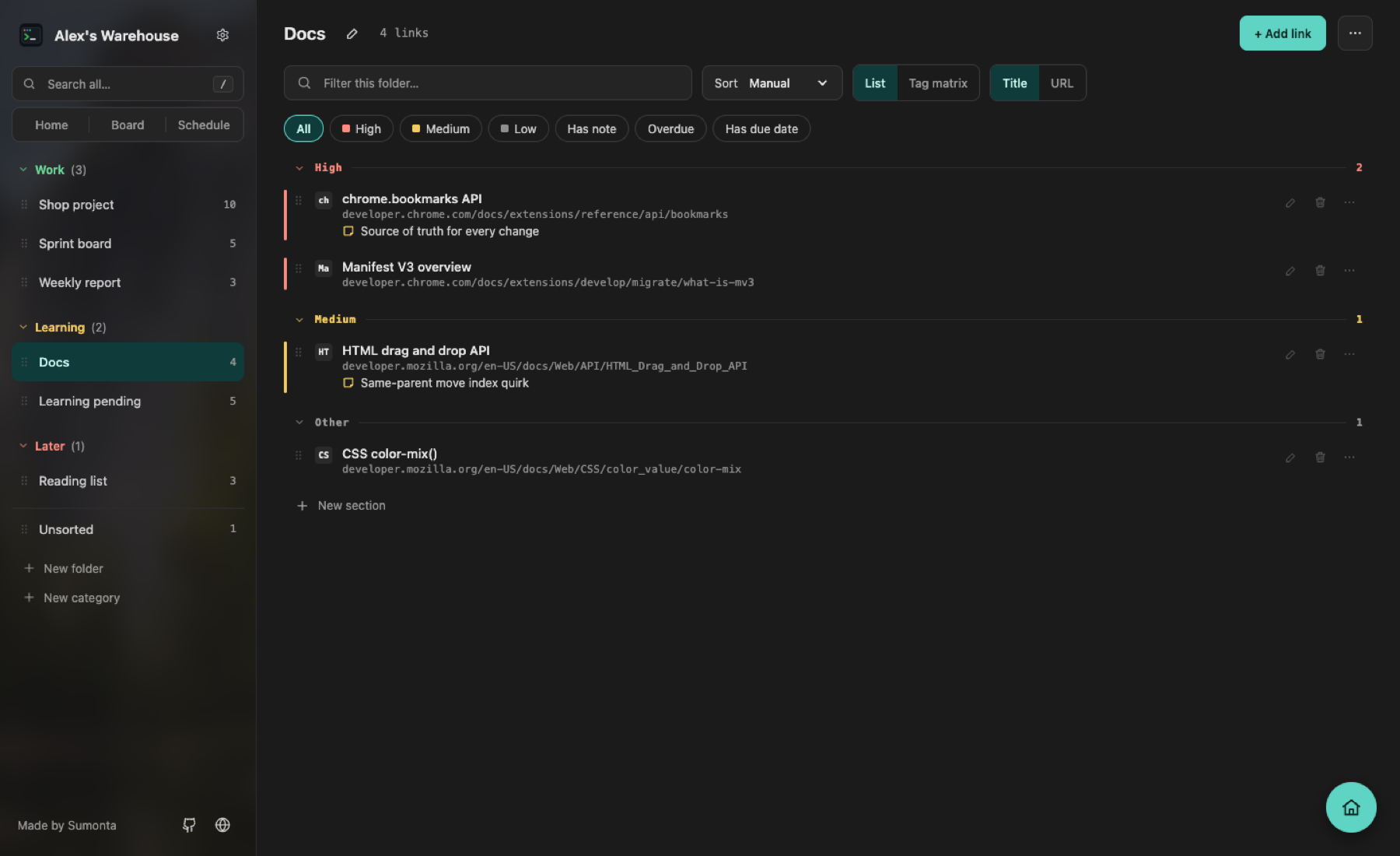
- Give a link a short note (up to 200 characters) and a priority: High, Medium or Low. Set them in the popup when you save, in the edit form, or from the row menu.
- Priority links come first, under High, Medium and Low headers, with a colored stripe. Your sort still applies inside each group. In folders with sections, priority links go first inside each section.
- Filter buttons: High, Medium, Low or Has note. The folder filter and search also find the text in your notes.
- Drop a link on a priority header to give it that priority.
- Notes stay on this computer. Backup › Export JSON includes them.
Due dates
- Give a link a due date, with a time if you want one. Set it in the popup when you save (press Due), in the edit form, or from the row menu.
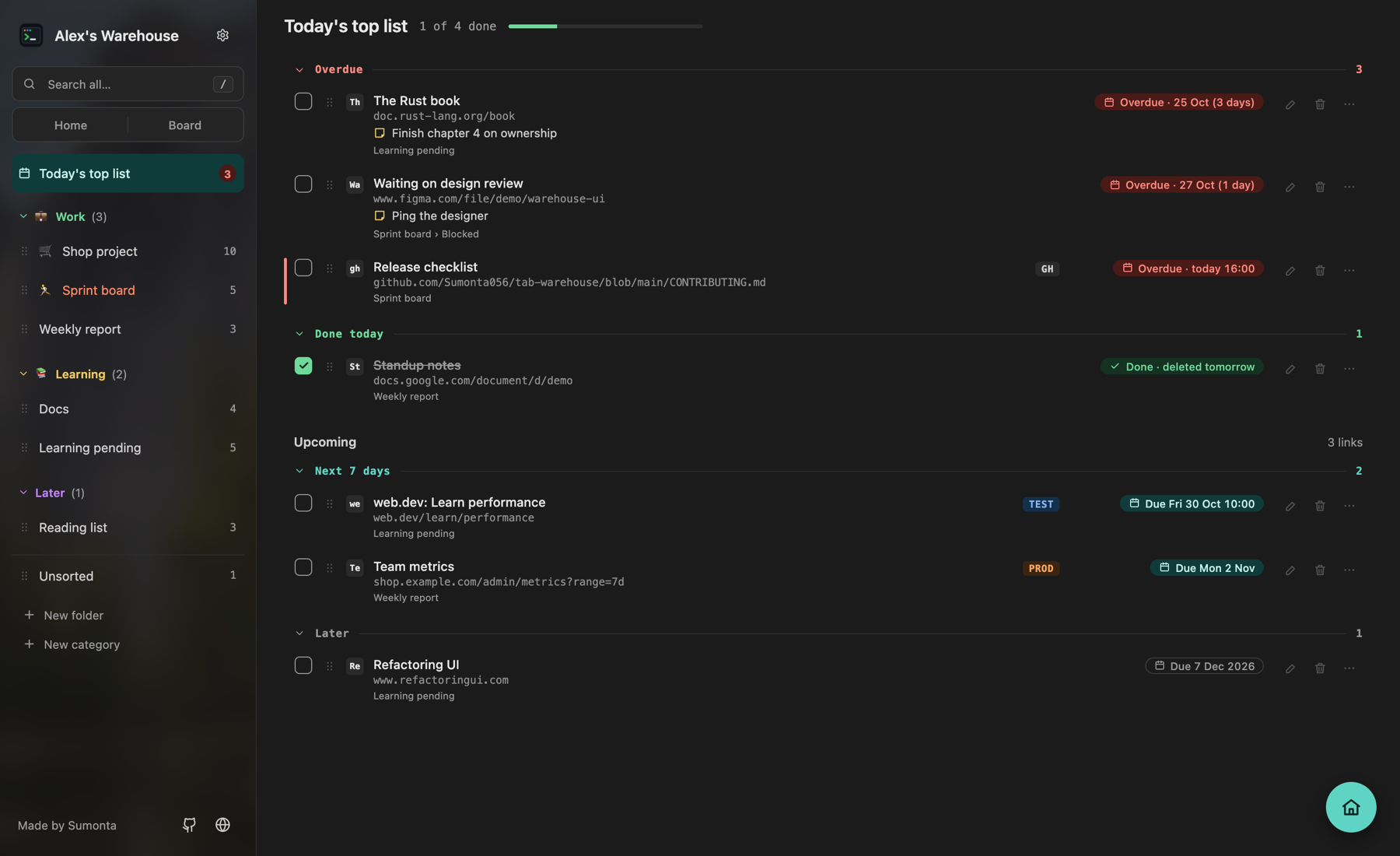
- Overdue links show a red chip. The Overdue and Has due date filter buttons find them.
- Today's top list (the row above your folders in the sidebar) is a checklist of every link due today or overdue, plus the upcoming ones. Tick a link (or open it from Today) to mark it done; done links are deleted the next day with Undo. The row shows how many are still open (
99+above 99), and Home shows the next one as Up next. - A backup never carries a tick, and Undo of a deleted link brings back its note, priority and date but not its tick, so nothing is deleted by surprise. Only a visible tab deletes done links.
- The due chip sits on the right of the row, so the dates line up.
- Turn on Also add to Google Calendar to open a filled-in Google Calendar event after you save. Google sends the reminder. The extension asks for no extra permission.
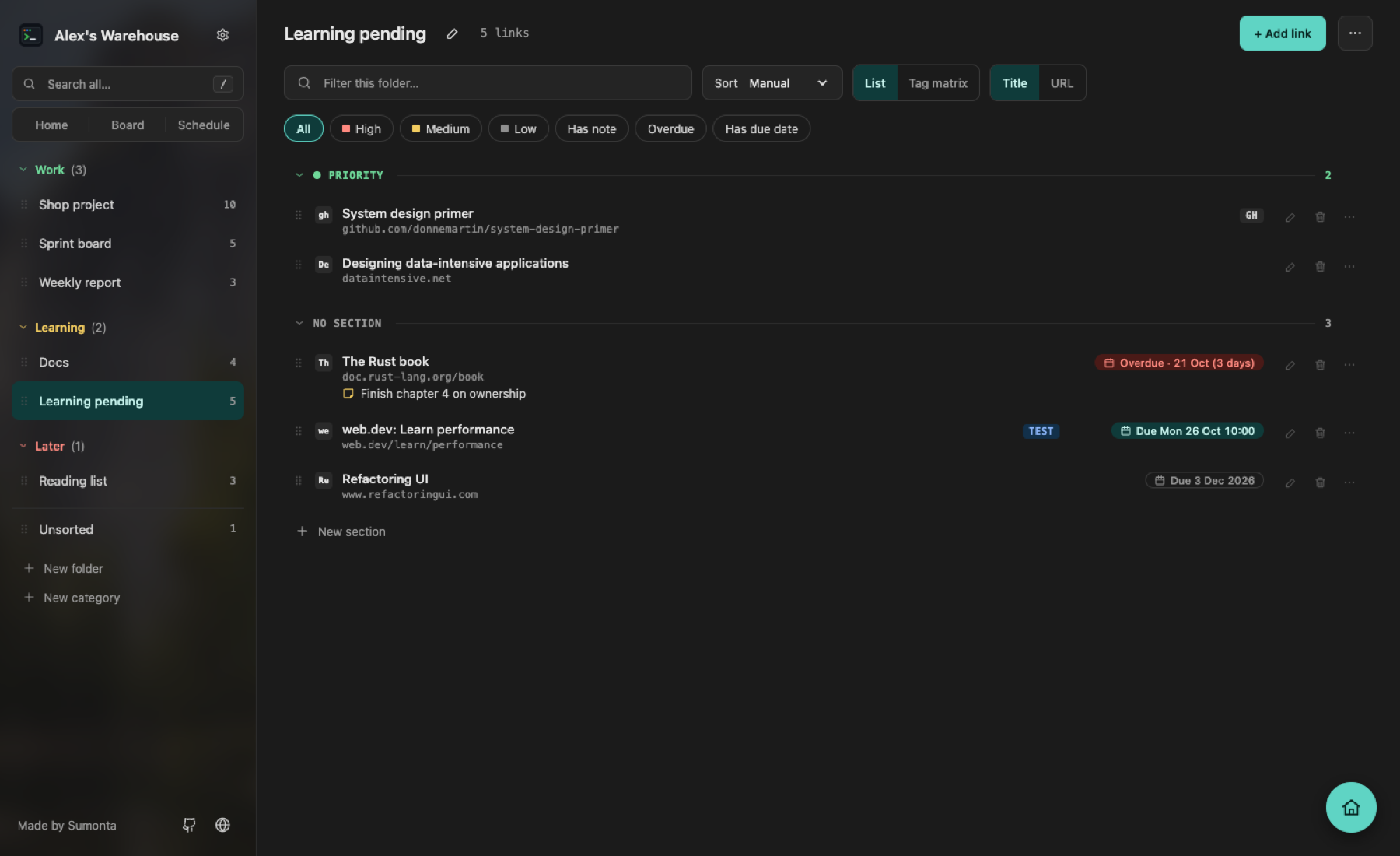
Tags
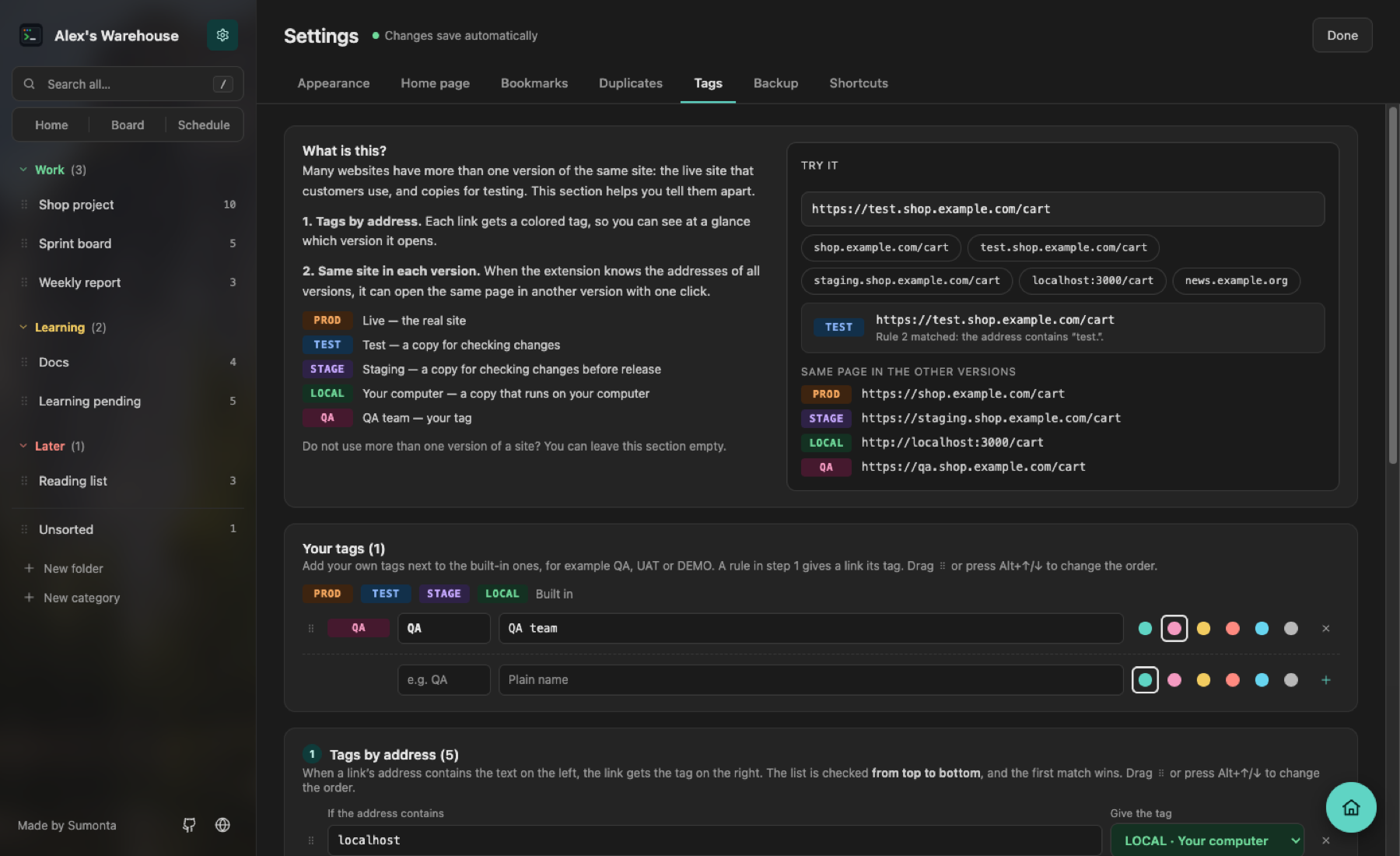
- Your tags: add your own tags, such as QA, UAT or DEMO, next to the built-in PROD, TEST, STAGE and LOCAL. Pick one of 6 colors.
- Tags by address: "if the address contains
-test.give the tag TEST". The first matching rule wins. Without rules, words like PROD or TEST in the title still work. - Same site in each version: list the hosts of a site once, one box per tag. Every link then offers Open on TEST / PROD / ….
- Tag matrix view: one row per page, one column per tag. Empty cells offer + derive.
- A Try it box explains which rule matches a link and why. Copy both lists as text and paste them on another machine.
Search and command palette
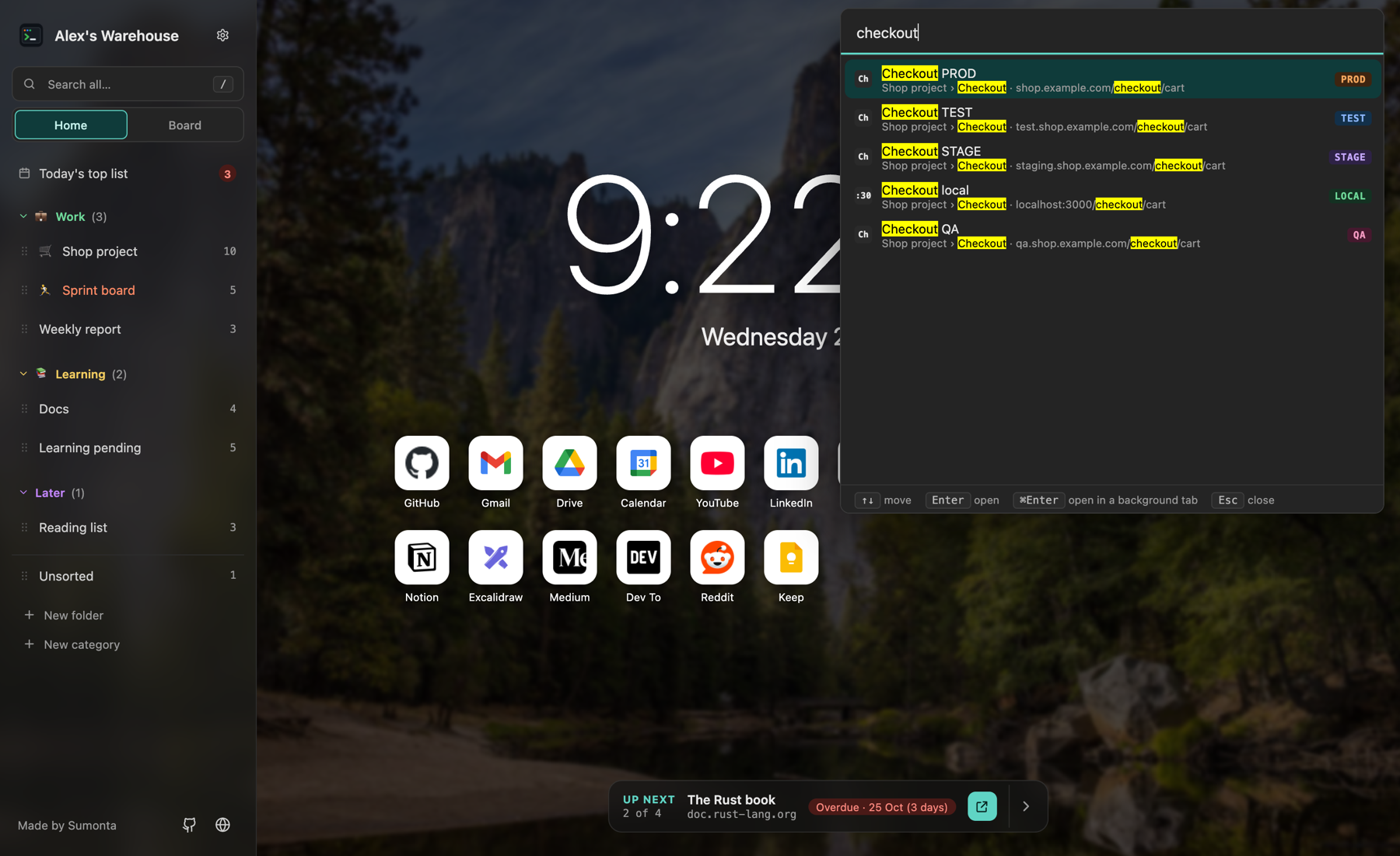
⌘⇧K/Ctrl+Shift+Kon a Tab Warehouse tab opens the command palette as a toolbar popup, so you can type at once even while the address bar has focus (change the key atchrome://extensions/shortcuts). It finds links, folders and Settings tabs by title, address, folder, note or tag.Enteropens the link in the Tab Warehouse tab,⌘Enterin a background tab (the palette stays open). A folder, Home, Board, Today's top list or a Settings tab opens on the Tab Warehouse page./searches every folder from the sidebar box.- Type
twand a space in Chrome's address bar to search your links from any tab.
Popup (⌘⇧B / Ctrl+Shift+B)
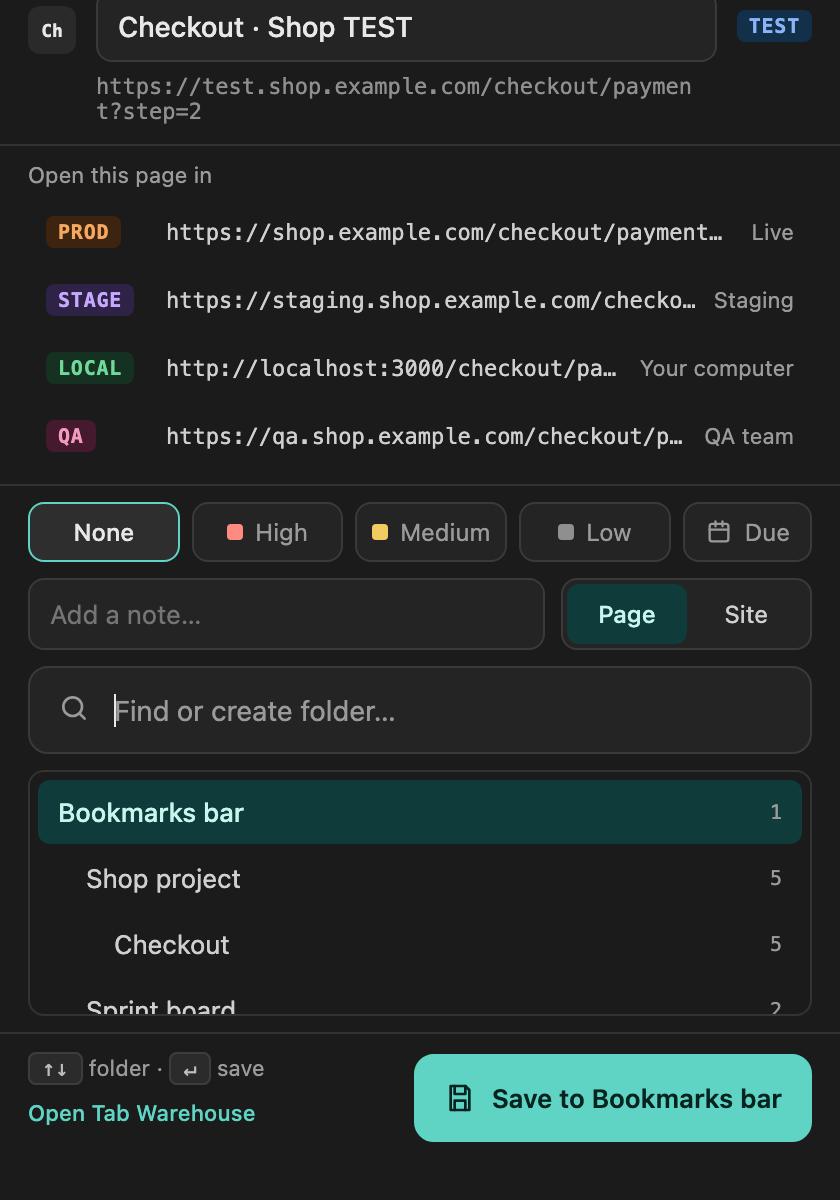
- Save the current tab into any folder, or create a new folder by typing its name.
- Save the full page or the whole site (
origin/). - Shows the tag and remembers the last folder.
- Warns in orange when the page is already saved, also when only
?utm_…,#partor a trailing/differ, and shows where. Save again still saves a second copy. - Quick save (
⌘K/Ctrl+K): saves the tab into the last folder you saved to (or the root) without opening the popup. The toolbar icon shows a green ✓ for 2.5 s. If the page is already saved, nothing is saved and the popup opens with the warning. - Open this page in: opens the same page in your other versions (from Same site in each version).
- Add a priority and a short note before you save.
Settings and backup
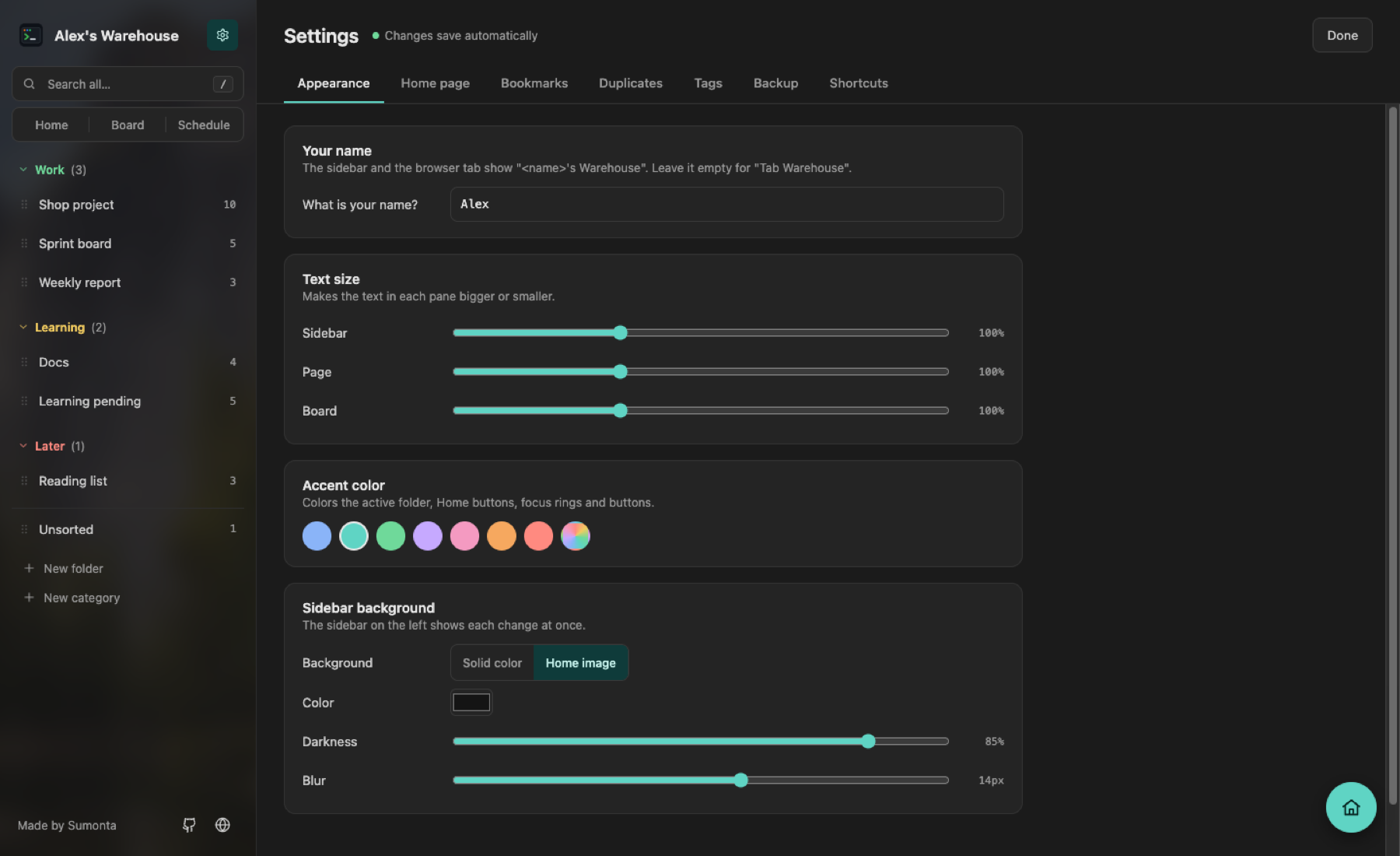
- One Settings view with 7 tabs: Appearance, Home page, Bookmarks, Duplicates, Tags, Backup, Shortcuts.
- Shortcuts shows the keys Chrome gives the extension (or Not set), the
twaddress bar keyword and the fixed keys of the page. Change shortcuts opens Chrome's shortcuts page, because Chrome does not let an extension change its own keys. - Duplicates lists links saved more than once. Keep one copy; the others are deleted with Undo.
- Every change saves at once. There is no Save button.
- Text size for the sidebar, the page and the Board (80–140 %).
- Export to JSON (links, sections, sidebar order, categories and preferences) or to HTML (Chrome's bookmark format). Import merges and skips URLs you already have.
Live demo
Try the real extension in your browser, with sample bookmarks and nothing to install: https://sumonta056.github.io/tab-warehouse/#demo.
The website and the demo live in site/. The demo loads the extension's own newtab.html and popup.html with a fake chrome.* API (site/demo/demo-chrome.js), so nothing is saved. The Pages workflow builds and deploys the site after CI passes on main. To preview it locally:
./site/build.sh && python3 -I tests/serve.py 8811 _site
# then open http://127.0.0.1:8811/
Install
Chrome Web Store (recommended)
- Open Tab Warehouse on the Chrome Web Store and click Add to Chrome.
- Open a new tab, then open ⚙ Settings to add your name, your Home sites and your root folder.
If the store page does not open or the add does not work, use the ZIP below.
Download ZIP (if the store does not work)
- Download the latest ZIP from Releases and unzip it. Move the folder to a place where it can stay, for example Documents.
- Open
chrome://extensionsand turn on Developer mode (top right). - Click Load unpacked and choose the unzipped folder (the one that contains
manifest.json). - Open a new tab. If Chrome asks, click Keep it. Then open ⚙ Settings to add your name, your Home sites and your root folder.
Update: download the new ZIP, replace the old folder, then click ↻ on the extension card. Your bookmarks and settings stay.
From source
git clone https://github.com/Sumonta056/tab-warehouse.git
Load the extension folder of the clone with Load unpacked. It runs as it is, with no build. After a git pull, click ↻ on the extension card.
The release ZIP is built: npm install, then ./tools/package.sh (or npm run build for an unzipped dist/ folder you can load the same way).
Quick start
- Pick your root folder. Open ⚙ Settings → Bookmarks. Its subfolders become the sidebar. By default it uses your bookmarks bar.
- Add tags by address. Settings → Tags → Tags by address. For example:
localhost→ LOCAL,-test.→ TEST,-stage.→ STAGE. - Link your versions. Settings → Tags → Same site in each version. Add one row per site with its PROD, TEST, STAGE and LOCAL hosts.
- Save a page. On any site, press
⌘⇧B(macOS) orCtrl+Shift+B(Windows/Linux), pick a folder and press Enter. - Open the tag matrix. Open a folder and choose View → Tag matrix.
Keyboard shortcuts
| Keys | Action |
|---|---|
⌘⇧B / Ctrl+Shift+B |
Open the save popup |
⌘K / Ctrl+K |
Quick save the tab without the popup |
⌘⇧K / Ctrl+Shift+K |
Open the command palette (on Tab Warehouse) |
⌘Enter (in the palette) |
Open the link in a background tab |
tw + space (in the address bar) |
Search all folders from the address bar |
/ |
Search all folders |
Enter (in search) |
Open the first result |
Esc |
Clear search or filter; close Settings |
j / k |
Next / previous: Home, Board, Today's top list, folders |
Alt+↑ / Alt+↓ |
Move the focused folder or section up / down |
← / → (on the sidebar edge) |
Resize the sidebar by 16 px |
← / → (in Settings) |
Next / previous tab |
↑ / ↓, Enter (in the popup) |
Pick a folder, save |
Settings › Shortcuts lists these keys. To change the Chrome keys, click Change shortcuts there (it opens chrome://extensions/shortcuts).
Change ⌘⇧B, ⌘K and ⌘⇧K at chrome://extensions/shortcuts. An install that is already there keeps its old keys after an update: set them there, or paste tools/set-shortcuts.js into the Console of that page. Chrome skips a suggested key that another extension already uses; then the shortcut shows as not set until you pick one there.
⌘K / Ctrl+K quick saves on any page. Many sites (GitHub, Slack, Notion) use ⌘K themselves and lose it while the extension has it; if you want it back there, set another key or none. On Windows Chrome may keep Ctrl+K for itself; then the shortcut shows as not set and you can pick a key at chrome://extensions/shortcuts.
Privacy and permissions
Tab Warehouse has no server, no account, no analytics and no tracking. It does not send your bookmarks anywhere.
- Links, titles and folders stay in Chrome's bookmarks.
- Preferences (sidebar order, categories, env rules, Home look) and link notes stay in
chrome.storage.localon your machine. Chrome sync does not copy them. - The only images loaded from the network are the official Google app icons (from
ssl.gstatic.com), any icon URL you add yourself, and the icon of a Home link that Chrome has no icon for. For that last case the extension asks Google's favicon service (www.google.com/s2/favicons) and sends it only the host name of that link. Local addresses (localhost, IP addresses) are never sent.
| Permission | Why it is needed |
|---|---|
bookmarks |
Read and edit your bookmarks — the core of the extension |
storage |
Save sidebar order, per-folder preferences, env rules, link notes and the Home look |
favicon |
Show site icons from Chrome's own favicon cache |
activeTab |
Read the current tab's title and URL, only when you open the popup or quick save |
tabs |
See which saved links are open in a tab, to mark them "Open" in the list; kept only in memory |
The extension has a background service worker (background.js) only for the address bar search (tw), quick save (⌘K) and the palette key (⌘⇧K, so it also works while the address bar has focus). It reads your bookmarks on each keystroke or key press and keeps nothing. The omnibox key is not a permission and shows no install warning.
How it works
Tab Warehouse is plain JavaScript with ES modules. There is no framework and no runtime dependency, and the source runs without a build step. For a release, esbuild bundles each page into one readable (not minified) script and one stylesheet in dist/. npm is used only for dev tools (esbuild, Husky, Prettier, commitlint).
- Chrome's bookmarks are the source of truth. The extension never caches titles or URLs. Every change calls
chrome.bookmarks, and the page re-renders fromchrome.bookmarks.getTree()when Chrome reports a change. - Extension-only data (sidebar order, categories, env rules, Home look) lives in
chrome.storage.local. - Sections are real subfolders, so they survive an uninstall and sync with Chrome.
extension/             Everything Chrome loads (choose this folder in Load unpacked)
  manifest.json        Manifest V3: new tab override, popup, ⌘⇧B, ⌘K and ⌘⇧K commands
  newtab.html/.js      The main page: sidebar + folder page
  popup.html/.js