
Tagged Sync for reMarkable
taggedsync.com — the short version, in pictures.
Disclaimer: Tagged Sync for reMarkable is an unofficial, community-built plugin. It is not affiliated with, endorsed by, or supported by reMarkable AS. "reMarkable" is a trademark of reMarkable AS, used only to describe compatibility.
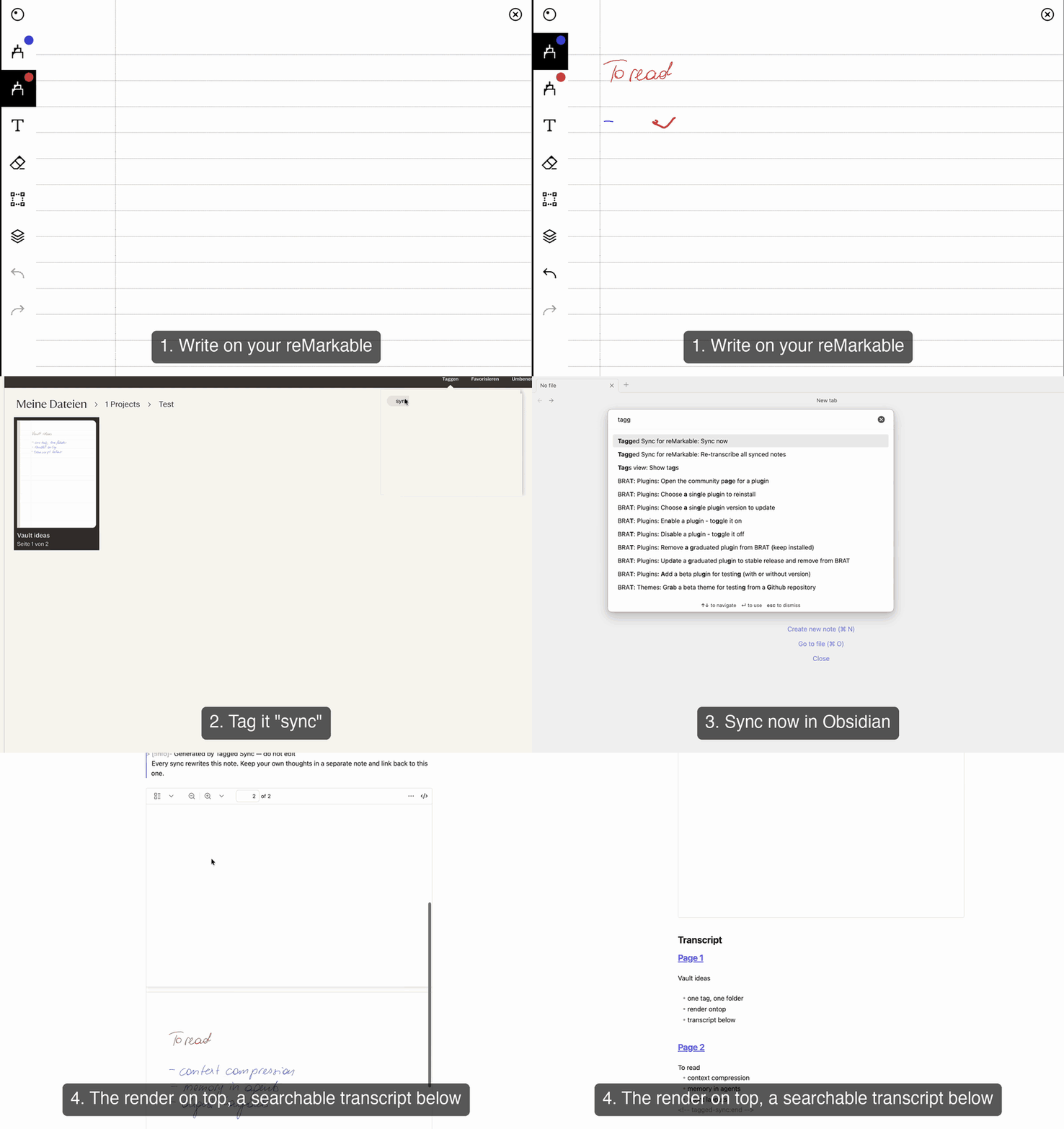
Tag a notebook or a PDF on your reMarkable, and it lands in the vault folder you mapped — your handwriting transcribed, your highlights quoted.
Your handwriting never leaves your machine. Rendering and transcription run on your own computer — no upload, no account with us. The plugin is free; Pro is an optional add-on for €24 once, no subscription.
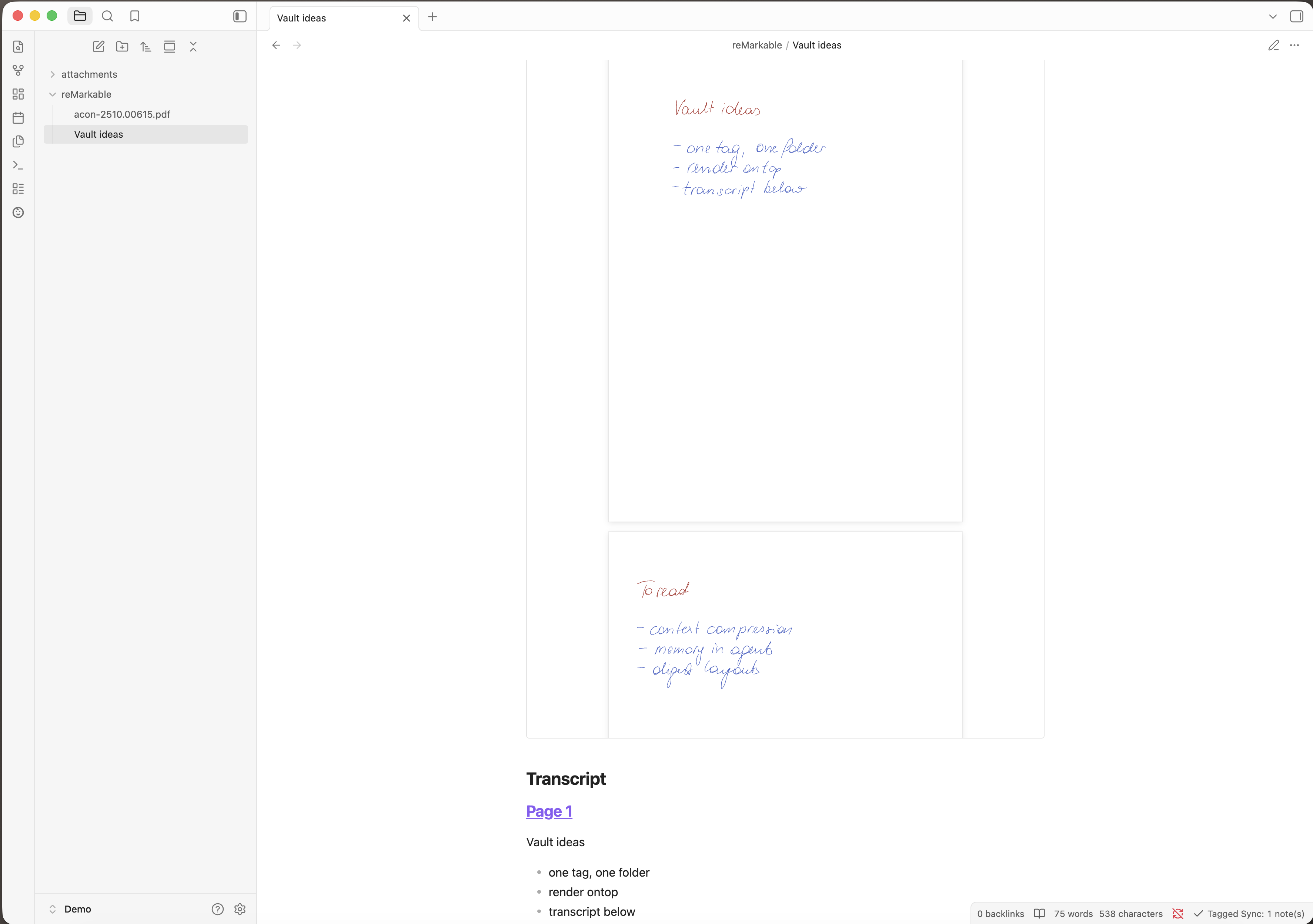
A notebook you wrote in
The pages as you drew them, embedded in the note, plus a searchable transcript underneath — split
by page, so a long notebook stays navigable. On a Mac, the pages themselves are searchable too:
click into the page and Cmd+F finds a handwritten word right on it.
A PDF you marked up
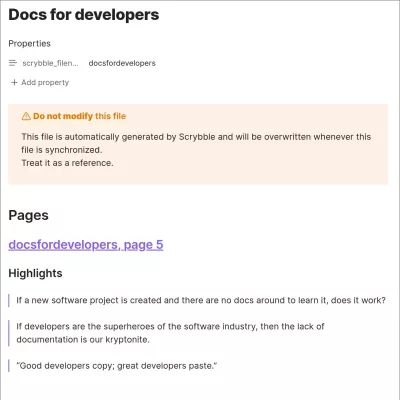
Every passage you highlighted or underlined, quoted with the sentence around it and filed under the section it came from. Each quote carries a block ID, so you can link a single passage from anywhere in your vault. None of it goes through transcription, so this works the same on Windows and Linux as it does on a Mac.
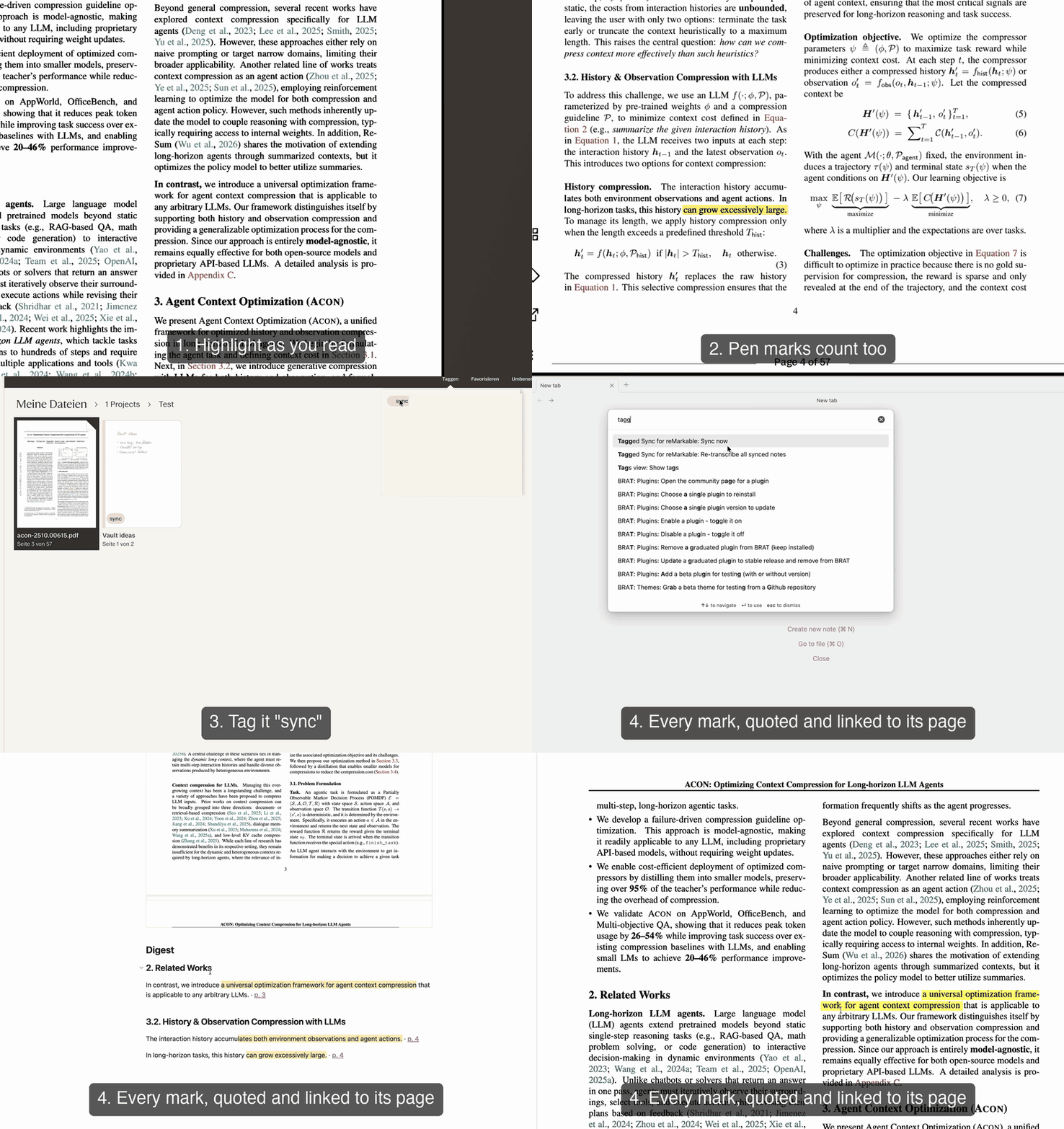
PDF shown: Kang et al., ACON: Optimizing Context Compression for Long-horizon LLM Agents, CC BY 4.0.
Desktop only · one-way (reMarkable → Obsidian, and → Zotero) · Sync never writes to your tablet. Send puts a PDF on it only when you run it — and only adds, never changes, deletes or moves anything.
What makes it different
Every feature at a glance, Free against Pro. Most rows link to the section that explains them.
Pro is €24, once — no subscription. See Tagged Sync Pro.
Works with
| Device / accessory | Status |
|---|---|
| reMarkable 2 | ✓ |
| reMarkable 1 | ✓ |
| reMarkable Paper Pro | ✓ — its larger canvas, its colour palette, and the shader highlighter are all handled; the fixes came from Paper Pro users' own files |
| reMarkable Paper Pure | ✓ |
| Type Folio (typed text) | ✓ — taken from the file exactly as you typed it, never transcribed |
| "Read on reMarkable" browser extension | ✓ — a sent article counts as a document to mark up |
| EPUB books | ✓ — read as the book the device made of them, not as ink on blank pages |
Obsidian itself must be the desktop app — see Limitations.
Contents
- Before you install
- How it works
- Install and set up
- Handwriting transcription
- Typed text and the Type Folio
- Tagged Sync Pro
- Zotero
- Syncing without the cloud
- Annotated PDFs
- What gets synced
- Limitations
- Privacy and permissions
- Support
- Reporting a problem
- Requesting a feature
Before you install
Two limits, so you know them up front:
- The plugin syncs one tag. You map one reMarkable tag to one vault folder. You can change or remove that mapping at any time. Syncing more than one tag is what Tagged Sync Pro is for — €24 once, with a 14-day trial. Everything listed under Tagged Sync Pro needs a licence; the rest of this README works without one.
- Text transcription is built in on macOS 13 or later. Everywhere else — Windows, Linux, older Macs — you can transcribe by pointing the plugin at a local AI server you run yourself (Ollama, LM Studio, or any OpenAI-compatible server), or by using the optional managed local model where your machine qualifies. With none of those set up, your notes still sync with the full handwriting render embedded — but there is no transcript. Marked-up PDFs and typed documents are unaffected: both are read from the file itself and need no transcription at all, so they work everywhere.
How it works
- Tag a notebook, a PDF, a single page, or a whole folder on your reMarkable — e.g.
sync. - It syncs to the reMarkable cloud as usual — or, with Pro, the plugin reads it straight off the tablet and the cloud never comes into it.
- In Obsidian, map that tag to a vault folder in the plugin settings.
- Run Sync now (or let automatic sync do it).
- You get a Markdown note with the render embedded, and either a searchable transcript or a digest of your marks below it.
Install and set up
You need Obsidian 1.5.7 or later on desktop (Windows, macOS, or Linux — Obsidian on mobile is unsupported), and a reMarkable account with cloud sync switched on — unless you sync straight from the tablet, which needs no account at all.
- In Obsidian, open Settings → Community plugins → Browse, search for Tagged Sync for reMarkable, and click Install, then Enable.
- Open Settings → Tagged Sync for reMarkable, and follow the "Connect" link to
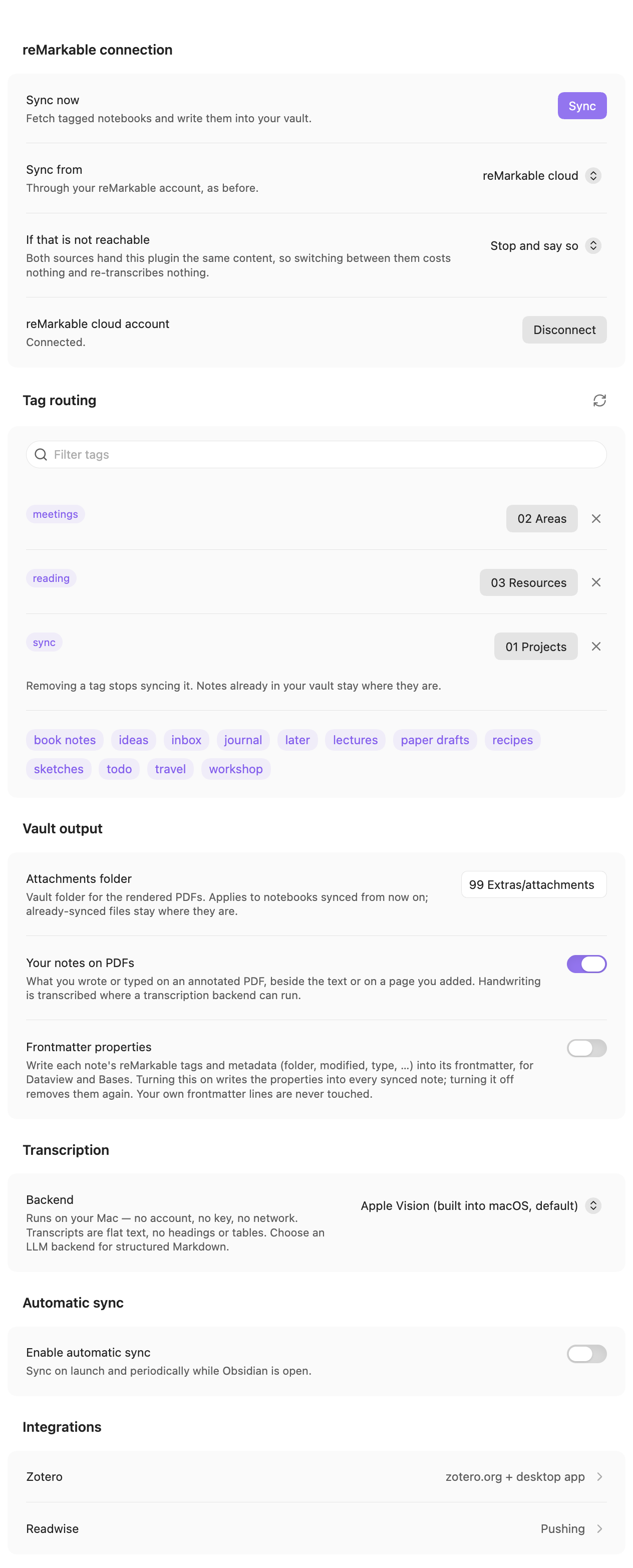
my.remarkable.com/device/browser/connectto get a one-time code. Enter it and click Connect. Codes expire after a few minutes, so get a fresh one if it is refused. - Under Tag routing, click Scan next to Discover tags to find the tags on your reMarkable notebooks, pages and folders, then choose a vault folder for the tag you want to sync. Only a mapped tag is synced — an unmapped tag is simply not selected, not lost.
- Click Sync now.
Sync is also available from Obsidian's command palette (Ctrl/Cmd + P) as Tagged Sync for
reMarkable: Sync now.
Stopping a sync
While a sync is running, the status bar shows a turning icon. Click it and confirm, or run Tagged Sync for reMarkable: Stop sync from the command palette. This works for an automatic sync and for re-transcribing too.
Stopping is safe rather than instant: the note being transcribed right now is finished first, so it
can take a moment — the status bar says stopping… meanwhile. Everything already written is kept,
and the next sync carries on from where it left off.
Automatic sync
Off by default. Under Automatic sync you can turn on a sync when Obsidian launches, plus an interval backstop while it stays open. A manual sync pushes the next automatic one out rather than triggering a redundant run.
Re-transcribing
Two commands, depending on how much you want re-read.
Tagged Sync for reMarkable: Re-transcribe this note re-reads just the note you have open. Use it to repair a single garbled transcript: on a paid backend it tells you how many pages that notebook is before it sends any of them, and if you have corrected that note by hand it asks first, because re-transcribing replaces what you wrote there. It says no in four cases — the open note was never synced from reMarkable, its notebook is no longer on your tablet, it is a PDF whose margin notes are kept as a digest rather than as a transcript, or the note has no transcript section to write into.
Tagged Sync for reMarkable: Re-transcribe all synced notes does the same for every synced note in the vault. That is the one to run after switching backends. It asks for confirmation first.
Both re-fetch the notebook and rewrite the transcript region, leaving your own notes untouched. They also write the embedded PDF again, with the same name and the same pages, so that on a Mac its text layer follows the new transcript.
Re-transcribing is also the way to fill in a transcript that never arrived — a note synced while the local model was still downloading, or while its engine was missing, keeps its render and no text, and nothing refills it on its own. Re-transcribing does. With the local model selected, the whole-vault confirmation tells you how long the run will take on your machine, measured from your own pages.
Handwriting transcription
Three backends can read your handwriting entirely on your own machine — no account, no API key,
no page image or text ever leaving the device. They are free, and they are the default. Whichever
you pick, each page is rendered to a temporary PNG under your OS temp directory (os.tmpdir()) and
deleted as soon as it has been read.
| Backend | Where it runs | Set-up |
|---|---|---|
| Apple Vision | macOS 13 or later | none, it is the default there |
| A local server you run yourself | everywhere | install Ollama or LM Studio |
| Managed local model | Apple Silicon, Windows on ARM | one opt-in click, a 1.6 to 6.2 GB download depending on the model |
Four cloud backends are also available, with Tagged Sync Pro. Those are the one case where a page image leaves your device: you choose them, they use your own API key, and they are off unless you turn them on.
Apple Vision aside, you name the model yourself. The Model field starts empty on every backend, local and cloud alike, and the plugin suggests nothing: a model id shipped inside a plugin goes stale the day its provider retires it, and the error you then get reads like a problem with your API key rather than what it is. Take a current name from your provider's own list. Until you do, settings says so, and a sync reports "No model is set for this OCR backend" rather than quietly producing no transcript.
On Windows and Linux nothing transcribes by default: notes sync with the handwriting render
embedded and no ## Transcript text, until you set up one of the other two local backends. You can
also set the backend to Off on purpose if you only want the render.
Apple Vision (macOS)
The default on macOS 13 or later, and nothing to configure. It auto-detects language and reads cursive well, but produces flat text — no headings, lists, task lists, or tables. Its structured API is macOS Swift-only and unavailable here. It can also misread; see Writing your own notes.
For transparency: the page PNGs are transcribed by invoking the built-in /usr/bin/osascript
binary, which drives Apple's Vision framework. This runs on your machine with no network
egress. On a Mac it also runs alongside any other backend, to place the
text layer.
A local server you run yourself
If you already run — or are willing to install — a local AI server, the plugin can send each page to it and get the text back. Nothing leaves your machine, and there is no account or key. This is the one free route that works everywhere, including Windows on x64 and Linux.
- Install and start Ollama, LM Studio, or any other server that speaks the OpenAI
/chat/completionsAPI, and load a vision model into it. - In the plugin settings, set Backend to that server and enter the model's name. The address is pre-filled for Ollama and LM Studio; change it only if yours runs elsewhere.
Which model you use is your choice. For what it is worth: I measured Qwen2.5-VL-7B at 7.6 % character error — about three times more accurate than Apple Vision on the same pages — but I measured it running the model directly, not through one of these servers, so treat it as a starting point rather than a promise. That number is the 7B build: a smaller variant of the same family is a different model, and I have measured none of them. Issue #116 carries a user's own measurements of the smaller ones, with the caveats they put on them.
Two things settings will tell you about the model you name, where the server can be asked. A
text-only model cannot read a page image at all. And a model that reasons before answering
transcribes far more slowly and can lose a page: the answer runs past what the model may return, and
that page is left out rather than saved half-read. If that happens, the sync says so at the end —
switch to a model that does not reason (often the -instruct build of the same family) and run
Re-transcribe all synced notes, because a later sync will not pick those pages up on its own.
The reasoning hint needs Ollama, LM Studio 0.4.0 or newer, or — with Pro — OpenRouter; other servers expose nothing to read it from, and then settings says nothing rather than guessing.
If the server is not running, settings says so, and a sync that hits it leaves the notes with their render and reports it at the end rather than failing quietly.
Local model (optional, opt-in)
On some machines you can switch the backend to a local AI model instead. It reads handwriting two to eight times more accurately than Apple Vision, depending on the model, and keeps headings and lists, and like Vision it runs entirely on your machine. It is never a default: a fresh install downloads nothing, and Apple Vision stays the default on macOS.
Choosing it downloads 1.6 to 6.2 GB of model files plus a 12 MB program, after an explicit opt-in in settings — three models ship, and settings offers the ones your machine can run, with the most accurate marked as the default. Every file is checked against a SHA-256 published in the plugin before anything runs. It is slow compared with Vision — roughly 15 seconds a page on a fast Mac against Vision's 0.4 — and it holds between 3 and 16 GB of memory while it runs, depending on the model (Qwen2.5-VL-7B is the heavy one).
Offered only on:
| Requirement | |
|---|---|
| macOS | Apple Silicon, 8 GB of memory or more; 16 GB for Qwen3-VL-8B (the most accurate), 18 GB for Qwen2.5-VL-7B |
| Windows | ARM (Snapdragon X and similar), 16 GB of memory or more; 24 GB for Qwen3-VL-8B (the most accurate) and Qwen2.5-VL-7B |
Intel Macs, Windows on x64 and Linux do not get the option, and settings says why on the machine
itself. Windows x64 is excluded because Windows Defender quarantines the engine — the
llama.cpp builds for x64 have been flagged as Trojan:Win32/Wacatac.B!ml for years, the builds
are unsigned, and nothing this plugin does to its own download changes what a malware scanner
decides about someone else's binary. Windows on ARM uses a different build, which is not flagged.
Like any transcription it misreads sometimes, and it misreads differently: Vision's mistakes usually look broken on the page, while this model writes its mistakes as fluent text. Check anything that matters against the handwriting.
Cloud backends (Pro)
Which model you name is still your choice. For what it is worth: in October 2026 I measured seven cloud models on 264 handwritten pages (German scans, English phone photos and my own reMarkable pages), with the request exactly as 1.8.4 sends it and the cost as each provider billed it. Gemini 3.1 Flash-Lite was the cheapest, the fastest, and the best or close to the best reader on every set. Claude Haiku 5.5 costs the same per page and is the one to set if you copy published text by hand: Gemini declines to transcribe text it recognises as published, and since 1.8.5 the sync names such a page at the end instead of writing it blank. Gemini 4 Argon halves the errors on scanned paper at eight times the price.
A page cost about 0.05 cents with either of the first two, so 250 pages a month come to 12 or 13 cent