
English · Deutsch · voidstation.de · Download · Questions · Report a bug
Void Linux as a TV station: a dark tile interface in the style of Windows 8, controlled with a gamepad, remote, mouse or keyboard. It runs on Openbox; the start screen is a dedicated Python + Qt 6 program that draws straight on the GPU. The installer in the live system is Qt as well. The previous web interface (WebKitGTK) remains available as a fallback (Settings → System → Interface).
Features: YouTube (Firefox in kiosk mode), radio with search and favorites, TV channels from around the world (iptv-org),
emulators, an AppCenter for optional apps (xbps, Flatpak, AppImage, web), settings (language, scaling, resolution,
audio output, Wi-Fi, Bluetooth, mouse pointer), a Samba share \\<hostname>\share, several apps side by side with switching.
Interface in English or German, plus eleven machine-translated languages: Español, Français, Italiano, Latviešu, Magyar,
Nederlands, Polski, Português (Brasil), Ελληνικά, Русский, Українська (Settings → Language). The installer is English/German only for now.
The display server is XLibre (packages from xlibre-void);
X.Org is not used. If the interface fails to start twice, VoidStation reinstalls XLibre once;
after that, a rescue console appears. By hand: sudo /usr/local/sbin/voidstation-pkg xserver ensure|repair|status.
Remote access via SSH can be switched on and off under Settings → System.
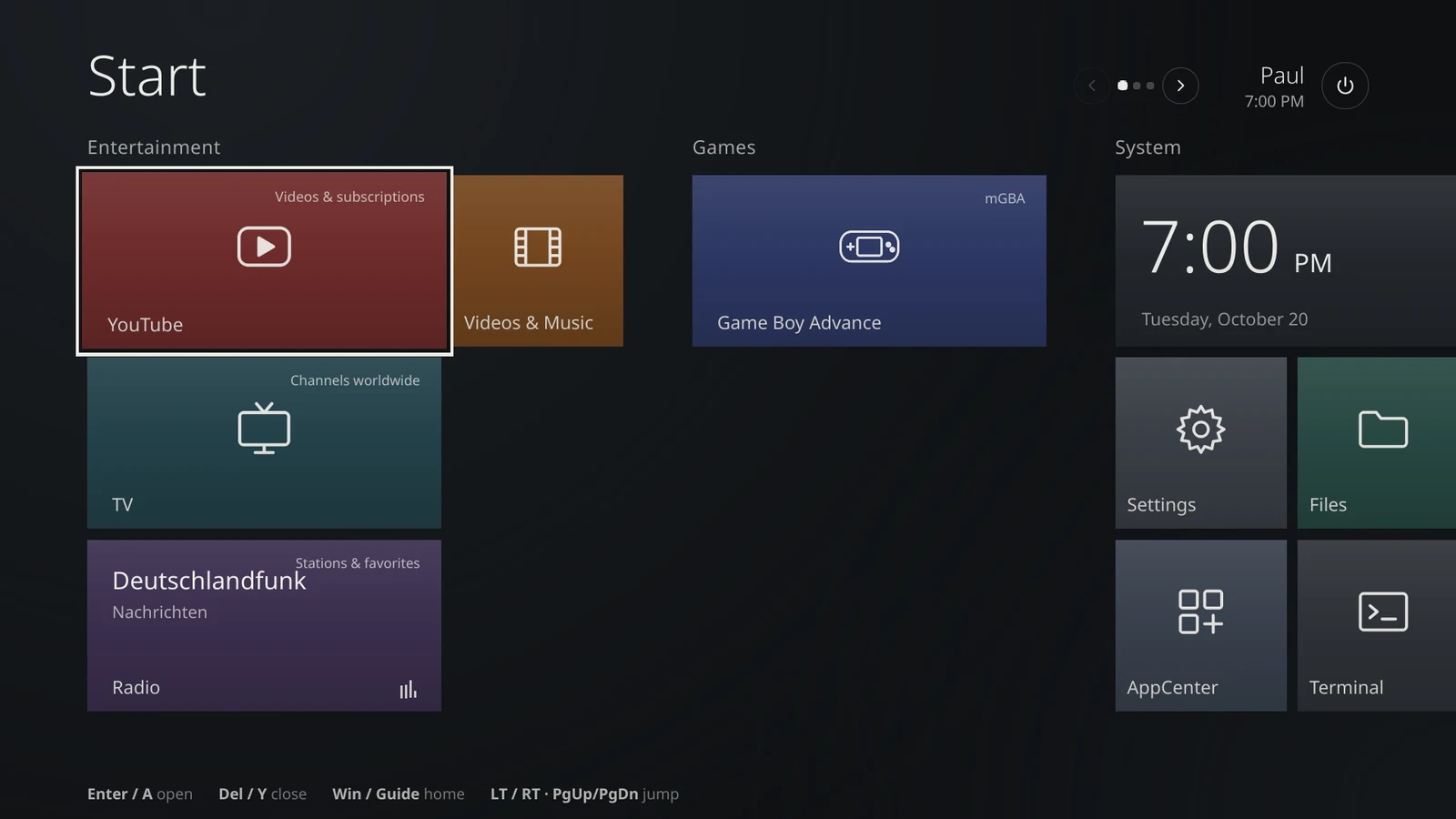
| TV | AppCenter | Radio |
|---|---|---|
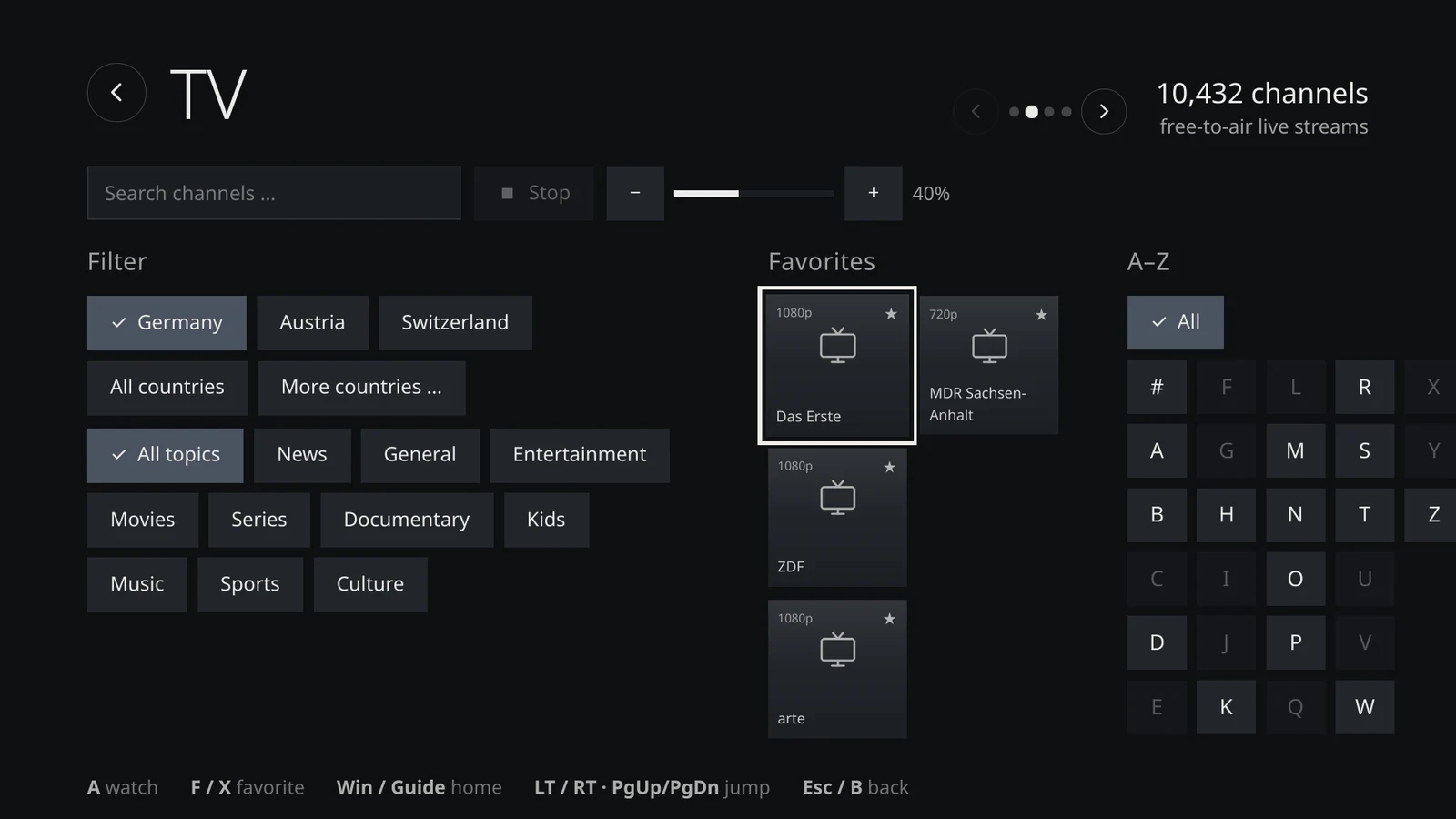 |
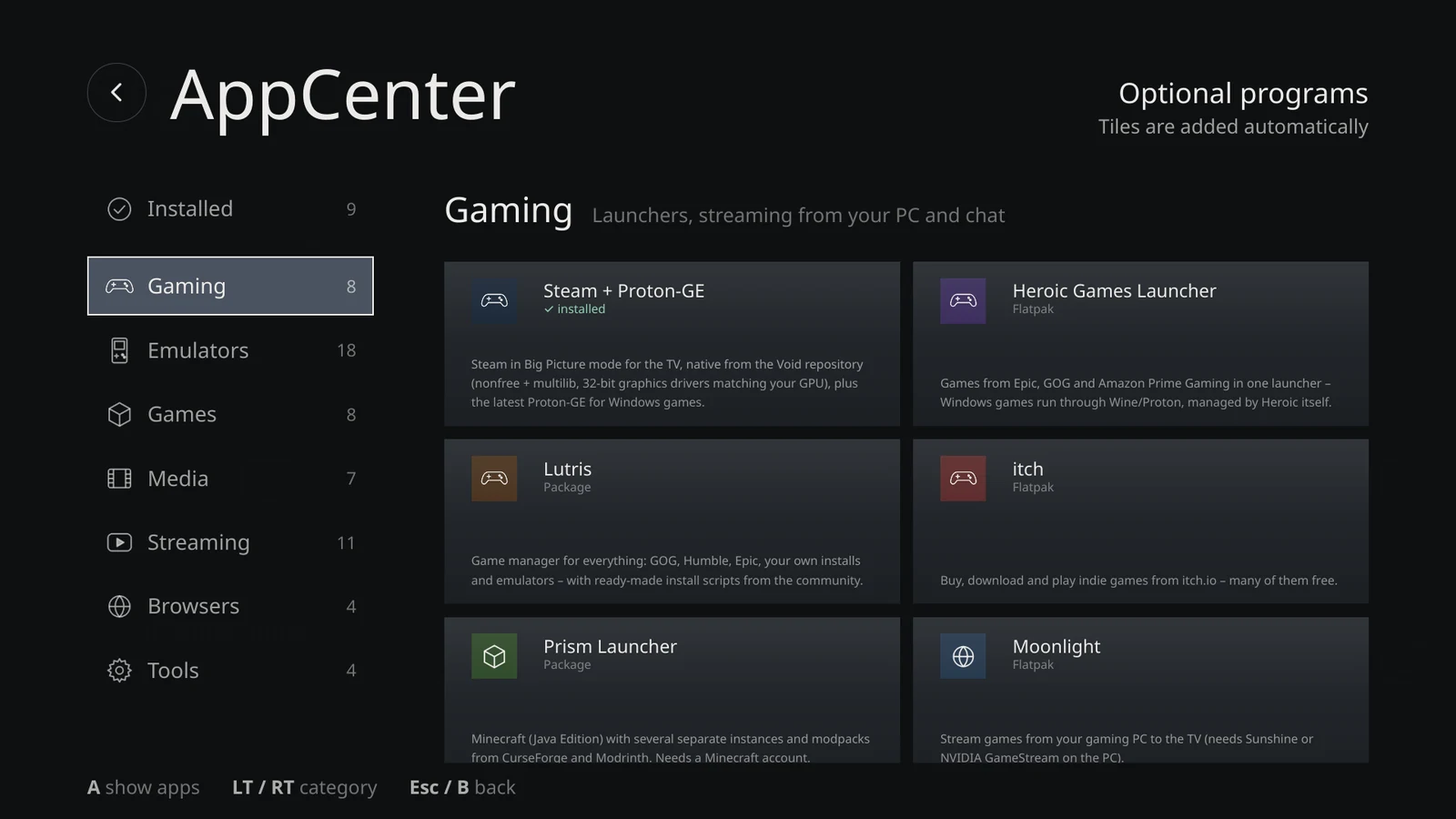 |
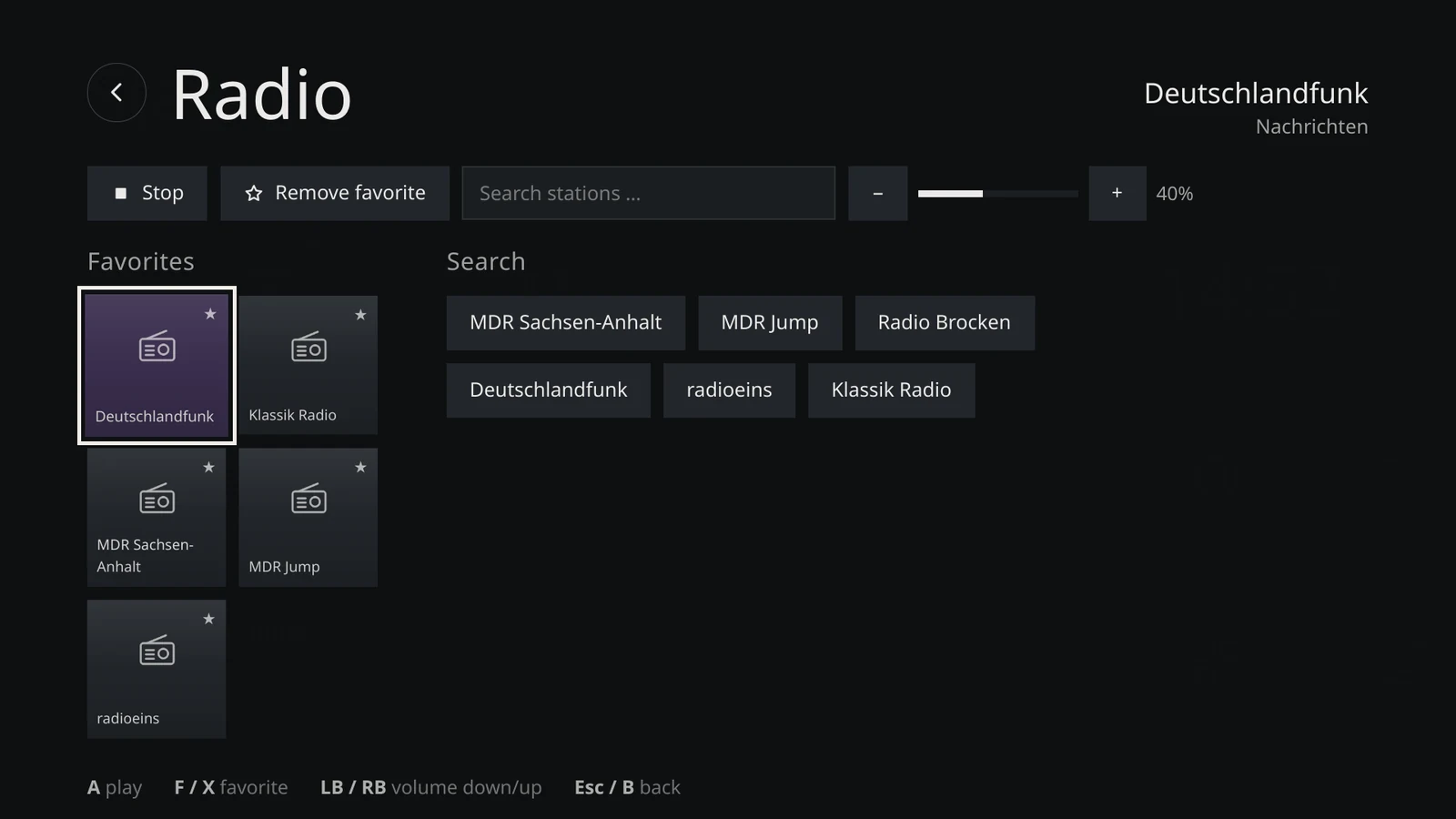 |
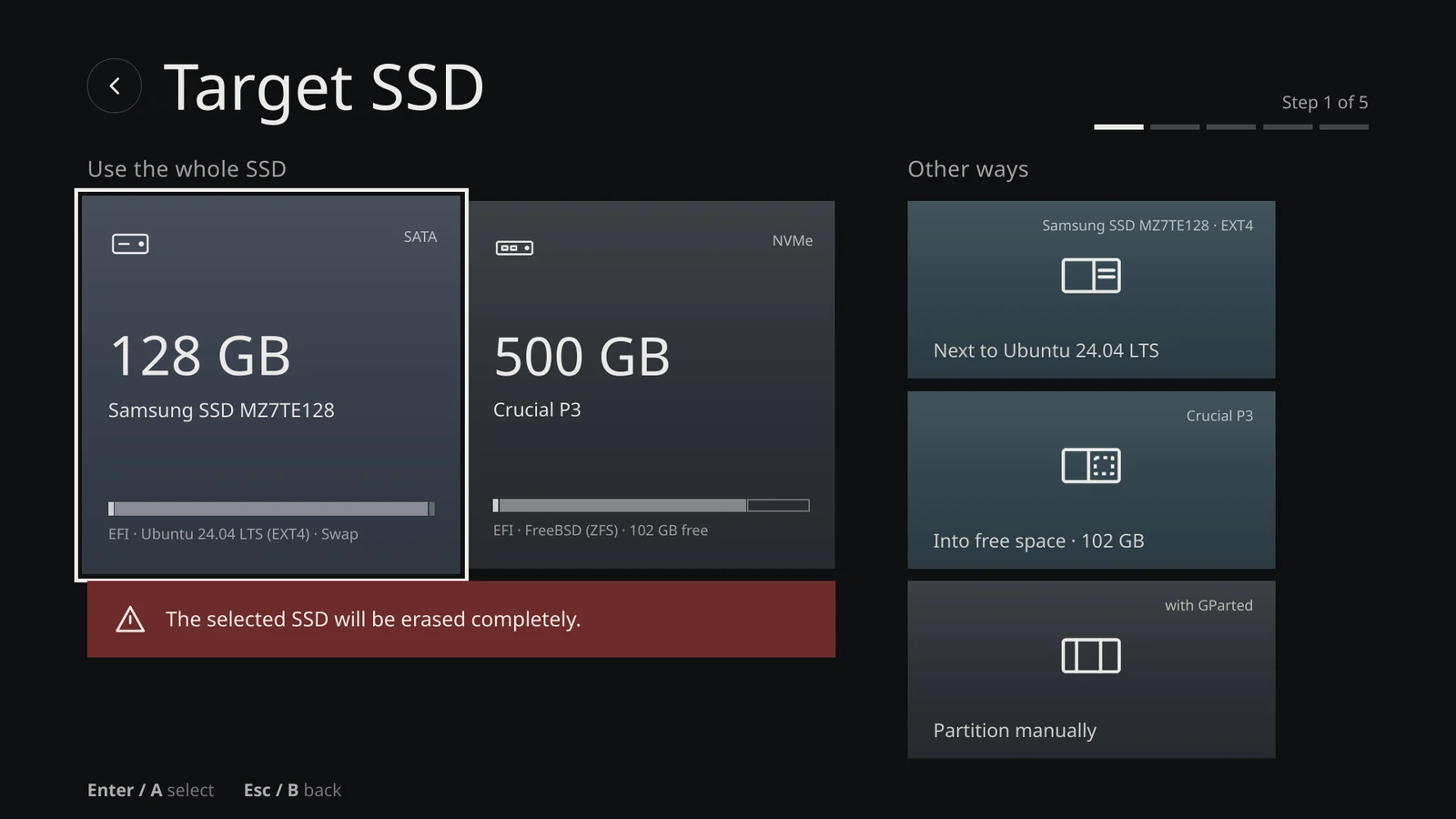
| Installer | Installer: target SSD |
|---|---|
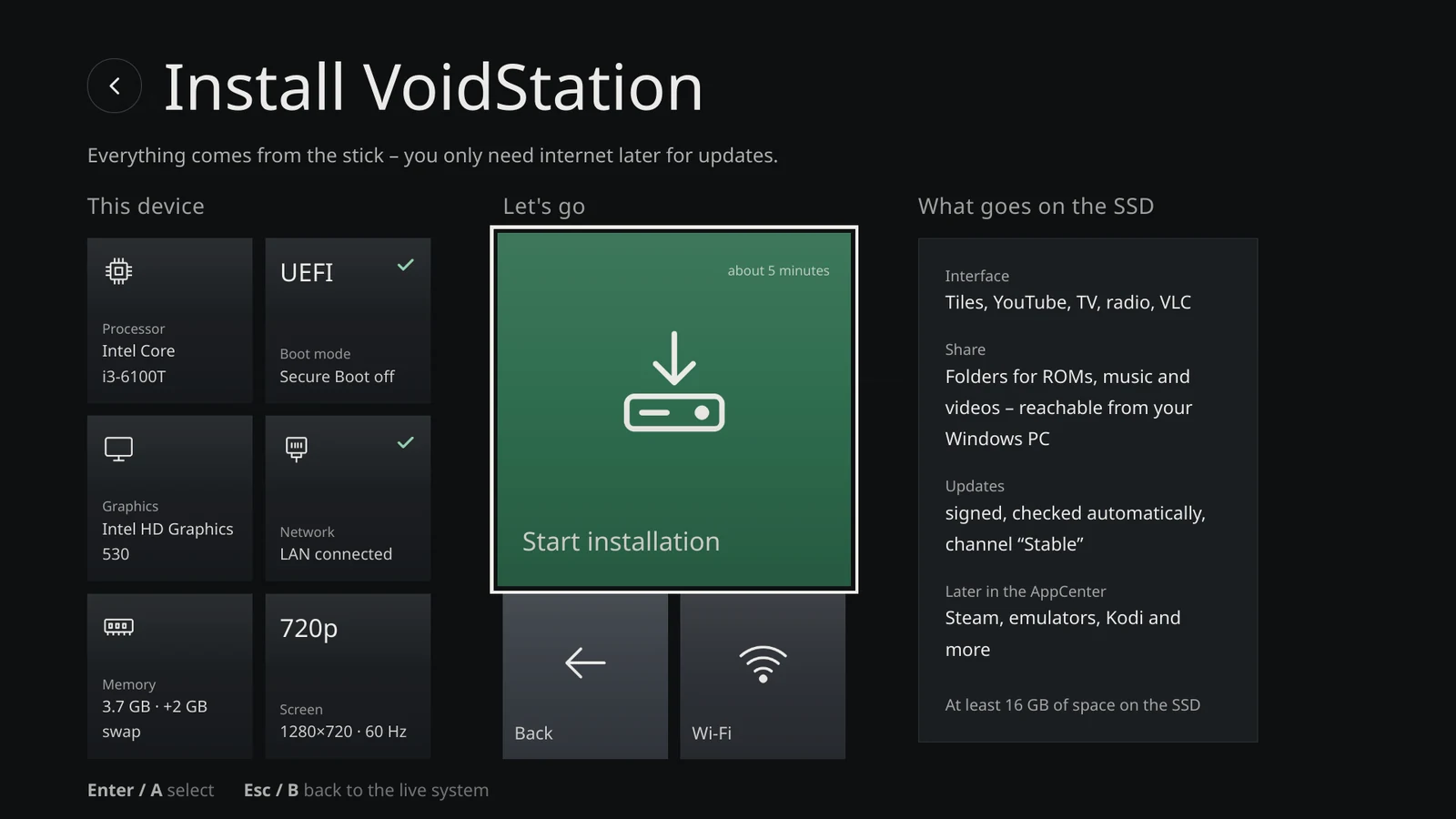 |
 |
Installation
VoidStation is installed exclusively from the live ISO: Download at voidstation.de (hosted on SourceForge).
- Download the ISO and verify it (see Verifying the download).
- Copy it onto a Ventoy stick or write it with Rufus / balenaEtcher.
- Turn off Secure Boot, boot from the stick, pick the language in the boot menu and then Start VoidStation Live (with NVIDIA from GTX 16xx / RTX 20xx on: … (NVIDIA only)).
- Try out the live system, then use the Install VoidStation tile: whole SSD, next to Windows or Linux, into free space or partitioned manually with GParted. About five minutes, no internet needed.
Minimum: 64-bit PC (x86_64), 4 GB RAM, 16 GB on the SSD, Secure Boot off.
Live ISO with installer
The live ISO is a complete VoidStation to try out (YouTube, TV, radio, VLC) with the Install VoidStation tile. The installer uses the same tile design, in English or German, and copies the live system to the SSD – it doesn't need internet for that.
- Paths: whole SSD · next to Windows or Linux (NTFS, ext4 or btrfs is shrunk) · into free space (e.g. next to FreeBSD) · manual partitioning with GParted. With several systems there is a short GRUB boot menu; next to Windows, the hardware clock runs on local time.
- Minimum: 64-bit PC, 4 GB RAM, 16 GB on the SSD, Secure Boot off. If something is missing, the installer says what to do.
- Boot mode: UEFI supports every path. In BIOS mode (Legacy/CSM, e.g. older PCs or VirtualBox/QEMU with default settings) only “whole SSD” is available: GPT with a BIOS boot partition, GRUB for BIOS and additionally for UEFI – the SSD then boots in both modes.
- Boot menu of the stick: with logo – first the language (Deutsch / English, sets interface, installer and keyboard), below it Start VoidStation Live (free drivers) and … (NVIDIA only) (NVIDIA driver for GeForce GTX 16xx / RTX 20xx and newer) · Reboot. A splash screen with the logo appears while booting. Installing from “NVIDIA only” keeps the NVIDIA driver in the installed system – otherwise the installer removes it again (along with DKMS and the compiler).
- Errors: Every step can be retried, the boot manager also “another way” (fallback loader instead of an NVRAM entry).
Log:
/run/voidstation-installer/install.log, can be saved to a USB stick. - Terminal:
sudo voidstation-installer text(whole SSD only) ·probeshows what the installer detects.
Verifying the download
Next to every ISO on SourceForge there is a .sha256 file and its signature .sha256.sig:
sha256sum -c voidstation-<version>-<date>.iso.sha256
curl -fsSL https://raw.githubusercontent.com/Panther92/VoidStation/stable/keys/voidstation-release.pub \
  | awk '{print "voidstation-release namespaces=\"voidstation\" "$1" "$2}' > voidstation-signers
ssh-keygen -Y verify -f voidstation-signers -I voidstation-release -n voidstation \
  -s voidstation-<version>-<date>.iso.sha256.sig < voidstation-<version>-<date>.iso.sha256
On Windows: certutil -hashfile voidstation-<version>-<date>.iso SHA256 and compare with the sum on the download page.
Building the ISO
On a Void system (e.g. a VoidStation), takes 25–50 minutes. Official ISOs are built from the stable branch:
git clone https://github.com/Panther92/VoidStation && cd VoidStation   # or: git fetch in an existing clone
git show origin/stable:dist/build-iso.sh > /var/tmp/build-iso.sh
sudo bash /var/tmp/build-iso.sh
The ISO ends up in ~/share/ISO/ (with .sha256); your own radio and TV favorites come along.
Updates
On the TV: Settings → Updates → Update – the only update button. It checks and installs everything in one go: Void packages (including the kernel), Flatpaks, AppImages, Proton-GE and VoidStation itself (in that order; anything up to date is skipped). Devices check shortly after startup and then every 6 hours on their own. New VoidStation versions are announced right away at the bottom right – the update brings pending system updates along. System-only updates are only flagged once the system has been out of date for 30, 60 or 90 days (Settings → Updates → Remind about system updates after, default 90). The update dialog shows what's new and which packages are coming. Your tiles, favorites and settings are kept. A restart is only requested after a new kernel or a new VoidStation version.
In the terminal: vsctl update does the same as the button (with a live log). sudo xbps-install -Su
updates only the Void packages – that still works, and VoidStation notices it (finished updates disappear from
the display, after a new kernel “Restart required” appears at the bottom right). VoidStation itself is not an
xbps package and only comes via the button or vsctl update.
Channels: Stable (branch stable, default) or Testing (branch main, new versions first) –
switchable under Settings → Updates → Update channel.
Every version released to Stable is tagged v<version> and listed under
Releases – with a link to its live ISO, if that version has one.
Versions follow the calendar: 2026.11 is the release of November 2026, hotfixes to it are 2026.11.1,
2026.11.2 … New features spend at least 14 days in Testing before a monthly release train takes them to
Stable; a new live ISO comes out every three months. Details: RELEASING.md.
Signatures: Updates run as root, so devices only install updates signed with the publisher's key
(ssh-keygen -Y, namespace voidstation). The public key is in keys/voidstation-release.pub and comes onto
the device with the ISO.
Controls
| Controller | Keyboard | Mouse | |
|---|---|---|---|
| Move | D-pad / left stick | arrow keys | point, wheel scrolls |
| Open / select | A | Enter | click |
| Back | B | Esc / Backspace | right click |
| Close program, favorite | X / Y | Del, F, Y | ✕ on the tile |
| Next / previous group | RT / LT | PgDn / PgUp | arrows at the top right |
| Volume down / up | LB / RB | − / + | |
| Open update (when shown at the bottom right) | Select | U | click the hint |
| Power off | Start | – | ⏻ at the top right |
| Back to the start screen (from any program) | Guide / Home | Win |
The arrows at the top right appear as soon as a page is wider than the screen; the bright dot shows the current group. When updates are waiting (or a restart is needed after a new kernel), a yellow hint appears at the bottom right.
Languages
All interface texts live in launcher/web/i18n/<language>.json (key → text, {name} = placeholder).
In code: T('key', { name }) for texts, L(text) for tile, group and app names.
German and English are maintained by hand: new texts always go into both de.json and en.json –
build.sh aborts if a key or placeholder is missing in en.json.
The other languages (es, fr, it, lv, hu, nl, pl, pt-BR, el, ru, uk) were machine-translated –
corrections by native speakers are very welcome. A missing text falls back to English, then German, so a new
feature never breaks a language; build.sh lists how many texts are still English and rejects unknown keys or
wrong placeholders. Installer texts (inst.*) are not translated yet.
-
New language: a line in
LANG_TABLEinlauncher/launcher.py(id, name in that language, locale, Firefox language) pluslauncher/web/i18n/<id>.json. Formats live in the file itself:fmt.locale,fmt.date/fmt.dateYear(Qt date patterns),fmt.clock(12/24),fmt.pct; country names for the TV filter asregion.XX. -
Choosing the language: Settings → Language. Without a choice, the session's
LANGapplies (fr_FR…→ French,pt_BR…→ Portuguese (Brazil), unknown → German). -
Programs started from tiles get
LANG/LANGUAGEof the chosen language (VLC, PCManFM, GTK/Qt); Firefox profiles getintl.locale.requestedandintl.accept_languagesbefore every start. Programs with their own language setting (Steam, Kodi) keep it. -
Tiles: German default names (e.g. “Fernsehen”) are translated via
labelsin each language file; your own names stay as they are. Your own tiles can be bilingual too:"label": {"de": "Fernsehen", "en": "TV"}. -
AppCenter: descriptions via
app.<id>.descin the language file, otherwise the text fromcatalog.jsonapplies; post-install hints (notein the catalog) viaapp.<id>.note. Categories come fromcategoriesincatalog.json(order = sidebar, name vialabels, subtitle viaapps.catDesc.<category>); the interface builds “Installed” itself. -
English means
en_US: 12-hour clock (8:15 PM), dates and numbers in US format.
Themes
Settings → Appearance → Color scheme offers several themes (e.g. Dark, Light, High contrast, Nord). The chosen theme is stored in settings.json and survives updates.
Adding your own theme (drop-in)
New themes can be dropped in as a CSS file at launcher/web/themes/<theme-name>.css:
/* launcher/web/themes/matrix.css */
:root[data-theme="matrix"] {
  --bg-main: #051008;
  --bg-radial-1: #0d2814;
  --bg-radial-2: #020a04;
  --surface-base: #0a1f10;
  --surface-raised: #10331b;
  --surface-card: #143d20;
  --surface-card-hover: #1c542c;
  --surface-active: #00ff66;
  --text-primary: #a3ffc2;
  --text-secondary: rgba(163, 255, 194, 0.75);
  --border-focus: #00ff66;
  --border-subtle: #1c542c;
  /* ... */
}
VoidStation picks up new CSS files in the theme folder automatically and offers them in the settings.
Games, Bluetooth, program guide
- Games: copy ROMs into the share under
share/ROMs/<system>(gba,gbc,snes,nes,psx,psp,nds,gamecube,dreamcast…). The emulator tile then shows a game list; without games, the emulator starts directly. - Bluetooth: Settings → Bluetooth. Comes with
bluezandlibspa-bluetooth(audio via PipeWire); the user is in thebluetoothgroup. VoidStation runs its own pairing agent over D-Bus: “Just Works” is confirmed, legacy PIN devices get 0000/1234/1111, keyboard codes are shown on screen; requests are only accepted during a scan (+3 min). With several adapters the newest Bluetooth version wins (override: address in/usr/local/share/voidstation/bt-adapter). - Controllers: udev rules give Steam, emulators and SDL direct access (hidraw, uinput) to controllers from all common brands. The start page understands standard pads, plain USB pads, joysticks and arcade sticks; custom mapping in
~/.config/voidstation/pads.json({"<name or vid:pid>": {"<evdev code>": "a|b|x|y|lb|rb|lt|rt|select|start|up|down|left|right"}}). - Program guide (EPG): off by default. Turn it on by entering the address of an XMLTV file (
.xmlor.xml.gz):echo 'https://…/epg.xml.gz' | sudo tee /usr/local/share/voidstation/epg-urlThe file is downloaded daily, parsed in the background and cached as a small~/.local/share/voidstation/cache/epg.json.
On the device
- Customize tiles:
~/.local/share/voidstation/tiles.json - Logs:
~/.local/share/voidstation/logs/ - Switch the interface: Settings → System → Interface (or via SSH:
echo web > ~/.local/share/voidstation/frontend; pkill -f voidstation-home.py) - Web interface in Firefox instead of WebKit:
touch ~/.local/share/voidstation/use-firefox
Repository layout
| Path | Contents |
|---|---|
launcher/launcher.py |
Backend: HTTP API on 127.0.0.1:8765, starting/switching apps, radio, TV, AppCenter, settings |
launcher/qt/ |
Start screen and installer (Python + Qt 6): voidstation-home.py (window, gamepad, texts, colors), qml/ (interface), icons.py |
launcher/web/index.html |
Web interface (tiles, radio, TV, AppCenter, settings, installer) – fallback if Qt doesn't start |
launcher/web/themes/ |
Themes as modular CSS files (default-dark, default-light, high-contrast, nord) – apply to both interfaces |
launcher/web/i18n/ |
Texts of both interfaces, one file per language (de.json, en.json, …) |
launcher/voidstation-shell.py |
Full-screen window (WebKitGTK) for the web interface; Firefox as fallback |
launcher/home.sh |
picks the interface (file frontend: qt or web) and keeps it alive |
launcher/tiles.json |
Default tiles |
launcher/catalog.json |
App catalog for the AppCenter |
launcher/voidstation-pkg |
root helper, installs only approved packages |
launcher/voidstation-installer |
Installer backend (root, live system only): checks the device, partitions, copies, configures |
launcher/openbox/, launcher/firefox/ |
Openbox configuration, Firefox profiles and policies |
install-head.sh, update-head.sh |
Headers of the setup and update scripts (payload is appended; setup runs during the ISO build and in the installer) |
iso/ |
ISO build (build-iso-head.sh, postsetup.sh, boot menu grub-entries.py, artwork art/) |
docs/screenshots/ |
Screenshots (German, en/ English) |
site/, tools/build-site.py |
Website voidstation.de (sources and build), published by .github/workflows/pages.yml |
.github/ |
Workflows (website, checks, releases), issue forms, pull request template |
tools/ |
publish.sh (publishing), changelog.py (changelog helper for publishing), check.sh (checks before a pull request), gh-release.py (GitHub releases), qt-preview.py (Qt interface with sample data), qt-screenshots.py (screenshots), screenshots.py (screenshots of the web interface), boot-art.py (artwork for boot menu and splash → iso/art/) |
update-url |
Update source of the devices ({channel} = stable/main) |
CHANGELOG.md, CHANGELOG.en.md |
Version number and changes, German and English (shown in the update dialog) |
RELEASING.md |
Version numbers, release train, hotfixes, ISO schedule |
keys/ |
Public signing key |
dist/ |
Built scripts, generated by ./build.sh |
Trying things out without publishing: OUT=/tmp/vs ./build.sh.
Qt interface without Void: python3 tools/qt-preview.py (needs pip install PySide6-Essentials), installer: --live
(plus --fail for the error page, --bios for BIOS mode).
Regenerating the screenshots (sample data, no Void needed, German and English): python3 tools/qt-screenshots.py
(needs pip install PySide6-Essentials pillow and the Noto Sans font).
Publishing (maintainer)
Builds are made and signed on the maintainer's machine with tools/publish.sh – that's where the private key lives.
When and what gets released – release train, hotfixes, ISO schedule – is described in RELEASING.md.
git config --global credential.helper store      # once: remember GitHub access (token)
echo "alias vspub='bash ~/VoidStation/tools/publish.sh'" >> ~/.bashrc   # once, then log in again
vspub --init-key                                 # once: create signing key (back it up!)
vspub                                            # take the bundle from ~/share/Updates, build, sign,
                                                 # push to main (Testing channel)
vspub --status                                   # what's in Testing, since when, what is ripe?
vspub --release                                  # release train: everything 14+ days in Testing -> stable as YYYY.MM
vspub --hotfix <commit>                          # a single fix from Testing -> stable right away as YYYY.MM.N
vspub --iso                                      # newest live ISO from ~/share/ISO to SourceForge
vspub --iso checks the ISO's checksum, signs the .sha256 with the release key (.sha256.sig), uploads everything
via rsync to frs.sourceforge.net:/home/frs/project/voidstation/<version>/ (an interrupted upload resumes on the next
run), switches the download on voidstation.de (site/config.json) and then deletes the ISO locally. Best run inside
tmux. Needed once: add an SSH key at SourceForge and enter it in ~/.ssh/config
(Host frs.sourceforge.net · User <SourceForge name> · IdentityFile ~/.ssh/sourceforge).
Afterwards, mark the ISO as Default Download in the browser.
GitHub Releases are created by .github/workflows/release.yml – nothing to do by hand: vspub --release
creates the tag v<version> and a release with the English changelog; once vspub --iso has uploaded the ISO
of that version, the release gets a download section (link, size, SHA-256, signature). The ISO itself stays on
SourceForge – GitHub allows at most 2 GiB per release file. Don't create tags by hand.
New changes go under ## Testing – YYYY-MM-DD at the top of CHANGELOG.md (bullet points) and the same in
English in CHANGELOG.en.md – if it's missing, build.sh aborts. The version number is assigned when releasing.
dist/ is generated only by publish.sh and never edited by hand.
Forks put their own address into update-url and create their own key.
If a codeberg remote is set up, publish.sh keeps it updated as a mirror (the project's former home).
Website (voidstation.de)
The website lives in site/ and is built with tools/build-site.py (Python 3 only, no th