

AI Meter
AI limits in your taskbar. A local history of what you use.
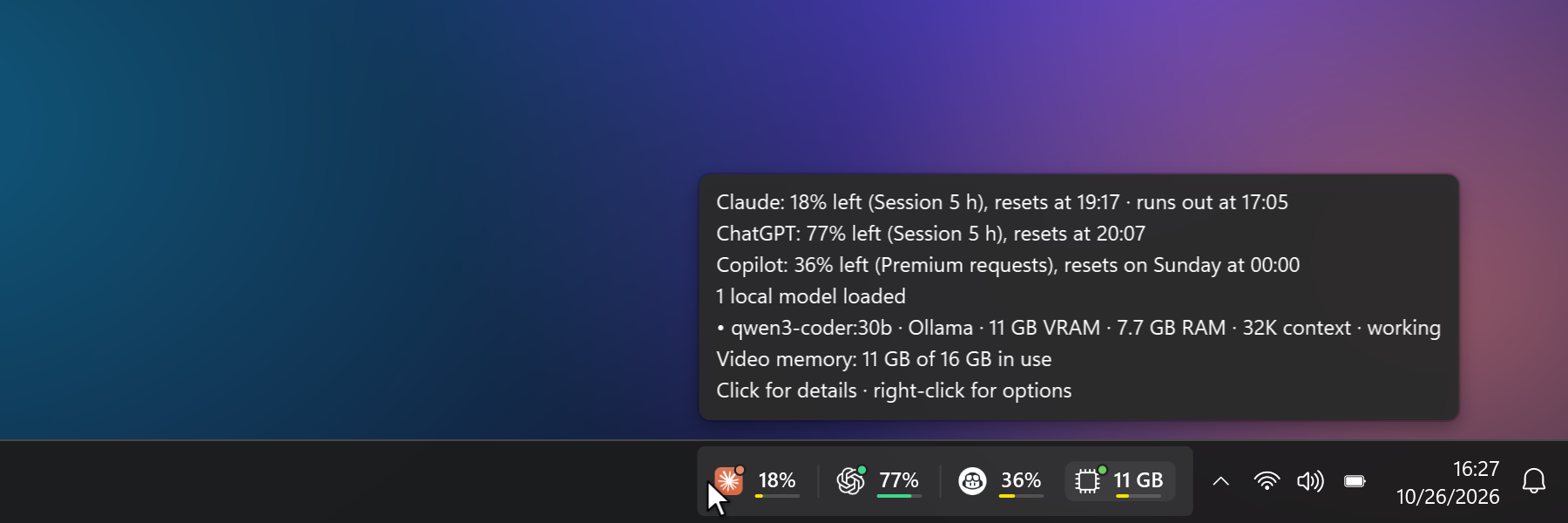
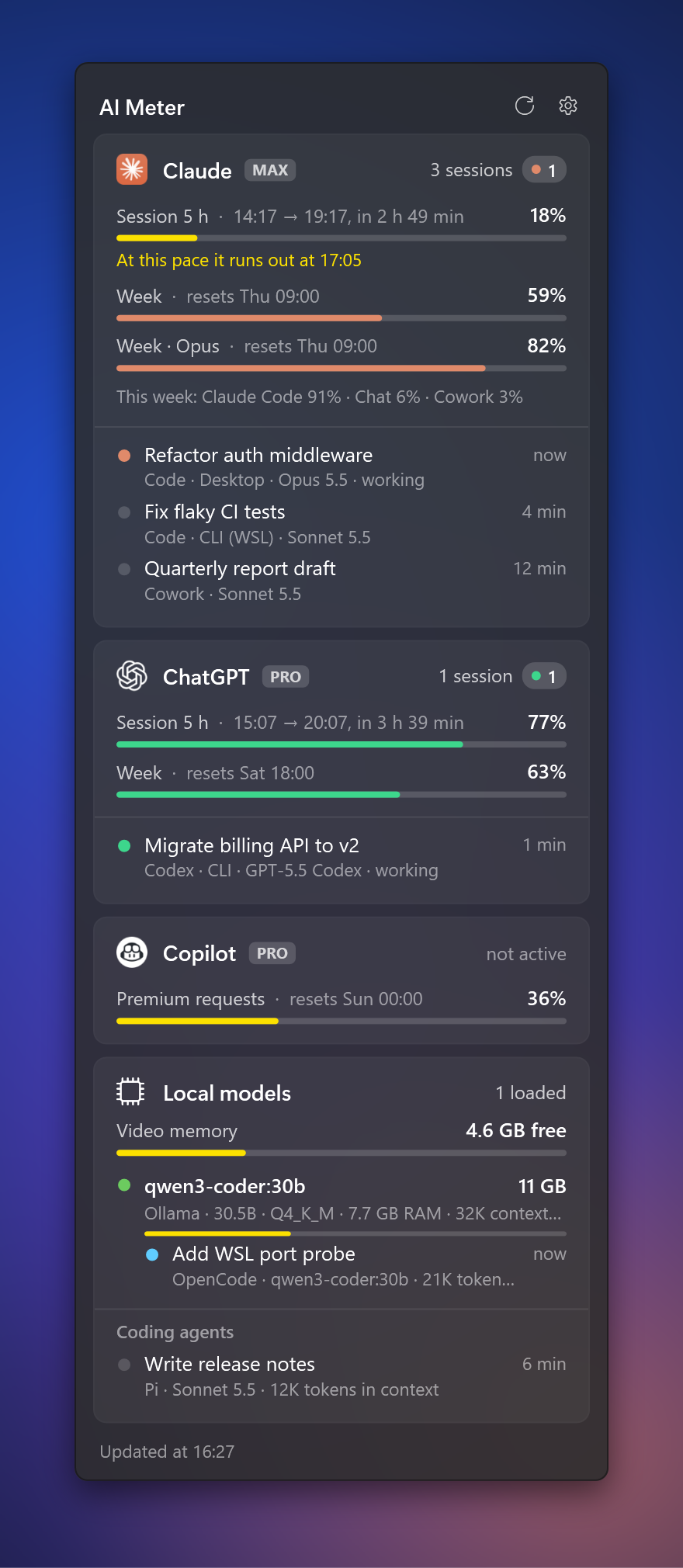
That's all of it, most of the time: a pill inside the taskbar. No widget to arrange, no window stuck on top of your work. Hover for the summary, click for everything.
- Lives in the taskbar. The pill is part of the taskbar, not a window floating on it: it hides with an auto-hiding taskbar and with full-screen apps, follows the taskbar's light or dark mode and finds the free space for your layout. A desktop widget and a compact overlay are there if you want them.
- Understand your usage over time. A local dashboard shows quota cycles, daily activity, models and tools, and signals when recorded consumption changes. Optional session feedback asks whether the useful result was worth the quota or money consumed. Explore usage history.
- Looks like Windows made it. Fluent design, Mica and Acrylic, your accent color, Windows fonts and notifications, a Settings page built like Windows 11 Settings. Six languages.
- Practically free to run. About 0.02% CPU and 120 MB at rest. No Electron, no WebView, no runtime to install: WPF on the .NET Framework already in Windows. Efficiency cores, slower refresh on battery and when nothing is visible, nothing at all while the PC is locked.
- Windows and WSL, one view. Claude Code, Codex and other coding agents running in WSL, model servers inside WSL (NAT or mirrored networking), the video memory of the WSL VM: shown next to their Windows counterparts. WSL is never started, and nothing runs inside it except, when a sign-in has expired, the agent's own CLI to renew it.
- Local models are first-class. Ollama, LM Studio, llama.cpp, llama-swap, vLLM and more: video memory, context window, how much context the current request uses, requests in flight, and which coding agent (OpenCode, Pi, Gemini CLI, Qwen Code…) is talking to which model.
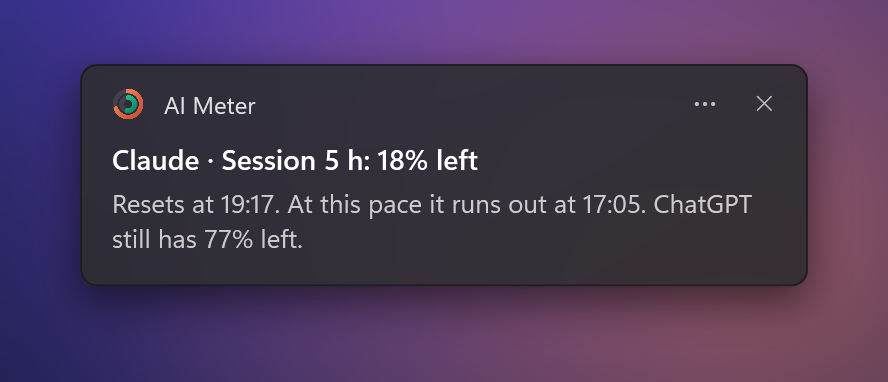
- Your subscriptions, before the wall. Claude, ChatGPT / Codex, GitHub Copilot, Google Antigravity, Cursor, OpenRouter, Vercel AI Gateway, Experiential Labs, DeepSeek, Kimi: 5-hour and weekly limits, a forecast ("at this pace it runs out at 15:40"), a notification at 20% and 5% that tells you which service still has room, and a tip before a reset when part of a limit would go unused. Pick which limit each service shows in the pill, and get notified whenever the limits you choose reset.
- Private and open. No telemetry; the only network requests are each service's own usage endpoint. Apache 2.0 licensed, and a new service is a 20-line JSON file.

 |
 |
 |
|
Your usage, over time
Open Usage history from the notification-area menu or Settings → Usage history. AI Meter starts collecting when you first run this version and continues with the panel closed. It keeps the data on your PC, so you can look back without saving prompts or conversation text.
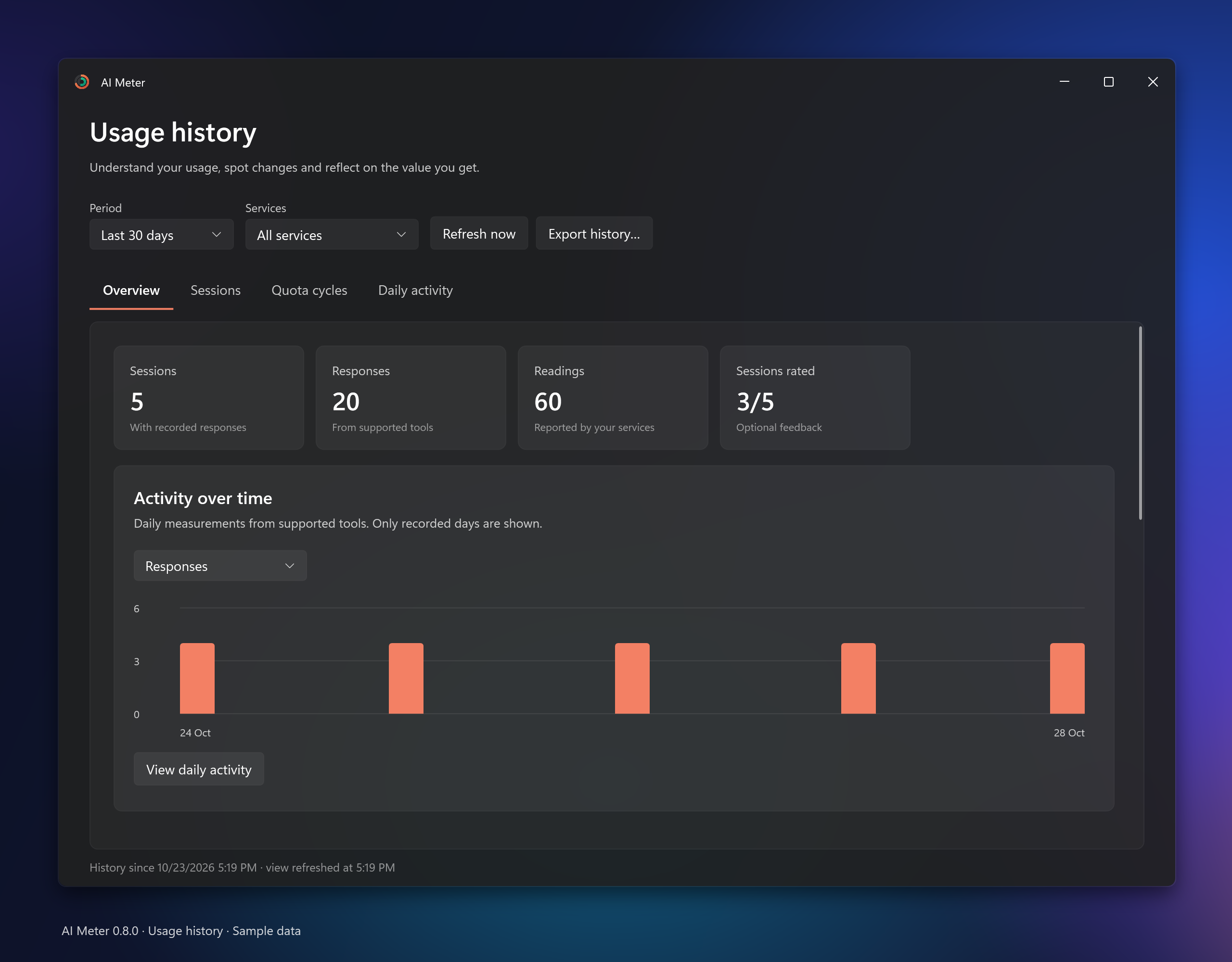
- See what you use. Daily charts and model/tool summaries separate responses, input, output, cache reads, cache writes and tool-computed API costs. Session token records come from Claude Code, Codex, Pi, OpenCode and Kilo on Windows and already-running WSL.
- Compare quota cycles. Account identities, limits and resets stay separate. The dashboard shows observed peaks and remaining quota at the last reading; it does not assign an account's consumption to a single session or add overlapping limits together.
- Spot changes with enough evidence. Consumption signals compare recorded rates against your own active history. A new archive, a first reading, a missing value and a reported zero have different states. Until there is enough comparable data, the dashboard says so. A signal cannot prove that a provider changed its billing rules.
- Reflect on value, optionally. Rate whether the useful result justified the consumption: yes, partly or no. Feedback requests are off by default; you can rate manually, edit or clear a rating. Ignoring a request leaves the session unrated.
- Keep control of the archive. Disable collection, inspect storage size, export the retained measurements or delete the history. There is no telemetry, and the archive contains no prompts, response text, session titles or credentials.
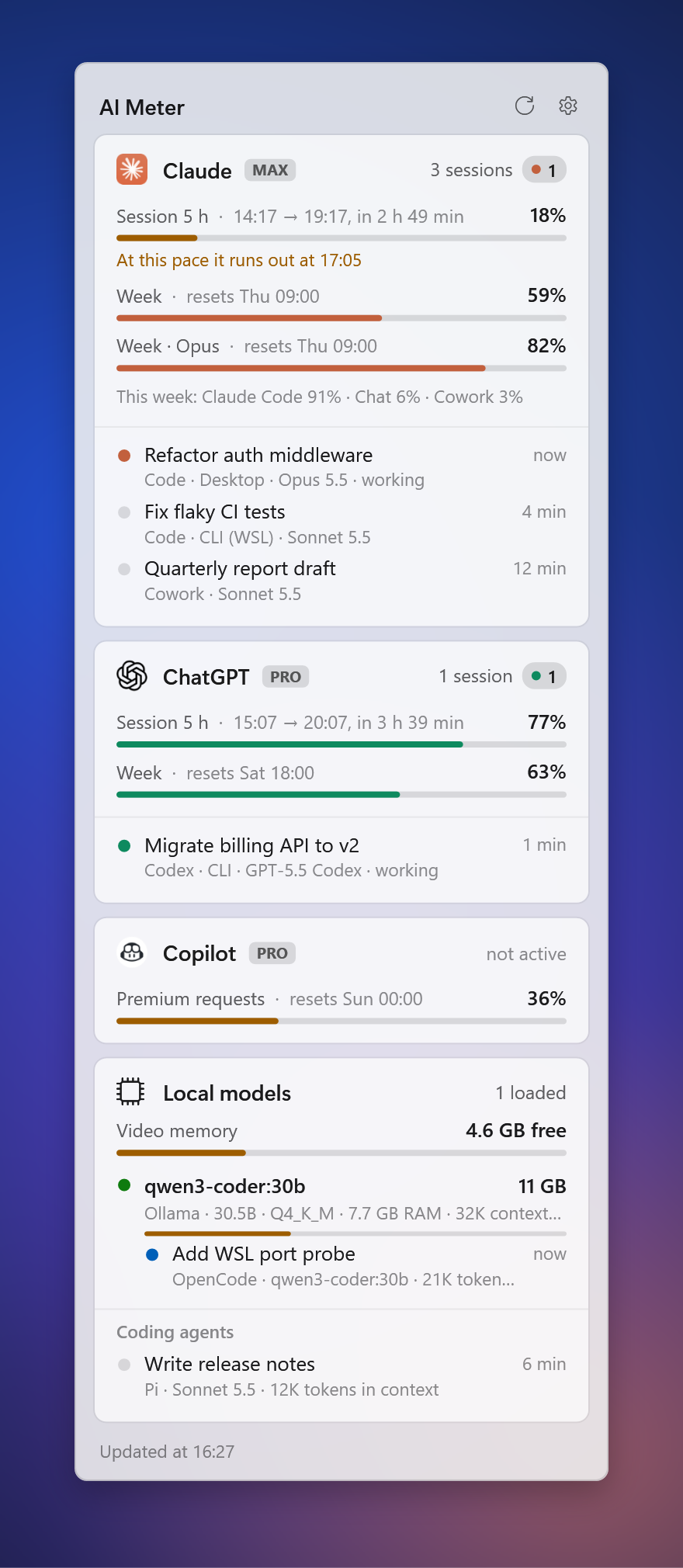
See the light theme
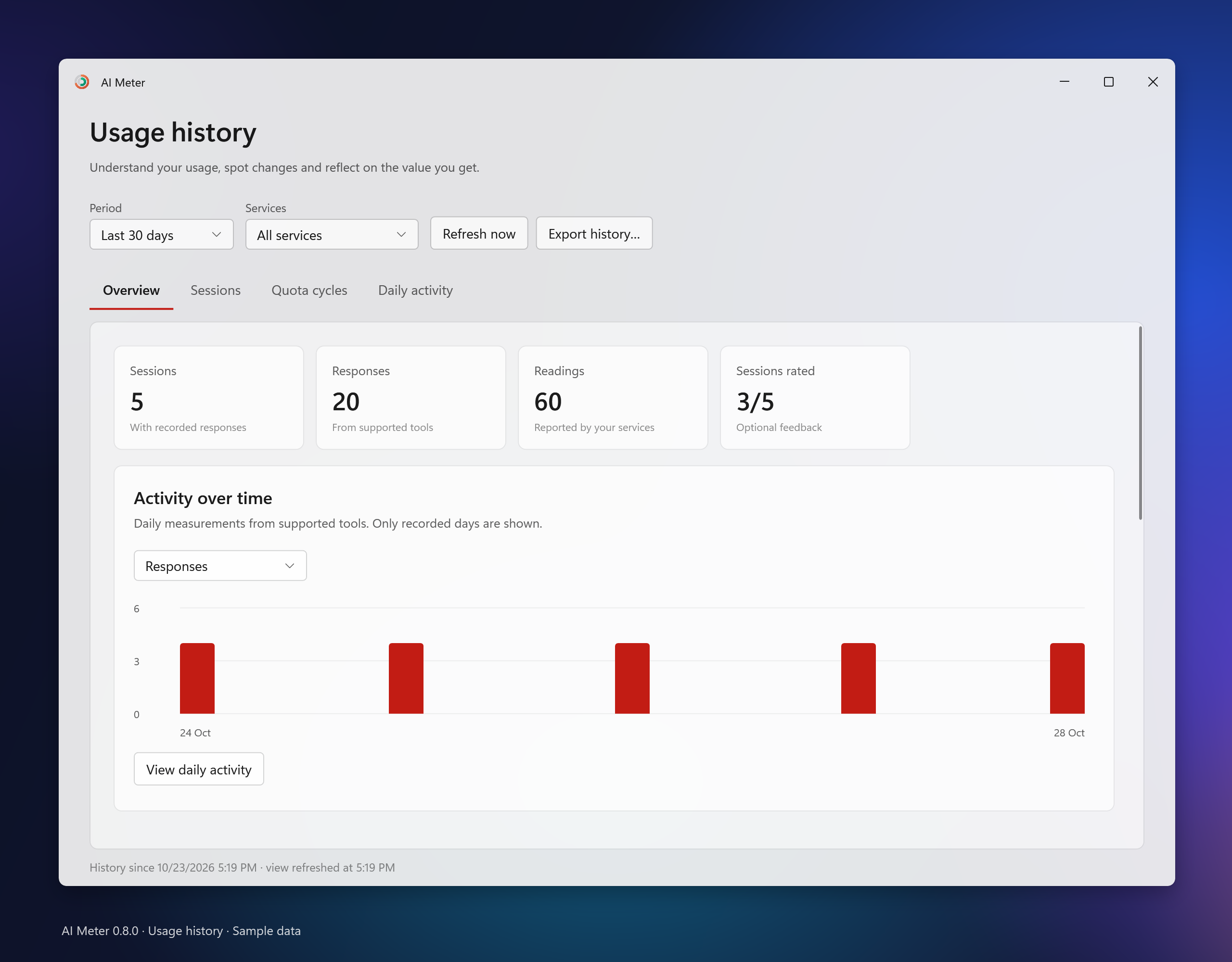
Screenshots use sample data. Your archive starts from collection time; it cannot recover unobserved provider-side activity. Computed API costs are not subscription charges, and missing counters are not zero. See data sources, collection limits and feedback behaviour.
Install
- Download AIMeter-script.zip from the latest release and unzip it anywhere.
- Run
Start AI Meter.cmd. It works with Smart App Control on: Windows PowerShell, signed by Microsoft, compiles and runs the source you can read. - The pill appears in your taskbar: AI Meter finds the services on your PC and starts with Windows. In Settings you can add a desktop widget or a compact overlay.
Prefer a single executable? AIMeter.zip has AIMeter.exe (unsigned for now, see Code signing policy). A Microsoft Store version is on the way.
Available in English, Italian, Spanish, French, German and Portuguese. It follows the Windows display language, or you can pick one in Settings. Translations live in src/StringsTable.cs and src/StringsHistory.cs: new languages are welcome.
What you get
| Surface | What it does |
|---|---|
| Taskbar pill (default) | A compact pill inside the taskbar of the main monitor, placed in its free space (left corner or next to the notification area, based on how your taskbar is set up). It is a child window of the taskbar, so it hides with an auto-hiding taskbar and with full-screen apps. Local models get their own area at the end: video memory in use, with a dot while a model is working. Hover: summary. Click: full panel. |
| Notification area icon | Click: full panel (Acrylic, like Windows' own flyouts). Right click: menu. Never shows up in the taskbar. |
| Desktop widget | Off by default. Always stays below your windows, like part of the wallpaper. Compact cards; click a card header to show its sessions. Drag it by its header. |
| Compact overlay | A tiny always-on-top pill (off by default) with two micro buttons: collapse to a live ring icon, or close. Never steals focus, hides itself during full-screen games, videos and presentations, shows details on hover. |
| Settings | Built like Windows 11 Settings: connected services, what to show, where, start with Windows, theme, refresh rate, live resource usage. |
| Usage history | Local quota cycles, spending, session tokens, models and tools, daily totals and consumption signals. Optional feedback records whether the result was worth the consumption. Open from the notification-area menu or Settings → Usage history. |
For each service: remaining share of the 5-hour and weekly limits with reset times, plus the active sessions with title, model and status.
Forecast and notifications. At the current pace, AI Meter tells you when a limit will run out if that happens before it resets ("At this pace it runs out at 15:40"), in the panel, in tooltips and with a yellow bar in the pill. The pace is the trend of the last hour and a half of readings, or the average since the window started. Windows notifications arrive when a limit drops below 20% and 5%, with the forecast and the other service that still has room ("ChatGPT still has 80% left"), and when a limit you had almost used up is available again. Each one comes once per window, follows Do not disturb, and can be turned off in Settings.
Local history. Collection starts when AI Meter first runs this version and continues with the panel closed. Readings retain their source, time, account scope and data quality; cached snapshots do not become new measurements. Supported local logs supply input/output/cache counters and tool-computed costs, while provider quotas stay account-wide. Feedback is off by default and measures useful output relative to consumption; ignoring it leaves a session unrated. Export, deletion, storage size and collection controls are in the dashboard and settings. See history behaviour and limitations and history architecture.
Where the data comes from
Session information is read from files and databases the AI apps already write. Live quota and balance readings use each enabled service's own usage endpoint. You can turn those connections off; nothing is sent to AI Meter's authors.
- Claude
- Claude Code sessions (desktop app, CLI, also inside WSL, VS Code):
~/.claude/sessions, titles and models from the Claude desktop app metadata. - Cowork tasks and whether the Claude app is open.
- Limits in real time from your account's usage endpoint, using your existing Claude Code login. The token never leaves your PC except to call Anthropic, and it is refreshed by the Claude Code CLI itself: AI Meter never touches the refresh token. Without a login it falls back to the last value saved by the Claude app. The panel shows the 5-hour session with its start and end time, weekly and per-model weekly limits, cloud session credits, extra usage credits and how the week splits between Claude Code, chats and Cowork.
- Claude Code sessions (desktop app, CLI, also inside WSL, VS Code):
- ChatGPT / Codex: active Codex threads (app, CLI, VS Code) from Codex's local logs. Limits in real time by asking the installed
codexprogram (codex app-server, JSON-RPCaccount/rateLimits/read): Codex uses its own login, AI Meter never reads or refreshes its tokens. Includes credits and free limit resets. If Codex is not available, the last value in its logs is used. - GitHub Copilot (off by default): premium requests and monthly quotas from GitHub's Copilot usage API. You sign in to GitHub from AI Meter with a device code; the token is encrypted with Windows Data Protection (DPAPI) for your user only. GitHub shows the request as "Visual Studio Code", the official Copilot app that can read quotas.
- Google Antigravity (off by default): the 5-hour and weekly quotas of your Google AI plan, per model group (Gemini, Claude + GPT), from the API Antigravity itself uses. AI Meter reads the sign-in of Antigravity CLI (on Windows or in WSL, only while WSL is running) and never renews it: when it expires, it asks the CLI to (
agy models, at most every 30 minutes). The Gemini app does not expose its limits, so they are not shown. - Services described by a definition file (
providers/, format in docs/PROVIDERS.md):- Cursor: included usage and on-demand spend for the billing cycle, from cursor.com, using the sign-in the Cursor app already keeps on your PC (read from its local database with the SQLite library built into Windows). AI Meter never refreshes or stores that token and never reads browser cookies.
- OpenRouter: spending and limit of your API key. Experiential Labs: credits used and left. Vercel AI Gateway, DeepSeek and Kimi (Moonshot): account balance. For all of them: spending by day, week and month, optional spending budgets, and the models your agents (OpenCode, Pi) used today, with cost and tokens. Period totals reported by the service support budget bars and notifications. Spending derived from sampled totals or balances is labelled as an estimate with its observation start; a first reading is unavailable, and estimates do not imply remaining budget or trigger forecasts and threshold alerts. If a program on your PC already uses the key (OpenCode, Pi, Crush, or an
exportin your shell profile, on Windows or in WSL), AI Meter uses it from there; otherwise you paste one in Settings (or set the usual environment variable), encrypted with Windows Data Protection. Settings says which key is in use, and finding keys can be turned off. - These have been tested against recorded API responses, not yet with real accounts: reports are welcome.
- Local models: AI Meter looks for model servers listening on this PC and recognises them from their own API: Ollama, LM Studio, llama.cpp
llama-server(also in router mode), llama-swap, vLLM, KoboldCpp, LocalAI and text-generation-webui. For each loaded model it shows video and system memory, the context window, requests in progress and how much context the current request uses, when the server tells. Servers inside WSL are found only while WSL is already running (ssinside the distribution, at most once a minute); video memory comes from the Windows GPU counters (in WSL it is all charged to the WSL virtual machine). Only127.0.0.1is contacted, and only with read requests that never load a model. - Coding agents: sessions active in the last 30 minutes of OpenCode, Kilo, Pi, Gemini CLI, Qwen Code, Goose, Crush and Cline CLI, read from their local session files and databases (Windows and WSL), with title, model, context in use and whether the agent is working. A session that uses a model loaded locally is shown under that model.
- Individual claude.ai / ChatGPT chats leave no trace on disk, so for those you only see whether the app is open.
- Service logos are read at runtime from the apps installed on your PC; they are trademarks of their owners and are not part of this repository.
Resource usage
Taskbar-view baseline measured on a Windows 11 laptop before the history dashboard was added:
| RAM | ~100 MB as executable, ~125 MB private with the PowerShell launcher |
| CPU at rest | ~0.016% of the machine (0.26% of one core) with the taskbar pill, Claude, Codex and a local model server in WSL |
| GPU | 0% (software drawing; Mica/Acrylic composed by Windows) |
These figures are a baseline for the taskbar view. Opening the dashboard or processing newly written session logs adds work; memory and query time also depend on the retained history. Collection remains incremental and uses the existing background worker.
How:
- WPF on .NET Framework 4.8, already part of Windows: no runtime to install, no browser engine.
- Software drawing: no Direct3D device on the GPU.
- No continuous animations: the window is redrawn only when something changes.
- Data collection runs on a low-priority thread with EcoQoS (efficiency cores). Refresh every 10 s while the panel or Settings are open, every 30 s when only the pill, widget or overlay are visible, twice as slow on battery or Energy Saver, 120 s when nothing is visible, and stopped while the PC is locked or asleep. A refresh takes about 50 ms.
- The taskbar pill checks every 2 s, with two window-position reads, whether the taskbar moved; it repositions itself only when something changed.
- Files are read only when they change, large logs only from their tail, and only the needed fields are cached.
- WSL is never started: it is read only if its VM is already running, and listening ports are read from the kernel's TCP table as a file. The only process launched inside it is the CLI of Claude Code or Antigravity, to renew its own expired sign-in (
claude auth status,agy models), so that AI Meter never handles refresh tokens. AI Meter asks Windows which distributions are running at most once a minute. - Local model servers are contacted only on
127.0.0.1; a port that does not answer HTTP is dropped after one short request. GPU memory is read with PDH only while a local server runs. - The Claude limit is fetched over the network every 5 minutes (15 on battery), only while something is visible.
- Full-screen detection is event-driven, not polled.
Download files
From the latest release:
- AIMeter.zip: unzip and run
AIMeter.exe. - AIMeter-script.zip: if Smart App Control blocks the unsigned executable, unzip and run
Start AI Meter.cmd, which starts the same app from source with Windows PowerShell.
A Microsoft Store version, signed by Microsoft and updated automatically, is in preparation: see docs/STORE.md.
Build and install
powershell -ExecutionPolicy Bypass -File build.ps1
Compiles with the csc.exe that ships with .NET Framework (no SDK needed), installs to %LOCALAPPDATA%\Programs\AI Meter, adds a Start menu shortcut and updates any existing startup registration to the installed copy. On first use it enables startup if no registration exists (you can turn this off in Settings). Launching another copy preserves existing startup entries, including those disabled in Windows. -NoInstall only builds into bin\.
Two install modes:
-Mode script(default). Installs the source with theAIMeter.ps1launcher. Windows PowerShell, which is signed by Microsoft, compiles the C# code in memory at startup (about 2 s) and runs it, without a console window (conhost --headless). This works with Smart App Control on, at the cost of roughly 45 MB more RAM.-Mode exe. Installs the compiledAIMeter.exe. Lighter, but with Smart App Control on Windows blocks it until releases are signed (see Code signing policy).
-Package also builds the MSIX package for the Microsoft Store (bin\AIMeter.msix, needs the Windows SDK; see docs/STORE.md).
Command line: --settings opens Settings of the running instance and --gpu draws with the GPU.
Uninstall
Settings → turn off Start with Windows, choose Exit from the menu, then delete %LOCALAPPDATA%\Programs\AI Meter, %APPDATA%\AIMeter, the AI Meter shortcuts in the Start menu and in the Startup folder, and the registry key HKCU\Software\Classes\AppUserModelId\AIMeter.App (name and icon of its notifications).