An unofficial userland driver for the ZSA Navigator trackpad on macOS. It is built around a custom pointer acceleration curve.
Why
I made kneepad to solve this problem: How can I make the pointer feel like an extension of my mind?
My point of reference is Apple's trackpad. The hardware is excellent, and the out of box software tuning is great. The combination of the two creates the "extension of my mind experience".
The ZSA Navigator hardware is excellent. It's accurate, the surface feels good. But, the software out there is lacking. I've tested ZSA Navigator Companion App, SteerMouse, MacOS vanilla mouse settings. All of these had the same issue: At every combination of pointer speed/acceleration, the pointer was too twitchy at slow speeds or too slow at high speeds. No single value gave me both.
I wanted two behaviors: a constant, predictable speed when I move slow, and acceleration when I move fast. The speed curve looks like a "knee cap" or "hockey stick".
The value proposition of kneepad is to let me create this acceleration profile. The shape of the curve is personal preference. The defaults are tuned for me, and you can tune it yourself.
The knee
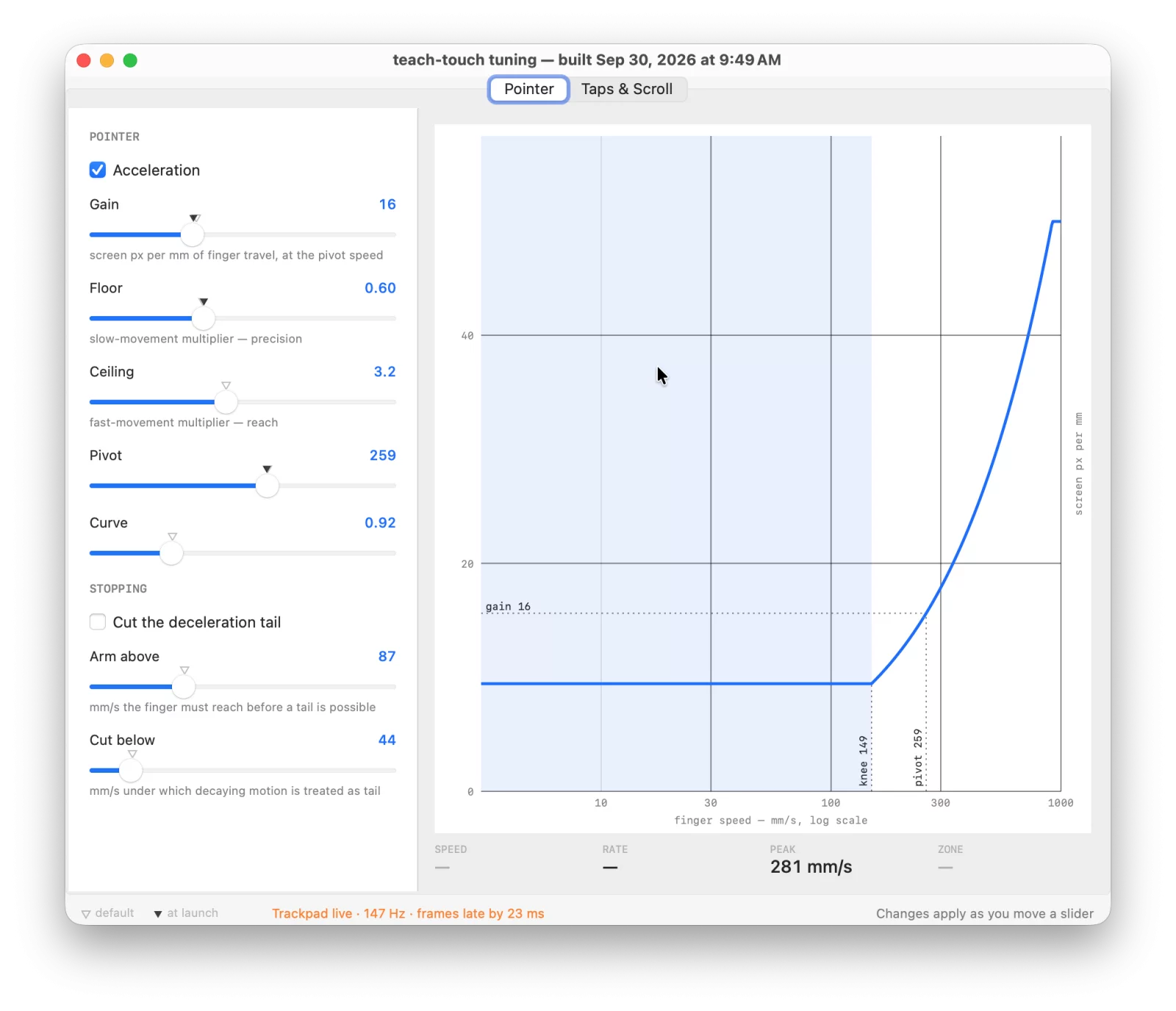
The knee is the finger speed where the curve changes from the constant zone to the acceleration zone.
https://github.com/user-attachments/assets/035eb3b9-510d-4597-938b-04cdf6a0746c
Below the knee, the pointer moves the same distance for each millimeter of finger travel, at any speed. This zone is for aiming. Your hand learns one distance, and the pointer does not jump when you speed up a little.
Above the knee, the faster you move, the further each millimeter takes the pointer. This zone is for moving across the screen. The curve climbs gradually and stops at a ceiling.
Tuning your knee
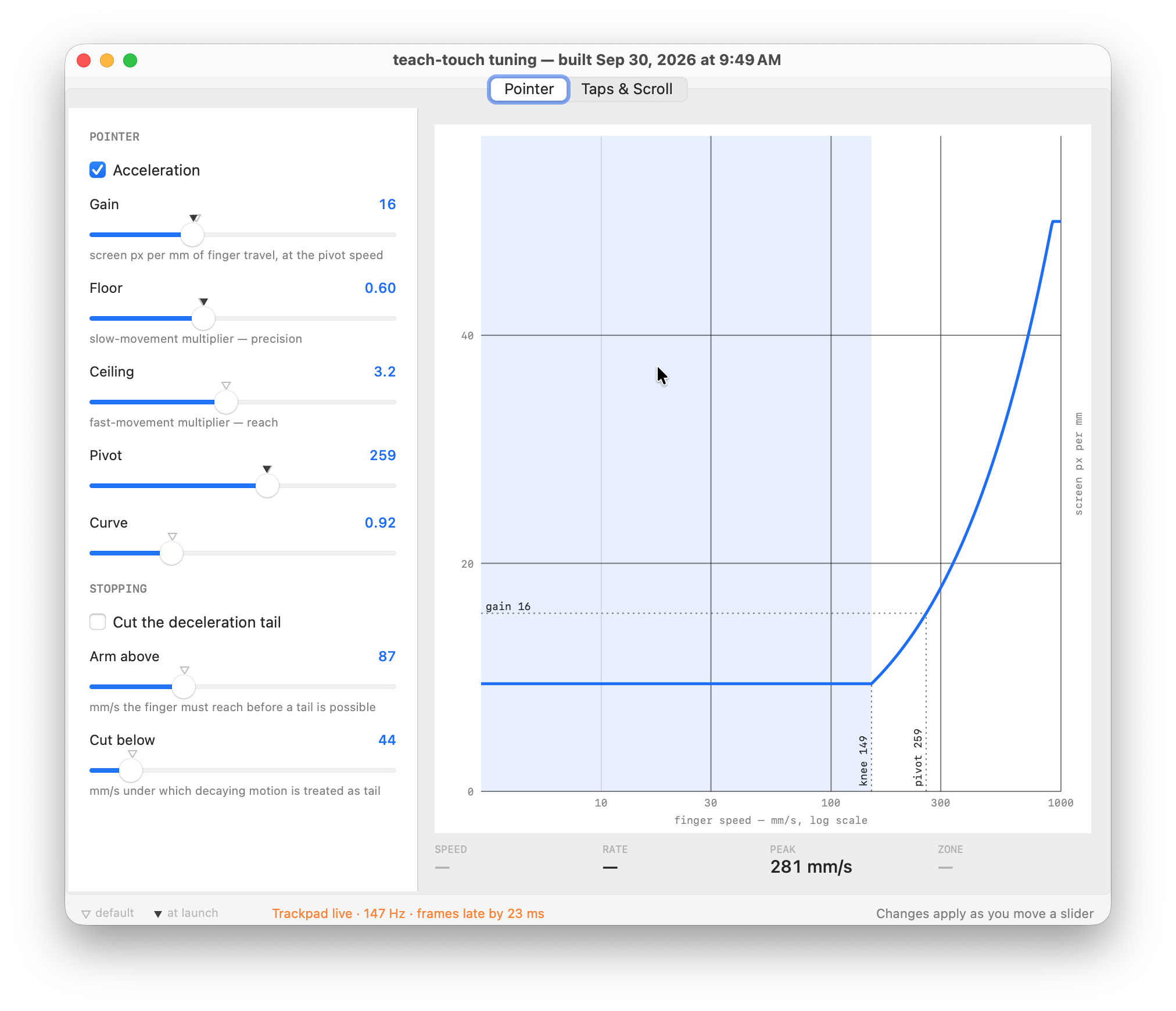
The plot shows the curve. The shaded area is the constant zone. The dotted lines mark the knee and the pivot. When you touch the pad, a dot and a fading trail show your finger speed now. PEAK, under the plot, shows your top speed for 2 seconds after you move. When you move a slider, the curve and the pointer change at the same time.
To put the knee where it fits your hands:
- Move your finger left and right at the speed you use for precise aiming. Read PEAK, or see where the dot and its trail sit on the plot. This is your aiming speed.
- Move the knee to just above your aiming speed with Pivot. A higher Pivot moves the knee to the right.
- Set Floor for how fast the pointer moves in the constant zone. Floor also moves the knee, so check the knee again after you change it.
- Set Ceiling and Curve for how far fast movements take the pointer. Curve also moves the knee a little, so check the knee again.
- Set Gain last. It makes the pointer faster or slower at every speed.
| Slider | Default | What it does |
|---|---|---|
| Pivot | 260 mm/s | The finger speed where the multiplier is exactly 1. It moves the knee. |
| Floor | 0.60 | The multiplier for slow movement. It sets the height of the constant zone, and moves the knee. A lower value gives more precision. |
| Ceiling | 3.2 | The largest multiplier for fast movement. A higher value gives more reach. |
| Curve | 0.92 | How steeply the curve climbs above the knee. It also moves the knee a little. |
| Gain | 16 | Screen pixels per millimeter of finger travel at the pivot speed. It scales the pointer speed in both zones. |
With the defaults, the knee is at about 149 mm/s, and the curve reaches the ceiling at about 920 mm/s.
The app saves your values in ~/Library/Application Support/kneepad/tuning.json.
Requirements
- macOS 13 or later.
- A ZSA Voyager with the Navigator trackpad.
- For the download: a Mac with Apple silicon.
- To build from source: Swift 5.9 or later, from Xcode or the Xcode Command Line Tools.
Install
The pad works only while the app is open. When you quit the app, the pad goes back to its normal mouse mode.
Download
The download is not notarized by Apple, so macOS blocks it the first time you open it. You allow it one time in System Settings.
- Download the
.zipfile from the Releases page. - Double-click the
.zipfile to unzip it. MoveKneepad.appto/Applications. - Open Kneepad. macOS shows a message that it cannot verify the app. Click Done.
- Open System Settings > Privacy & Security. Scroll down to Security. Next to the message that Kneepad was blocked, click Open Anyway. Then enter your password and click Open Anyway again.
- In System Settings > Privacy & Security > Input Monitoring, allow Kneepad. Then quit the app and open it again.
- In System Settings > Privacy & Security > Accessibility, allow Kneepad.
Build from source
- Optional: run
./scripts/create-signing-identity.shone time. It creates a local signing identity, so that macOS keeps its permissions for kneepad after each rebuild. If you skip this step, macOS asks for the permissions again after every build. - Run
./scripts/build-app.sh. The script buildsbuild/Kneepad.app. - Run
open build/Kneepad.app. - In System Settings > Privacy & Security > Input Monitoring, allow Kneepad. Then quit the app and open it again.
- In System Settings > Privacy & Security > Accessibility, allow Kneepad.
If you move the app to /Applications, give the permissions to that copy. macOS gives permissions to one copy of an app, not to all copies.
If the pointer stops working
If the app stops and the pad does not move the pointer, disconnect the keyboard and connect it again. The pad starts again in its normal mouse mode.
If you built from source, you can run this command from the repository folder instead:
swift run hid-stream --restore
The command puts the pad back into mouse mode without disconnecting the keyboard.
How it works
kneepad runs as a normal app, with no kernel extension and no DriverKit driver. It opens the trackpad through IOHIDManager and switches the pad from mouse mode to multitouch mode. Then it reads the raw finger positions and posts its own pointer, click, and scroll events.
(No) Support
I published so that other people can try it and change it. I do not give support. Everything other than the acceleration curve is hacked together. If you want it to work differently, fork it and change it.
I have no expertise in Swift, MacOS APIs, the USB Driver stack, hardware, nor touch device algorithms. All of the code was written by AI Claude, iteratively over several weekends. See plan/README.md for the initial design logs.
License
0BSD. See LICENSE.
Built with Claude Code.