

MarkuprPlus
You see it. You say it. Your AI fixes it.
A Windows and macOS desktop app, CLI, and MCP server for visual feedback.
Record and annotate from your desktop, process recordings from the terminal, or give your AI agent screen capture tools.
Download for Windows or macOS · Use the CLI · Connect an MCP client · GitHub Action

▶ Watch the 33-second product tour
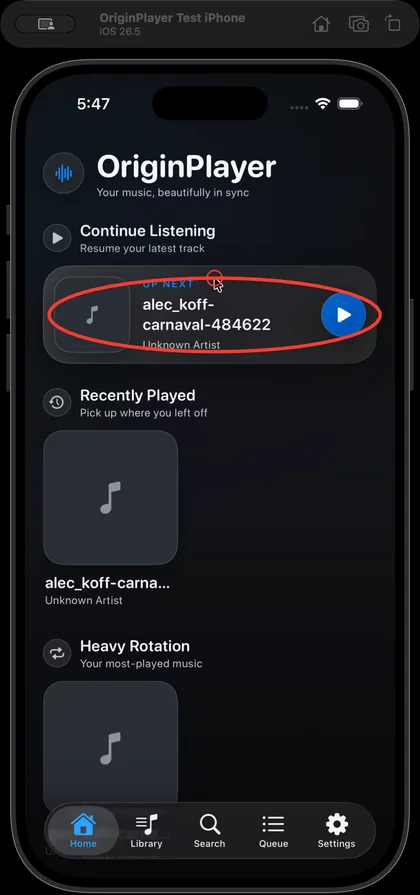
Pick a window. Talk through what's wrong. Circle it while it happens.
Every circle becomes its own issue, with its own screenshot, ready to paste into your coding agent.






Quick Start · The Loop · Output · Screenshots · Providers · MCP · CLI


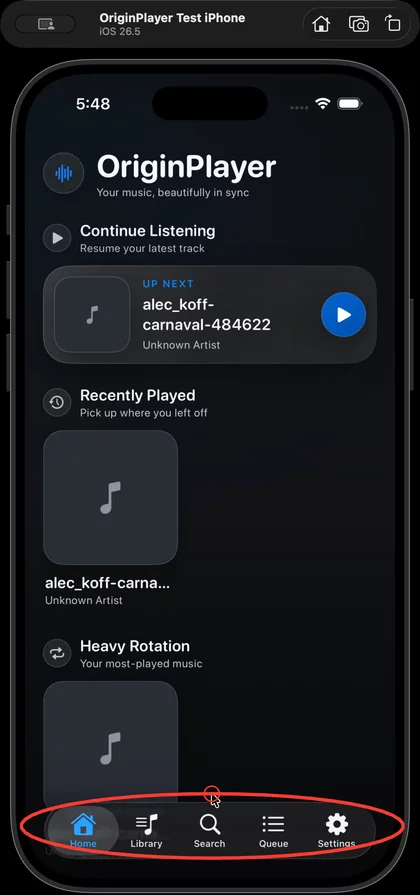
Hold Ctrl on Windows or Cmd on macOS, circle the problem, keep talking. That stroke becomes MX-001.
The Problem
Your coding agent can't see your screen. So you stop working and start transcribing: describe the layout bug in prose, take a screenshot, crop it, drag it into the right place, explain which part matters. You speak at 150 words per minute and type at 60, and the context leaks out on the way.
The Solution
MarkuprPlus is a Windows and macOS desktop app, with a CLI, MCP server, and GitHub Action for automated workflows. The desktop app lives in the Windows system tray or macOS menu bar. It records the exact window you point at, listens while you narrate, and lets you draw on the live screen without blocking your clicks. When you stop, it transcribes on-device, aligns your words to each mark, and writes a report your agent can act on — one finding per circle, each with its own annotated frame.
| Use MarkuprPlus as | What you can do | Get started |
|---|---|---|
| Windows desktop app | Record your screen and voice, draw live annotations, and review reports from the system tray. | Download for Windows |
| macOS desktop app | Capture and annotate from the menu bar on Apple Silicon or Intel Macs. | Download for macOS |
| CLI | Analyze existing recordings, watch folders, and generate reports in scripts. | CLI commands |
| MCP server | Let an AI coding agent capture screenshots, record sessions, and receive structured reports. | Connect your agent |
| GitHub Action | Process recordings in your GitHub Actions workflows. | Action setup |
Windows: Ctrl+Shift+F → talk → Ctrl-drag → Ctrl+Shift+F → paste into your agent
macOS:   Cmd+Shift+F  → talk → Cmd-drag  → Cmd+Shift+F  → paste into your agent
The Loop
1. Press the capture shortcut and pick your target
Use Ctrl+Shift+F on Windows or Cmd+Shift+F on macOS.

The picker opens above every window. Whatever is under your cursor lights up — click it and the recorder locks onto that window alone, and stays locked through moves, resizes, and app switches. Region and full-display modes are one click away when a finding needs a wider frame.
If the window's identity or native geometry ever becomes ambiguous mid-session, capture stops rather than widening to whatever is behind it. You never ship a frame you didn't mean to share.
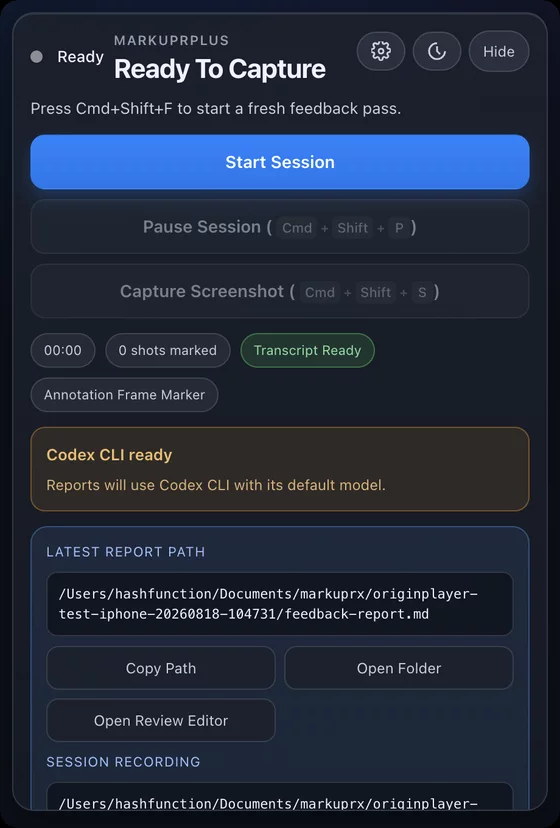
The capture controls live in one portrait popover, accessible from the Windows system tray or macOS menu bar.
2. Talk while you work
Keep clicking through your app as usual. MarkuprPlus records the window and your microphone together, then transcribes with Whisper on-device after you stop.
The picker, the drawing canvas, and the recording HUD are all excluded from screen capture at the OS level — nothing MarkuprPlus draws ends up in your video. Only your app does, plus the strokes you meant to leave.
3. Hold Ctrl (Windows) or Cmd (macOS) and draw

Hold the modifier key and drag to paint straight onto the live screen — freehand, circle, or highlight, in a colour you choose. Let go of the key and your next normal click both reaches the app underneath and saves that mark, clearing the canvas for the next one.
Three circles means three issues, not one screenshot with three scribbles on it. Each finding carries its own PNG, timestamp, tool, and colour.
4. Press the capture shortcut again to stop
Use Ctrl+Shift+F on Windows or Cmd+Shift+F on macOS.

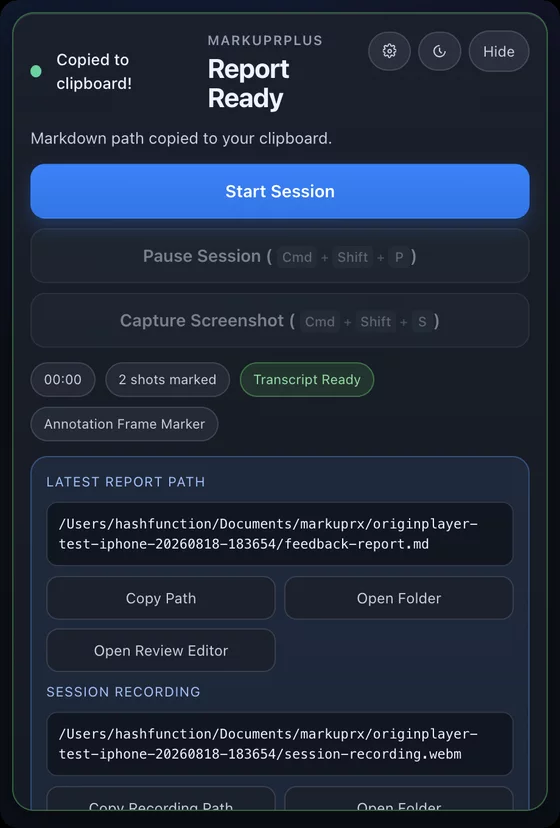
Whisper runs, your narration is aligned to each mark, and the report is written to disk. The markdown path lands on your clipboard the moment it's ready — paste it straight into Claude Code, Codex, Cursor, or anything else that reads a file.
Everything for the session goes in one folder: the report, the screenshots, the session video, the narration audio, and the metadata.
Quick Start
Windows and macOS desktop app (recommended)
Download from markuprplus.com or the releases page. Choose the Windows installer (.exe) or the macOS disk image (.dmg) for Apple Silicon or Intel.
macOS install note: Direct downloads from GitHub Releases are signed, notarized, and stapled. If Gatekeeper rejects an artifact, use MarkuprPlus support so the release can be investigated.
- Press
Cmd+Shift+F(macOS) orCtrl+Shift+F(Windows) and click the window you want. - Narrate what you see. Hold
Cmd/Ctrland drag to mark the live screen. - Release the key, then click normally — that saves the mark and clears the canvas. Repeat for every finding.
- Press the hotkey again to stop. The report path is on your clipboard.
MCP server (for AI coding agents)
npx --yes --package markuprplus markuprplus-mcp
CLI (for recordings you already have)
npx markuprplus analyze ./recording.mov
Compatibility: the public package and commands are
markuprplusandmarkuprplus-mcp. Existing.markuprxproject files, storage paths, and app identifiers remain unchanged so upgrades keep their settings and sessions.
Optional companion for Mac App Store CLI integrations
The sandboxed Mac App Store app can use AI command-line tools already installed and signed in on your Mac through the optional MarkuprPlus CLI Bridge. Local Rules, Ollama, LM Studio, and Anthropic API do not require this companion.
Install and pair it from a Terminal:
npm install -g markuprplus
markuprplus bridge install     # installs and starts a per-user LaunchAgent
markuprplus bridge token       # paste this value in Settings → Advanced
markuprplus bridge status
The public npm package contains the same versioned CLI and MCP entry points used by the source release.
The service listens only on 127.0.0.1:49647, requires its random pairing token for every provider request, and accepts a fixed structured-report protocol rather than shell text. The App Store app does not run shell commands or launch external tools; the separately installed companion invokes only the provider selected in Settings.
Lifecycle and recovery commands:
markuprplus bridge start
markuprplus bridge stop
markuprplus bridge status
markuprplus bridge token
markuprplus bridge rotate-token
markuprplus bridge uninstall
Rotating the token requires pairing again. Uninstall removes the exact LaunchAgent and bridge configuration owned by MarkuprPlus; it does not uninstall your AI CLIs.
What Lands in Your Folder
One session, one directory:
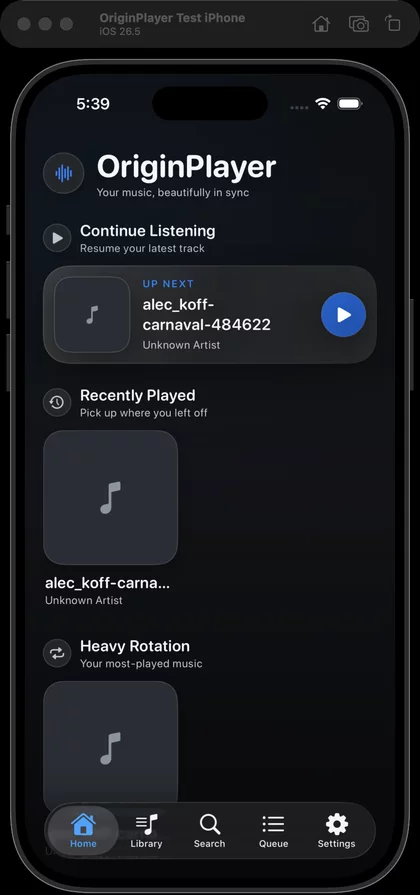
originplayer-test-iphone-20260818-104731/
├── feedback-report.md          # the file you paste
├── feedback-summary.md         # counts and duration
├── metadata.json               # per-issue capture context
├── processing-trace.json       # which provider ran, how long, why it fell back
├── screenshots/
│   ├── marked-issue-001.png    # one frame per mark, your stroke composited in
│   ├── marked-issue-002.png
│   └── marked-issue-003.png
├── session-recording.webm      # the window, with annotations
└── session-audio.webm          # your narration
A real, unedited finding from that session:
### MX-001
- **Timestamp:** 00:08
- **Tools:** freehand
- **Colors:** #ff3b30
#### User Comment
> So there's a search menu and over here by default, if there's been
> previous searches, it should list out all the searches that have
> happened in the past.
#### Marked Evidence

Each finding carries more than pixels:
| What travels with the issue | Example |
|---|---|
| Its own annotated PNG | screenshots/marked-issue-001.png |
| The narration at that moment | transcript-segment-0001 … 0002 |
| How you marked it | freehand · #ff3b30 |
| Where it came from | window:5976:0 · OriginPlayer Test iPhone · darwin |
| Cursor, active app, and focus hints | captured at the instant you drew |
| Trigger metadata | annotation, manual, pause, or voice-command |
Marked issues are numbered MX-001…; items that come from narration alone are FB-001….
Every Surface
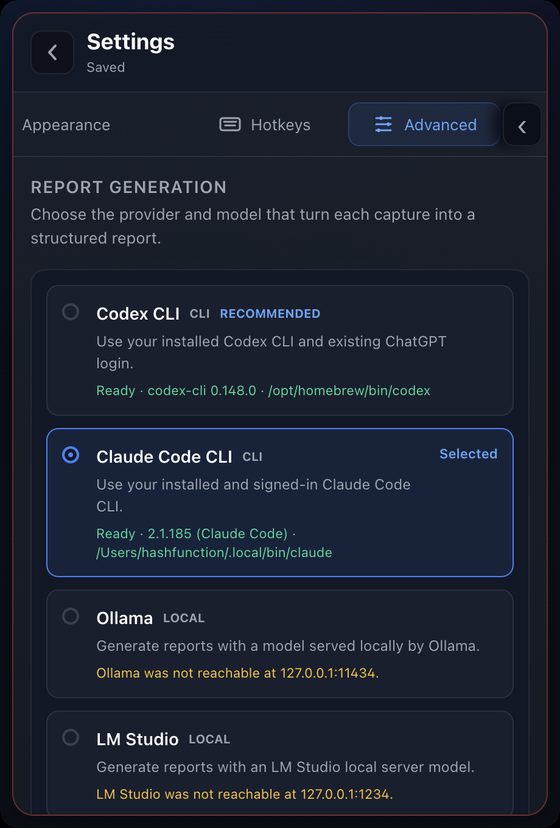 Report providers Fifteen ways to turn a session into a report, each showing whether it's reachable right now — CLI version and path, local port, missing key. |
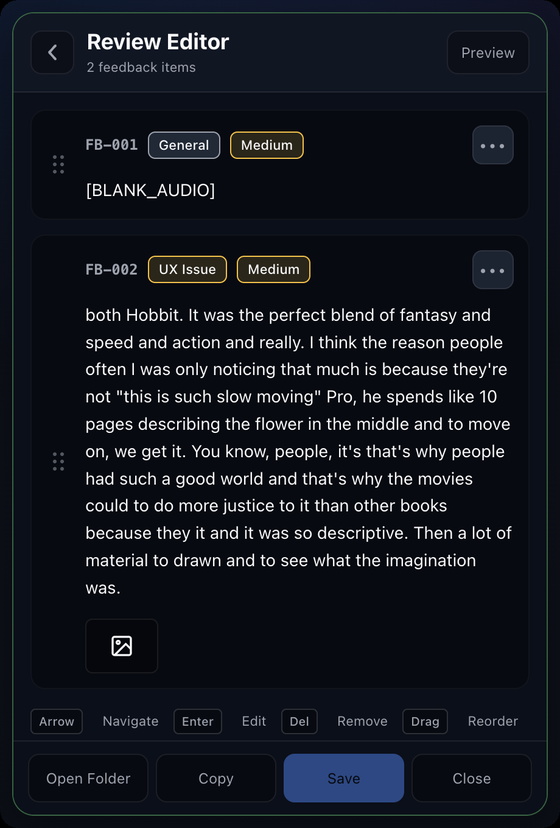 Review editor Reorder findings, retitle them, change category and severity, and drop the ones that were just thinking out loud. |
 Live markdown preview See the exact file your agent will read before you save it. Copy it, open the folder, or export. |
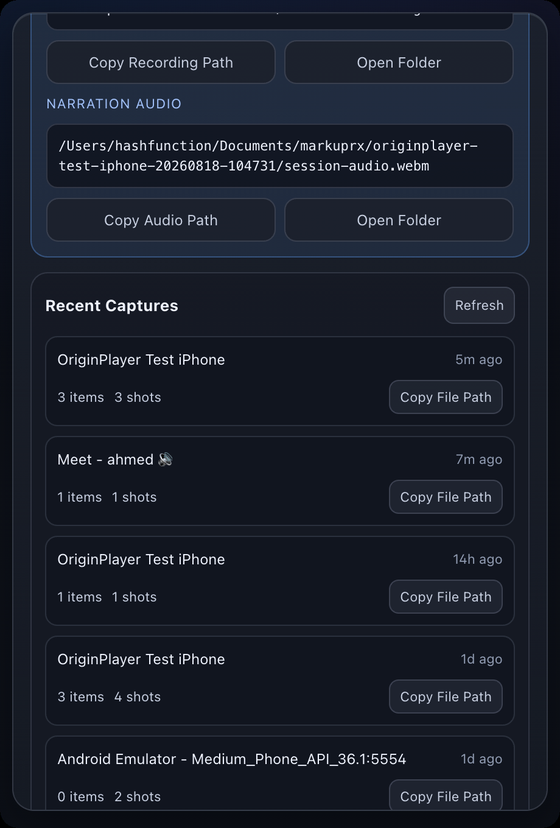 Recent captures Every session stays on disk with its item and shot counts. Copy any report path back without hunting through Finder. |
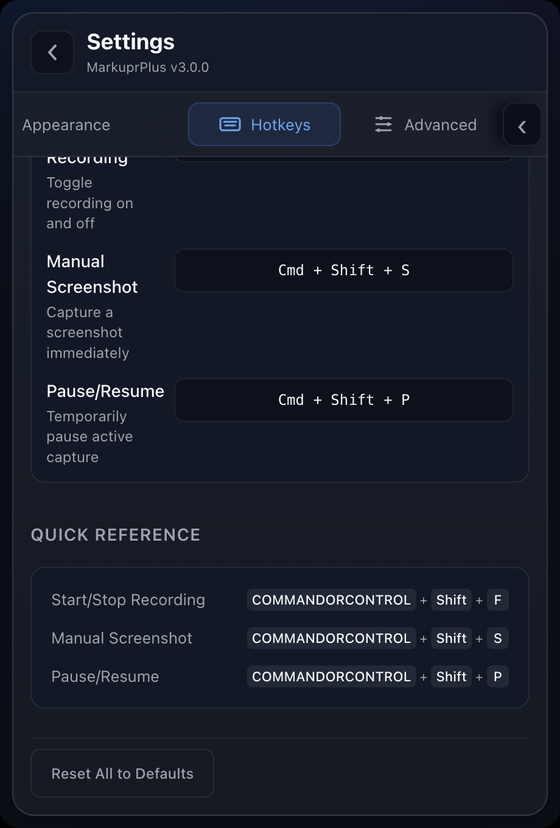 Hotkeys Record, screenshot, and pause are global and rebindable, with the quick reference kept in the panel. |
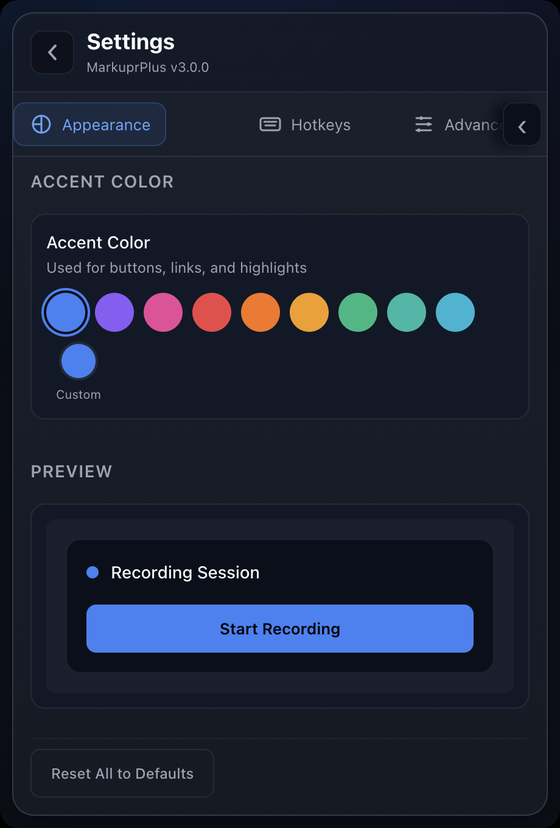 Appearance Ten accent colours plus a custom picker, previewed live. Light and dark follow the system. |
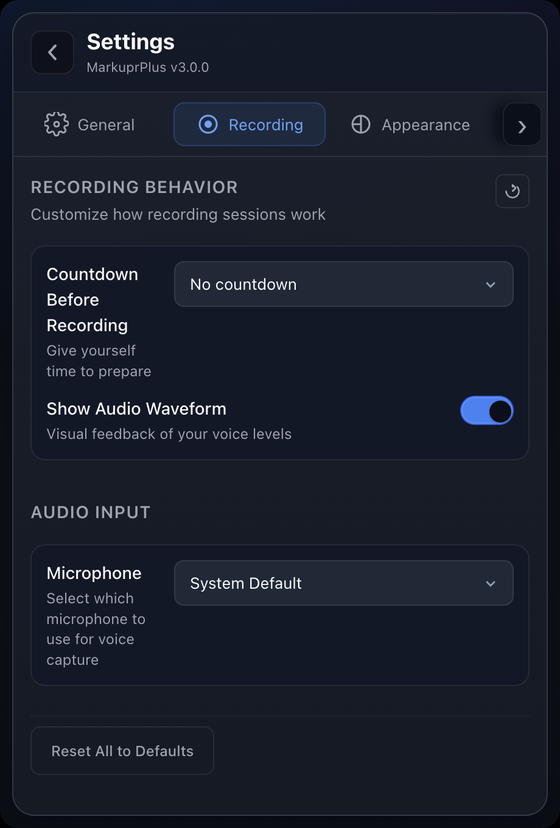 Recording & audio Countdown before recording, audio waveform feedback, and microphone selection. |
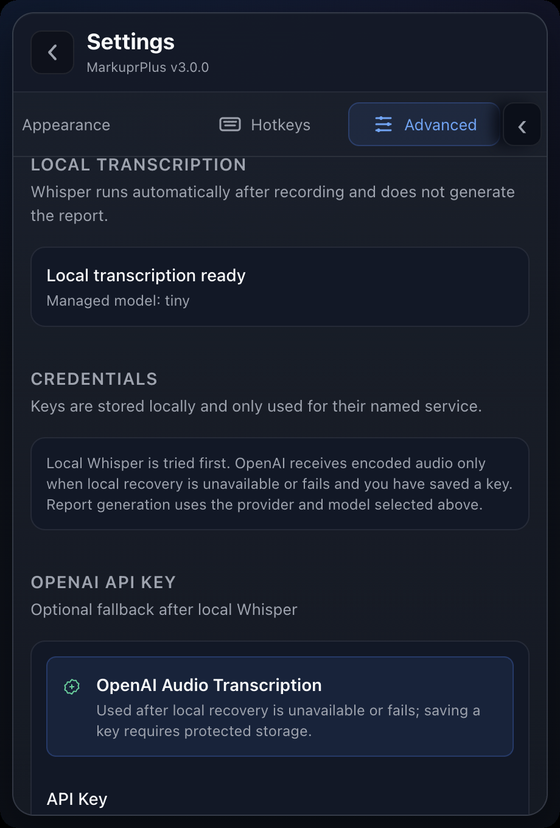 Transcription & keys Whisper runs locally first. OpenAI only receives audio if local recovery fails and you saved a key. |
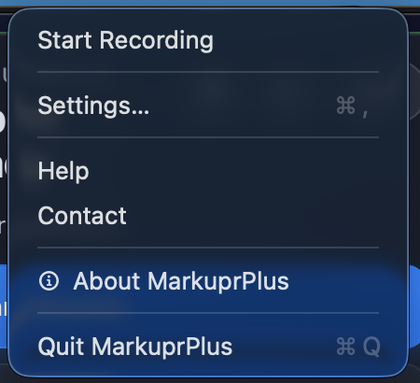 Menu bar Start a recording, jump to settings, or quit — without opening the popover at all. |
Local Transcription
On desktop startup, MarkuprPlus downloads the multilingual Whisper tiny model (~75 MB) in the background if no local model is installed. Existing models are reused. Download progress and retryable errors appear under Settings > Advanced > Local Transcription. Interrupted downloads resume on the next startup; offline or failed downloads do not block opening the app. Once downloaded, local transcription works without an internet connection.
Interface Language
The desktop interface defaults to English, including when upgrading from an installation that previously displayed Traditional Chinese automatically. Choose Settings > General > Language > Interface language to opt into Traditional Chinese or switch back to English. The preference is saved and applies immediately across open windows without restarting or interrupting a recording. Resetting General settings restores English.
Interface language is separate from transcription language. Feedback text, recordings, and generated reports are not translated by this setting.
To add another interface language, register its identifier and display name in
src/shared/uiLanguage.ts and its translation catalog in
src/renderer/i18n/catalogs.ts. English labels are the source and fallback for
missing translations; mark user-content regions with translate="no".
Report Providers
Pick the model that turns a capture into a structured report. MarkuprPlus checks each one before you record and shows you what it actually found.
In the Mac App Store app, CLI providers use the optional local companion described above. Direct desktop builds invoke the same adapters inside the app. Both paths preserve Local Rules as the failure-safe report.
| Provider | Kind | What it uses |
|---|---|---|
| Codex CLI | CLI | Your installed CLI or the Codex Mac app's bundled CLI and existing ChatGPT login, in a read-only ephemeral session |
| Claude Code CLI | CLI | The Claude Code CLI you're already signed in to |
| GitHub Copilot CLI | CLI | Copilot CLI 1.0.83+ with your existing GitHub login, in an isolated tool-free session |
| OpenCode | CLI | Your configured OpenCode provider, with a per-run agent that denies every tool action |
| Cursor Agent CLI | CLI | Cursor Agent in non-interactive, read-only Ask mode |
| Qwen Code | CLI | Qwen Code in safe, non-interactive plan mode with mutation tools excluded |
| Goose | CLI | Your configured Goose provider in tool-free chat mode, without profiles or session persistence |
| Amp | CLI | Your Amp login with an isolated default-deny tool policy |
| Kiro CLI | CLI | Kiro headless mode with only read and grep trusted |
| Aider | CLI | Your configured Aider model in dry-run, no-git mode |
| Ollama | Local | A model served on |