
OpenHarness
        ___
       /   \
      (     )        ___  ___  ___ _  _ _  _   _ ___ _  _ ___ ___ ___
       `~w~`        / _ \| _ \| __| \| | || | /_\ | _ \ \| | __/ __/ __|
       (( ))       | (_) |  _/| _|| .` | __ |/ _ \|   / .` | _|\__ \__ \
        ))((        \___/|_|  |___|_|\_|_||_/_/ \_\_|_\_|\_|___|___/___/
       ((  ))
        `--`
AI coding agent in your terminal. Works with any LLM -- free local models or cloud APIs.








English | 简体中文
Table of Contents
- Quick Start
- Why OpenHarness?
- Terminal UI
- Tools (44)
- Slash Commands
- Permission Modes
- Hooks
- Checkpoints & Rewind
- Agent Roles
- Headless Mode & CI/CD
- Cybergotchi
- MCP Servers
- Providers
- Auth
- Update
- Evals
- FAQ
- Install
- Development
- Contributing
- Community
Quick Start
npm install -g @zhijiewang/openharness
oh
That's it. OpenHarness auto-detects Ollama and starts chatting. No API key needed.
Python SDK: there's also an official Python SDK for driving oh from Python programs (notebooks, batch scripts, ML pipelines). Install with pip install openharness-sdk after the npm install (the PyPI distribution is openharness-sdk because the unqualified name is taken), then from openharness import query. See python/README.md.
TypeScript SDK: drive oh from Node.js (VS Code extensions, Electron apps, build scripts) with @zhijiewang/openharness-sdk — npm install @zhijiewang/openharness-sdk, then import { query, OpenHarnessClient, tool } from "@zhijiewang/openharness-sdk". Mirrors the Python SDK surface (streaming events, stateful sessions, custom tools, permission callback, session resume). See packages/sdk/README.md.
oh init                               # interactive setup wizard (provider + cybergotchi)
oh                                    # auto-detect local model
oh --model ollama/qwen2.5:7b         # specific model
oh --model gpt-4o                     # cloud model (needs OPENAI_API_KEY)
oh --trust                            # auto-approve all tool calls
oh --auto                             # auto-approve, block dangerous bash
oh -p "fix the tests" --trust         # headless mode (single prompt, exit)
oh run "review code" --json           # CI/CD with JSON output
In-session commands:
/rewind                               # undo last AI file change (checkpoint restore)
/roles                                # list agent specializations
/vim                                  # toggle vim mode
Ctrl+O                                # flush transcript to scrollback for review
Why OpenHarness?
Most AI coding agents are locked to one provider or cost $20+/month. OpenHarness works with any LLM -- run it free with Ollama on your own machine, or connect to any cloud API. Every AI edit is git-committed and reversible with /undo.
Terminal UI
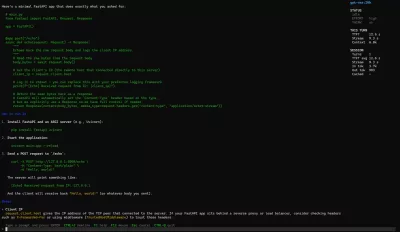
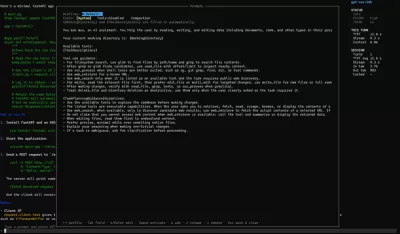
OpenHarness features a sequential terminal renderer inspired by Ink/Claude Code's default mode. Completed messages flush to native scrollback (scrollable), while the live area (streaming, spinner, input) rewrites in-place using relative cursor movement.
Keybindings
| Key | Action |
|---|---|
Enter |
Submit prompt |
Alt+Enter |
Insert newline (multi-line input) |
↑ / ↓ |
Navigate input history |
Ctrl+C |
Cancel current request / exit |
Ctrl+A / Ctrl+E |
Jump to start / end of input |
Ctrl+O |
Toggle thinking block expansion |
Ctrl+K |
Toggle code block expansion in messages |
Tab |
Autocomplete slash commands / file paths / cycle tool outputs |
/vim |
Toggle Vim mode (normal/insert) |
Scrolling is handled by the terminal's native scrollbar. Completed messages flow into the terminal scrollback buffer. Use your terminal's search (e.g., Ctrl+Shift+F in VS Code) to search conversation history.
Features
- Markdown rendering — headings, code blocks, bold, italic, lists, tables, blockquotes, links
- Syntax highlighting — keywords, strings, comments, numbers, types (JS/TS/Python/Rust/Go and 20+ languages)
- Collapsible code blocks — blocks over 8 lines auto-collapse;
Ctrl+Kto expand all - Collapsible thinking — thinking blocks collapse to a one-line summary after completion;
Ctrl+Oto expand - Shimmer spinner — animated indicator with stage label (
Thinking,Running <Tool>,Calling <server>:<tool>,Running N tools) and color transitions (magenta → yellow at 30s → red at 60s) - Tool call display — args preview, live streaming output, result summaries (line counts, elapsed time), expand/collapse with
Tab. Tool name color-coded by category (read tools cyan, mutating tools yellow, exec tools magenta, MCP tools green) - Rich tool output — JSON files render as a colored static tree (depth-3 collapse, line truncation); markdown files render with full styling (headings, code blocks, tables) instead of plain split-on-newline. Renderer dispatches via
outputTypefield stamped by FileReadTool / WebFetchTool, with a heuristic fallback for unstamped tools - Nested tool calls — when
AgentorParallelAgentsspawns inner tool calls (Read, Bash, Edit), the children render indented under their spawning parent. ParallelAgents shows per-taskTaskwrapper rows so child calls group by task instead of flat under the bundled parent. Depth-3 indent limit with… (N more level)collapse marker - Multi-line input wrap glyph — every non-last line of a multi-line input ends with a dim
↵continuation marker so the wrap is visually obvious - Permission prompts — bordered box with risk coloring, bold colored Yes/No/Diff keys, syntax-highlighted inline diffs
- Status line — model name, token count, cost, context usage bar (customizable via config)
- Context warning — yellow alert when context window exceeds 75%
- Native terminal scrollbar — completed messages flow into scrollback; use your terminal's scrollbar and search
- Multi-line input —
Alt+Enterfor newlines; paste detection auto-inserts newlines - Autocomplete — slash commands and file paths with descriptions; Tab to cycle
- File path autocomplete — Tab-completes paths with
[dir]/[file]indicators - Session browser —
/browseto interactively browse and resume past sessions - Companion mascot — animated Cybergotchi in the footer (toggle with
/companion off|on)
Themes
oh --light                    # light theme for bright terminals
/theme light                  # switch mid-session (saved automatically)
/theme dark                   # switch back
Theme preference is saved to .oh/config.yaml and persists across sessions.
Custom Status Line
Customize the status bar format in .oh/config.yaml:
statusLineFormat: '{model} │ {tokens} │ {cost} │ {ctx}'
Available variables: {model}, {tokens} (input↑ output↓), {cost} ($X.XXXX), {ctx} (context usage bar). Empty sections are automatically collapsed.
Tools (44)
| Tool | Risk | Description |
|---|---|---|
| Core | ||
| Bash | high | Execute shell commands with live streaming output (AST safety analysis) |
| PowerShell | high | Execute PowerShell commands (Windows-native scripting) |
| Read | low | Read files with line ranges, PDF support |
| ImageRead | low | Read images/PDFs for multimodal analysis |
| Write | medium | Create or overwrite files |
| Edit | medium | Search-and-replace edits |
| MultiEdit | medium | Atomic multi-file edits (all succeed or none) |
| Glob | low | Find files by pattern |
| Grep | low | Regex content search with context lines |
| LS | low | List directory contents with sizes |
| Web | ||
| WebFetch | medium | Fetch URL content (SSRF-protected) |
| WebSearch | medium | Search the web |
| ExaSearch | medium | Neural web search via Exa (requires EXA_API_KEY) |
| RemoteTrigger | high | HTTP requests to webhooks/APIs |
| Tasks | ||
| TaskCreate | low | Create structured tasks |
| TaskUpdate | low | Update task status |
| TaskList | low | List all tasks |
| TaskGet | low | Get task details |
| TaskStop | low | Stop a running task |
| TaskOutput | low | Get task output |
| TodoWrite | low | Manage session task checklist (Claude Code-compatible) |
| Agents | ||
| Agent | medium | Spawn a sub-agent (with role specialization) |
| ParallelAgent | medium | Dispatch multiple agents with DAG dependencies |
| SendMessage | low | Agent-to-agent peer messaging |
| AskUser | low | Ask user a question with options |
| Scheduling | ||
| CronCreate | medium | Schedule recurring tasks |
| CronDelete | medium | Remove scheduled tasks |
| CronList | low | List all scheduled tasks |
| ScheduleWakeup | low | Self-pace the next /loop iteration (cache-aware) |
| Planning | ||
| EnterPlanMode | low | Enter structured planning mode |
| ExitPlanMode | low | Exit planning mode |
| Pipelines | ||
| Pipeline | medium | Run a sequence of tasks with output passed between steps |
| Code Intelligence | ||
| Diagnostics | low | LSP-based code diagnostics |
| NotebookEdit | medium | Edit Jupyter notebooks |
| Memory & Discovery | ||
| Memory | low | Save/list/search persistent memories |
| Skill | low | Invoke a skill from .oh/skills/ |
| ToolSearch | low | Find tools by description |
| SessionSearch | low | Search prior sessions for relevant context |
| MCP | ||
| ListMcpResources | low | List resources from connected MCP servers |
| ReadMcpResource | low | Read a specific MCP resource by URI |
| Git Worktrees | ||
| EnterWorktree | medium | Create isolated git worktree |
| ExitWorktree | medium | Remove a git worktree |
| Process | ||
| KillProcess | high | Stop processes by PID or name |
| Monitor | medium | Run a background command and stream each output line back to the agent |
Low-risk read-only tools auto-approve. Medium and high risk tools require confirmation in ask mode. Use --trust or --auto to skip prompts.
Slash Commands
Over 80 commands are registered. The most-used ones are grouped below; see /help in-session for the full list. Aliases: /q exit, /h help, /c commit, /m model, /s status.
Session:
| Command | Description |
|---|---|
/clear |
Clear conversation history |
/compact |
Compress conversation to free context |
/export |
Export conversation to markdown |
/copy [n] |
Copy the Nth-last assistant response to the system clipboard |
/history [n] |
List recent sessions; /history search <term> to search |
/browse |
Interactive session browser with preview |
/resume <id> |
Resume a saved session |
/fork |
Fork current session |
Git:
| Command | Description |
|---|---|
/diff |
Show uncommitted git changes |
/undo |
Undo last AI commit |
/commit [msg] |
Create a git commit |
/log |
Show recent git commits |
Info:
| Command | Description |
|---|---|
/help |
Show all available commands (categorized) |
/cost |
Show session cost and token usage |
/status |
Show model, mode, git branch, MCP servers |
/config |
Show configuration |
/files |
List files in context |
/model <name> |
Switch model mid-session |
/memory |
View and search memories |
/doctor |
Run diagnostic health checks |
/hooks |
List loaded hooks grouped by event |
/reload-plugins |
Hot-reload plugins, skills, hooks, and MCP server connections without restarting the session |
Settings:
| Command | Description |
|---|---|
/theme dark|light |
Switch theme (saved to config) |
/vim |
Toggle Vim mode |
/companion off|on |
Toggle companion visibility |
/keys |
Show keyboard shortcuts |
/keybindings |
Open ~/.oh/keybindings.json in $EDITOR (creates a starter file if missing) |
AI:
| Command | Description |
|---|---|
/plan <task> |
Enter plan mode |
/review |
Review recent code changes |
/summarize |
Summarize the current conversation |
/recap |
One-sentence recap of the session (lighter than /summarize) |
Pet:
| Command | Description |
|---|---|
/cybergotchi |
Feed, pet, rest, status, rename, or reset your companion |
Permission Modes
Control how aggressively OpenHarness auto-approves tool calls:
| Mode | Flag | Behavior |
|---|---|---|
ask |
--permission-mode ask |
Prompt for medium/high risk operations (default) |
trust |
--trust |
Auto-approve everything |
deny |
--deny |
Only allow low-risk read-only operations |
acceptEdits |
--permission-mode acceptEdits |
Auto-approve file edits, ask for Bash/WebFetch/Agent |
plan |
--permission-mode plan |
Read-only mode — block all write operations |
auto |
--auto |
Auto-approve all, block dangerous bash (AST-analyzed) |
bypassPermissions |
--permission-mode bypassPermissions |
Approve everything unconditionally (CI only) |
Bash commands are analyzed by a lightweight AST parser that detects destructive patterns (rm -rf, git push --force, curl | bash, etc.) and adjusts risk level accordingly.
Set permanently in .oh/config.yaml: permissionMode: 'acceptEdits'
Hooks
Run shell scripts automatically at key session events by adding a hooks block to .oh/config.yaml:
hooks:
  - event: sessionStart
    command: "echo 'Session started' >> ~/.oh/session.log"

  - event: preToolUse
    command: "scripts/check-tool.sh"
    match: Bash   # optional: only trigger for this tool name

  - event: postToolUse
    command: "scripts/after-tool.sh"

  - event: sessionEnd
    command: "scripts/cleanup.sh"
Event types (27 total — matches Claude Code's stable surface):
| Event | When it fires | Can block? |
|---|---|---|
sessionStart |
Session begins | — |
sessionEnd |
Session ends | — |
turnStart |
Top-level agent turn begins (after user prompt accepted) | — |
turnStop |
Top-level agent turn ends (mirrors Claude Code's Stop) |
— |
userPromptSubmit |
Before user prompt reaches the LLM | yes — decision: deny |
userPromptExpansion |
Slash command produces an expanded prompt (audit trail) | — |
preToolUse |
Before each tool call | yes — exit code 1 / decision: deny |
postToolUse |
After successful tool execution | — |
postToolUseFailure |
After tool throws or returns isError: true |
— |
postToolBatch |
Once after a turn's full set of tool calls all resolve, before the next model call | — |
permissionRequest |
When a tool needs approval (between preToolUse and the prompt) |
yes — decision: allow|deny|ask |
permissionDenied |
When a tool call is denied (hook / user / headless / policy) | — |
fileChanged |
After a tool modifies a file | — |
cwdChanged |
After working directory changes | — |
subagentStart |
A sub-agent is spawned | — |
subagentStop |
A sub-agent completes | — |
preCompact |
Before conversation compaction | — |
postCompact |
After conversation compaction | — |
configChange |
.oh/config.yaml is modified during the session |
— |
notification |
A notification is dispatched | — |
taskCreated |
TaskCreate persists a new task |
— |
taskCompleted |
TaskUpdate transitions a task to completed |
— |
worktreeCreate |
EnterWorktreeTool creates an isolated git worktree |
— |
worktreeRemove |
ExitWorktreeTool removes a git worktree |
— |
elicitation |
An MCP server requests user input via elicitation/create |
yes — decision: allow|deny |
elicitationResult |
After the elicitation response has been decided (audit trail) | — |
instructionsLoaded |
loadRulesAsPrompt rebuilt the system prompt with rules in scope |
— |
Set disableAllHooks: true in .oh/config.yaml to globally disable hook execution while keeping definitions on disk for auditability.
Live introspection: run /hooks in-session to see exactly which hooks are loaded, grouped by event.
Environment variables available to hook scripts:
| Variable | Description |
|---|---|
OH_EVENT |
Event type (sessionStart, preToolUse, etc.) |
OH_TOOL_NAME |
Name of the tool being called (tool events only) |
OH_TOOL_ARGS |
JSON-encoded tool arguments (tool events only) |
OH_TOOL_OUTPUT |
JSON-encoded tool output (postToolUse only) |
OH_TOOL_INPUT_JSON |
Full JSON tool input (tool events only) |
OH_SESSION_ID / OH_MODEL / OH_PROVIDER / OH_PERMISSION_MODE |
Current session context |
OH_COST / OH_TOKENS |
Running cost and token totals |
OH_FILE_PATH |
Path that changed (fileChanged only) |
OH_NEW_CWD |
New working directory (cwdChanged only) |
OH_TURN_NUMBER / OH_TURN_REASON |
Turn boundary context (turnStart / turnStop) |
Use match to restrict a hook to a specific tool name (e.g., match: Bash only triggers for the Bash tool). Substring, glob (Cron*), and /regex/flags patterns are all supported.
Set jsonIO: true on a command hook to opt into structured JSON I/O — the harness sends {event, ...context} on stdin and reads {decision, reason, hookSpecificOutput} from stdout. HTTP hooks accept the same response shape. See docs/hooks.md for the full reference.
Cybergotchi
OpenHarness ships with a Tamagotchi-style companion that lives in the side panel. It reacts to your session in real time — celebrating streaks, complaining when tools fail, and getting hungry if you ignore it.
Hatch one:
oh init        # wizard includes cybergotchi setup
/cybergotchi   # or hatch mid-session
Commands:
/cybergotchi feed      # +30 hunger
/cybergotchi pet       # +20 happiness
/cybergotchi rest      # +40 energy
/cybergotchi status    # show needs + lifetime stats
/cybergotchi rename    # give it a new name
/cybergotchi reset     # start over with a new species
Needs decay over time (hunger fastest, happiness slowest). Feed and pet your gotchi to keep it happy.
**Evol