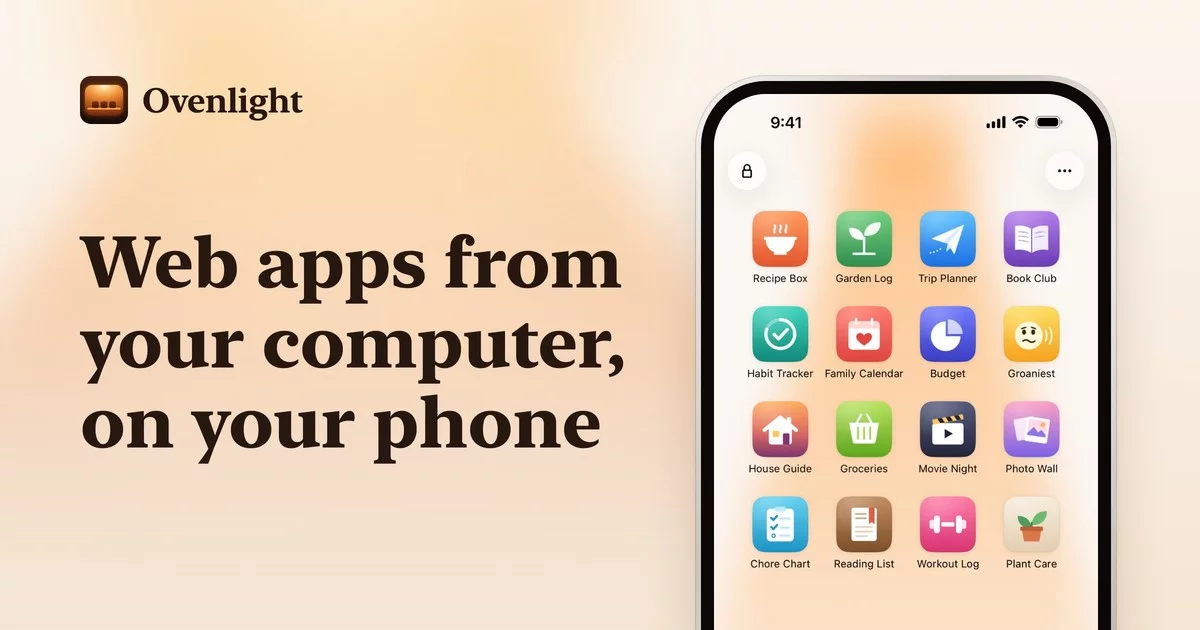


Ovenlight
Cooking up apps with AI? Serve them to the people you made them for, and no one else.
Your web apps run on your own computer, stay off the public internet and open on your phone, behind Face ID or your fingerprint.


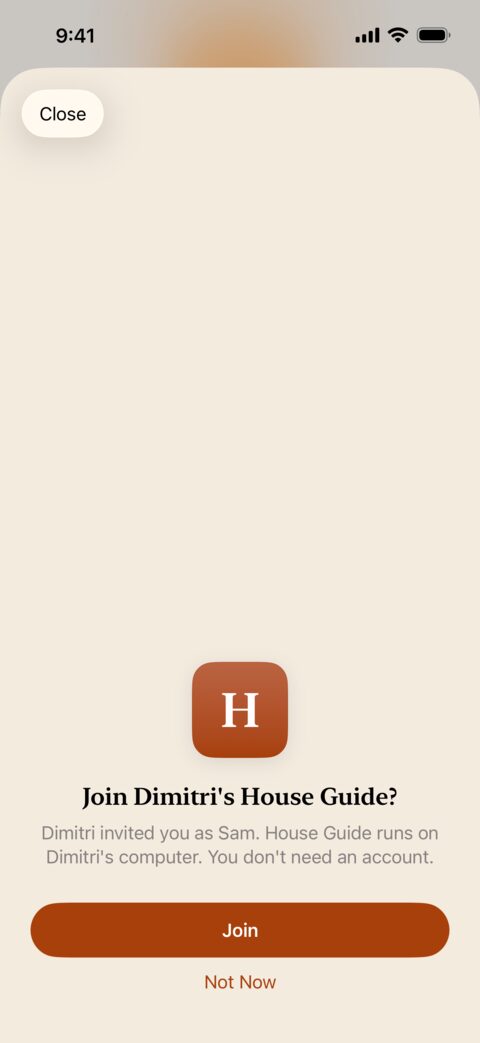
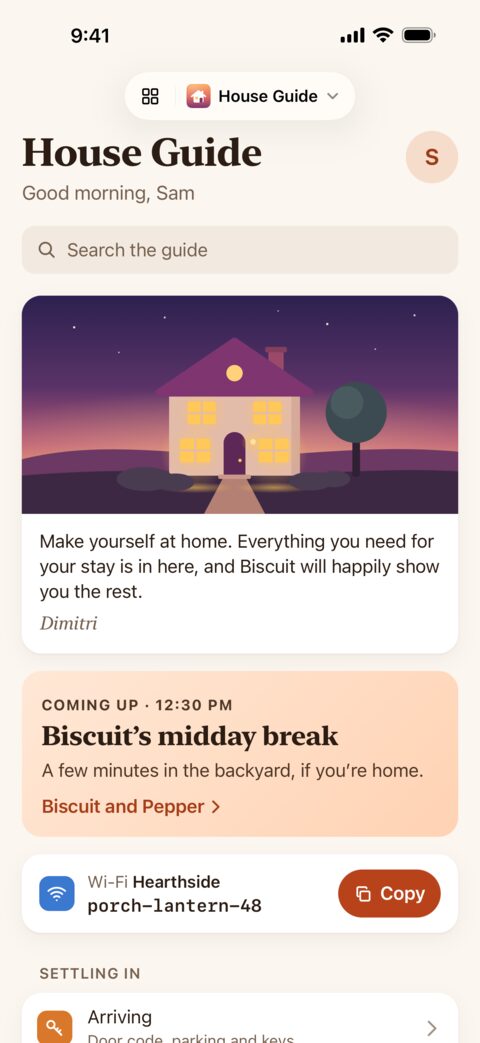
Got an invite? Install Ovenlight, then open your invite link again. Here's
what the person who invited you sees.
Get started · With your coding agent · Share an app · Security · ovenlight.app
Watch how it works in 85 seconds on ovenlight.app
I've seen people use coding agents to build incredible things that make life better and work easier. Maybe yours is a small web app for your family, your garden or your book club. I made Ovenlight so you'd have an easy way to share it with the people who'd benefit. It puts the app on your phone and on the phone of anyone you invite, and it opens wherever the phone is online, at home or away.
Your computer is the server. The app and its data stay on it and off the public internet, and your apps open while it's on and awake. It can be your laptop or a computer at home that stays on. If you can't keep one at home, a server you rent works too. You install Ovenlight's connector on it and sign up for a Tailscale account, which is free for personal use. The people you share with only install Ovenlight on their phone. They don't need a computer, the connector or a Tailscale account.
Once your computer is set up and your agent connected, ask it to put the app on your phone:
You: Make a chore chart for the kids and put it on my phone.
Your agent reads Ovenlight's building guide, builds Chore Chart on your computer, publishes it and checks it.
Your agent: Chore Chart is ready. It will show up in Ovenlight on your phone once you sign in with your Tailscale account at this link:
https://login.tailscale.com/a/…You: Can Sam have it too?
Your agent: That part's yours. In a terminal, store a Tailscale API access token with
ovenlight auth set, then runovenlight publish --slug chore-chart --shareableand answer its questions. Last, touch and hold Chore Chart in Ovenlight and choose Share.
What you get
- Friends join with a link and a tap. A friend installs Ovenlight, opens your invite and taps Join. They don't make an account or sign in to anything. The app arrives marked with your name.
- Share one app, not your computer. A friend's phone reaches only the apps you shared with it, and none of your other devices. When you stop sharing, their access ends at once, and the app and its data leave their phone the next time Ovenlight connects.
- There's nothing to deploy and no login to build. The app stays on your computer and
off the public internet. Ovenlight's connector, a program that runs beside it, gives it
an HTTPS address in your Tailscale network and tells it who is calling. Any web app that
serves plain HTTP on
127.0.0.1can sit behind it, whether AI built it or not. - Your coding agent does the publishing. Through the connector's MCP server, your agent can publish the app, check it, read its logs and read the notes and screenshots people send from inside it. Inviting people is up to you: Ovenlight doesn't give your agent a way to do it.
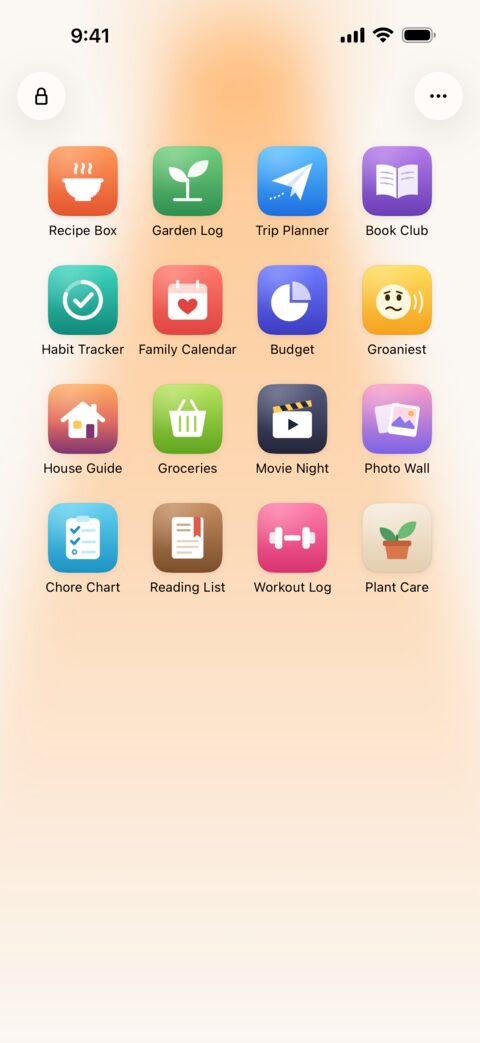
- It opens like an app. Each app opens full screen from its own icon, in a launcher that works like your phone's home screen, and keeps its storage apart from the others. Unlock Ovenlight once, with Face ID or your fingerprint, and they all open.
- It's private and open source. There's no Ovenlight account, no analytics and no ads. Phones reach your computer over a Tailscale connection built into Ovenlight, never through our servers, so neither you nor your friends need a VPN or the Tailscale app. The iPhone and Android apps and the connector are under the Apache License 2.0. It's made by Dimitri Cole Restaino at Snowy Ghost.
Why not a VPN, a tunnel or a hosting service?
- A VPN and a bookmark work for you. A friend would need a VPN app and an account, and unless you write access rules for them, they'd reach your computer, not just one app. With Ovenlight they get one app with its own icon and nothing to set up, and Ovenlight drafts the rules for you to approve.
- A tunnel or an open port works in any browser, on any phone, but puts the app on the public internet, where the app or the tunnel has to keep strangers out. Ovenlight keeps the app off the public internet and turns away anyone you didn't invite.
- A hosting service keeps the app up while your computer is off, but puts the app on the public internet. Ovenlight keeps it off the public internet, whether it runs on your own computer or a server you rent. Either way, that computer has to be on and awake while people use the app.
How it works
%%{init: {"flowchart": {"wrappingWidth": 400}}}%%
flowchart LR
  you["Your phone"] --> rb & cc
  sam["Sam's phone"] -- "invited to Recipe Box" --> rb
  subgraph computer["Your computer, running the connector"]
    rb["Recipe Box<br>recipe-box.your-tailnet.ts.net"]
    cc["Chore Chart<br>chore-chart.your-tailnet.ts.net"]
  end
- The connector (the
ovenlightcommand, inconnector/) runs on the computer with your apps. Built on Tailscale's tsnet, it makes each app its own device in your Tailscale network (your tailnet), with an HTTPS address, and passes each request on to the app at127.0.0.1with headers that say who is calling. It also manages your guests and serves the MCP tools your coding agent uses. - The iPhone app (in
Ovenlight/) carries its own Tailscale node, built with TailscaleKit. It finds the apps you publish and opens them. - The Android app (in
android/) does the same, with a Tailscale node built from Tailscale's tsnet.
When you share an app, your friend's phone joins your tailnet as a guest device. Security says what it can reach and how that's enforced.
Where your apps run
- Your laptop is where to start. Your apps work while it's plugged in and awake, and once you change one setting, they stay up with the lid closed. Get started sets up the rest.
- A computer at home, such as a Mac mini, a spare PC or an old laptop, can stay on so your apps open any time. Your data stays in your house. docs/always-on.md sets it up.
- A server you rent works if you can't keep one at home. It's the provider's computer, so your apps and their data sit on its disk, and its terms apply. docs/always-on.md sets it up.
What you need
The people you share with only install Ovenlight on their phone. Everything else here is for you, since you run the apps.
- A computer that stays on and awake while anyone uses your apps: a Mac with macOS 13 or later, logged in to its desktop; a Linux computer with systemd, such as Ubuntu; or a Windows 11 PC. Out of the box, a laptop sleeps when you close its lid and Windows sleeps when it's idle. You can change both.
- Ovenlight on your phone, from the App Store or Google Play. It runs on an iPhone with iOS 18.1 or later, or on a phone with Android 10 or later. Your friends need the same to join.
- A Tailscale account. You sign up for one, but you don't need the Tailscale app on your phone or your computer. Tailscale's free Personal plan is for non-commercial use, so a business needs one of Tailscale's paid plans. Each shareable app and each guest's phone is a tagged device, which Tailscale's plans count. The free Personal plan includes a set number and charges for more (details).
docs/connector.md says how the connector runs on each system, including on a Mac without a display. To build either app yourself, see docs/development.md (iPhone, Android). Headscale is supported for development only.
Get started
You can start on the computer you have, even a laptop. For apps that open any time, run them on your own server.
1. Turn on HTTPS certificates
In the Tailscale admin console, under DNS, turn on MagicDNS if it's off, then turn on HTTPS certificates. Each app gets its own HTTPS address in your tailnet, and Ovenlight opens apps only over HTTPS.
2. Install the connector
On a Mac or Linux, run this in a terminal:
curl -fsSL https://ovenlight.app/install.sh | sh
On Windows, sign in as the account that will own the apps, which must be an administrator. Open PowerShell with Run as administrator, then run:
irm https://ovenlight.app/install.ps1 | iex
Never used a terminal? Here's how to open one.
The script picks the release for your computer and checks the download, then installs the
ovenlight command and keeps the connector running
(what it checks and changes). When it's done, open a new
terminal window, so the commands below work as written. On Linux, if it prints a
sudo loginctl enable-linger command, run that too, so the connector keeps serving with
nobody logged in and after a restart.
Or install by hand
To see each step before it runs, follow these for your computer's system, or
read the installer first. On each, the
archive's script installs the ovenlight command and keeps the connector running. To
check a download's signature by hand too, follow
check a download first.
Mac
In Terminal:
mkdir -p ~/ovenlight-connector && cd ~/ovenlight-connector
curl -fsSL https://downloads.ovenlight.app/connector/latest/ovenlight-connector-macos.tar.gz |
  tar xz --strip-components 1
./install.sh
If the script prints a line for your shell profile, as it does on a new Mac, add it:
echo >> ~/.zshrc
echo 'export PATH="$HOME/.local/bin:$PATH"' >> ~/.zshrc
Then open a new Terminal window, so the commands below work as written.
Linux
In a terminal:
mkdir -p ~/ovenlight-connector && cd ~/ovenlight-connector
curl -fsSL https://downloads.ovenlight.app/connector/latest/ovenlight-connector-linux-amd64.tar.gz |
  tar xz --strip-components 1
./install.sh
On an Arm computer, use linux-arm64 in place of linux-amd64. If the script prints a
line for your shell profile, add it to ~/.bashrc and open a new terminal. If it prints a
sudo loginctl enable-linger command, run it, so the connector keeps serving with nobody
logged in and after a restart.
Windows
Sign in as the account that will own the apps, which must be an administrator. Open PowerShell with Run as administrator, then run:
mkdir $HOME\ovenlight-connector -Force | Out-Null; cd $HOME\ovenlight-connector
curl.exe -fsSL https://downloads.ovenlight.app/connector/latest/ovenlight-connector-windows-amd64.zip -o connector.zip
tar -xf connector.zip --strip-components 1
powershell -ExecutionPolicy Bypass -File .\install.ps1
On an Arm PC, use windows-arm64 in place of windows-amd64. The ovenlight command
works in PowerShell windows opened after the install.
Updating
The connector updates itself, at a quiet moment in the night two days after it first sees
a new release, and sooner for a security fix. ovenlight update off stops it. Releases up
to 1.0.9 don't update themselves: run the install command above once.
docs/connector.md has the details, and how to install a
release by hand with its signature checked.
3. Publish an app
Public certificate logs list each app's address with your tailnet's name in it, so pick app names you don't mind people seeing.
With a coding agent, connect it and ask it to put your app on your phone. It publishes and checks the app, and asks you for the steps only you can do, such as opening the login link.
To publish it yourself, run your app on the same computer, on a port nothing else uses. It
must serve plain HTTP on 127.0.0.1, and serve static files only from a public folder,
never from the project's folder with its data and code. Then publish it with its port:
ovenlight publish --port 4317 --name "Recipe Box"
Recipe Box becomes its own device in your tailnet, at
https://recipe-box.<your-tailnet>.ts.net/. For each new app, publish prints a login
link: open it and sign in with your Tailscale account. Once you store an API access token
(see Share an app), later apps sign in without a login link. ovenlight doctor checks the setup and gives a fix for each problem it finds, and ovenlight help
lists every command (docs/connector.md explains each).
To have the connector start the app and keep it running, stop your own copy (Ctrl-C in its
terminal, never pkill by name). Then, in the app's folder, give publish the command
that starts it:
ovenlight publish --port 4317 --name "Recipe Box" --run 'npm start'
No app yet? ovenlight new "Family List" --dir ~/src writes a starter app (a shared list
everyone can add to) and says how to run and publish it.
4. Open it on your phone
In Ovenlight, choose Use My Own Computers, tap Connect and sign in with the same Tailscale
account. If you've already joined someone else's app, Use My Own Computers is in Settings,
under the More button. If your tailnet has device approval on, approve the phone and the
app (listed as recipe-box) in the
admin console. Your apps then appear on
their own. If one doesn't, run ovenlight doctor on the computer, and see
Troubleshooting.
With a coding agent
The connector is also an MCP server, so your coding agent (Claude Code, Codex and others that support local MCP servers) can follow Ovenlight's building guide, publish your app, check it, restart it, read its logs and read the feedback people send. Through the MCP tools, what guests write and what apps print come marked as untrusted text. Connect the agent on the computer that runs the connector, then ask it to put an app on your phone. If you build on your laptop and run your apps on a Linux server of your own, set up the server and give your agent the note in Let your agent send your apps instead.
In Claude Code, install Ovenlight's plugin. It adds the MCP server and a skill that reads the guide whenever you ask to put an app on your phone. The skill is Claude Code's own: any agent connected to the MCP server gets the same tools and the guide.
/plugin marketplace add snowy-ghost/ovenlight
then:
/plugin install ovenlight@snowy-ghost
To add only the MCP server to Claude Code, on a Mac:
claude mcp add --scope user ovenlight -- \
  ~/Library/Application\ Support/ovenlight/bin/ovenlight mcp
On Linux, the path is ~/.local/state/ovenlight/bin/ovenlight (under $XDG_STATE_HOME
when that's set). On Windows, in PowerShell:
claude mcp add --scope user ovenlight -- "$env:LOCALAPPDATA\ovenlight\bin\ovenlight.exe" mcp
In Codex, on a Mac (on Linux, with the path above):
codex mcp add ovenlight -- \
  ~/Library/Application\ Support/ovenlight/bin/ovenlight mcp
On Windows, in PowerShell:
codex mcp add ovenlight -- "$env:LOCALAPPDATA\ovenlight\bin\ovenlight.exe" mcp
For another agent, add a local MCP server whose