

The break time reminder app
Stretchly is a cross-platform Electron app that reminds you to take breaks when working on your computer.
Table of contents
- Install
- Default behavior
- Preferences
- Advanced Preferences
- Contributor Preferences
- Getting help
- Development
- Known issues
- Contributors
- Humans and Tools
- License
Install 

The latest official installers and portable versions for macOS, Windows and Linux can be found at Github Releases page. For supported versions of your OS check Electron's supported versions. Read on for details of specific OSes.
macOS
Requires macOS Ventura (13) or later.
It is recommended to install Stretchly with Homebrew tap by running the following command. See Application Signing for details.
brew install --cask hovancik/stretchly/stretchly
Note for macOS users: Homebrew recently disabled the
--no-quarantineflag. As a result, macOS Gatekeeper may block the app on its first launch, showing an "unidentified developer" warning. To bypass this, go toSystem Settings > Privacy & Security, scroll down, and click Open Anyway next to the Stretchly alert. Alternatively, locate the app in Finder, Control-click (or Right-click) its icon, and select Open.
When upgrading, run the following command. Don't forget to Quit Stretchly, first.
brew upgrade --cask hovancik/stretchly/stretchly
To uninstall:
brew uninstall --cask hovancik/stretchly/stretchly
brew untap hovancik/stretchly
Note: A
stretchlycask also exists in the defaulthomebrew/casktap. It is deprecated and scheduled to be disabled on September 1, 2026 because the app is unsigned and fails Homebrew's Gatekeeper check. Until then, the bare namestretchlyis ambiguous — always use the fully qualifiedhovancik/stretchly/stretchlyto get this tap's version.
If you're using Alfred or Raycast on macOS you can use this Alfred Workflow or Raycast Extension to interact with Stretchly.
Application Signing
Stretchly is only ad-hoc signed (due to its costs and me not owning supported Apple device) so you will need to use a workaround for the first run. The workaround depends on if you're running an Intel or Apple Silicon chip.
- Intel Chips: Open a Mac app from an unidentified developer.
- Apple Chips: Open a terminal and run this command:
sudo xattr -r -d com.apple.quarantine /Applications/Stretchly.app
Not sure which chip your computer has? Here's how to tell.
Windows
You can also install Stretchly with Chocolatey by running the following command from the command line or from PowerShell:
choco install stretchly
To update:
choco upgrade stretchly
Stretchly is also available in Microsoft's winget. You can install it by running:
winget install -e --id Stretchly.Stretchly
Stretchly can be also found at official Microsoft Store.
You can install Stretchly for all users silently by running this as administrator:
installer.exe /S /allusers
Linux / Portable
For portable versions and for Linux installers, head to Github Releases page. The most widely used distributions should be covered.
Stretchly is also available in some of the Linux stores:
For Debian/Ubuntu and derivates you could also try this apt repository: deb [trusted=yes] https://apt.fury.io/hovancik/ /.
Linux note
Please see http://electron.atom.io/docs/api/tray/ for Electron's Tray Linux specifics.
For Natural breaks, you might need some packages too (libxss-dev).
If Stretchly is not starting, you might need to run:
sudo sysctl kernel.unprivileged_userns_clone=1
sudo sysctl -w kernel.apparmor_restrict_unprivileged_userns=0
Read more here. Depending on your distro, you probably want to do something similar to this, so the preferences are kept after reboot: Add kernel.unprivileged_userns_clone=1 and kernel.apparmor_restrict_unprivileged_userns=0 to /etc/sysctl.d/00-local-userns.conf and reboot.
If you're on Wayland and you would like to be able to monitor idle time, you'll need to add your user to input group, with sudo gpasswd --add $USER input (depending on your distro) and logout/login to take an effect.
Running from source
To run Stretchly from source you will need Node.js, ideally the one specified in package.json. Clone the repo, run npm install and then simply run npm start to start Stretchly.
Custom installer
You can create a custom installer by running npm run pack or npm run dist after npm install --no-save.
Default behavior
When you run Stretchly for the first time, you are presented with a Welcome window that allows you to change the language, review the preferences, view the online tutorial or simply continue with the default preferences.
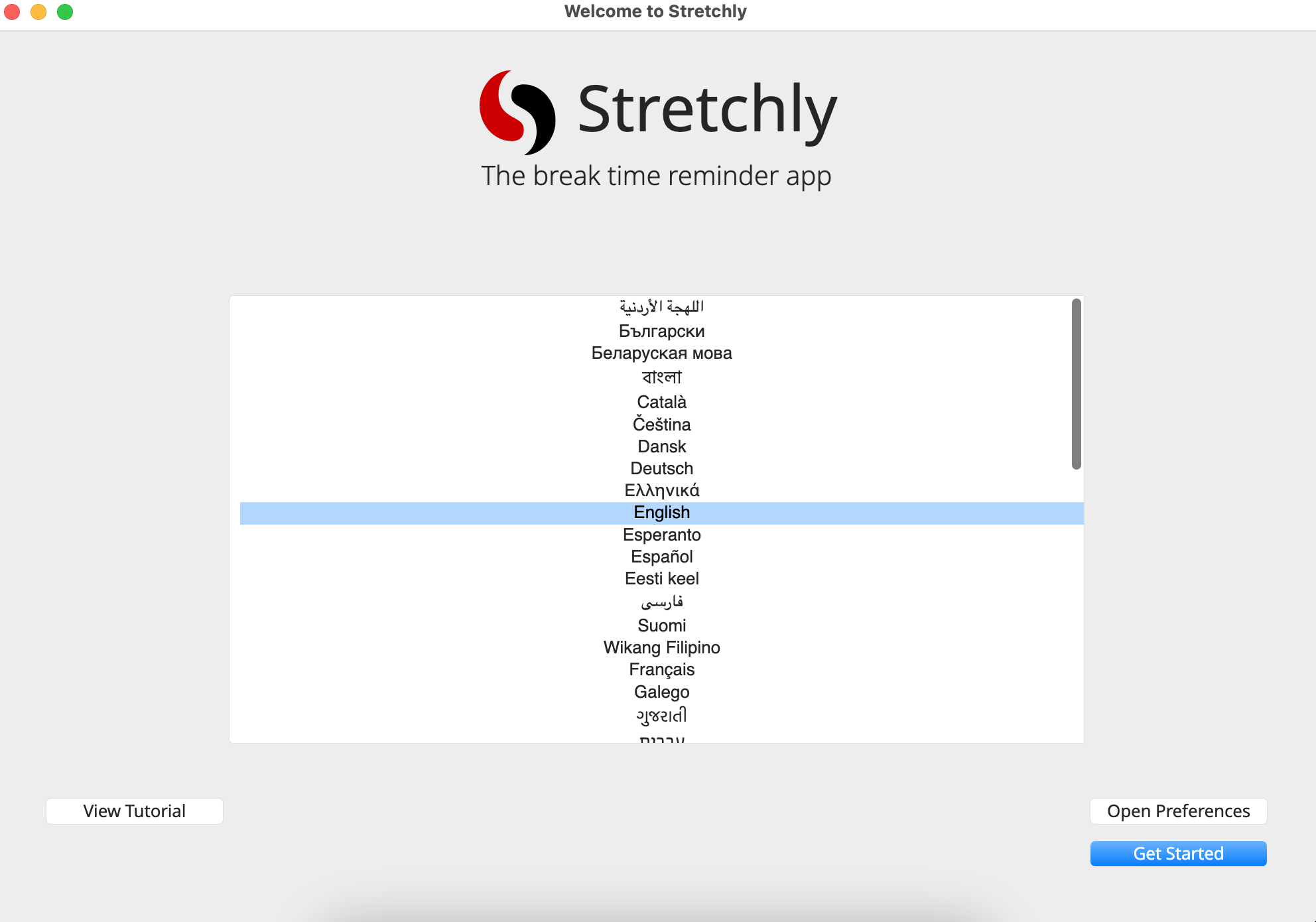
Stretchly itself lives in your tray, only displaying a reminder window from time to time, which contains an idea for a break.
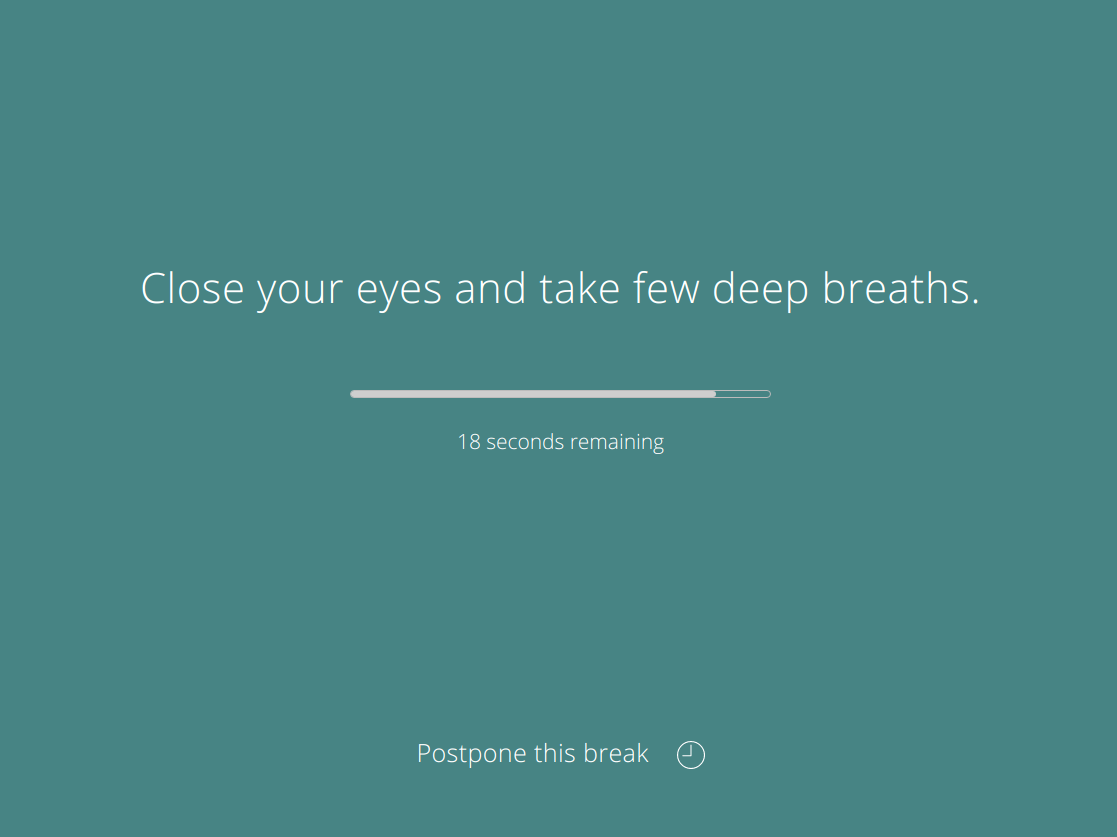
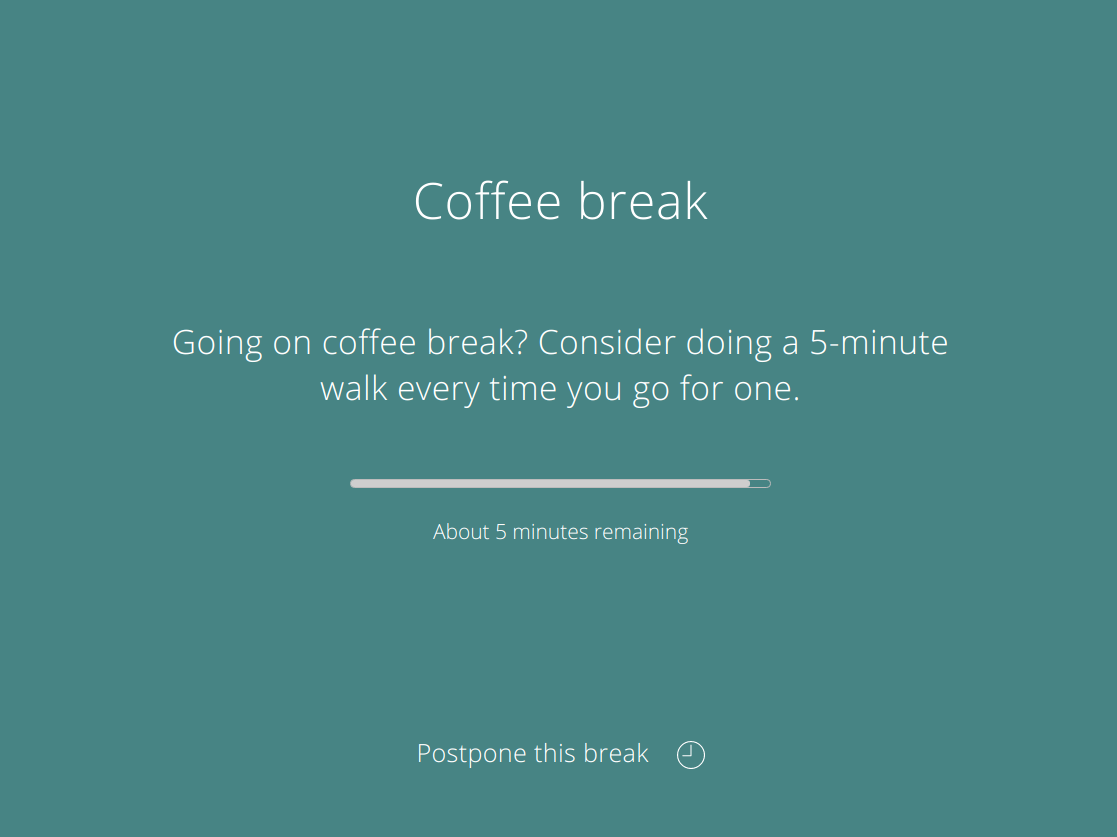
By default, there is a 20 second Mini break every 10 minutes and a 5 minute Long break every 30 minutes (after 2 Mini breaks).
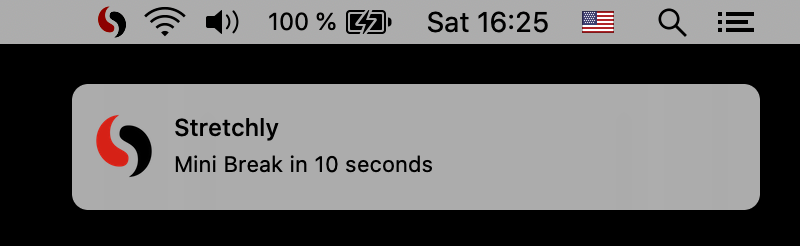
You'll be notified 10 seconds before a Mini break (and 30 seconds before a Long break) so that you can prepare to pause your work.
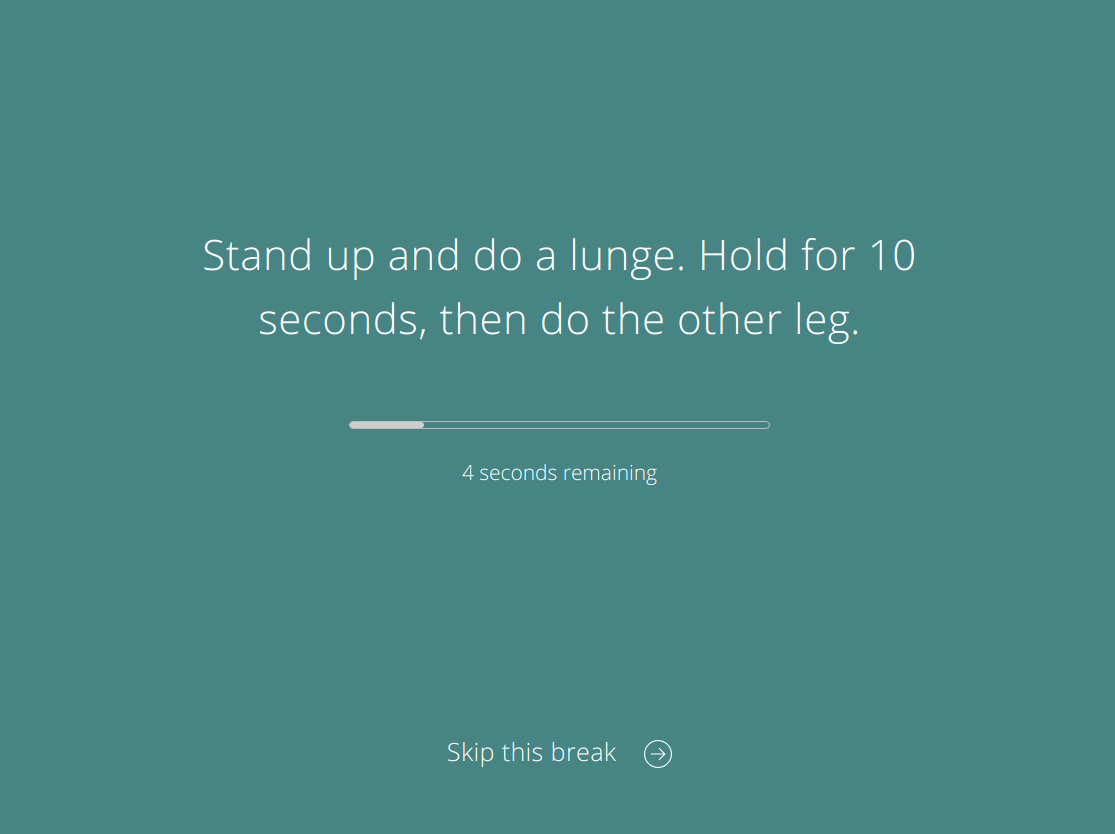
When a break starts, you can postpone it once for 2 minutes (Mini breaks) or 5 minutes (Long breaks). Then, after a specific time interval passes, you can skip the break. Both actions are available by clicking on the link at the bottom of window or by using the Ctrl/Cmd + X keyboard shortcut.
Clicking the Stretchly icon in your tray area will display the current status of breaks, provide menu items with extra functionality, and link to the Preferences.
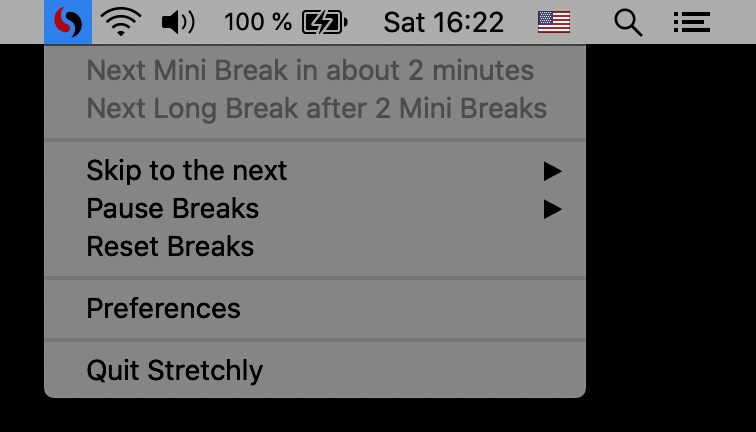
Stretchly is monitoring your idle time, so when you are idle for 5 minutes, breaks will be paused until you return.
Stretchly is also monitoring Do Not Disturb mode, so breaks are paused when DnD mode is On.
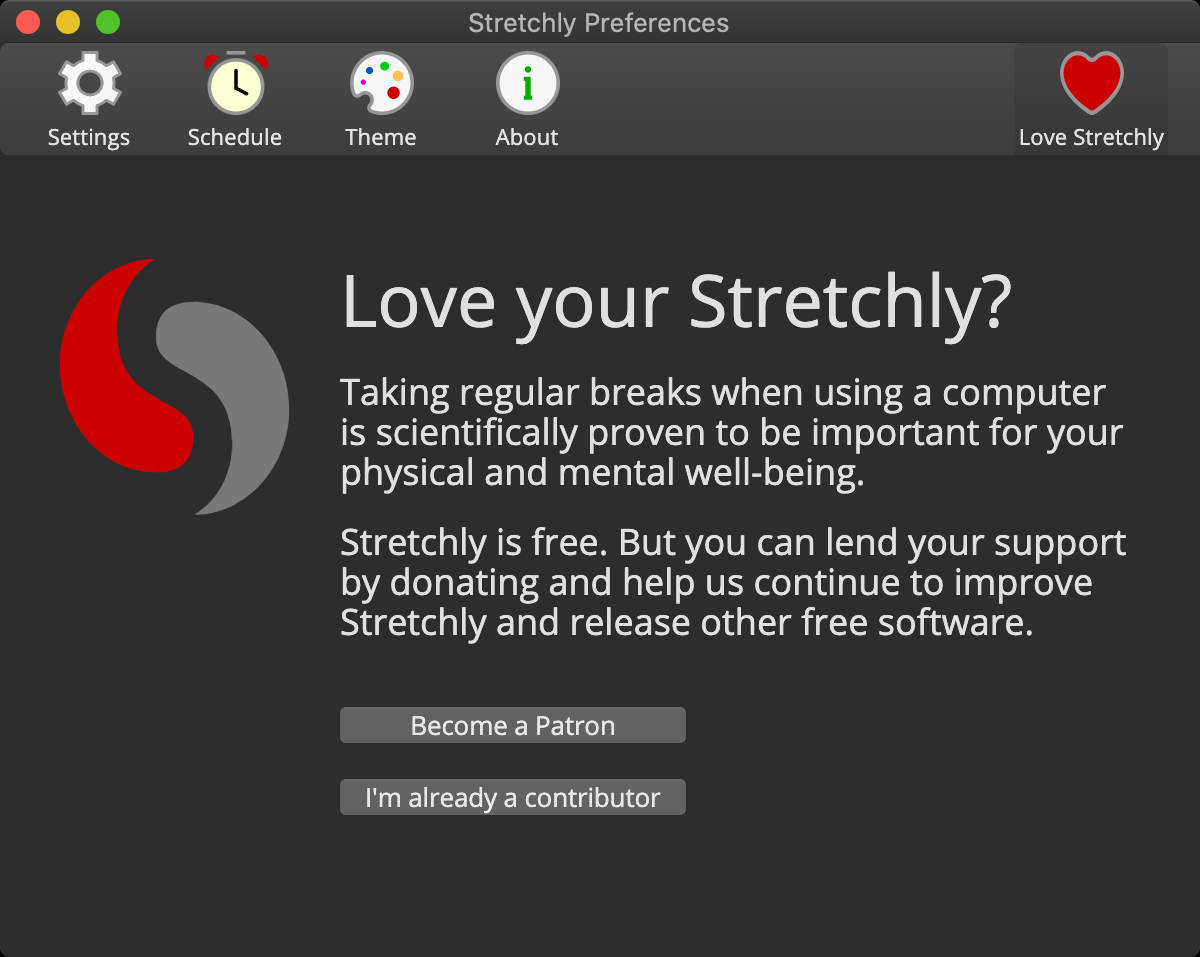
Stretchly follows the theme of your system and is also available in dark mode.
Interact with stretchly from command line
When a Stretchly instance is running, the stretchly command can be use to interact with it from the command line.
The regular Windows installer adds stretchly to PATH, so commands can be run from a new terminal without specifying the full executable path.
Type stretchly help to get a list of all commands and options available as well as some examples.
Preferences
Most of the preferences can be customized by clicking on the "Preferences" item in the tray menu. (On Windows, to open Preferences, you can also double-click on the tray icon.)
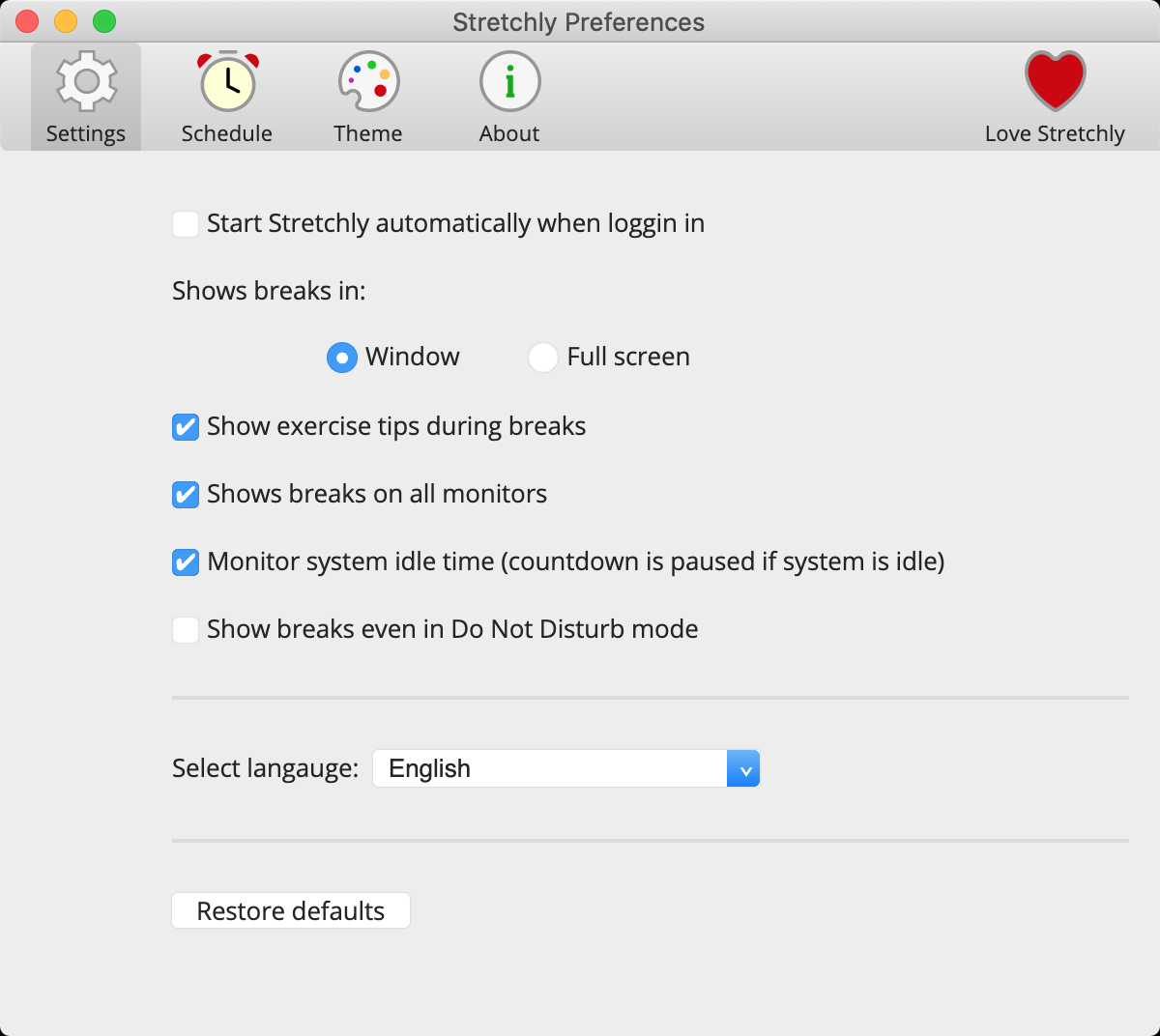
Preferences are divided into multiple categories and you are encouraged to take some time to make Stretchly your own by customizing them.
You can also Restore the defaults to return to the default preferences state.
Advanced Preferences
While the most of the preferences can be edited via the app, some options and values are not available to make the app easy to understand and setup.
All preferences are saved in a JSON file, so you can set Stretchly in the way you need. Use the Ctrl/Cmd + D shortcut while viewing the About section of Preferences, to show debug info and display a clickable link to the preferences file.
It's recommended to Quit Stretchly before editing the preferences file.
To make sure that all works as expected, it's always good idea to check that format of the preferences file is correct, ie. by using jsonformatter.
After you make changes to preferences files, some of the values being shown in Preferences or elsewhere might show incorrect value, as the UI is expecting specific values and is not handling cases where user makes manual changes to preferences file.
Some of the extra preferences are available in Contributor Preferences for Contributors. Those are marked by 
Preferences marked with 
Note: Before 1.0, Mini breaks and Long breaks were called Microbreaks and Breaks, respectively. To keep the upgrade smooth they still use that name in preferences file and in code.
Preferences editable in the app
Here are the preferences editable via the app. If values in the app does not suite your style, you could edit them maually:
microbreakDuration- duration of Mini break (ms)microbreakInterval- interval of Mini break (ms)breakDuration- duration of Long break (ms)breakInterval- interval of Long break (Mini breaks)breakNotification- show notification before Mini breakmicrobreakNotification- show notification before Long breakmicrobreak- enable Mini breaksbreak- enable Long breaksmicrobreakStrictMode- enable strict mode for Mini breaksbreakStrictMode- enable strict mode for Long breaksmainColor- theme color code (for Long breaks),miniBreakColor- theme color code (for Mini breaks),transparentMode- show break windows as transparentlongBreakAudio- sound theme name (for Long breaks)miniBreakAudio- sound theme name (for Mini breaks)fullscreen- show breaks in fullscreen modeideas- show break ideasnaturalBreaks- monitor idle timeallScreens- show breaks on all screenslanguage- languageuseMonochromeTrayIcon- use monochrome icontrayIconStyle- icon style for menubar: default, time to break, or progress to breaksilentNotifications- enable soundsmonitorDnd- monitor DND modecheckNewVersion- check for new versions
Editing break ideas
In the preferences file, change useIdeasFromSettings: false, to useIdeasFromSettings: true, and edit breakIdeas and microbreakIdeas.
Note that when a new Stretchly version with new break ideas is out, your custom ideas will not be overwritten. You can reset break ideas to the latest defaults when you "Restore defaults" from Preferences window.
Using HTML in break ideas
You can use simple HTML formatting in custom break ideas to enhance their appearance:
Allowed HTML elements:
<a>- links (onlyhttps://andmailto:URLs are allowed)<b>- bold text<i>- italic text<br>- line breaks<p>- paragraphs<h1>,<h2>,<h3>- headings<img>- local images (filenames only, see below)
Using links:
"breakIdeas": [
  {
    "data": ["<b>Stretch Time!</b>", "Try this <a href=\"https://example.com/stretch\">stretching routine</a>"],
    "enabled": true
  }
]
Using local images:
Place your images in the images folder inside Stretchly's user data directory (see Preferences → About → Debug info for the exact location). Then reference them by filename only:
"breakIdeas": [
  {
    "data": ["<b>Desk Yoga</b>", "Try this pose: <img src=\"yoga-pose.png\" width=\"200\">"],
    "enabled": true
  }
]
Supported image formats: PNG, JPEG, WebP, GIF. Only images from the local images folder are allowed - remote URLs will be blocked for security.
Stretchly sanitizes all HTML to keep break windows secure by removing any unsupported tags or unsafe content.
Editing break notification interval
In the preferences file, change breakNotificationInterval: 30000, to whatever value you want. 30000 is 30 seconds. Same goes for Mini breaks.
Editing sunrise time to pause breaks until morning
In the preferences file you can set the morningHour setting to pause until that hour today or the next day
Otherwise, you can set morningHour: "sunrise" and set posLatitude, posLongitude in
preferences to pause until the actual sunrise in your area.
E.g. if you live in Boston you would set:
morningHour: "sunrise",
posLatitude: 42.3,
posLongitude: 71
Editing postpone functionality
In the preferences file, you can edit microbreakPostpone and breakPostpone to enable or disable the ability to postpone breaks, microbreakPostponeTime and breakPostponeTime to change the postpone time in milliseconds, microbreakPostponesLimit and breakPostponesLimit to change the number of allowed postpones per break, and finally, microbreakPostponableDurationPercent and breakPostponableDurationPercent to change the percentage of the break during which the user can postpone it.
New version notification
In the preferences file, set notifyNewVersion: false, to disable new version notification.
Sounds at the start of breaks
To configure the sound when a break starts, set for example "miniBreakStartSound": "crystal-glass". Same for longBreakStartSound. Built-in values: silence, crystal-glass, wind-chime, tic-toc, reverie. Setting the value to silence means no sound will be played.
Different sound for Mini and Long breaks
To play different sound for Mini breaks, set miniBreakAudio to desired value (crystal-glass, silence, tic-toc, wind-chime).
Custom sounds
To use your own sounds, put WAV files in the audio folder inside Stretchly's user data directory. Open it from Preferences → About by pressing Ctrl/Cmd + D and clicking audioFolder.
To replace a sound from Preferences, name your file crystal-glass.wav, wind-chime.wav, tic-toc.wav, or reverie.wav. For example, save it as crystal-glass.wav and select Crystal Glass. Stretchly will use your file whenever that sound plays, including previews. Delete the file to get the original sound back.
You can also use your own filename, for example my-sound.wav. In the preferences file, set "miniBreakAudio": "my-sound" or "longBreakAudio": "my-sound". The same works for miniBreakStartSound and longBreakStartSound. Leave out .wav in these settings. These sounds won't appear as new choices in Preferences. If you delete the file, change the setting back to a built-in sound.
Filenames can contain letters (a-z, A-Z), numbers, dots, underscores, and hyphens. Only .wav files are supported. The silence option always stays silent.
Different color theme for Mini and Long breaks
To have different theme for Mini breaks, set miniBreakColor to desired value, ie #123456.
Natural breaks inactivity time
In the preferences file, set naturalBreaksInactivityResetTime to your preferred value (in milliseconds greater than than 20000ms). This is an idle time length, after which Stretchly breaks will be paused until the user resumes activity.
You can also set naturalBreaksCheckInterval in milliseconds: how often idle time is checked. A higher number means lower CPU and energy usage, but slightly less responsive detection. Default value is 2000 which is 2 seconds.
Do Not Disturb check interval
In the preferences file, set monitorDndCheckInterval in milliseconds: how often Do Not Disturb status is checked. A higher number means lower CPU and energy usage, but slightly less responsive detection. On macOS and Linux this check can be relatively expensive, so increasing it can noticeably lower energy usage. Default value is 2000 which is 2 seconds.
Volume for break sounds
In the preferences file, set volume to your preferred value. Default value is 1, which is 100% volume. Set it, for example, to 0.61 for 61% volume. This applies to both start and end break sounds.
Postpone/finish break shortcut
In the preferences file, set endBreakShortcut to your preferred value. We do not validate this input, so please check Electron's documentation for available values for key and modifier. When a given accelerator is already taken by other applications, this call will silently fail. This behavior is intended by operating systems, since they don't want applications to fight for global shortcuts.
If you'd like to disable the shortcut, set value to empty string "".
Default value is CmdOrCtrl+X.
Manual finish break mode
If you want breaks to wait for you to finish them manually instead of automatically when the countdown reaches zero, set:
"miniBreakManualFinish": true,
"longBreakManualFinish": true
Once enabled, the break behaves normally until it reaches 100%, then the window switches to showing elapsed time since the break started. You must press the Finish button or use the endBreakShortcut to close the break.
Toggle breaks shortcut
Toggling between Pause breaks and running breaks.
In the preferences file, set pauseBreaksToggleShortcut to your preferred value. We do not validate this input, so please check [Electron's documentation](https://www.electronjs.org/docs/latest/tutorial/keyboard-shortcuts#acc