
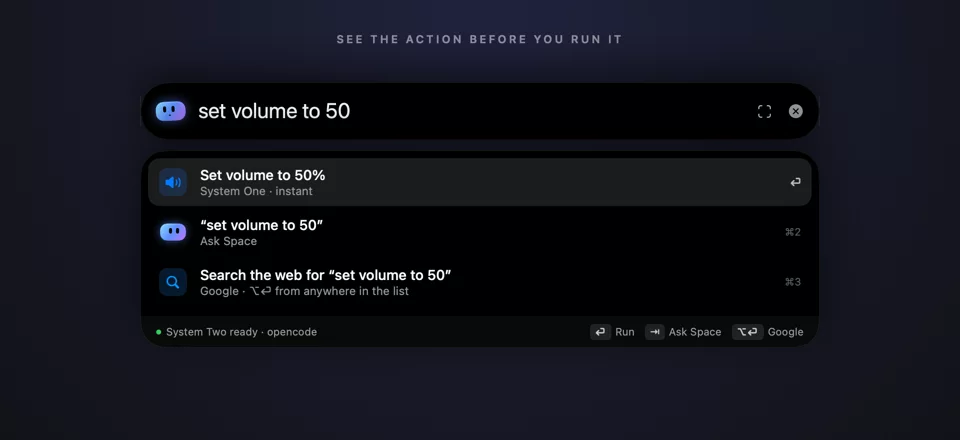


Spotlight, replaced. Apps, documents, commands and an AI agent behind ⌘Space.
Download for macOS · Get started · Choose your agent
Press ⌘Space and a black bubble opens in the upper middle of the screen, then stretches into a search bar. Start typing and results grow underneath. Type a name and you get the app or document. Type a question or a task and Space, the agent, takes it.
Command Space grew out of Notch Agent. It's the same agent with the same look, moved out of the notch and into a launcher.
See it in action

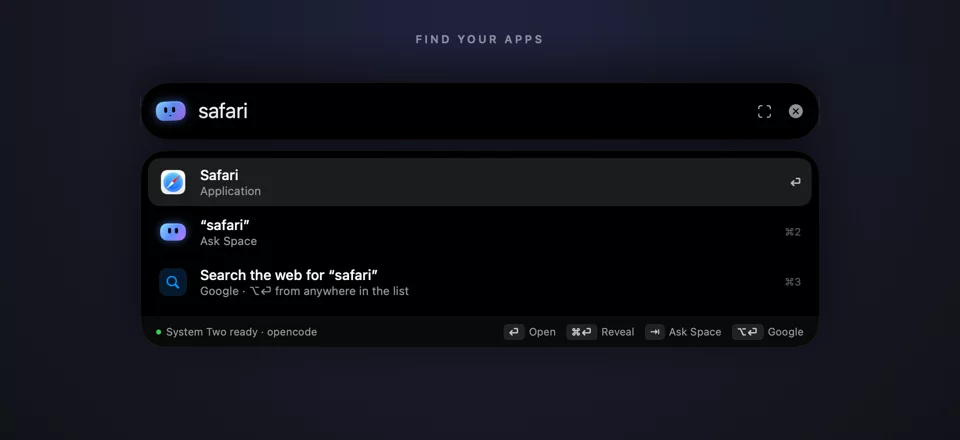
Your apps, a few letters away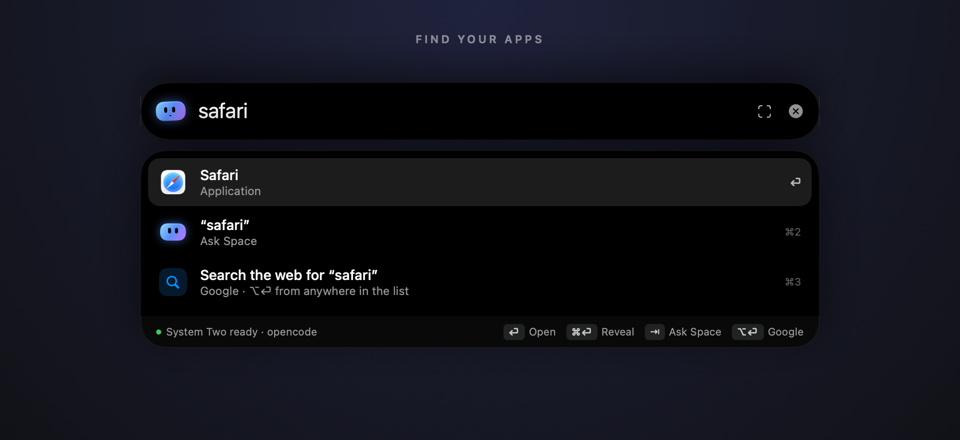 Search apps and quick opens without leaving what you’re doing. |
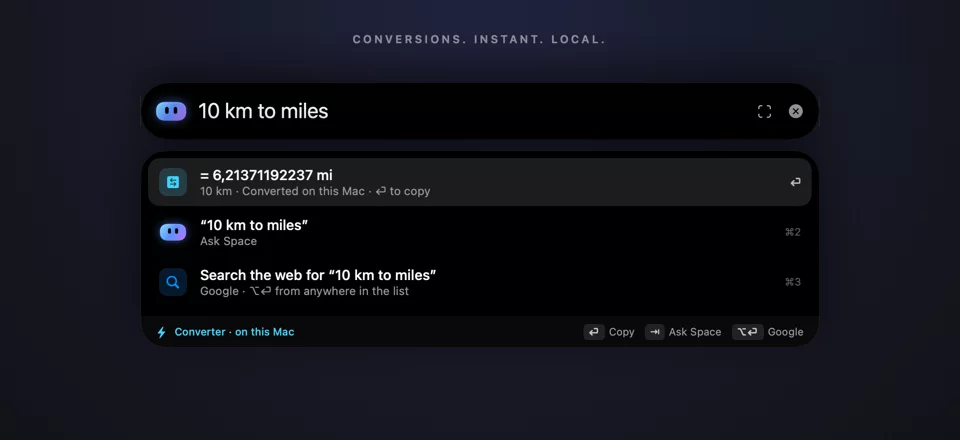
Conversions without the cloud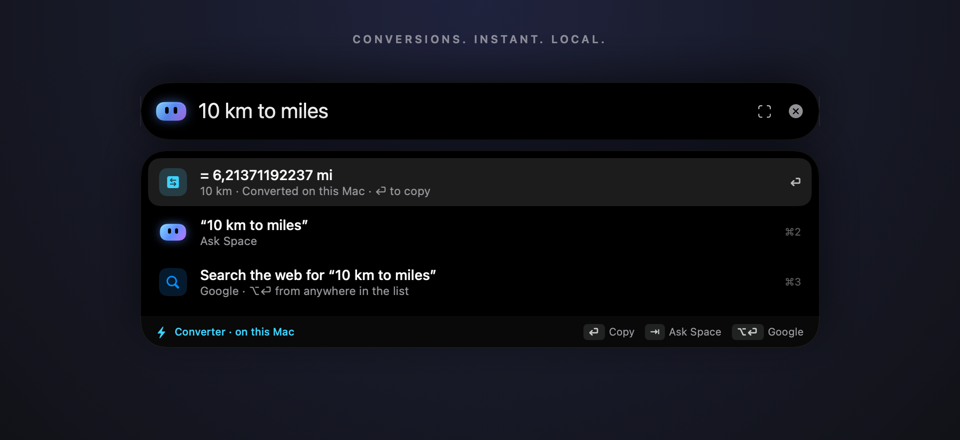 Measurements, temperatures, data sizes, number bases. Instant and local. |
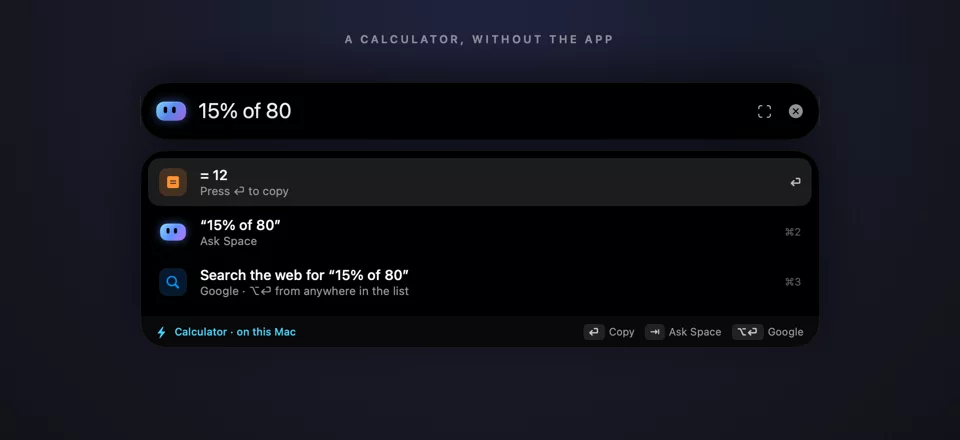
A calculator, too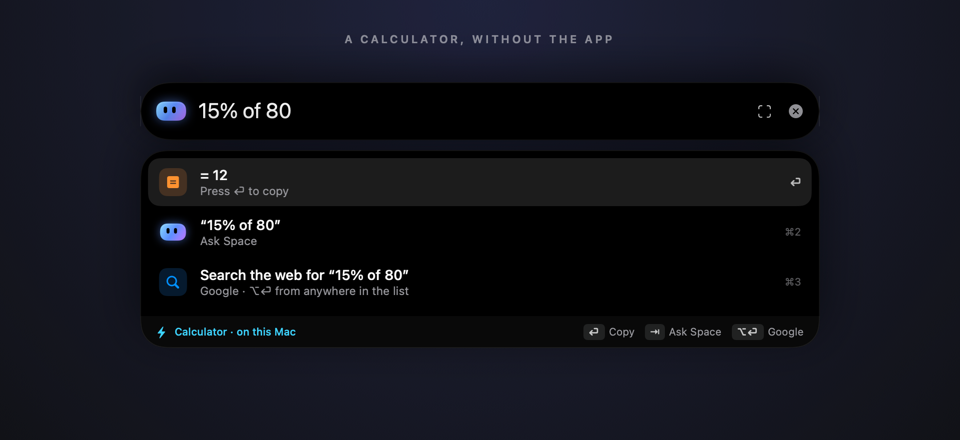 Type the expression. Press Enter to copy the answer. |
Know exactly what Enter will do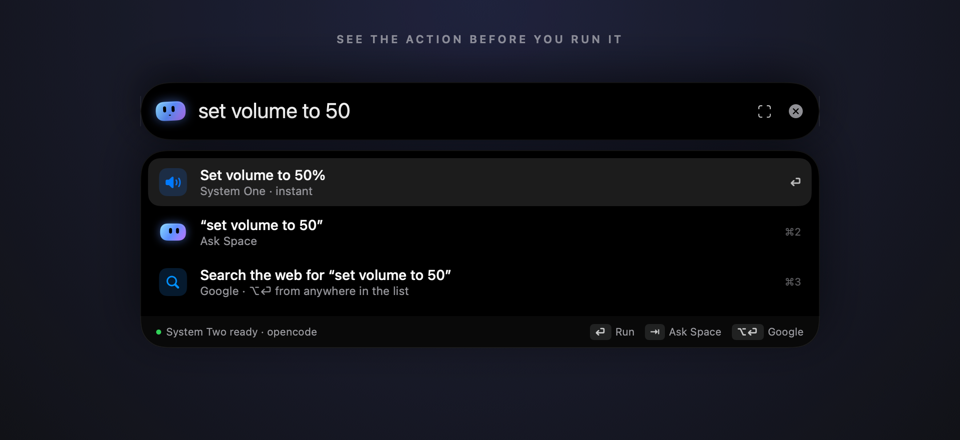 Filled-in System One actions, not vague command names. |
Ask about what you’re looking at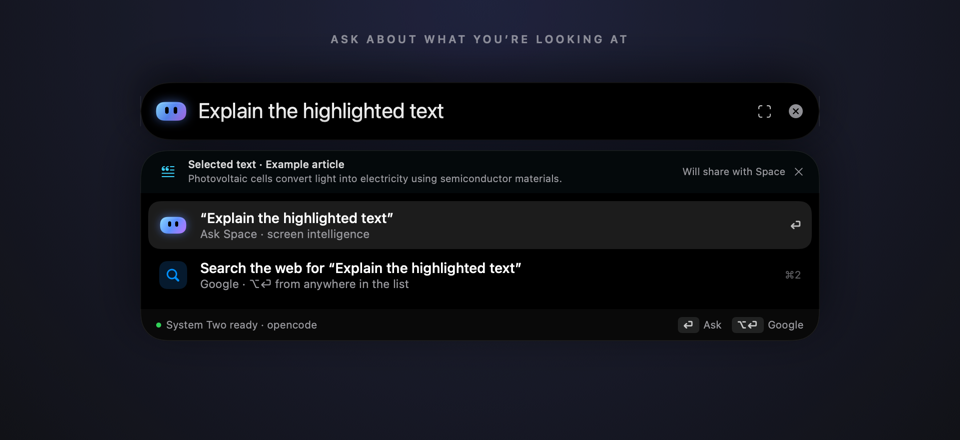 Selected text and source-window context, with control over what’s shared. |
Paste an image. Ask Space.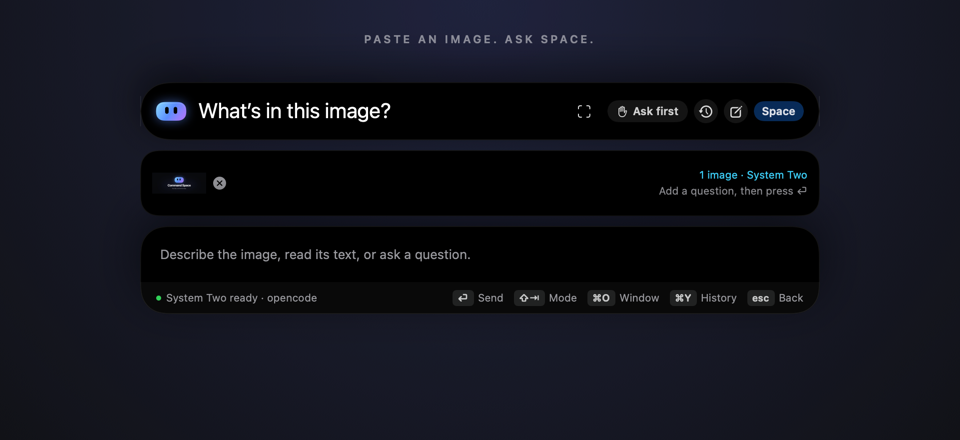 ⌘V attaches images and switches to System Two. Add a question, then send. |
Captured from the native app with public sample inputs; personal documents, learned actions, and conversation results are hidden. The highlighted passage is an example. Actions are previewed, not executed. Animated images have static alternatives for reduced-motion preferences.
What you can type
| You type | You get |
|---|---|
saf, vsc, code |
Apps, matched by prefix, initials or any word. Learns what you pick for each query. |
q3 report, invoice |
Documents and folders from the Spotlight index, most recently used first |
downloads, ~/Doc…, /usr/lo |
Places and path completion |
github.com, localhost:3000 |
Opens in your default browser |
| anything, then ⌥⏎ | Google search in your default browser |
12*(3+4), 15% of 80 |
The answer. ⏎ copies it. |
10 km to miles, 70 kg in lbs, 32 F to C |
Instant unit conversions, entirely local. ⏎ copies the result. |
1 GiB to MB, 60 mph to km/h, 255 to hex |
Data sizes, speed, and integer number bases, too |
wifi, displays |
System Settings panes |
lock, sleep, restart |
System commands. Restart, shut down and log out ask first. |
vol, next, dark |
System One commands: instant actions, plus everything Space has learned |
| your Shortcuts' names | Runs the Shortcut |
summarize this, what's eating my disk? |
Ask Space: the agent gets the request, plus what you're looking at |
Keys: ⏎ open · ⌘⏎ reveal in Finder · ⇥ ask Space · ⌥⏎ Google · ⌘1–9 pick a row · ↑↓ move · esc back/close · ⌘N new conversation · ⌘, settings. ⌥Space goes straight to Space.
Conversations
Every time you open Command Space, or talk with push-to-talk or a whistle, you start a new thread. You stay in an existing thread only by continuing it on purpose:
- typing in a conversation that's open in the panel,
- holding the talk key while one is showing,
- or replying in the conversations window.
Once System Two has answered in a thread, everything you say there goes to the agent. A reply like "the Command Space app" is an answer, not an instant command.
Old threads are in the conversations window: press ⌘Y in the panel, or use the menu bar → Conversations…. It's a regular window that stays open until you close it. It has every thread grouped by day, search, approvals pinned above the composer, and a marker showing which threads are working right now. ⌘O moves the panel's conversation into it. Typing a conversation's title in Command Space also finds it.
Two systems
System One is instant. Snap 1 is a small decision model that runs on this Mac:
- It ranks search. As you type, it reads the query and the top matches and decides whether you want an app, a document, a quick open, a command, a web search or the agent. Its pick gets a ✦, and the footer shows what it decided and how long it took. App and file names never leave the Mac.
- It runs commands. "Volume 40", "next song", "remind me to call mom at 6", "timer 10 minutes", "play my gym playlist" and the front app's menu commands run in a blink, with no LLM involved. Jev, TypeSafe's hosted equivalent, works too.
System Two is the agent. It runs on the harness you pick in Settings → System Two:
| Harness | Billing | Notes |
|---|---|---|
| opencode | ChatGPT login, an API key, or a local model | Runs as a background service (see Install). |
| Codex | Your ChatGPT plan, from codex login |
Command Space drives codex app-server. Commands Codex knows are read-only run straight away. |
| Claude Code | Your Claude plan, from logging in to claude |
Command Space drives claude in its SDK streaming mode, one process per conversation. |
Command Space finds the Codex and Claude Code CLIs on its own and shows whether each is signed in. It never stores a key for them. It also removes OPENAI_API_KEY / ANTHROPIC_API_KEY-style variables before launching them, and it won't run either CLI while it's signed in with an API key. New conversations use the selected harness, and existing ones stay on the harness they started on. Conversation history lists all of them.
Modes control how much the agent does on its own. You set a default per harness in Settings → System Two, and each conversation can switch from its mode chip or with ⇧⇥:
- Plan: looks around and proposes a plan without changing anything. In Claude Code, you approve the plan to start; elsewhere, click Run under the plan.
- Ask first: asks before every command and edit (the default).
- Accept edits: file edits go through without asking.
- Auto: Claude Code's auto mode, or Codex working in its sandbox.
- Full access: never asks.
In Ask first, every shell command or file edit with side effects asks for your approval first. When a task finishes using simple commands, Command Space offers Make this instant. After that, System One replays it directly, and it appears in search as a learned command.
Instant conversions
Conversions work without System One, System Two, or the internet, and skip model ranking. Supported: length, mass, temperature, volume, duration, speed, area, energy, pressure, angles, data sizes, and decimal/hex/binary/octal integers. Use to, in, into, as, =, or → between units. Decimal input follows your locale. Data symbols distinguish bits and bytes (Mb versus MB); MiB/GiB use binary multiples. Cooking volumes are explicitly labelled US, unless you ask for imperial gallons. Currency rates and weight-to-volume conversions aren't guessed.
Screen intelligence
Open ⌘Space over the page or app you want to ask about, then type “summarize this page”, “explain the highlighted text”, or “what's in this image?”. The source is captured when you open the launcher, not after you start typing. Push-to-talk captures it when listening starts; speaking with the panel open keeps that panel's source.
- Text: selected text, available accessibility page/window text, browser URL/title, and selected Finder files. Text capture needs Accessibility permission; browser links and Finder selections also use Automation if already authorized. Opening the launcher never requests Automation permission.
- Images: a picture of the original source window, excluding the launcher, sent as a real image attachment to Codex, Claude Code, or a vision-capable opencode model. Enable Settings → General → Screen intelligence → Enable window images…, grant Screen Recording, then reopen ⌘Space. A text-only opencode model uses readable text instead and says so; if only an image is available, the app asks you to choose a vision-capable model.
- Control: the viewfinder in the bar offers automatic context, explicit attachment, or exclusion. A preview strip shows what will be shared. A question about highlighted text sends just the passage, not the rest of the page/image, unless you ask about the whole window or explicitly attach it.
- Privacy: context stays local until you send a relevant question or explicitly attach it, then goes to your chosen System Two harness and may be retained in its history. Images are not saved as screenshot files by Command Space. System One only gets metadata, never the selection, page text, or image. Turn text context or images off separately in General settings. Unrelated questions don't attach the screen. Continuing an old thread in the permanent window does not reuse an unrelated launcher capture.
Paste images
⌘V pastes text with normal macOS selection and undo behavior. If the clipboard contains an image or a copied image file, Command Space attaches it and switches to System Two instead. Add a question and press Enter, or send the image alone for a description. You can attach up to four images and remove any thumbnail before sending. Pasting never sends automatically, does not require Screen Recording permission, and does not attach an unrelated screen. Use Codex, Claude Code, or a vision-capable opencode model.
Without opening it
- Push-to-talk: hold right ⌥, speak, release.
- Whistle commands (opt-in): bind a whistle to a request. Record patterns in Settings → Voice.
- A small black live pill at the top of the screen shows listening, instant results, timers, work in progress and approvals. Click it to open the conversation. Approvals bring Command Space up and keep it there until you answer.
Install
- Download Command-Space.dmg from Releases and drag it to Applications (or build it, see Development).
The app isn't notarized, so macOS blocks the first launch. Right-click it → Open → Open, or run:
New versions install themselves (Sparkle).xattr -dr com.apple.quarantine "/Applications/Command Space.app" - Set up System Two. To use Codex or Claude Code, install and sign in to that CLI, then pick it in Settings → System Two; nothing else is needed. For opencode, run this (it installs opencode and a login service, and retires Notch Agent's service if present):
curl -fsSL https://raw.githubusercontent.com/otron-io/command-space/main/agent/setup.sh | zsh - The first-run guide does the rest:
- It imports your Notch Agent settings.
- It takes ⌘Space from Spotlight. This flips the same switch as System Settings → Keyboard → Keyboard Shortcuts → Spotlight, and Settings → General → Give back to Spotlight undoes it.
- It walks through permissions and downloads Snap 1.
Requires macOS 14+. Voice input needs macOS 26+.
Privacy
- Search runs on this Mac: Spotlight's index, the app list, and Snap 1.
- Speech is transcribed on-device. Audio never leaves the computer.
- Jev (if you use it instead of Snap 1) sees requests and coarse context, never your selected text, file contents or file names.
- The agent sees what you ask and, for "this" requests, what you were looking at. It goes only to the model you chose. With Codex or Claude Code, conversations are stored in that CLI's own history (
~/.codex,~/.claude).
Development
swift build && swift test                 # parsing, conversions, screen payloads, harnesses, search, whistles
.build/debug/CommandSpace --query "saf"   # open the panel pre-filled (also --agent)
.build/debug/CommandSpace --harness-image-check codex  # synthetic image test, no screen upload
# Debug builds: add --snapshot /absolute/path/panel.png to --query to capture the app's own view and exit.
.build/debug/CommandSpace --capture-readme /absolute/path/captures  # safe native-view captures + logo frames
scripts/build-app.sh                      # → build/Command Space.app (signed, universal)
scripts/build-app.sh --install            # … and copy to /Applications
scripts/build-app.sh --dmg                # … and Command-Space.dmg + signed appcast.xml entry
bun test agent/local-gemma                # local-model proxy tests
log stream --predicate 'subsystem == "io.otron.commandspace"'
The app is a SwiftPM package. build-app.sh builds it with xcodebuild so package resource bundles end up in Contents/Resources. It isn't sandboxed: a launcher needs to list every app, read other apps' menus over Accessibility and run Shortcuts. That's also why Notch Agent's XPC helper is gone and its code runs in-process (SystemHelper).
Layout:
Panel/: the bubble, results, and live pillSearch/: apps, files, quick opens, the calculator, usage learning, and Snap 1 rankingAgent/: System One and System Two, carried over from Notch Agent.AgentBackend.swiftis the harness contract;OpencodeBackend,CodexBackendandClaudeBackendimplement it. RunCommandSpace --harness-check codex(orclaudeCode,opencode) to test a harness end to end without UI.Settings/System/: volume, brightness, media, calendar, battery
Credits
Built on boring.notch by TheBoredTeam, via Notch Agent. GPL-3.0.