A free, browser-based stream overlay editor for OBS. Design your overlay on a live canvas, then add it to OBS with one link. Nothing to install.
▶ Open the studio · Website · Request a component · Report a bug
Works with YouTube, Twitch, Kick, Facebook Live, X, TikTok LIVE (with a stream key) and any RTMP platform, from OBS Studio, Streamlabs Desktop, XSplit, Meld Studio or any app with a browser source. Multistreaming works too.
If it's useful to you, a ⭐ helps other streamers find it.
Features
- Drag-and-drop editor: place cameras, text and widgets on a 16:9 canvas. No code.
- One-link OBS setup: hit Go Live, paste the link into an OBS Browser Source, and your edits sync to OBS as you make them.
- Twitch alerts and event list: pop-up alerts (with a chime) for subs, re-subs, gift subs, gift bombs, raids and cheers, plus a recent-events list. Test alerts from the editor and they play in OBS too. Read-only, no login needed.
- Live Twitch chat on stream: type your channel name and your chat appears in the overlay, styled to match your theme. It shows subs, gift subs and raids, removes deleted messages, and hides bots and !commands. Read-only, no login needed.
- Live match scoreboard: search a fixture and the score updates itself on stream.
- Widgets: follower and sub goals, countdowns, clock, pomodoro, tickers, lower thirds, socials, sticky notes, a spin wheel and shapes.
- Pets and mood ring: little mascots that roam the canvas and react to the mood of the room.
- Layouts and scenes: group scenes (Intro, Gameplay, BRB, Outro) into a layout and switch between them.
- Themes and style kits: re-skin the whole overlay in one click. Style-kit themes (Cyber HUD, Synthwave, Lo-fi, Sketchbook, Brutalist, Pixel, Y2K, Lava Lamp, Sakura, Nouveau, VHS, Rewild) also swap the graphics: animated backdrops, headline effects, lower-third plates and cam frames.
- Template library: 64 ready-made shows, filterable by Gaming, Cozy, Retro, Creative, Talk, Festive and By game. Game packs are fan-made looks for Valorant, PUBG / BGMI (zone map and sniper scope), Fortnite, Call of Duty: Warzone, Apex Legends, Minecraft (overworld and Nether), GTA RP, GTA VI, League of Legends, Counter-Strike 2, Free Fire and Roblox (original graphics, not affiliated with or endorsed by the game publishers). Festive packs cover Diwali, New Year, Christmas, Halloween, Holi, Lunar New Year, Eid, Valentine’s Day, autumn / Thanksgiving and birthdays, each with its own animated backdrop. Style-kit packs ship 8–9 scenes: Starting Soon, Gameplay, three Just Chatting layouts (cam + chat, centred cam, game + cam), an optional Duo for co-hosts, BRB, Ending and Offline. Some packs use hexagon, circle or diamond webcams.
- Camera cut-outs: scene backgrounds and backdrops leave a transparent hole where each visible camera (or a game-capture frame) sits, so the OBS sources underneath show through.
- Recording: record the stream right in the browser.
- Camera auto-placement (optional): with OBS WebSocket turned on, your real camera snaps into the overlay's camera frame on every scene switch.
Quick start (no install)
- Open the studio and design your overlay.
- Click Go Live. This creates a private room and copies your OBS link.
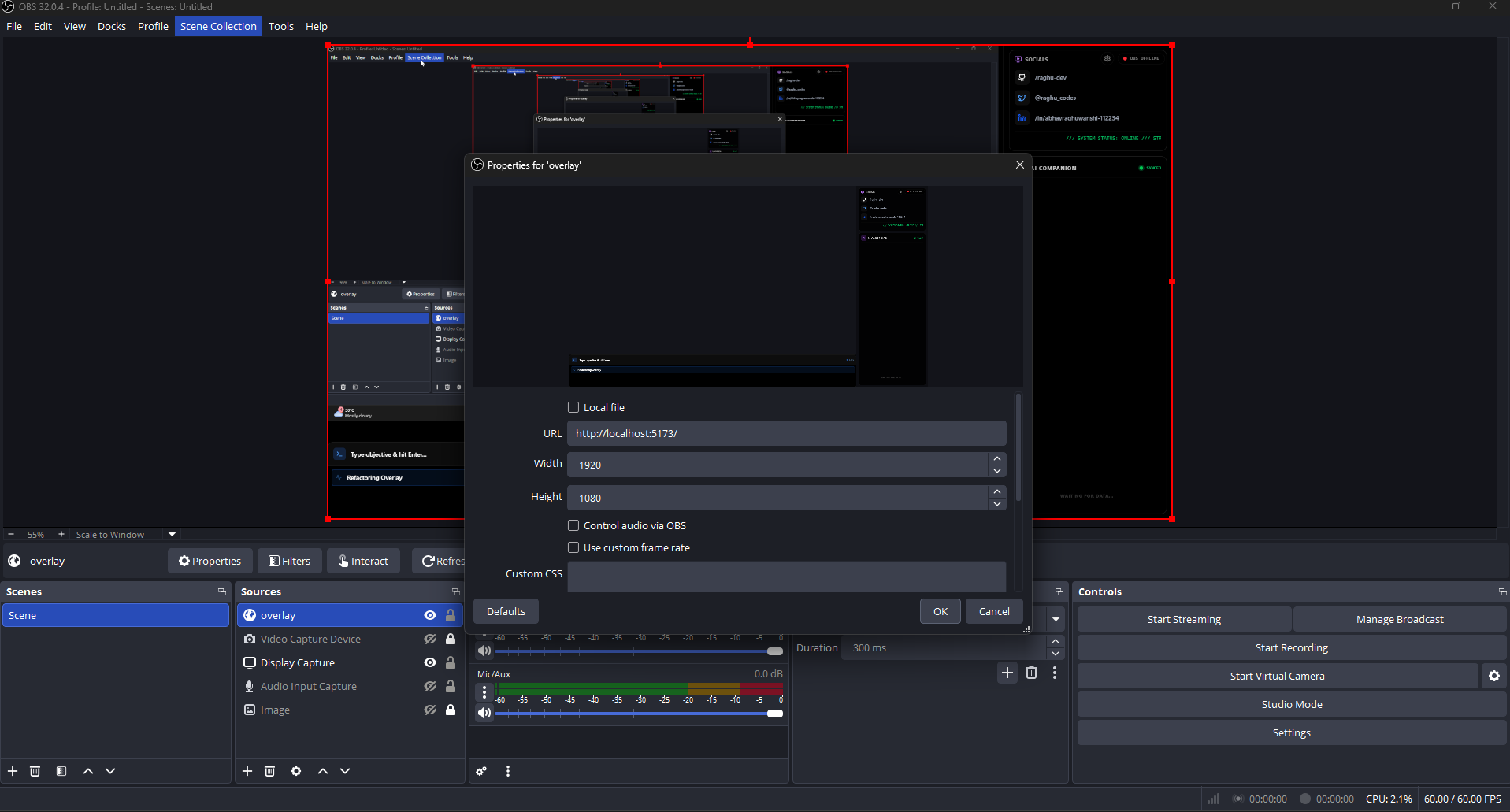
- In OBS: Sources → + → Browser, then set:
- URL: paste the link
- Width / Height:
1920×1080 - Custom CSS: leave it empty
- Click OK. Keep editing in the browser and OBS picks up your changes within a couple of seconds.
Your room link is private but not password-protected: anyone with the exact link can view or edit that overlay. Don't share it publicly.
Webcams and screen captures can't render inside an OBS browser source. Add them as normal OBS sources (Video Capture Device / Display Capture) behind the overlay. Camera auto-placement, below, can position them for you.
Camera auto-placement (OBS WebSocket)
- In OBS, open Tools → WebSocket Server Settings.
- Check Enable WebSocket server, keep port 4455, and uncheck Enable Authentication.
- Click OK. The camera panel in the studio shows a green OBS connected badge within a few seconds.
Your webcam must be a Video Capture Device source in the same OBS scene as the overlay. With several cameras, put face, hand or room in their OBS source names to choose which frame each one fills.
Request a component
Missing a widget, theme or layout? Open a request. There's a short form for each:
- 🧩 Component: a new widget or element (a poll, chat box, now-playing card…)
- 🎨 Theme or layout: a look, starter layout or scene pack
- ✨ Feature: anything else in the studio
- 🐞 Bug: something broke
You can also click Missing something? Request a component in the studio's Add Layer panel.
Want a custom overlay, theme or scene pack made for your channel? Email raghuwanshi.abhay405@gmail.com.
Running it locally
Prerequisites: Node.js 20+ and OBS Studio.
npm install
npm run dev        # studio at http://localhost:3377
| Path | What it is |
|---|---|
src/ |
React + Vite app: landing page, studio and the overlay OBS renders |
api/ |
Vercel serverless functions: layout.js (room storage), scores.js (match feed), usage.js (stats) |
backend/ |
Optional local Node server for the local AI companion (port 3388) |
extension/ |
Optional browser extension that sends highlighted text to the AI companion |
Ports are set in ports.config.js. On Windows, start_overlay.bat starts the dev server and the local backend together.
To deploy your own copy to Vercel with Upstash Redis for layout storage, see DEPLOY.md.
Promo videos (template showcase)
Template showcase videos are generated automatically from the app itself:
npm run dev                 # keep this running
npm run promo               # every preset, 16:9 + 9:16
npm run promo -- montage    # just one preset
The script (scripts/record-showcase.mjs) opens the ?showcase player in your installed Google Chrome, records it at 30 fps and encodes MP4s with ffmpeg (brew install ffmpeg) into promo-videos/. The soundtrack is generated by scripts/music.mjs: an original lo-fi loop plus alert chimes and scene-change whooshes timed to the video. It's royalty-free because it's ours; pass --no-music for silent videos. Presets live at the top of the script. You can also open /?showcase&packs=kit-samurai&autostart in a browser to preview a video before recording it.
Local AI companion (optional)
The backend/ server runs a small LLM on your own machine via node-llama-cpp. No API keys are needed. It powers a chat widget that comments on your stream. Start it with cd backend && node server.js, then download and load a model (e.g. Llama 3.2 1B or Qwen2.5) from the overlay's Settings panel. Models are stored in ~/.cooldesk/models.
Contributing
Issues and pull requests are welcome. For anything big, open an issue first so we can talk it through.
Built live on stream: watch the build.