
English | Español
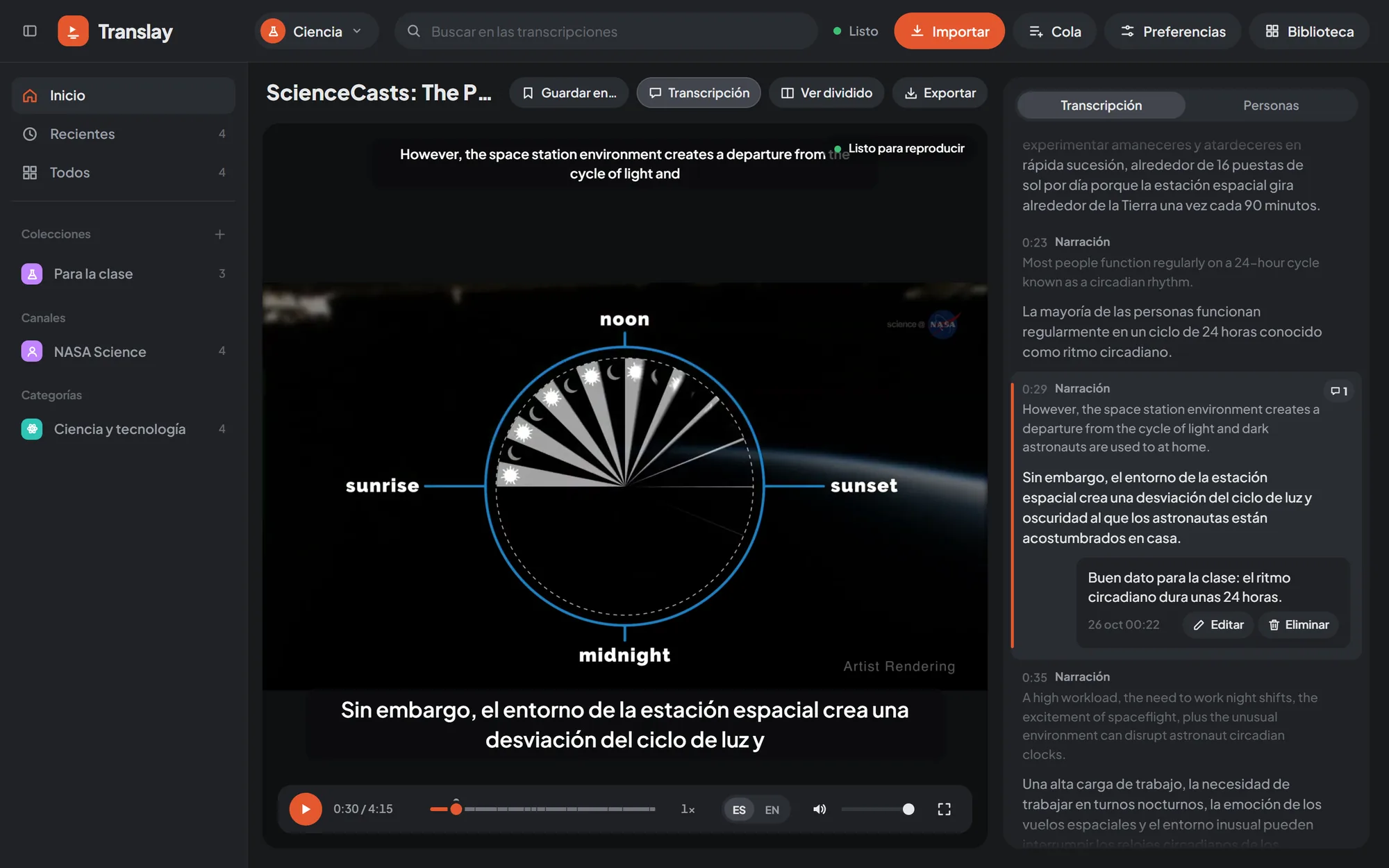
Translate and dub videos from English into Spanish in each person's own voice, on your own machine and with your own GPU. Paste a YouTube link (or open a file) and watch it in Spanish: subtitles, an aligned EN | ES transcript, and a cloned voice synced to the picture. Nothing leaves your machine except the YouTube downloads.
Download for Windows · Documentation · Changelog
Contents
- What it does
- Performance: what hardware you need
- How it works
- Screenshots
- Install
- Access, API and webhooks
- Your data
- Documentation · Development · Structure
What it does
Translation and dubbing
- Recognition with Whisper large-v3-turbo in streaming mode: the video is processed while you watch, starting from your playback position, and if you skip ahead, processing skips with you.
- Translation with Opus-MT big and custom layers for Latin American Spanish: it splits sentences, rewrites English idioms before translating («call it a day», «let me know») and fixes Peninsular Spanish («vídeo» → «video», «ordenador» → «computadora», «vosotros» → «ustedes»). NLLB-1.3B and MADLAD-3B as alternatives.
- Who is speaking: custom diarization (WeSpeaker voiceprint in ONNX + online clustering). 97.6% of sentences assigned to the right person across 12 test videos with 2 to 4 people, with and without noise.
- Dubbing in each person's voice: OmniVoice clones their voice from their best sentences (up to 8 s, cleaned with DeepFilterNet if noisy). Each sentence fits its slot (duration requested from the engine with WSOLA as a fallback, without changing pitch) and plays at the same volume as the original.
- In sync: median offset of 0.08 s between voice and picture.
- Finished work is never redone: each video is identified by a fingerprint of its content. If the translation, the person or the voice engine changes, only those sentences are dubbed again.
Player
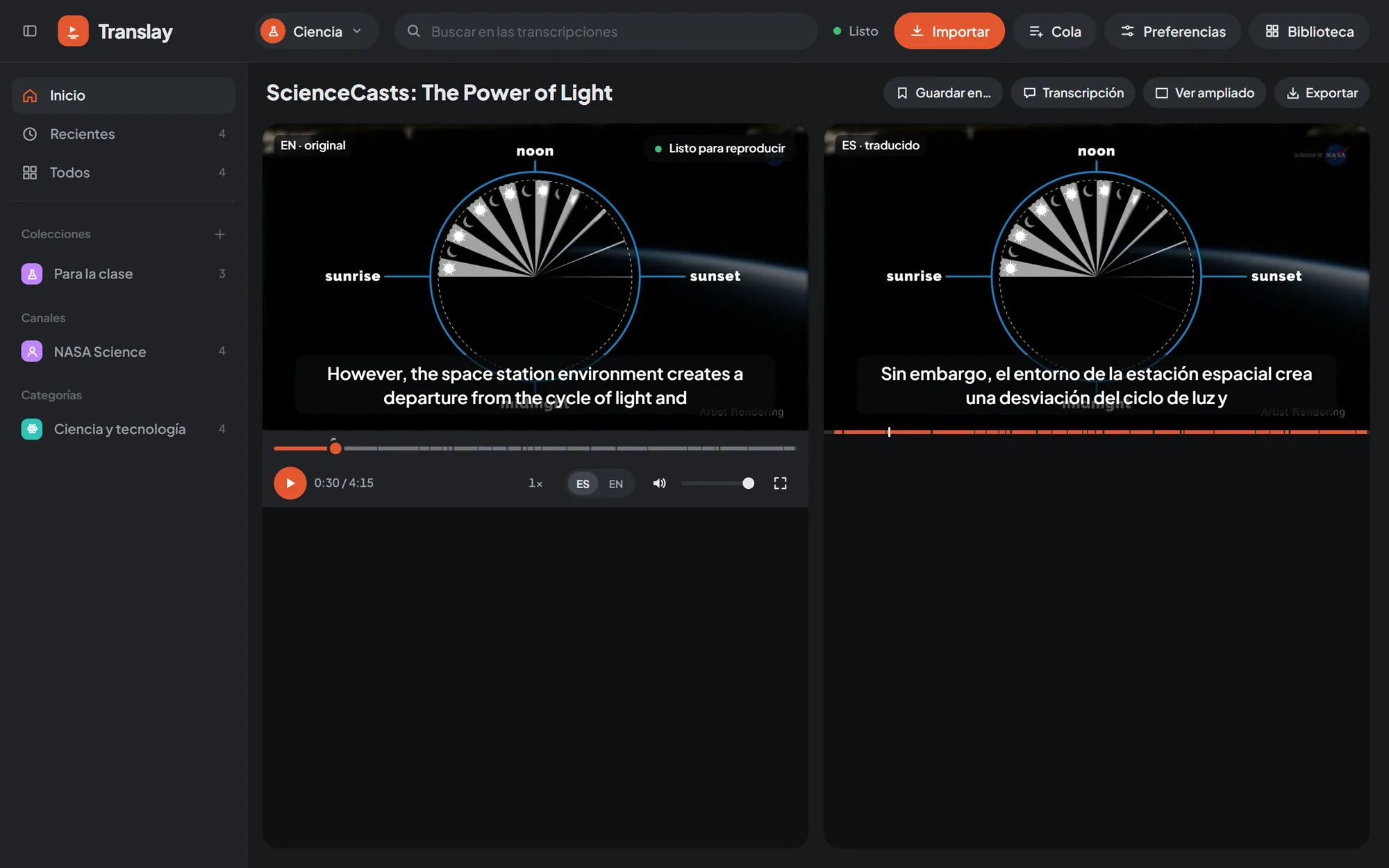
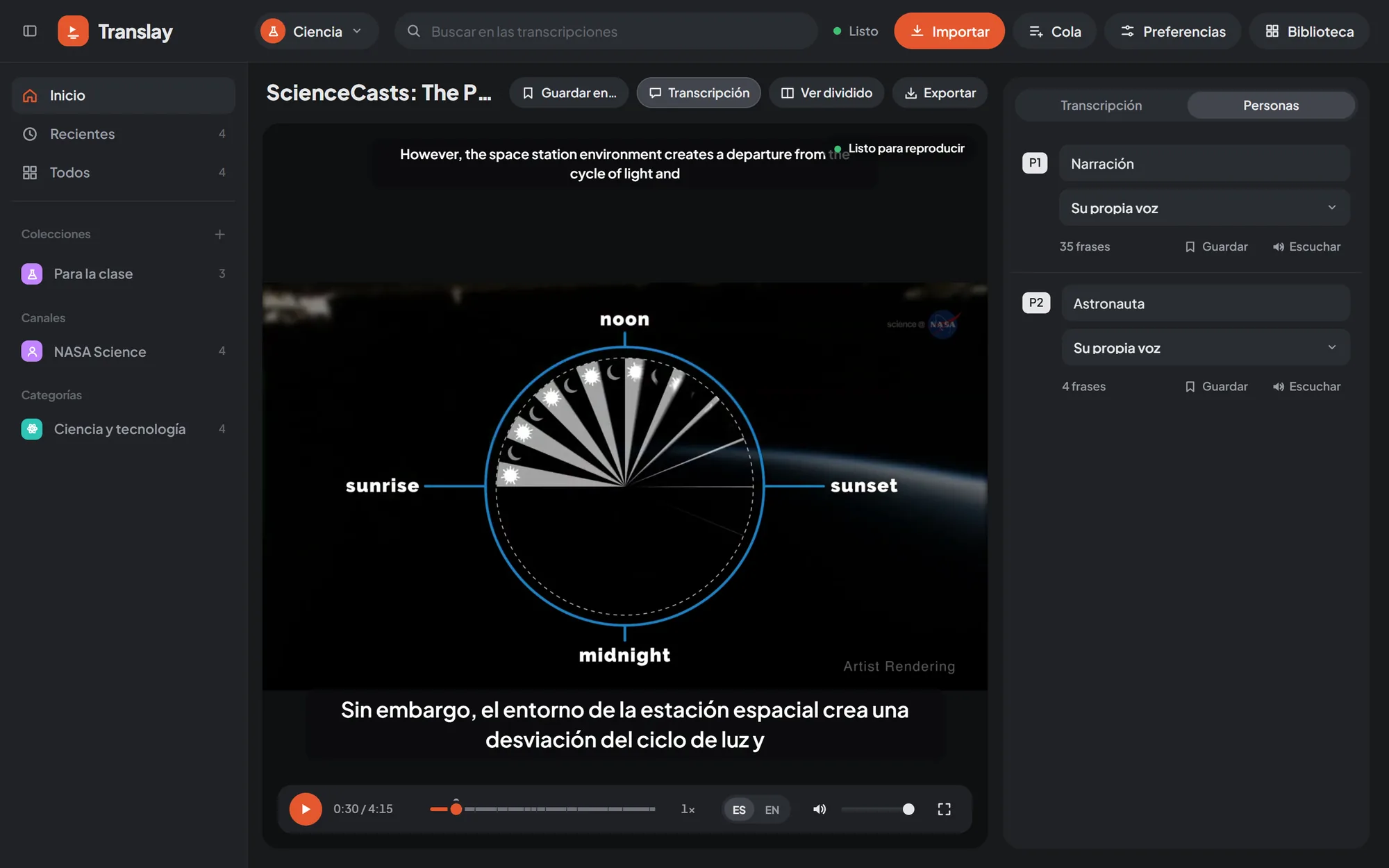
- Expanded view (Spanish subtitle below, English above) or split view (original and translated side by side).
- ES / EN to switch from the Spanish voice to the original; the original stays in the background under the voice at the volume you choose.
- Speed from 0.75× to 2× without changing pitch, fullscreen, keyboard shortcuts.
- «Preparando NN %» / «Listo para reproducir» (Preparing NN% / Ready to play) indicator, computed from the real dubbing speed; it can pause by itself until there is voice ahead and resume on its own.
- Aligned EN | ES transcript showing who speaks each sentence, per-sentence comments (marked on the progress bar) and click to jump.
- People: name each one, choose their voice (their own, another person's from the video, or a saved person from the library) and listen to their reference.
- Up next (the collection or playlist you opened it from) with autoplay of the next video, and a floating thumbnail when you go back to the library.
Import and queue
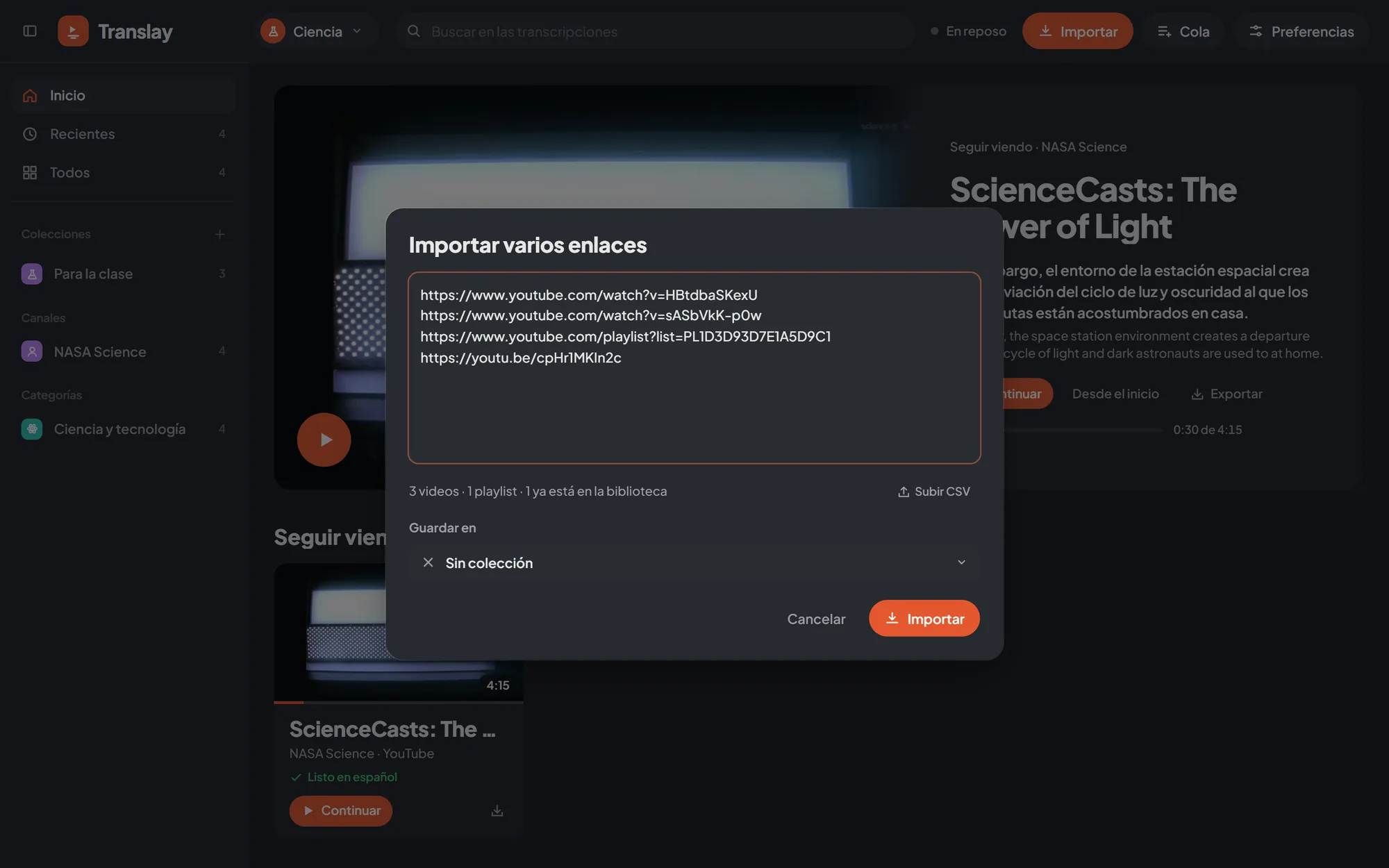
- YouTube: videos,
shorts/,live/, playlists (imported as a collection and updated when you paste them again), several links mixed with text, or a CSV with thousands of links. Paste a link anywhere on the page. - Files from your machine: videos and audio, by dragging them onto the page.
- Import straight into a collection or category, «Solo descargar» (Download only; doesn't use the GPU) or «Solo el audio» (Audio only; faster, and the video is downloaded later if needed).
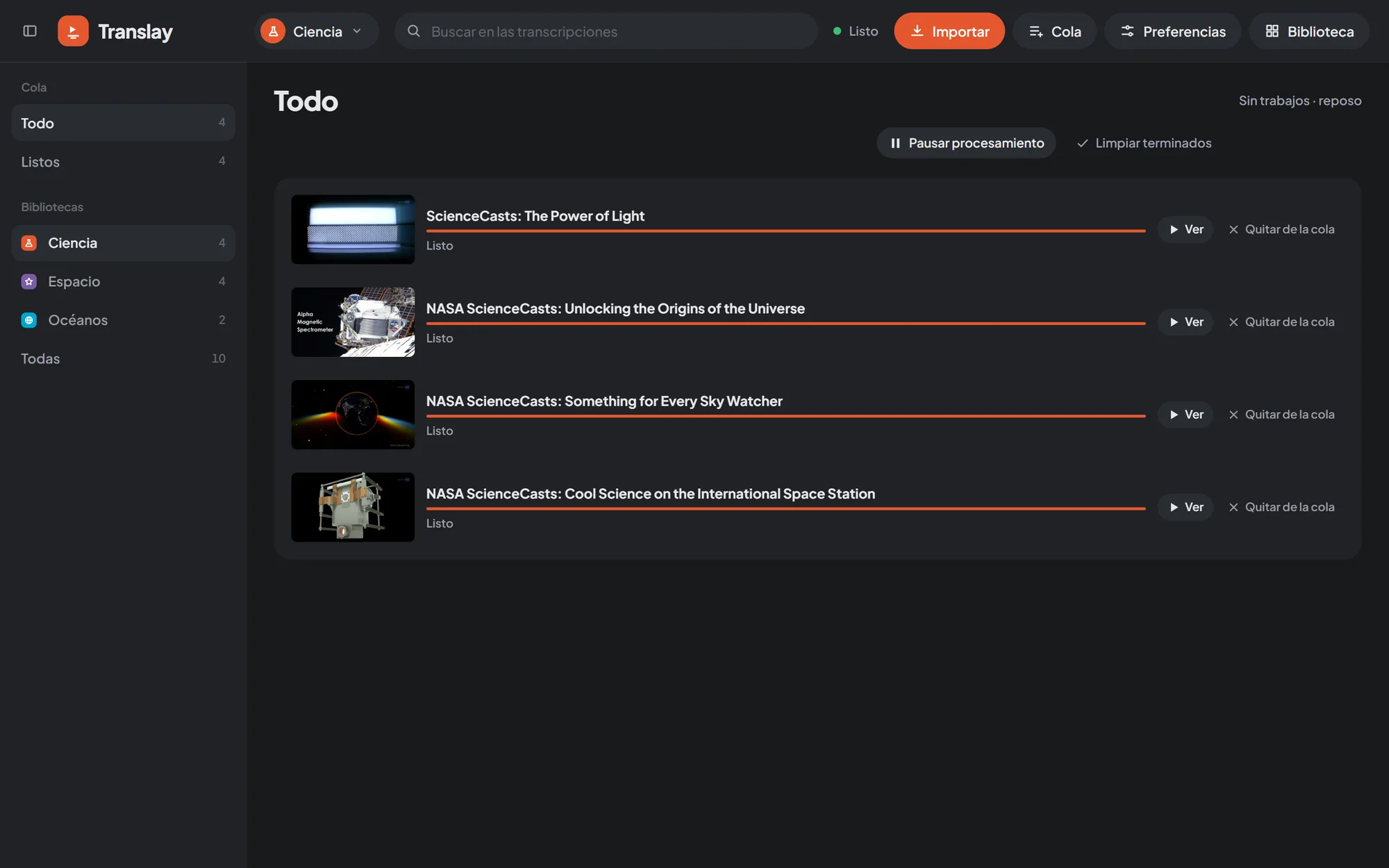
- A single server-side queue that survives reloading or closing the tab: first the video you are watching, then prioritized items, then the rest. Pause, «Priorizar» (Prioritize), and a dedicated screen with states (Descargando, Procesando, En cola, Con error, Listos… — Downloading, Processing, Queued, Failed, Done).
- Careful downloads: one at a time, spaced out, in order or at random; if YouTube asks you to verify you're not a bot, it pauses for 20 min without flagging errors and continues in careful mode. YouTube session with
cookies.txtor from the installed browser. - Browser notifications when a download, a video, the queue or an export finishes.
Library
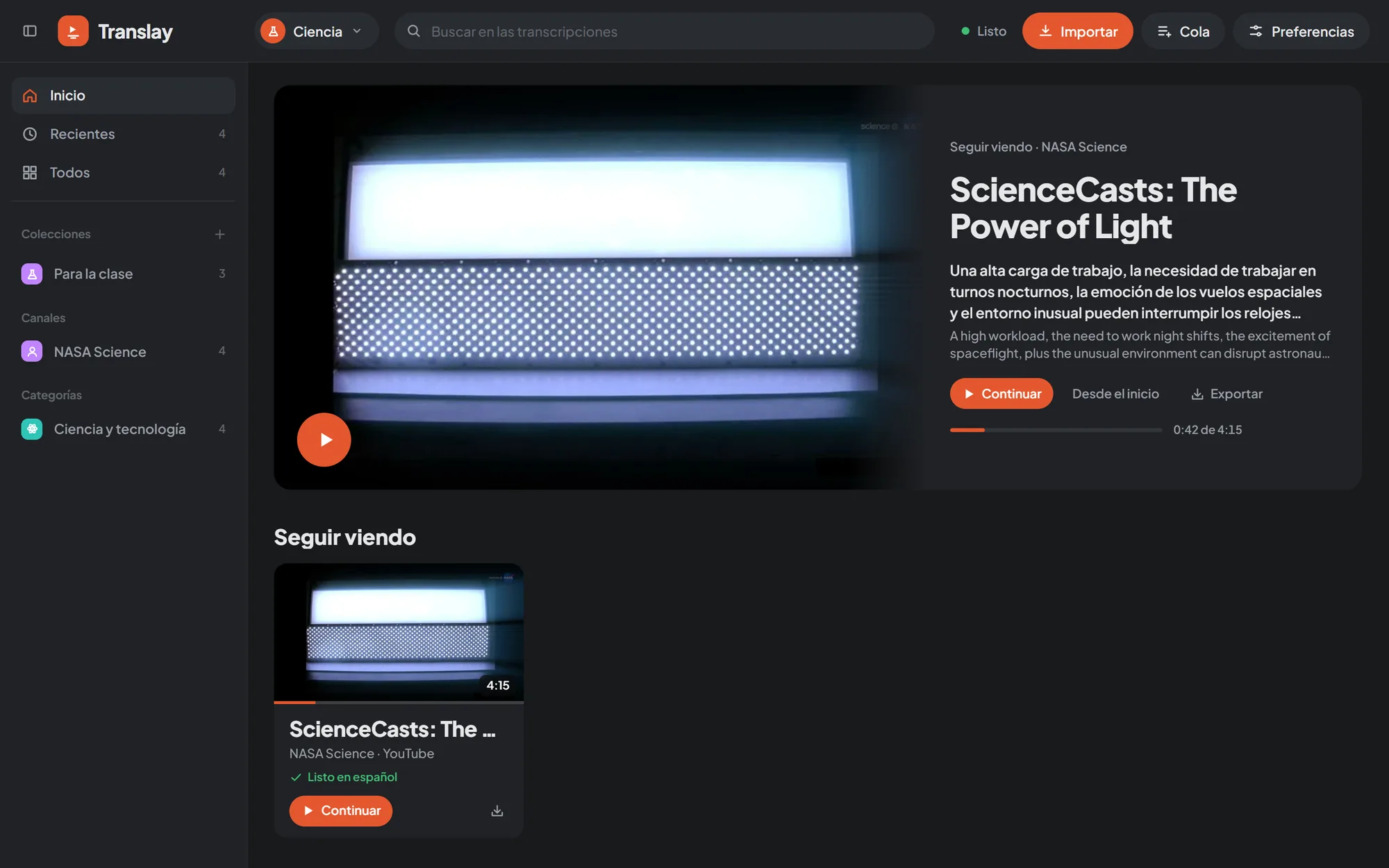
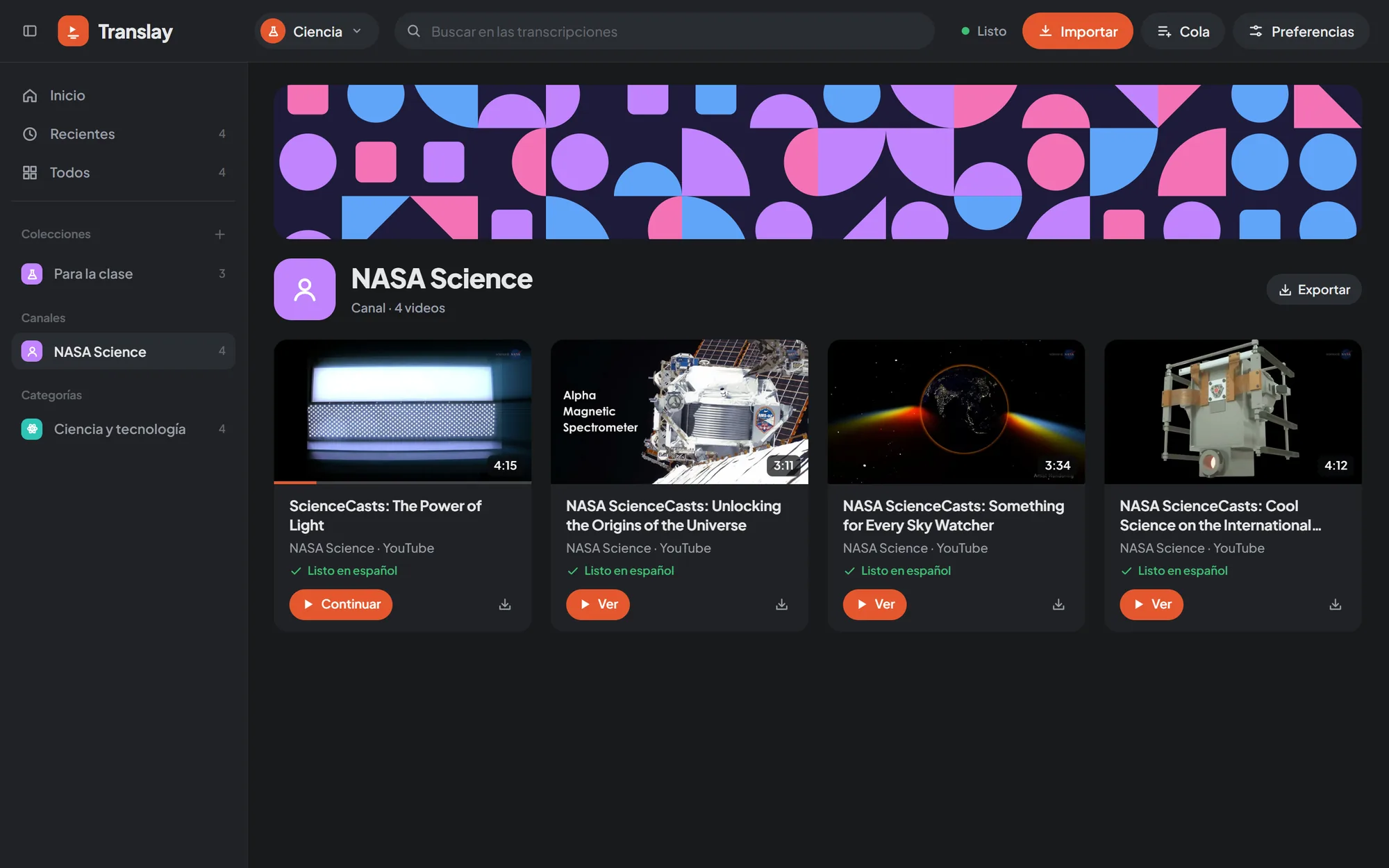
- Home page with «Seguir viendo» (Continue watching) and a row per collection; custom and automatic collections (Recientes, Todos, one per channel and per YouTube category — Recent, All) with each channel's real avatar and banner.
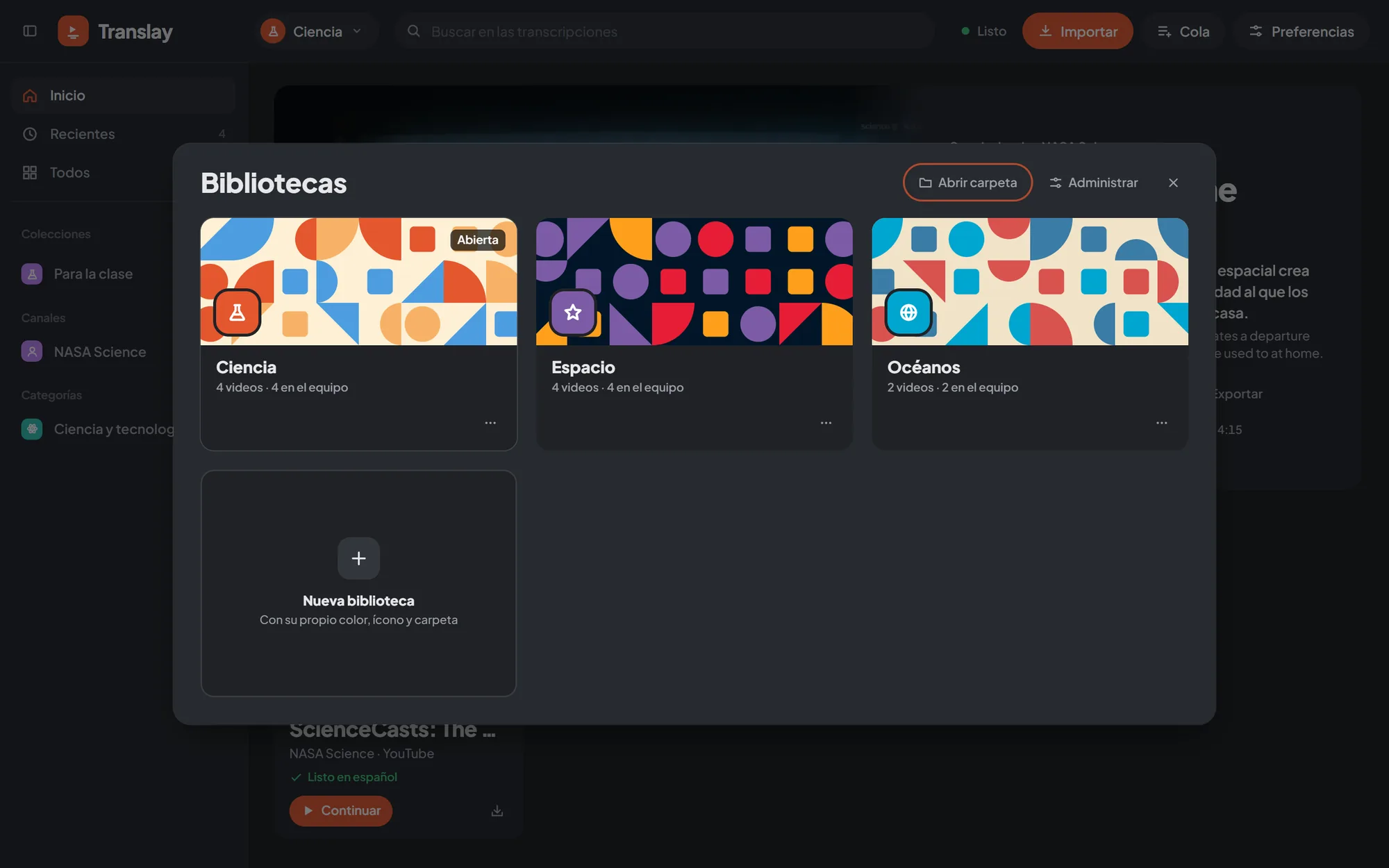
- Multiple libraries, each in its own folder (another drive, for example), with its own videos, collections, glossary, people, theme and import settings. «Mover a…» (Move to…) moves the files; «Abrir carpeta» (Open folder) adds an existing library.
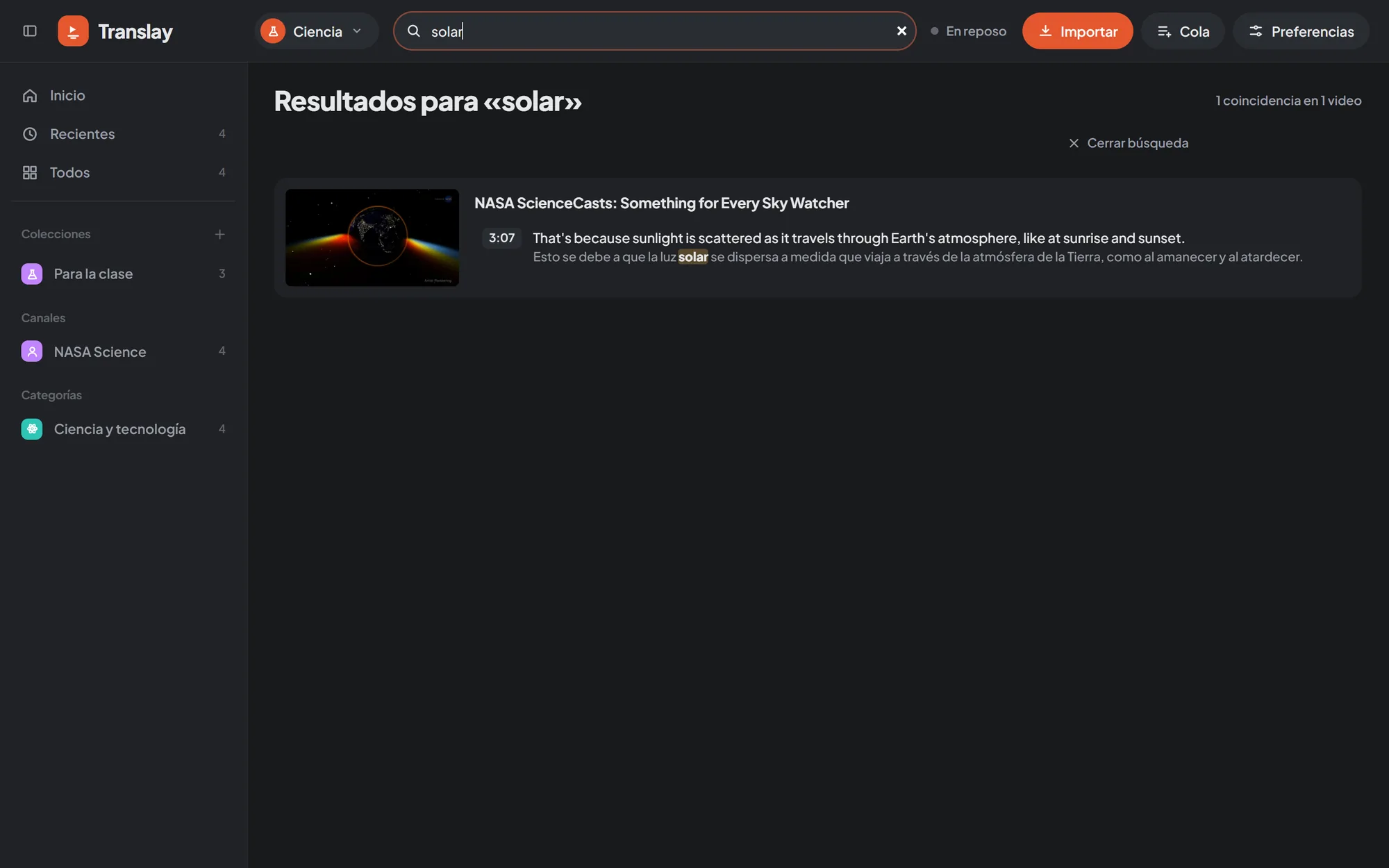
- Search across all transcripts (English, Spanish and comments, ignoring accents).
- Glossary per library: terms that are not translated or are always translated the same way; when you change it, what is already done is re-translated and the voice is redone.
- Multi-select to open, process, export, move or delete; context menu everywhere.
- 30-day trash: deleting videos, or emptying or deleting a library, can be undone right away or restored later, with their translations, voices, downloads and collections. Emptying and deleting a library require typing its name.
- Banners and badges with geometric patterns per collection and library; light and dark mode (per library); phone-friendly interface.
Desktop app
- Windows installer, no administrator rights needed. The first time you open it, the app installs the server and the voice engine by itself (packages pinned with their SHA-256 hash) and shows progress on the button; then it opens Translay in its own window.
- Custom title bar that follows the light or dark theme, with Preferences and the theme switch as icons.
- Optional system tray so the queue keeps working with the window closed (when it finishes, Translay quits); a single instance; the server, its models and everything it launches close with the app, so nothing keeps using the GPU or RAM.
- Your library wherever you want (by default
Videos\Translay), chosen at install time and changeable later.
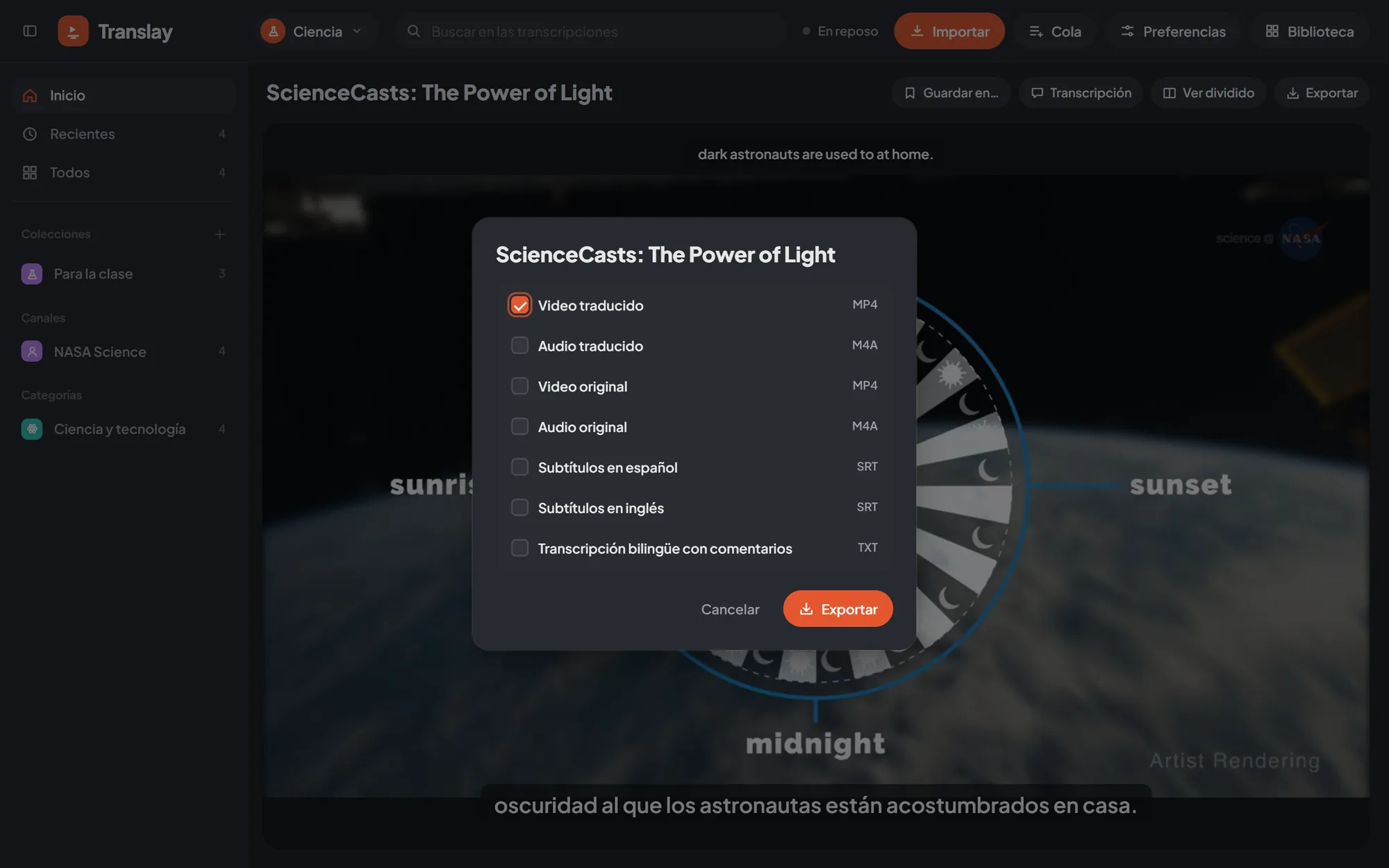
Export
| Option | Format |
|---|---|
| Translated video | MP4 with the Spanish voice as the main track, English as the second track, and ES/EN subtitles |
| Translated / original audio | M4A |
| Original video | MP4 |
| Spanish / English subtitles | SRT |
| Bilingual transcript with people and comments | TXT |
From the player, a card, an entire collection or a selection; several files go in a .zip. If the video isn't ready yet, the export waits (and sends it to the queue if needed).
Performance: what hardware you need
Translay adapts to your machine. On startup it detects the NVIDIA GPU (with nvidia-smi), VRAM, RAM and CPU, and picks the most complete profile that can be watched live. Everything is shown and changed in Preferencias › Rendimiento (Preferences › Performance). On machines with unified memory, such as NVIDIA DGX Spark, GPU memory is the system RAM (details).
Profiles
| Profile | Recognition | Translator | Voice | Peak VRAM | Committed RAM | For |
|---|---|---|---|---|---|---|
| Máxima calidad (Maximum quality) | large-v3-turbo fp16, beam 5 | opus-big | Cloned, 16 steps | ~4.6 GB | ~12 GB | 8 GB GPU or more |
| Equilibrado (Balanced) | large-v3-turbo int8 | opus-big int8 | Cloned, 8 steps | ~3.5 GB | ~11 GB | 6 GB GPU |
| Ligero (Light) | small int8, beam 3 | opus-base int8 | Cloned, 8 steps | ~3.3 GB | ~10.7 GB | 4 GB GPU |
| Solo subtítulos (Subtitles only) | large-v3-turbo int8 | opus-big | No voice | ~1.9 GB | ~3.5 GB | 2 GB GPU |
| Subtítulos ligeros (Light subtitles) | small int8, beam 3 | opus-base int8 | No voice | ~0.6 GB | ~2.2 GB | No GPU |
The cloned voice needs a GPU: on the CPU it runs at 0.01× to 0.04× (unusable). Without a GPU, Translay produces subtitles and transcripts.
Measured speed
These are not estimates: they were measured through the same path as the queue, on emulated machines with real VRAM, RAM and CPU limits (hardware labs), over 90 s of a podcast with cafeteria noise. "2.2×" = it processes 2.2 seconds of video per second of wall-clock time; 1× or more is enough to watch live. In bold, what automatic mode picks.
| Machine | Quality | Balanced | Light | Subtitles | Light subtitles |
|---|---|---|---|---|---|
| 8 GB GPU | 2.2× | 2.7× | 2.5× | 7.3× | 6.7× |
| 6 GB GPU | 0.94× | 2.5× | 2.3× | 7.2× | 6.2× |
| 4 GB GPU | 0.54× | 0.89× | 1.3× | 7.2× | 6.1× |
| 2 GB GPU | 0.25× | 0.46× | 0.47× | 3.4× | 5.2× |
| No GPU, 8 threads | 0.02× | 0.03× | 0.04× | 0.3× | 1.2× |
Each profile's card says whether it runs well (1.5× or more), is borderline (live with a few seconds of waiting) or is strained (fine for leaving in the queue, not for watching live), how long a video of the length you choose takes ("10 min of video → ~5 min") and whether it has voice. Switching profiles restarts Translay by itself in a few seconds and whatever was being processed resumes. The --model, --compute-type, --beam, --translator, --voice and --device options take precedence over the profile.
VRAM, RAM and CPU limits
To leave room for other programs (a game, a video editor):
- VRAM: the automatic profile picks models that fit within that limit.
- RAM: a cap for Translay and its voice process together; whatever doesn't fit goes to disk (slower, but it doesn't crash).
- CPU threads: how many it can use.
RAM and threads apply immediately, without restarting. On Windows they use a Job Object and a per-process memory cap, without administrator rights; in Docker, the container's --memory and --cpus (Translay reads the cgroup limits).
Warnings
Performance explains why something is slow and what to do: the chosen profile is strained on this machine (and which one would be better); it doesn't fit entirely in VRAM and the driver spills into shared memory (some sentences go from 0.3 s to 15–40 s); not enough RAM; a limit that is too low; and, live, voice sentences taking much longer than normal, little free RAM, or another program using almost all the VRAM.
Memory and idle
The models occupy the GPU only while something is being processed. Measured on an 8 GB RTX 4060 with "Máxima calidad":
| Situation | VRAM |
|---|---|
| Processing (recognition, translation and voice) | ~5.6 GB |
| After 45 s idle: models move to RAM, back in ~1 s | ~1 GB |
| After 2 min: the voice process shuts down | ~110 MB |
Recognition, translation and voice take turns on the GPU in order of arrival (adding up their peaks overflowed 8 GB), and the CTranslate2 (400 MB) and torch (2.5 GB) caches have caps so memory doesn't grow out of control.
How it works
16 kHz audio → voice detection → streaming Whisper → Opus-MT + glossary → who speaks → OmniVoice → voice in place
- Server in Python (
vt/) with its own HTTP + WebSocket on asyncio, no framework. Whisper and the translator run on CTranslate2; the voice runs in its own process with torch (.venvs/omnivoice). - Interface in HTML, CSS and JavaScript with no framework (
web/): the browser sends the audio that is playing and instantly receives sentences, translations and voices; the server queue processes the rest. - Data in JSON and WAV in each library's folder, written atomically with a backup copy.
The details (VAD, streaming local agreement, anti-hallucination rules, voice references, duration, loudness, re-dubbing) are in Pipeline and Voice and cloning.
Screenshots
 |
 |
 |
 |
 |
 |
 |
 |
 |
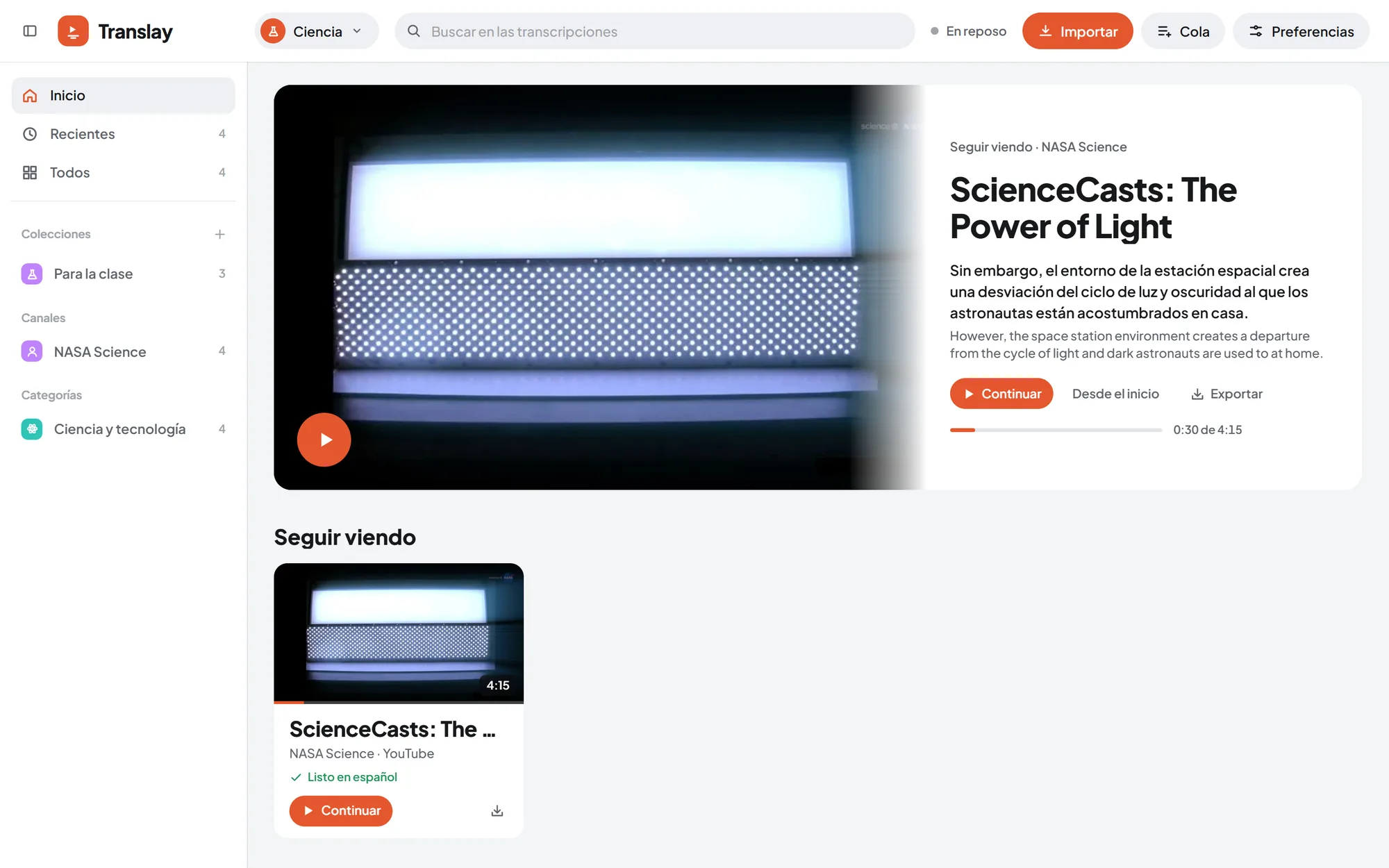 |
Screenshots from a test instance with public-domain videos from NASA and NOAA.
Install
Windows: the desktop app
- Download
Translay_<version>_x64-setup.exefrom the latest release and open it. - Open Translay, choose where to store your library and click Instalar (Install).
The app ships with Python, ffmpeg, Node.js and uv, and installs the rest by itself (about 7.5 GB, plus 6 GB of models the first time it opens). Details: Installation.
| System | 64-bit Windows 10 or 11. |
| GPU | NVIDIA. With 8 GB, everything at maximum quality; with 6 or 4 GB, cloned voice with lighter models; with 2 GB or no GPU, subtitles only (see Performance). |
| RAM | ~12 GB free for dubbing with voice; ~4 GB for subtitles only. |
| Disk | ~15 GB for environments and models, plus whatever your videos take up. |
With Docker (NVIDIA GPU)
git clone https://github.com/alenj0x1/translay.git && cd translay
cp .env.example .env          # y cambia TRANSLAY_OWNER_PASSWORD
docker compose up -d --build
Open http://localhost:8765. The first time it downloads the models (~6 GB). Details: Docker.
From source (Windows or Linux)
You need Python 3.11+, uv, ffmpeg and Node.js 20+ on your PATH.
git clone https://github.com/alenj0x1/translay.git && cd translay
pip install -r requirements.txt
uv venv -p 3.11 .venvs/omnivoice
uv pip install -p .venvs/omnivoice/Scripts/python.exe --torch-backend=cu128 omnivoice deepfilternet soundfile
python run.py
On Linux, the engine's Python is at .venvs/omnivoice/bin/python. It opens http://127.0.0.1:8765. Options: python run.py --help (Command line). Details: From source and Your first video.
Access, API and webhooks
- Owner and guests: from the same machine you are the owner without a password; from other machines on the network you sign in with the owner's password. Each library can be private, password-protected or public, with view or import permission, and has its own
/b/<library>link. - REST API at
/api/v1with read or write keys, for one library or all: libraries, videos, search, queue, import and export. See API. - Webhooks signed with HMAC-SHA256, with retries, filtered by library and event (
video.procesado,exportacion.lista,cola.terminada,youtube.bloqueo…). See Webhooks. - Security: passwords hashed with scrypt and hashed tokens; the WebSocket and anything that changes state require the
Originto be the app itself; protection against DNS rebinding; a new token on every sign-in and a maximum of 10 failed attempts every 10 minutes; library files are never served as pages. See Access.
Your data
Everything stays on your machine: the data folder (data/ from source, or the one you chose in the app; queue, preferences, YouTube session, list of libraries) and each library's folder (library.json, transcripts, downloads, voices, people, glossary and its trash). None of it goes into git. See Data on disk.
Documentation
All of how it works (usage guide, desktop app, performance, architecture, pipeline, GPU, data, API, webhooks and development) is at https://alenj0x1.github.io/translay/ (also in Spanish), a Starlight site that lives in docs/ and is published automatically on every change. To view it locally:
cd docs
npm install
npm run dev        # http://localhost:4321
The reference tables (startup options, preferences, events and API routes) are generated from the code at build time, and the changelog page comes from CHANGELOG.md (and CHANGELOG.es.md in Spanish).
Development
git config core.hooksPath .githooks     # validates the commit convention
python -m pytest tests                  # tests without a GPU
npm --prefix desktop ci && npm --prefix desktop run build   # installer (Node.js + Rust)
- Commits use Conventional Commits in English, with a body that details every change:
feat(queue): prioritize from the card. See CONTRIBUTING.md. - Every change updates its documentation page (in English and Spanish) and "Unreleased" / «Sin publicar» in both changelogs.
- Versions with
python scripts/release.py X.Y.Z(Releases). - Measurement:
tools/eval_pipeline.py(recognition and who speaks),tools/eval_translation.py,tools/eval_tts.pyand the hardware labs intools/lab/(TRANSLAY_EMULATEemulates a smaller machine). See Testing and evaluation.
Structure
vt/ |
Server: its own HTTP + WebSocket, recognition, translation, voice, queue, library, trash, performance, API |
web/ |
Interface (HTML, layered CSS and framework-free JS) |
desktop/ |
Windows desktop app (Tauri 2) and installer |
tools/ |
Evaluation, command-line dubbing and hardware labs |
tests/ |
Tests without |